A Week of Hey, Scripting Guy! with WSUS and PowerShell

I’ve taken over the Hey, Scripting Guy! blog for the week to talk about using PowerShell to manage a WSUS server starting today! Thanks, Ed for giving me the entire week to talk about this topic.

I will update this article each day as the articles come out and post the links below.

Enjoy!

image

Monday: Introduction to WSUS and PowerShell

Tuesday: Use PowerShell to Perform Basic Administrative Tasks on WSUS

Wednesday: Approve or Decline WSUS Updates by Using PowerShell

Thursday: Use PowerShell to Find Missing Updates on WSUS Client Computers

Friday: Get Windows Update Status Information By Using PowerShell

Saturday: Introduction to PoshWSUS, a Free PowerShell Module to Manage WSUS

Sunday: Use the Free PoshWSUS PowerShell Module for WSUS Administrative Work

Posted in News, powershell, WSUS | Tagged , , , | 4 Comments

Starting,Stopping and Restarting Remote Services with PowerShell

A common task that a System Administrator might face in their day is restarting a service on a remote system. While this can be accomplish using the Services.MSC or another various GUI, you have to load the GUI, then connect to the remote system, locate the service and finally perform the action on the service.

There are a few ways that this can be done using WMI (Win32_Services) and using Get-Service along with Stop/Start/Restart-Service cmdlets.

Using WMI

The first method of managing a service that I will go into is using WMI to accomplish this task. First I will connect to the specific service that I want to manipulate, in this case, the windows update client service: wuauserv.

$service = Get-WmiObject -ComputerName DC1 -Class Win32_Service `
-Filter "Name='wuauserv'"
$service

image


We now have our WMI service object for wuauserv. Lets take a look at all of the available methods for this object.

$Service | Get-Member -Type Method

image


The methods that we are most concerned with for this article are StartService() and StopService().

With this knowledge of what methods we can use to start and stop the remote service, lets go ahead and stop the service.

$service.stopservice()


image

Note the ReturnValue property that is returned here after calling the Stop() method. A 0 means that the stop method was successful. For more information on other return values, please check out this msdn page.

Unfortunately, the WMI object is not dynamic nor does it have a way to let you refresh the object to see if the Stop worked or not. With that, we have to perform the query again.

$service = Get-WmiObject -ComputerName DC1 -Class Win32_Service `
-Filter "Name='wuauserv'"
$service

image

As you can see, the service has now been stopped. Starting a service is just as simple using the StartService() method, as seen below:

$service.StartService()
$service = Get-WmiObject -ComputerName DC1 -Class Win32_Service `
-Filter "Name='wuauserv'"
$service

image

Again, the return code is a 0, so we know it started successfully. More info on other return codes for the Start method can be found here.

Another way to use WMI to start/stop the services is Invoke-WMIMethod.

Invoke-WMIMethod

You can use the Invoke-WMIMethod cmdlet to perform the same type of action that we did using Get-WMIObject and calling the service object’s method.

Invoke-WmiMethod -Path "Win32_Service.Name='wuauserv'" `
-Name StopService -Computername DC1

image

Notice that the return object when using Invoke-WMIMethod is exactly the same as the method we used earlier.

Using existing cmdlets: Get-Service,Stop/Start/Restart-Service

One of the nice things that PowerShell can do both locally and remotely is query a service using the Get-Service cmdlet.

$service = get-service -ComputerName dc1 -Name wuauserv
$service

image

This works just as well as the WMI method but returns a different object: System.ServiceProcess.ServiceController

Lets look at some of the methods that are available from this object:

$service | Get-Member -Type Method

image

Much like the WMI object, we have a Start() and Stop() method that we can use to manage the service object. But if you take a closer look, we also see a Refresh() object as well. While we have the same issue where the object doesn’t automatically update itself when the state changes, it does allow us to refresh the object and show us the new state without having to perform another query.

$service.Start()
$service.Refresh()
$service

image

As you can tell, this works rather nicely even though we do not get a return code of any type to let us know if this worked or not.

Ok, so I mentioned that you can also use Start/Stop/Restart-Service to accomplish  the same type of service actions? But if you look at the parameters, you will not see a –Computername parameter that is so common in cmdlets that allow remote connections, such as Get-Service.

Get-Help Get-Service -Parameter Computername
Get-Help Start-Service -Parameter Computername
Get-Help Stop-Service -Parameter Computername
Get-Help Restart-Service -Parameter Computername

image

So how can we use those cmdlets to manipulate the state of a remote service if there is no –Computername parameter? Fortunately, the cmdlets have an –InputObject parameter that allows us to supply the service object, even if it is a remote object to manipulate the state of the service.

Get-Help Start-Service -Parameter InputObject
Get-Help Stop-Service -Parameter InputObject
Get-Help Restart-Service -Parameter InputObject

image

Lets stop the Wuauserv service:

Stop-Service -InputObject $service -Verbose
$service.Refresh()
$service

image

Now I will start it up again:

Start-Service -InputObject $service -Verbose
$service.Refresh()
$service

image

Now for something we haven’t been able to do at all with the WMI or the System.ServiceProcess.ServiceController object is perform a restart of the service easily without having to call a Stop and then Start method. We can now use the Restart-Service cmdlet to accomplish this task.

Restart-Service -InputObject $service -Verbose
$service.Refresh()
$service

image

And of course, you can easily run these through the pipeline as well with no effort at all.

Get-Service -ComputerName dc1 -Name wuauserv | Stop-Service -Verbose
Get-Service -ComputerName dc1 -Name wuauserv | Start-Service -Verbose
Get-Service -ComputerName dc1 -Name wuauserv | Restart-Service -Verbose

image

In conclusion

So as you see, there are a number of ways that you can manipulate the state of a remote service with little to no effort at all. That is the beauty of PowerShell in that there are multiple paths to accomplishing the same goal and all can be done very easily!

Posted in powershell | Tagged , | 15 Comments

Enable .Net 4.0 access from PowerShell V2

While working on an update to one of my projects, PoshPAIG, I decided that I wanted to take a look at using a DataGrid as a possible replacement to the use of a ListView. The problem I ran into right out of the gate was that I was unable to use the DataGrid in my WPF test script as it was only available with .Net 4.0.

image

Not looking so good, is it?

After some researching I came across this article from PowerShell MVP Thomas Lee  written back in August 2010 showing how you can enable the .Net 4.0 access by creating a config file, 1 for the console and 1 for the ISE. After the file has been created, a restart of the console/ISE is necessary for PowerShell to read the config file and begin allowing use of the new .Net 4.0 framework.

This is great news! However, not one to just perform a manual update like that, I took up the initiative to write an advanced function that would not only perform the change on my local system, but also my remote systems as well, if needed.  There is not a lot to it other than creating the Here-String listing the data for the config file and then adding some parameters for Computername, Console and ISE to let the user decide what they want to do. Also since this does make a change to the system, the use of –WhatIf is also enabled in the function.

You can see what version PowerShell is using for the .Net Framework by running the following command:

[environment]::Version

image

Currently, PowerShell is running under .Net 2.0.

Now we dot source my advanced function and run a command to enable .Net 4.0 access to PowerShell.


. .\Enable-DotNet4Access.ps1
Enable-DotNet4Access -Console -Verbose

image

Pretty simple, now lets restart the console and check the version being used now.

image

Yep, using .Net 4.0 now!

Now lets run that script again and see if it works any better…

image

And there you have it! I can now use a WPF DataGrid with PowerShell!

Download Script:

Enable-DotNet4Access.ps1

Source Code:

Function Enable-DotNet4Access {
    <#
    .SYNOPSIS  
        Enables PowerShell access to the .NET 4.0 framework by creating a configuration file.

    .DESCRIPTION
        Enables PowerShell access to the .NET 4.0 framework by creating a configuration file. You will need to 
        restart PowerShell in order for this to take effect. In a default installation of PowerShell V2, these
        files do not exist.
    
    .PARAMETER Computername
        Name of computer to enable .NET 4 for PowerShell against.
         
    .PARAMETER Console
        Apply configuration change for console only

    .PARAMETER ISE
        Apply configuration change to ISE only

    .NOTES  
        Name: Enable-DotNet4Access
        Author: Boe Prox
        DateCreated: 10JAN2012 
               
    .LINK  
        https://learn-powershell.net
        
    .EXAMPLE
    Enable-DotNet4Access -Console -ISE
    
    Description
    -----------
    Enables .NET 4.0 access for PowerShell on console and ISE
    #>
    
    [cmdletbinding(
        SupportsShouldProcess = $True
    )]
    Param (
        [parameter(Position='0',ValueFromPipeLine = $True,ValueFromPipelineByPropertyName=$True)]
        [Alias('__Server','Computer','Server','CN')]
        [string[]]$Computername,
        [parameter(Position='1')]
        [switch]$Console,
        [parameter(Position='2')]
        [switch]$ISE
    )
    Begin {
    Write-Verbose ("Creating file data")
$file = @'
<?xml version="1.0"?>
<configuration>
    <startup useLegacyV2RuntimeActivationPolicy="true">
        <supportedRuntime version="v4.0.30319"/>
        <supportedRuntime version="v2.0.50727"/>
    </startup>
</configuration>
'@ 
    }
    Process {
        If (-Not $PSBoundParameters['Computername']) {
            Write-Warning ("No computername given! Using {0} as computername." -f $Env:Computername)
            $Computername = $Env:Computername
        }
        ForEach ($Computer in $computername) {
            If ($PSBoundParameters['Console']) {
                If ($pscmdlet.ShouldProcess("Console","Enable .NET 4.0 Access")) {
                    Try {
                        $file | Out-file "\\$computer\C$\Windows\System32\WindowsPowerShell\v1.0\PowerShell.Exe.Config" -Force
                        Write-Host ("{0}: Console must be restarted before changes will take effect!" -f $Computer) -fore Green -Back Black
                    } Catch {
                        Write-Warning ("{0}: {1}" -f $computer,$_.Exception.Message)
                    }
                }
            }
            If ($PSBoundParameters['ISE']) {
                If ($pscmdlet.ShouldProcess("ISE","Enable .NET 4.0 Access")) {
                    Try {
                        $file | Out-file "\\$computer\C$\Windows\System32\WindowsPowerShell\v1.0\PowerShellISE.Exe.Config" -Force
                        Write-Host ("{0}: ISE must be restarted before changes will take effect!" -f $Computer) -fore Green -Back Black
                    } Catch {
                        Write-Warning ("{0}: {1}" -f $computer,$_.Exception.Message)
                    }
                }
            }
        }
    }
}
Posted in powershell, scripts | Tagged , | 3 Comments

Compare-Object Weirdness? Or Business as Usual?

I came across this forum question on the Hey, Scripting Guy! forum the other day and couldn’t help but take up the challenge of finding out and providing (hopefully) a good explanation as to why the following code snippet did not work in the way the poster was thinking it should work:

$test1 = get-service -Name W32Time
Stop-service w32time 
$test2 = get-service -Name W32Time
compare-object -referenceobject $test1 -differenceobject $test2 

The expected output was something showing that there was a change with the W32Time service. However, that was not the case and in fact, nothing was returned giving the illusion that nothing was different between these two objects.

image

If you run the Compare-Object command this way using the –Property parameter and listing Name and Status, it works just fine.

compare-object -referenceobject $test1 -differenceobject $test2 `
-Property Name,Status

image

So, why doesn’t the other way work?

I believe this is by design. When you do not specify a property to compare between objects, it decides on its own what it will compare and show the results accordingly. Based on some research and experimenting, I can see that it actually converts the objects to a string and then continues comparing the string objects if no properties are given.

I am going to plug in the Compare-Object code snippet into Trace-Command and take a look at the output to see if I can determine what the issue is. Trace-Command is a cool low-level trace tool that is available with PowerShell to track down issues with using commands, much like I am doing here.

Start doing some tracing

In order to get an idea about what is different, I will be using both versions of the Compare-Object code with and without the –Property parameter.

First using the –Property parameter

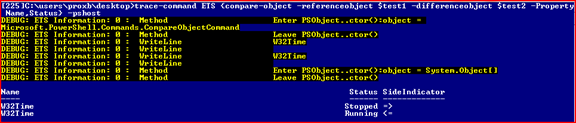
trace-command ETS {compare-object -referenceobject $test1 `
-differenceobject $test2 –Property Name,Status} –pshost

Looking at the resulting output, it appears that it is performing the compare without any issues.

image

Now, without the –Property parameter

trace-command ETS {compare-object -referenceobject $test1 `
-differenceobject $test2} –pshost

image

Well, that is interesting, it says that the current object is not comparable. Note how it takes the object and converts it into a string format System.ServiceProcess.ServiceController prior to starting the compare similar to this:

$test1.ToString()
$test2.ToString()

image

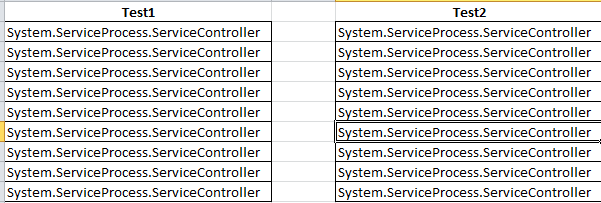
Based on this, Compare-Object sees no difference in this because both string objects are now the same name, therefore nothing is returned after running the command. Think of it as something like this:
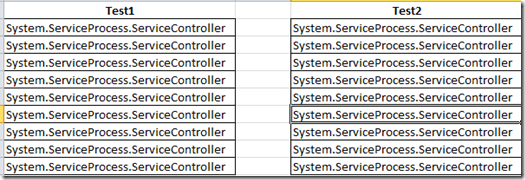
image

Can you spot the difference?

Now if there was an added service or one removed, it would show up in the compare-object as being different, but it would be pretty hard to figure out which one was different.

Lets look at one other example, this time using Get-Process just to see how using Compare-Object can work in a different case.

This time I am going to get a baseline of the current processes and then start notepad up and take another snapshot of the current processes and perform a comparison of each collection.

$processes_before = get-process
notepad
$processes_after  = get-process 
compare-object -referenceobject $processes_before `
-differenceobject $processes_after

image

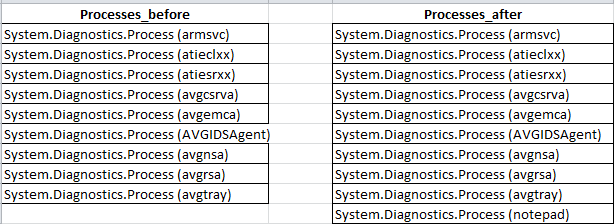
But wait, how is this possible? Shouldn’t it be the same way for the process collection as it was with the Services collection? Well, yes and no. The objects are converted to a string format much like the Service object, but in this case there is more to the string object this time around than just the name of the object.

$processes_before[0].ToString()
$processes_after[0].ToString()

image

As you can see, not only does it list the process object, but also the name of the process. Because of this,there will be a notepad object in one collection and not in the other collection.

Just for fun, lets run both this command along with a command using the –Property parameter just to see what we get.

First using the –Property parameter

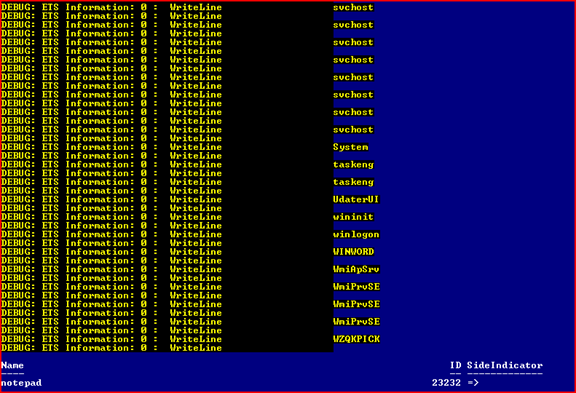
trace-command ETS {compare-object -referenceobject $ processes_before `
-differenceobject $processes_after –Property Name,ID} –pshost

image

I chose this these properties on purpose as they are static and will not change unless I actually remove the process. The output is pretty large, but if you run it you can see that it has no problem comparing these properties specified.

Now, without the –Property parameter

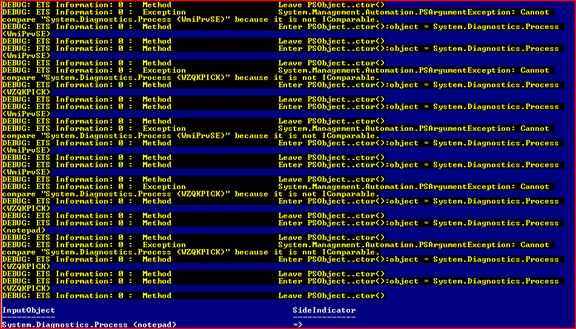
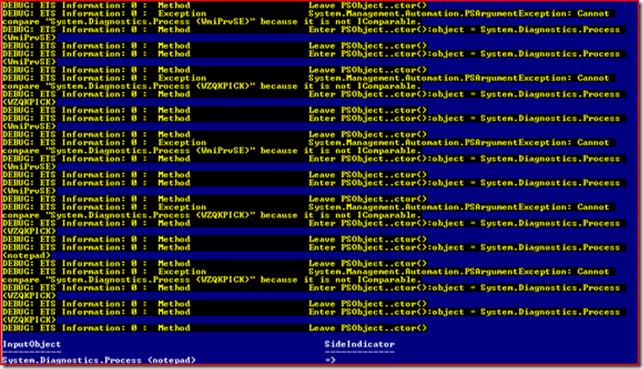
trace-command ETS {compare-object -referenceobject $processes_before `
-differenceobject $processes_after} –pshost
image

Here is again will see that it cannot compare this object as is and will convert it to a string prior to comparison. But in this case, the object has the one thing that the service object did not, a name with it that can provide a more accurate comparison of the object. Keep in mind that this only works as designed in this instance when you are only caring about tracking processes by count (baseline of running processes compared to another baseline performed later).
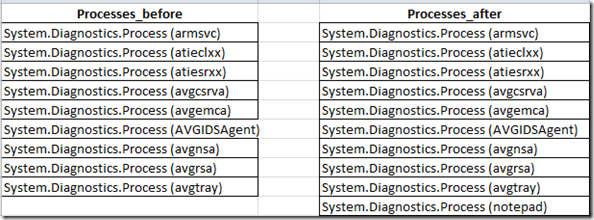
image

This will not work in other cases where you want to see changes in handles or other properties without the use of the –Property parameter.

Getting back to the services

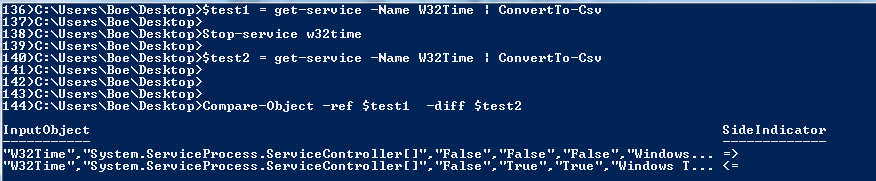
Ok, so how can we use Compare-Object without specifying the –Property parameter to see if a service had stopped since the last baseline? Well, there is one way that I found that seems to work rather well, but still has some manual checking after a difference is found. For this you have to use the ConvertTo-CSV command to make this work out.

$test1 = get-service -Name W32Time | ConvertTo-Csv
Stop-service w32time
$test2 = get-service -Name W32Time | ConvertTo-Csv
Compare-Object -ref $test1  -diff $test2
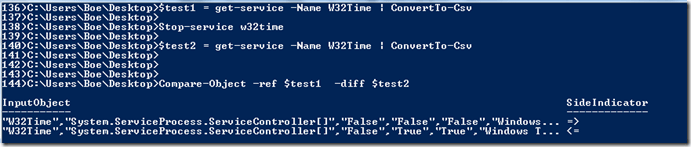
image

You will have to do some manual inspection to validate what that difference is which was registered. Of course, you could also write some code to automate this process to find the difference.

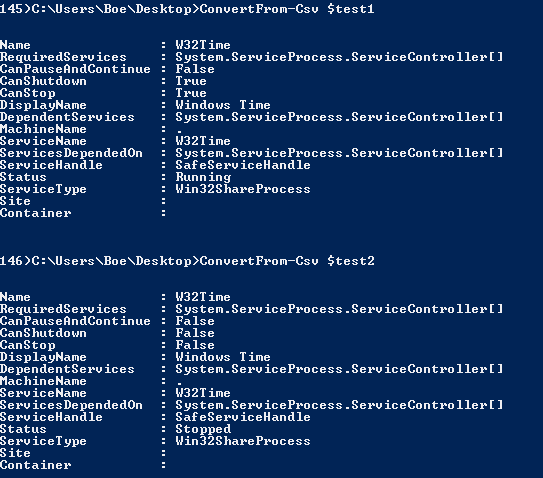
ConvertFrom-Csv $test1
ConvertFrom-Csv $test2
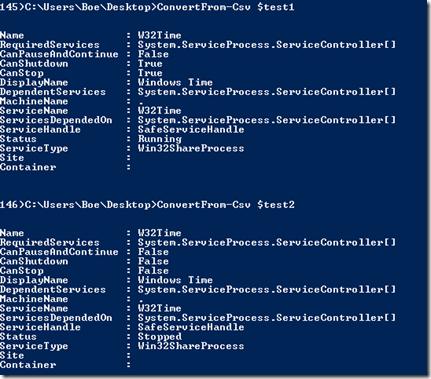
image

In this case, we can see that the service was stopped after the initial baseline.

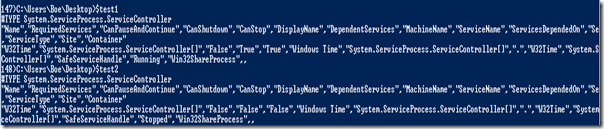
This all works because the string object is different between the baseline and the run afterwards.
image

Not exactly pleasant to the eyes, but it does work when using Compare-Object.

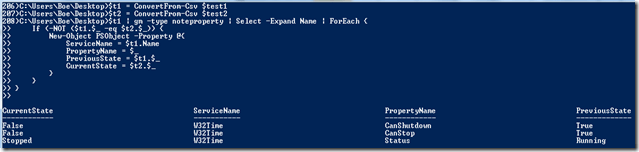
I did write a small code snippet that performs a more automated approach to this but I must stress that it is not a finished product in many ways. This is merely showing one example at achieving a more automated way of reviewing which property (or properties) have changed.

$t1 = ConvertFrom-Csv $test1
$t2 = ConvertFrom-Csv $test2
$t1 | gm -type noteproperty | Select -Expand Name | ForEach {
    If (-NOT ($t1.$_ -eq $t2.$_)) {
        New-Object PSObject -Property @{
            ServiceName = $t1.Name
            PropertyName = $_
            PreviousState = $t1.$_
            CurrentState = $t2.$_
        }
    }    
}
image

There you have it, a quick and dirty check to locate the changed properties.

So, the bottom line is if you want to compare the properties of two objects, you should use the –Property parameter to get the most accurate results.

Posted in powershell | Tagged , , , | 5 Comments

PoshWSUS 2.0 released

Actually, it is now 2.0.1 as I have fixed a couple of bugs in the module. But yes, I have finally released version 2.0 of PoshWSUS on Codeplex. Please go out there to check out all of the new features and let me know what you think. If you see any bugs, please be sure to report them on the issues page of the project.

For anyone unfamiliar with PoshWSUS, it is a PowerShell module used to managing a WSUS Server.

I actually have some Hey, Scripting Guy! articles coming out the week of January 16th that will cover using PowerShell with WSUS and also talks about using PoshWSUS 2.0. So be sure to check them out!

List of commands:

  • Add-WSUSClientToGroup
  • Approve-WSUSUpdate
  • Connect-WSUSDatabaseServer
  • Connect-WSUSServer
  • Deny-WSUSUpdate
  • Disconnect-WSUSServer
  • Export-WSUSMetaData
  • Get-WSUSChildServer
  • Get-WSUSClient
  • Get-WSUSClientGroupMembership
  • Get-WSUSClientPerUpdate
  • Get-WSUSClientsInGroup
  • Get-WSUSCommand
  • Get-WSUSContentDownloadProgress
  • Get-WSUSCurrentUserRole
  • Get-WSUSDatabaseConfig
  • Get-WSUSDownstreamServer
  • Get-WSUSEmailConfig
  • Get-WSUSEvent
  • Get-WSUSGroup
  • Get-WSUSInstallableItem
  • Get-WSUSInstallApprovalRule
  • Get-WSUSServer
  • Get-WSUSStatus
  • Get-WSUSSubscription
  • Get-WSUSSyncEvent
  • Get-WSUSSyncHistory
  • Get-WSUSSyncProgress
  • Get-WSUSUpdate
  • Get-WSUSUpdateApproval
  • Get-WSUSUpdateCategory
  • Get-WSUSUpdateClassification
  • Get-WSUSUpdateFile
  • Get-WSUSUpdatePerClient
  • Get-WSUSUpdateSummary
  • Get-WSUSUpdateSummaryPerGroup
  • Get-WSUSUpdateSummaryPerClient
  • Import-WSUSMetaData
  • New-WSUSComputerScope
  • New-WSUSGroup
  • New-WSUSInstallApprovalRule
  • New-WSUSLocalPackage
  • New-WSUSUpdateScope
  • Remove-WSUSClient
  • Remove-WSUSClientFromGroup
  • Remove-WSUSGroup
  • Remove-WSUSInstallApprovalRule
  • Remove-WSUSUpdate
  • Reset-WSUSContent
  • Resume-WSUSDownload
  • Resume-WSUSUpdateDownload
  • Set-WSUSEmailConfig
  • Set-WSUSInstallApprovalRule
  • Start-WSUSCleanup
  • Start-WSUSInstallApprovalRule
  • Start-WSUSSync
  • Stop-WSUSDownload
  • Stop-WSUSSync
  • Stop-WSUSUpdateDownload
  • Test-WSUSDatabaseServerConnection
Posted in Modules, powershell, WSUS | Tagged , , , | 14 Comments