
Introduction to PoshChat, A PowerShell Chat Client/Server

After a couple months of off and on work on this project, I can finally say that I have release my initial build of PoshChat, which is in version 0.9. This is a simple client/server chat room that allows any system to server as a chat server and allow multiple connections from different clients using the client script through port 15600. This is currently a hardcoded port, but there are plans to allow use of different ports for both the client and the server.

This article is more of an intro to using the application and does not go into the code behind the server and client. That will be talked about in a future article for each piece of code. However, I will say that I use runspaces created manually, timer objects with events that track each elapsed event, TCP listener, synced hashtables and synced queue objects to allow the relaying of messages between clients through the server.

With all that said, lets go ahead and step through using PoshChat.

Using PoshChat

First you need to download the ZIP file from the codeplex site.

image

Once the file is downloaded, go ahead and unzip the contents wherever you want.

Once, unzipped you can then decide where you want to run the server from using the Start-PoshChatServer.ps1 script to initialize the server listener. In this case, I will use my remote server, DC1 as the chat server.

image

Once started, the console will clear showing that the server has started.

image

From here, the server will begin listening for incoming connections from other clients. Now I will start up 4 clients on my laptop and connect to the server.

1..4 | ForEach {.\Start-PoshChatClient.ps1}

I type in my username and specify the server that I want to connect to and click connect.

image

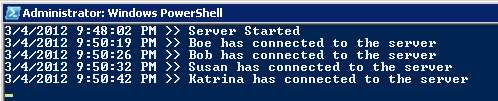
After I do this with each client, I now have 4 connected clients to my remote server.
image

image

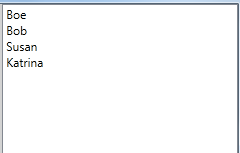
Something that I wanted to make sure was available and working with the clients in my initial release was to show the online clients connected to the server from the chat client.
image

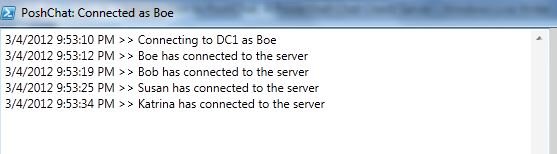
Also, you can see when others join the chat room in the main message window.
image

Sending messages is as simple as typing in a message in the input box and clicking send:

image

Everyone connected to the server will receive the message.

image

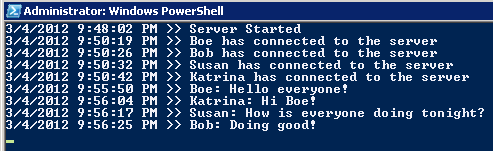
You can also see sent messages from the server.
image

To leave the chat, simply close the chat window. There will be a disconnect button coming in a future release of this project.

When a user leaves the chat room, others will receive notification of this and the list of connected users will update accordingly.

image


Future Release Plans

This project is far from complete as I have many plans for updating this to include new features and bug fixes. Some notable updates have planned include:

  • Disconnect button
  • Minimize window
  • Encrypt/decrypt messages when sending
  • Code optimizations
  • Select ports for server listener and client connections
  • More to come as I think of them and what others would like to see

I welcome all bug findings and feature requests and ask that you direct those to the Issue Tracker on Codeplex found here.

As I mentioned at the beginning of the article, I will write 2 more articles detailing what I did with the client and server code to make this possible. I did learn some cool tricks while writing this and definitely want to share these with everyone else!

Enjoy!

Posted in Modules, powershell, scripts | Tagged , , , | 4 Comments

Working With Custom Types of Custom Objects In PowerShell

Building custom object with PowerShell is a great way to quickly put together output for use with reporting or pipelining into another cmdlet.  It is also very simple to put together a quick object such as this:

$Object = New-Object PSObject -Property @{
    Name = 'Boe'
    Country = 'USA'
}
$Object

image

Now lets look at the Type of the object.

$Object | Get-Member

image

As you can see, the object type is System.Management.Automation.PSCustomObject which is a default type when creating a custom object using the New-Object PSObject method.

What you may know is that there is one of 5 hidden member sets that you can view:

pstypenames                                                                   
psadapted                                                                     
psbase                                                                        
psextended                                                                    
psobject

The only one that I will be talking about here is the pstypenames code property.

Looking at the pstypenames code property of $Object we can see 2 different types in the collection:

System.Management.Automation.PSCustomObject
System.Object

The types in the collection are in an inheritance order, meaning that the PSCustomObject  would be first in line for any type formatting that is specified in an PS1XML file. A better example would be to look at the pstypenames collection from a process object.

$proc = Get-Process -Name PowerShell
$proc.pstypenames

System.Diagnostics.Process
System.ComponentModel.Component
System.MarshalByRefObject
System.Object

In this example, the System.Diagnostics.Process type is at the top of the inheritance chain, thus why you see the specific output when viewing the properties of the $proc variable via Format-List and Format-Table (default view).

Back to working with the pstypename code property.

Lets look at the type of methods we can use with this code property:

$Object.pstypenames.psbase | Get-Member -Type Method

image


This allows us to do one of the following things:

  • Clear all typenames associate with the custom object
  • Insert a custom typename anywhere within the current collection of  typenames
  • Add a custom typename to the bottom of the stack;not really useful if you have other typenames above it

For fun, lets clear out the typenames for the process and see what happens.

$proc.pstypenames.clear()
$proc

image

Now that is a lot of information. Not exactly what you are used to seeing as a default view for processes. This is because we have removed all types associated with this object. Now this only applies to this specific object, if I were to run Get-Process again, the results would be back to the normal view we are used to seeing.

Lets use the Add() method to add a custom type to my custom object now.

$object.pstypenames.Add('System.Example.Custom')
$object.pstypenames

image

As you can see, the custom type was added at the bottom of the stack, this means that it would be the last in line for any kind of formatting. It becomes more clear when you use Get-Member:

$object | Get-Member

image

How can we overcome this? Simple, we can use the Insert() method and specify the top of the stack to place our custom type on.

$object.pstypenames.Insert(0,'System.NewCustomType.Example')
$object.pstypenames

image

Looking at the object using Get-Member, we will also see that my type I inserted is now considered to be the main type on this object.

$object | Get-Member

image

That looks a lot better now. If we were using a format file against this type name, it would apply to this object based on what we defined in the file.

So far you have seen me use New-Object with a hash table to create a custom object and set up the custom type names, but that doesn’t mean it is the only way to accomplish this. You can also use Select-Object to set up a custom object and still set a custom type on it as well.

$test = "" | Select Name, Title
$test.Name = 'Boe'
$Test.title = 'System Administrator'
$test

image

Currently, it is being registered as a string, which is not too exciting by any means. We can easily switch that up to something a little better.

$test.pstypenames.insert(0,'System.Example.StringObject.Custom')
$test.pstypenames

image

$test | Get-Member

image

We have now updated the type of this object to something other than being a string.

The last thing to remember is just because to update the type of an object, it does not become the object. For example, I cannot turn this into a hashtable magically with all of the associated methods.

$test.pstypenames.insert(0,'System.Collections.Hashtable')
$test.pstypenames
$test | Get-Member

image

Looks like it might be a hashtable looking at the typename, but the methods do not lie. This is not what it claims to be.

So there you go! You can now get started on creating your own objects and adding your own custom object types!

Posted in powershell | Tagged , , , | 2 Comments

Use Regular Expressions to Audit the Printer Name and IP Address from Event Logs

I came across this question in the PowerShell forums earlier today that asked how to pull the printer name and associated IP address from the Print Server logs in the System log (Event Id 10).  The first thing I thought was, this sounds like a simple job for Regular Expressions!  An important thing with using regular expressions is that you need to know exactly what it is you are trying to match. As regular expressions can quickly grow more complex than required, it is important to try and keep it as simple as possible. And because I have been working on another project, I really haven’t had the time to put a blog together recently and this sounded like something fun to write about and share with everyone.

With that in mind, I am not a regular expression expert, but I am capable of using them to gather the data that I need when necessary.

With that, this is the message in the event log that we need to pull the data from using regular expressions:

Document 158, wordDocument.doc owned by user1 was printed on PRI-A100-HPCLJ4600 via port IP_192.168.1.4. Size in bytes: 748288; pages printed: 1

The data needed out of the log is the Printer name and the IP address of the printer. The solution that I provided via regular expressions is below:

“(?<Printer>(?:\w+-){2}\w+) via port IP_(?<IPAddress>(?:\d{1,3}\.){3}\d{1,3})”

Lets break down what is going on with the regular expressions:

Printer Name

(?<Printer>(?:\w+-){2}\w+)

This is a very specific match for the printer name. I know that my printer naming standard will always follow this guidance. If a printer had an extra character or pattern of any kind, it would like fail that portion of the match.

(?<Printer>)

By using the parenthesis, anything that fits inside the () is a grouped match. By adding the ?<Printer>, we have created a named capture that is accessible by looking at the $Matches.

Here is a quick example showing a named capture:

"555-5555" -match "(?<PhoneNumber>\d{3}-\d{4})"
$Matches

image

(?:\w+-){2}\w+

Again, we are using the () to specify a group. The \w matches a letter, number and underline and by including the “+”, we are saying that 1 more characters can be matched. The “-“ is a literal item that is matched. Now that we have the a group, we want to match 2 instances of the grouped match by specifying {2}. Lastly, I want to match 1 more or characters of the remaining part of the printer name using \w+. By adding the “?:” right after the opening parenthesis, I am saying that I want to exclude this group from being captured in the regular expression.

Here is a quick example of using the ?:, first without it:

"555-5555" -match "(\d{3})-(\d{4})"
$Matches

image

Here you see that not only is the whole set of numbers is being matched, but also everything that is in both of the parenthesis as well.

Now lets use the ?: to remove the matched groups and only show the whole number:

"555-5555" -match "(?:\d{3})-(?:\d{4})"
$Matches

image

Now only the whole number set is showing up in the $matches.

IP Address

via port IP_(?<IPAddress>(?:\d{1,3}\.){3}\d{1,3})

Now to match the IP address from the event log.

via port IP_

This is pretty self explanatory. We need to match up to this point before we can start pulling the IP address. Since this will not change at all, I chose to leave it as just the literal text.

(?<IPAddress>)

Again, another named capture for the IPAddress.

(?:\d{1,3}\.){3}\d{1,3})

Here we have the complete matching group for an IP address. Note that this is a very generic pattern for matching an IPv4 address. It is assumed that since the IP address for the printer has to be legal, otherwise there would be a more complex regular expression used to not only match an IP, but to match a legal IP at that.

The \d matches a number and as we saw earlier, the {1,3} will match between 1 to 3 instances of a digit. We do have to escape the “”.” using a backslash as a “.” in regular expression means to match any single character.  We finish up the group match by looking for 3 instances of that grouped match using {3} which covers the first 3 octets. We finish up with another \d{1,3} to match the last octet of the IP address.

Wrapping up

Putting all of this together allows us to pull the printer name and associated IP address from the specified event log.

When run in the PowerShell console, you can see that it does indeed pull the information that we were looking for.

$String = "Document 158, wordDocument.doc owned by user1 was printed on PRI-A100-HPCLJ4600 via port IP_192.168.1.4. Size in bytes: 748288; pages printed: 1"
$pattern = "(?<Printer>(?:\w+-){2}\w+) via port IP_(?<IPAddress>(?:\d{1,3}\.){3}\d{1,3})"

$string -match $pattern
New-Object PSObject -Property @{
    Printer = $Matches['Printer']
    IP = $Matches['IPAddress']
}

image

Posted in powershell, scripts | Tagged , , , | 1 Comment

Guest Blogger on Hey, Scripting Guy! Talking SCOM and PowerShell Agent Reporting

Today I have another guest appearance on Hey, Scripting Guy!, this time talking about using PowerShell and the existing SCOM SnapIn to audit for SCOM Agents and provide reporting on agent installation successes and failures. Hope you enjoy it!

http://blogs.technet.com/b/heyscriptingguy/archive/2012/02/13/use-powershell-to-automate-scom-agent-installations.aspx

Posted in News, powershell, scripts | Tagged , , | Leave a comment

Turn Your PowerShell Console Title Bar Into A RSS/Weather Ticker

Something fun that I have been working on was a way to utilize the PowerShell console title bar for something other than just displaying a static message and then it hit me that the title bar would make an excellent automatically updating ticker for RSS feeds or even display the current weather conditions outside. After a little bit of time of figuring out the best way to accomplish this task, I was able to come up with a way to display a title ticker without preventing you from using the console and to also self update itself with new information to display like the image below.

image

[Update 29Jan2012] Modified some code to allow use in the ISE. Replaced [console]::title with $host.ui.rawui.windowtitle

RSS Ticker

First thing I need to do is get the RSS data from a news source, in this case, I am using Google News as my source. Using the following code, I will create a Webclient object and download the site and cast the type to XML. I won’t show every piece of code that I use in my modules but will try to show the important pieces that make it work.

$Rssurl='http://news.google.com/news?pz=1&cf=all&ned=us&hl=en&output=rss'
$Webclient = new-object net.webclient 
$Webclient.UseDefaultCredentials = $True
$rss = [xml]$Webclient.DownloadString($Rssurl)

Now that I have the data as an XML object, I can then drill down to the actual data I need to look at the RSS feeds.

$rss.rss.channel.item | Select Title,PubDate

image


Now this is fine, but I want to make this into a function so I can re-use it later on. So I make a function called Get-RSSFeed that I will reference later on in this article.

Continuing on I still need to configure a timer that will kick off a specific action such as calling a function and updating the title bar in  PowerShell console.

First, I will create a timer object and set it to go off every 20 seconds.

    $timer = new-object timers.timer
    $timer.Interval = 20000 #20 seconds
    $Timer.Enabled=$True

I now need to configure an action script block that I can supply to run each time the Interval is reached using Register-ObjectEvent.

    $action = {
            $i++    
            If ($i -lt ($Rss.count -1)) {
                $host.ui.rawui.windowtitle = "{0} -- via PowerShell RSS" -f ($Rss[$i].Title)
            } Else {
                $Global:RSS = Receive-Job -Name RSS | Sort PublicationDate -Descending | Get-Unique -AsString | 
                Select PublicationDate,Title,Link
                $i=0            
                $host.ui.rawui.windowtitle = "{0} -- via PowerShell RSS" -f ($Rss[$i].Title)
            }
    } 

   Register-ObjectEvent -InputObject $timer -EventName elapsed `
   –SourceIdentifier  RSSTimer -Action $action | Out-Null
    
   $Timer.Start()

I have now defined my action block and registered the object event to go off each time the interval is reached. And I have also started the timer using the Start() method. When the timer object reaches the interval, the object event I created will kick off and run the action block in the background without causing any issues with my continued use of the PowerShell console.


You have undoubtedly noticed the Receive-Job that I have nested in the script block. The background that job that I use consists of just a few lines of code, but allow me pull the data I need without getting in the way of what I am doing on the console. Here is the code I use to set up the background job:

    Start-Job -Name RSS -ScriptBlock {
        Param ($Rssurl='http://news.google.com/news?pz=1&cf=all&ned=us&hl=en&output=rss')
        While ($True) {
            $feed = Get-RSSFeed -Rssurl $Rssurl            
            Write-Output $feed
            #Wait
            Start-Sleep -seconds 180
        }
    } -ArgumentList $Rssurl -InitializationScript $GetRSSFeedsb | Out-Null

The  key takeaways from this code are that I only poll for RSS feeds every 3 minutes and you will also see that I am calling my Get-RSSFeed function from the job. But how is this possible when the function is existing only in memory outside the scope of the background job? Take note of the –InitializationScript parameter for the Start-Job cmdlet as that is the key to loading my function into the background job.

As shown in the code below, I pull the code from the function and then re-add it into a script block making sure to name the function.

$GetRSSFeed = (Get-Command Get-RSSFeed).definition
$GetRSSFeedsb = [scriptblock]::Create(
    "Function Get-RSSFeed {$GetRSSFeed}"
)

The –InitializationScript  parameter is used to configure my job session and by adding the new script block containing the function, it then loads that function into memory for the background job that I can now use. It is a pretty handy little trick I found while working on another script.

Module In Action

Lets see this in action now and start showing some Google News RSS feeds on the title bar!

Import-Module .\RSSTickerModule.psm1
Start-RSSTitleTicker -Rssurl 'http://news.google.com/news?pz=1&cf=all&ned=us&hl=en&output=rss'


image

Now lets wait the 20 seconds that I defined and watch as the title bar updates automatically.

image

Weather Title Ticker

I also wrote a similar module for displaying the current weather. While the idea is exactly the same as the RSS ticker, there are some differences in how I pull the weather and how often it updates. Not really enough to go into here, but if you review the code in the module, you will see what I mean. But lets see it in action:

Import-Module .\WeatherTicker.psm1
Start-WeatherTitleTicker -ZipCode 68123

image

Yea, it’s a little chilly.  This will auto-update every 5 minutes and pull down updated weather information (if it has been updated by Yahoo Weather) and display it on the console title bar.

Downloads

You can download both of these modules by clicking on each link.

WeatherConsoleTickerModule

RSSConsoleTickerModule

In Closing

I think this is really just the beginning of some cool things that you can use the console title bar for to display automatically updating data such as the RSS feeds and Weather forecast. I could see displaying sports scores, twitter feeds among other things. I am curious as to what everyone else can come up with using this or a similar technique.

Posted in Modules, powershell, scripts | Tagged , , , , , | 10 Comments
