

I’m talking about using Windows Presentation Foundation (WPF) to build a clock widget. Something a little fun this time around  and I also have another PowerTip as well. Check them out and let me know what you think!
I’m talking about using Windows Presentation Foundation (WPF) to build a clock widget. Something a little fun this time around and I also have another PowerTip as well. Check them out and let me know what you think!
In case you missed it, Windows Management Framework V5 Preview was released to the public today. One of the big things that this brings to the table is the OneGet module. What this module does is allow you to find and download packages from other shared repositories (in this case Chocolatey is the only one available at this time) and install those to your systems.
By the way, if you have any bug reports or feature request, the appropriate avenue to take is to log it on their codeplex site: https://oneget.codeplex.com/workitem/list/basic
First, let’s take a quick look at all of the available commands within this module.
Get-Command -Module OneGet

I’ll step through each of these cmdlets and provide examples (if applicable) of what they do. Note that there are currently no help documentation for this just yet. But there will be before the final release.
Get-PackageSource
This cmdlet will show all available sources that you can query for packages to download and install. In this case, only Chocolatey is available at this time.
Get-PackageSource

Note that this is not currently trusted.
Find-Package
This is the cmdlet that will help you to find a package on any of the available package sources. Run it without any parameters and you will get back a lot of packages.

There are quite a few parameters that you can use for filtering for names, version,etc…

Let’s go ahead and search for one package that we can then install.
Find-Package -Name Sysinternals

You can find out more about this package source under C:\Chocolatey

Install-Package
I know what I want from the source, now I want to install Sysinternals on my system. For that, I will use Install-Package to make this happen. There are quite a few parameters available here based on what you need to do.

I am going go the simple route with my installation and not use any of the parameters and just pipe the results of Find-Package into Install-Package.
Find-Package -Name Sysinternals |
Install-Package -Verbose

Remember what I said earlier about this source not being trusted? Well, here is where that comes into play. You will be asked if you want to continue with the installation of the package. This goes along the lines of always make sure you know what you are installing and if you truly trust the source of the package. In this case, I will go ahead and continue on with the installation.

Because I specified a Verbose stream, I can see all of the action happening behind the scenes from the download to the installation of the package. If successful, you will see the output object showing it as being installed.
I want to install at least one more package, but this time I am going to change my trust on the chocolatey provider so I won’t get that prompt again. Only do this if you no kidding trust the provider!
Add-PackageSource -Name chocolatey `
-Location http://chocolatey.org/api/v2 `
-Provider chocolatey -Trusted -Verbose

You could also edit the Chocolatey.config file and change the value of Trusted=”True”
Find-Package -Name Putty |
Install-Package -Verbose

Note that there was no prompt this time for confirmation to download and install this package. You can also see how it downloaded and installed a dependent package as well.
You can explore the location of the packages under the C:\Chocolatey\lib folder.

For a more UI approach, try this:
Find-Package | Out-Gridview -PassThru |
Install-Package -Verbose

Be patient with this as it may a minute to load everything up (this is going through the pipeline after all), so if you attempt to do anything before it finishes, it will cancel and nothing will show up to install.
7Zip looks like a good install here to choose.

Just in case you may not believe that it is actually installed yet…..:

Get-Package
By itself, this will show all installed packages on your local machine.
Get-Package

Not many parameters available for this cmdlet.

Not much to this one. If I want to find just a specific package, I can use one of the parameters to filter for it. Wildcards will not work here though, so if you want to find more than one package with a similar name, just don’t type a full name.
Get-Package -Name Putt

Uninstall-Package
This package does exactly what it says, it uninstalls a locally installed package on your local system.

In this case, I will remove Putty from my system. Actually, I want to remove both instances in this case.
Get-Package -Name Putt |
Uninstall-Package

And it is done! This was actually very fast.
Just like my other example, this provides a great UI approach as well.
Find-Package | Out-Gridview -PassThru |
Install-Package -Verbose

Remove-PackageSource
This cmdlet is pretty self explanatory.

For the sake of showing an example, I am going to remove my only source and the re-add it again (you saw this earlier when I use Add-PackageSource to change the IsTrusted property).
Remove-PackageSource -Name chocolatey

Don’t be alarmed by the verbose output saying that it is creating a folder and saving a config file. This is just updating the package source config file to show that there are no package sources available now. Digging into the config file, you will see that it no longer has any information in it related to the chocolatey package source.
We can verify that we have no sources now using Get-PackageSource.

Now let’s re-add this in so I don’t get in trouble.
Add-PackageSource
Here we…add a package source that we know about so we can access the remote packages.

| Name | The name of the package source |
| Location | This is the url or folder path of the repository hosting the packages |
| Provider | This is the type of provider (Only Chocolatey is supported at this time) |
| Trusted | Determines if this site is to be completely trusted. |
I will be using every parameter here (excluding the common ones of course). I want this to be trusted so I will use the –Trusted switch.
Add-PackageSource -Name chocolatey -Provider chocolatey `
-Trusted -Location http://chocolatey.org/api/v2/ -Verbose

A quick check of the config file shows that our beloved chocolatey source is now back available to use to use. Now to verify with Get-PackageSource.

Perfect! Our source has made its return! It will be more interesting to see how this will integrate with sources in an internal organization once we get more documentation. Also note that this does not verify that the source actually exists and is reachable. It only adds source to the config file.
Add-PackageSource -Name Fail `
-Location http://shouldnotwork `
-Provider Chocolatey -Trusted -Verbose

Working with a local repository
After a little research and work, I was able to stand up my own Nuget server to host an internal repository. You can find exactly what you need to do to install the server here. Seriously, do what it says and you will be just fine.
Once that was done, I needed to some packages to test out. There is this link that will help to create packages, but I was feeling a little impatient and used a couple of packages that I had already available from my previous installs.
In short, I now had a server and a couple of packages to use. First I created my package source.
Add-PackageSource -Name localrepo `
-Location http://localhost:50674/nuget/ `
-Provider Chocolatey -Trusted -Verbose

Verify the source shows up and then check for available packages.
Get-PackageSource
Find-Package -Source localrepo

Lastly, I need to install a package.
Find-Package -Source localrepo -Name sysinternals |
Install-Package -Verbose
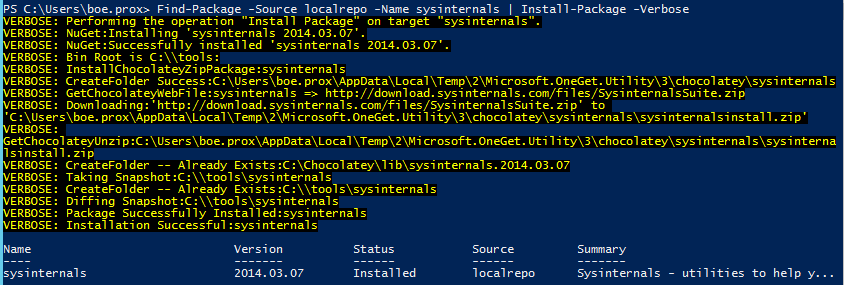
Now we have a local repository that works great with OneGet!
And with that, we have gone through a simple walkthrough of all of the available cmdlets that OneGet has to offer at this time. Enjoy the latest release!
Today begins my 5 day guest spot on Hey, Scripting Guy! talking about Remote PowerShell Endpoints. I am also doing the Power Tips as well during this week, so be sure to check those out as well! As always, let me know what you think of these and I hope you enjoy them!
I have a two day guest spot on Hey, Scripting Guy! talking about finding and using File Signatures to identify file types. Be sure to check them out and let me know what you think!
Links to both blog posts will be below.
The power of Trace-Command is amazing to help troubleshoot a command or to gain better insight into what goes on behind the scenes when a command or commands are running.
What you may or may not know is that any of the cmdlets/functions that have the Get verb can actually be run without the “Get-“ prefix. Well, all with the exception of Get-Process because if you just use Process, it will throw an error because if is a Keyword used with Begin,Process and End. Still don’t believe me, check this out!
Acl
Date
ChildItem

Ok, so what exactly is happening here? From here, we really can’t see what is going on, but obviously something must be happening as these are not aliases and I cannot find this using Get-Command (or Command; see what I did there  ).
).
The answer lies in Trace-Command, something that I have talked about in the past when it comes to looking at what is happening behind the scenes with different commands to troubleshoot various issues. While this isn’t an ‘issue’, it certainly falls along the lines of ‘what is happening here’ and Trace-Command does a fine job of showing me just that.
First I need to figure out exactly what traces I need to use with Trace-Command. This can be accomplished by looking at Get-TraceSource and picking whichever one seems to fit my needs.
Get-TraceSource |
Format-Wide -Property Name -Column 3

In this case, I need to look at using CommandDiscovery as the means to find out why I do not really need the Get- in my Get-* commands.
Ok, now that I know this, I can run Trace-Command and look at what happens when I just use Acl vs. Get-Acl.
Trace-Command -Name CommandDiscovery -Expression {Acl} -PSHost
Expect a bunch of Debug output to flood your screen. The notable spots will be featured below.

The command cannot be found as a cmdlet, so it is now beginning to look up the command in other places, such as in the $Env:Path and then begins looking at the System32 folder using Acl with all extensions using all paths under Env:Path.
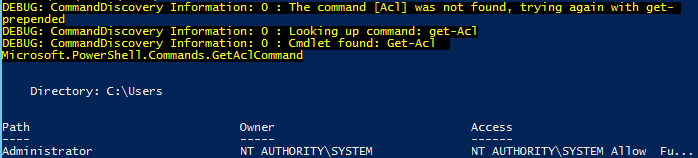
Eventually, it will run out of possible places to look for Acl and trying to plug all types of extensions to it and will then prepend Acl with Get-. Once it does that, the process begins yet again. This time it very quickly finds Get-Acl and proceeds to run the command.
What happens if we run the trace using Get-Acl?

We get exactly the same thing that we saw at the last part of the trace with Acl. Note that running any Get- command without the Get- will work with the exception of Process (as I mentioned earlier) and this includes any functions that you have created.

So there you have it. Another mystery solved by Trace-Command! While the output can be a little much, this command can really help out when you are trying to figure out what a command is not behaving like you think it should.

 Learn Powershell | Achieve More