Working With New CmdletBinding Arguments HelpURI,SupportsPaging and PositionalBinding In PowerShell V3

With PowerShell V3 out (still in Beta), there are some new things with the CmdletBinding that includes the following items:

  1. HelpURI
  2. SupportsPaging
  3. PositionalBinding

Each of these has their own specific uses and I will dive into each one to show you an example for each of these and give a explanation. Still available are the other items such as SupportsShouldProcess, DefaultParameterSetName and ConfirmImpact, but I will not be going into these today.

HelpURI

The HelpURI basically allows you to specify a URI (Uniform resource identifier) that can be used to point to more help documentation about the cmdlet/function by using the following command:

Get-Help <function> –Online

Note that this is an internet address and will open up a web browser to go to the specified location. If you have Comment Based help added (and why wouldn’t you Smile ) and have the .Link specified with an URI for help, then it will take precedence to whatever is being used with the cmdletbinding HelpURI.

First lets look at using this new feature with just the HelpURI specified:

Function Get-Something {
    [CmdletBinding(
        HelpURI='http://google.com'
    )]
    Param (
        [parameter(ValueFromPipeLine=$True)]
        $Data
    )
    Begin{}
    Process{Write-Output $Data}
    End{}
}

Get-Help Get-Something -Online

By doing this, Google.com will open up in your web browser. Now lets add the .Link and a different URI and watch what happens.

Function Get-Something {
    <#
        .LINK
            http://Learn-PowerShell.net
    #>
    [CmdletBinding(
        HelpURI='http://google.com'
    )]
    Param (
        [parameter(ValueFromPipeLine=$True)]
        $Data
    )
    Begin{}
    Process{Write-Output $Data}
    End{}
}

Get-Help Get-Something -Online

Now when you use the –Online switch, it opens up to my blog homepage instead of Google.com. Something good to know if you are specifying a help URI in both of these places and to know which one takes precedence over the other.

SupportsPaging

This new argument with cmdletbinding allows you to add the following parameters to manage the output of data or to display a total count:

  • -IncludeTotalCount
  • -Skip
  • -First

Each of these will not just work on its own just because you set the SupportsPaging to $True. Some extra work is required on your part to make it work as needed.

IncludeTotalCount

We can first test for the use of –IncludeTotalCount with $PSCmdlet.PagingParameters.IncludeTotalCount and then determine the type of accuracy that will be used for the TotalCount:

  1. 1.0
    1. Some data sources might have the exact number of results retrieved and in this case would have accuracy 1.0
  2. 0.0 – 1.0
    1. Some data sources might only have an estimate and in this case would use accuracy between 0.0 and 1.0
  3. 0.0
    1. Other data sources might not know how many items there are in total and in this case would use accuracy 0.0

Knowing that we now need to apply some data to the $PSCmdlet.PagingParameters.NewTotalCount(<totalcount>,<accuracy>) which will then print out the total count.

Let’s see this in action:

Function Get-Something {
    <#
        .LINK
            http://Learn-PowerShell.net
    #>
    [CmdletBinding(
        SupportsPaging = $True
    )]
    Param (
        [parameter(Position=0)]
        $Data
    )
    Begin{}
    Process{

    }
    End{
        If ($PSCmdlet.PagingParameters.IncludeTotalCount){
            [double]$Accuracy = 1.0
            $PSCmdlet.PagingParameters.NewTotalCount($Data.count, $Accuracy)
        }
    }
}

Get-Something -Data (Get-ChildItem C:\Windows\System32) -IncludeTotalCount

image

Skip and First

For –Skip and –First, there is (yes, you guessed it!) more work that is required to actually make this work like we want it to.

When you specify –Skip, you set the value of $PSCmdlet.PagingParameters.Skip to the specified value. The same goes with –first and $PSCmdlet.PagingParameters.First.

After that there is math involved to make sure that we get the accurate numbers for the first set of data all of the way to the last set of data. I make use of the [Math]::Min() method to make sure that we only get the data that we need and to not go over, especially in the case of the .First which is set to 18446744073709551615 by default. I also have to make sure that if the –Skip goes beyond the total count of items, that nothing is returned by the command.

The function I will be using is here:

Function Get-Something {
    <#
        .LINK
            http://Learn-PowerShell.net
    #>
    [CmdletBinding(
        SupportsPaging = $True
    )]
    Param (
        $Data
    )
    Begin{}
    Process{

    }
    End {
        If($Data.count -gt 0) {
            If($PSCmdlet.PagingParameters.Skip -ge $Data.count) {
                Write-Verbose "No results satisfy the Skip parameters"
            } Elseif($PSCmdlet.PagingParameters.First -eq 0) {
                Write-Verbose "No results satisfy the First parameters"
            } Else {
            $First = $PSCmdlet.PagingParameters.Skip
            Write-Verbose ("First: {0}" -f $First)
            $Last = $First + 
                [Math]::Min($PSCmdlet.PagingParameters.First, $Data.Count - $PSCmdlet.PagingParameters.Skip) - 1    
            }
            If ($Last -le 0) {
                $Data = $Null
            } Else {
                $Data = $Data[$First..$last]
                Write-Output $Data            
            }
            Write-Verbose ("Last: {0}" -f $Last)
        }
        If ($PSCmdlet.PagingParameters.IncludeTotalCount){
            [double]$Accuracy = 1.0
            $PSCmdlet.PagingParameters.NewTotalCount($Data.count, $Accuracy)
        }
    }
}

Lets start by finding the first 10 items in C:\Windows\System32:

Get-Something -Data (Get-ChildItem C:\Windows\System32) -First 10

image

We already know from earlier that there are 2783 items under this folder, so lets skip all of the way to the last 10 by skipping 2773 items.

Get-Something -Data (Get-ChildItem C:\Windows\System32) -Skip 2773

image

We can actually combine all 3 to really narrow down the data:

Get-Something -Data (Get-ChildItem C:\Windows\System32) `
-First 15 -Skip 50 -IncludeTotalCount


image

Pretty cool stuff, isn’t it? We are able to combine all three to look at the first 15 items after skipping the initial 50 and then see the total count of items as validation of actually looking for the first 15.

PositionalBinding

This argument of cmdletbinding is actually set to $True by default meaning you don’t have to use it if you are planning on allowing positional parameters. If for some reason, you do not want to allow positional parameters, then you can set it to $False. Also note that this setting can be overwritten if you specify parameter positions using the [parameter(Position=n)] argument.

First lets see it by default:

Function Get-Something {
    <#
        .LINK
            http://Learn-PowerShell.net
    #>
    [CmdletBinding( )]
    Param (
        [parameter()]
        $Data,
        [parameter()]
        $Data1,
        [parameter()]
        $Data2,
        [parameter()]
        $Data3
    )
    Begin{}
    Process{
        Write-Output ("Data: {0}" -f $Data)
        Write-Output ("Data1: {0}" -f $Data1)
        Write-Output ("Data2: {0}" -f $Data2)
        Write-Output ("Data3: {0}" -f $Data3)
    }
    End{}
}

Get-Something 1 2 3 4

image

As you can see, it works like a champ and processes each parameter without having to name it. But now lets set the PositionalBinding to $False and watch what happens:

Function Get-Something {
    <#
        .LINK
            http://Learn-PowerShell.net
    #>
    [CmdletBinding(
        PositionalBinding = $False
    )]
    Param (
        [parameter()]
        $Data,
        [parameter()]
        $Data1,
        [parameter()]
        $Data2,
        [parameter()]
        $Data3
    )
    Begin{}
    Process{
        Write-Output ("Data: {0}" -f $Data)
        Write-Output ("Data1: {0}" -f $Data1)
        Write-Output ("Data2: {0}" -f $Data2)
        Write-Output ("Data3: {0}" -f $Data3)
    }
    End{}
}

Get-Something 1 2 3 4

image

Here you can see that we can no longer use positional parameters with the function, only ‘Named parameters’ can be used with the positionalbinding disabled. As I mentioned earlier, even if you have the argument set to $False, you can still have positional binding if you set each parameter argument to have a position as seen below:

Function Get-Something {
    <#
        .LINK
            http://Learn-PowerShell.net
    #>
    [CmdletBinding(
        PositionalBinding = $False
    )]
    Param (
        [parameter(Position=0)]
        $Data,
        [parameter(Position=1)]
        $Data1,
        [parameter(Position=2)]
        $Data2,
        [parameter(Position=3)]
        $Data3
    )
    Begin{}
    Process{
        Write-Output ("Data: {0}" -f $Data)
        Write-Output ("Data1: {0}" -f $Data1)
        Write-Output ("Data2: {0}" -f $Data2)
        Write-Output ("Data3: {0}" -f $Data3)
    }
    End{}
}

Get-Something 1 2 3 4

image

In Conclusion

So with that, we have now looked at the new features in the CmdletBinding() attribute that is with PowerShell V3 and shown how they can be put to use. While the HelpURI and the PositionalBinding can be over-ruled in other areas, it is still nice to see that they can be configured anyways in a different location.

Please remember that with this being a Beta still, things can and possibly will change by the time the final product is release later this year. But by all means hop onto the V3 train and try out all of the cool new things that come along with it.

Enjoy!

Posted in powershell, scripts, V3 | Tagged , , , , , | 1 Comment

PoshPAIG 2.0.1 Released

image

My latest release of PoshPAIG includes some new features such as:

  • New UI Design to make it look cleaner
  • More reporting options
  • Keyboard shortcuts
  • Check for stopped services set to Automatic
  • Options window to change some basic settings

image

I have plans for more updates to make this even better such as:

  • Changing the PSJobs to runspaces for performance increases when running actions
  • Make the report UI more flexible to allow service starts
  • various bug fixes/feature requests
  • Allow for downloading and installing of patches for systems that use Windows Update instead of WSUS servers
  • Optional credentials (for psexec) to handle non-domain systems

Give it a download and let me know what you think!

Posted in GUI, Modules, powershell | Tagged , , | 1 Comment

Using Background Runspaces Instead of PSJobs For Better Performance

In my previous article, I showed you a function to query remote servers for their network information using background runspaces to speed things up. To follow up on that article based on some questions and comments I received from that article, I am going to show you why I made the decision to use background runspaces to handle the processing of each query instead of using PSJobs such as Start-Job.

This is not meant to be a deep dive into the PSJob architecture or into creating your own runspaces, but merely to show you the benefits of using the runspaces for better performance.

With that said, I am not against using PSJobs at all. PowerShell jobs are a great addition to V2 (and V3, of course) and help greatly with running other tasks in the background while still freeing up the console for other uses as well as running many jobs in parallel against several systems.  There is overhead (object serialization, new process created which means your system has to allocate memory and processor resources for it) though when you run a background job using the PSJobs in starting the job, stopping the job and retrieving the output from the job (if applicable). Another big thing is that there is no throttling mechanism at all with background jobs unless you write your own.

I find myself using background runspaces more lately because you do not have to worry about another process (or processes), no serialization of data is required and you can specify throttling of the runspaces via the runspacepool. Another thing I like is the ability to share variables across runspaces.

PowerShell MVP Dr. Tobias Weltner put together a great webcast that provides a nice presentation of not only the use of PSjob and runspaces, but some other things to help improve the performance of your code. I recommend checking it out.

One of his examples shows just how much overhead is involved with just a single background job which fits right in with how I want to start this out and I do not wish to re-invent the wheel on something that is already a great example. Lets check it out:

# (C) 2012 Dr. Tobias Weltner
# you may freely use this code for commercial or non-commercial purposes at your own risk
# as long as you credit its original author and keep this comment block.
# For PowerShell training or PowerShell support, feel free to contact tobias.weltner@email.de

$code = { 
  $begin = Get-Date
  $result = Get-Process
  $end = Get-Date
  
  $begin
  $end
  # play here by reducing the returned data,
  # i.e. use select-object to pick specific properties:
  $result
}

$start = Get-Date

$job = Start-Job -ScriptBlock $code
$null = Wait-Job $job
$completed = Get-Date

$result = Receive-Job $job
$received = Get-Date

$spinup = $result[0]
$exit = $result[1]

$timeToLaunch = ($spinup - $start).TotalMilliseconds
$timeToExit = ($completed - $exit).TotalMilliseconds
$timeToRunCommand = ($exit - $spinup).TotalMilliseconds
$timeToReceive = ($received - $completed).TotalMilliseconds

'{0,-30} : {1,10:#,##0.00} ms' -f 'Time to set up background job', $timeToLaunch
'{0,-30} : {1,10:#,##0.00} ms' -f 'Time to run code', $timeToRunCommand
'{0,-30} : {1,10:#,##0.00} ms' -f 'Time to exit background job', $timeToExit
'{0,-30} : {1,10:#,##0.00} ms' -f 'Time to receive results', $timeToReceive

image

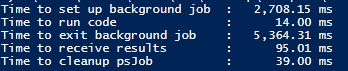
Ok, so as you can see, it takes approximately 2 1/2 seconds to set up the job and then a whopping 5 seconds to exit the background job. Everything else isn’t too bad as far as time goes for this single job.

Ok, so we see the performance of the PSJob, but what about the runspace that I keep talking about? Well, there was not a runspace script that matched this, so I simply modified the PSJob code to make it work! Check it out:

# (C) 2012 Dr. Tobias Weltner
# you may freely use this code for commercial or non-commercial purposes at your own risk
# as long as you credit its original author and keep this comment block.
# For PowerShell training or PowerShell support, feel free to contact tobias.weltner@email.de
#Addition modification by Boe Prox to show the use of PSJobs and its performance

$code = { 
  $begin = Get-Date
  $result = Get-Process
  $end = Get-Date
  
  $begin
  $end
  $result
}

$start = Get-Date

$newPowerShell = [PowerShell]::Create().AddScript($code)
$job = $newPowerShell.BeginInvoke()
While (-Not $job.IsCompleted) {}
$completed = Get-Date

$result = $newPowerShell.EndInvoke($job)
$received = Get-Date

$newPowerShell.Dispose()
$cleanup = Get-Date

$spinup = $result[0]
$exit = $result[1]

$timeToLaunch = ($spinup - $start).TotalMilliseconds
$timeToExit = ($completed - $exit).TotalMilliseconds
$timeToRunCommand = ($exit - $spinup).TotalMilliseconds
$timeToReceive = ($received - $completed).TotalMilliseconds
$timeToCleanup = ($cleanup - $received).TotalMilliseconds

'{0,-30} : {1,10:#,##0.00} ms' -f 'Time to set up background job', $timeToLaunch
'{0,-30} : {1,10:#,##0.00} ms' -f 'Time to run code', $timeToRunCommand
'{0,-30} : {1,10:#,##0.00} ms' -f 'Time to exit background job', $timeToExit
'{0,-30} : {1,10:#,##0.00} ms' -f 'Time to receive results', $timeToReceive
'{0,-30} : {1,10:#,##0.00} ms' -f 'Time to cleanup runspace', $timeToCleanup

image

Definitely a noticeable performance different here with little under half a second to set up the job compared to 2 1/2 seconds for the PSjob and check out that exit time, pretty much non-existent compared to a little over 5 seconds! Now of course results may vary on your system based on various circumstances, but the one thing that will remain constant is that the runspace will win every time over PSjobs.

The Performance Test

I know what you are thinking: “This is all fine and stuff, but how about a real world application of this being used?” Well, you are in luck. I am going to do some testing using the function I wrote in the previous blog post and bring in some other examples using a variety of methods to include:

  • Good old fashion synchronous query of servers (simple ForEach iteration with a query)
  • Queued background jobs (use a queued object to ‘throttle’ the background jobs along with eventing;throttle set to 10)
  • A different type of ‘queued’ background jobs (using a queued object again, but this time doesn’t use eventing to handle when jobs are completed. It waits for all 10 jobs to completed before moving on;throttle set to 10)
  • Non-queued background jobs (run all jobs at once and wait for all to complete)
  • Runspace query (my function from my previous article;throttle set to 10)

Because I want to test this out over a number of systems,I am going to run each type of test against the following number of systems:200, 150, 75, 20, 5 and 1.  By doing this, we can see how each type of query handles against an increasing amount of systems.

This is not a completely fool-proof test but I am using one system as my remote system vs. many remote systems to rule out potential issues with one remote system being taxed on resources during a specific test which could skew the results. The goal is to try and keep everything on the same level for each run to provide the most accurate results. Now why did I choose to use a WMI query as my test? The answer is because of the previous blog post talking about how much faster using runspaces are for a remote WMI query. I already had a great working function that does a simple query that can be easily ported to the other scenarios with little effort.

Scenarios Covered

So lets check out the code that I will be using to test each of these scenarios:

Synchronous Query

Measure-Command {
$Computername = $servers
ForEach ($Computer in $Computername) {
    If (Test-Connection -ComputerName $Computer -Count 1 -quiet) {
        Get-WmiObject -Computer $Computer Win32_NetworkAdapterConfiguration -Filter "IPEnabled='$True'" -EA 0 | ForEach {
            $IpHash =  @{
                Computername = $_.DNSHostName
                DNSDomain = $_.DNSDomain
                IPAddress = $_.IpAddress
                SubnetMask = $_.IPSubnet
                DefaultGateway = $_.DefaultIPGateway
                DNSServer = $_.DNSServerSearchOrder
                DHCPEnabled = $_.DHCPEnabled
                MACAddress  = $_.MACAddress
                WINSPrimary = $_.WINSPrimaryServer
                WINSSecondary = $_.WINSSecondaryServer
                NICName = $_.ServiceName
                NICDescription = $_.Description
            }
            $IpStack = New-Object PSObject -Property $IpHash
            #Add a unique object typename
            $IpStack.PSTypeNames.Insert(0,"IPStack.Information")
            $IpStack
        }
    }
}
}

Non-queued background jobs

Measure-Command {
$Computername = $servers
ForEach ($Computer in $Computername) {
    Start-Job -Name $Computer -ScriptBlock {
            param($Computer)
            $WMIhash = @{
                Class = "Win32_NetworkAdapterConfiguration"
                Filter = "IPEnabled='$True'"
                ErrorAction = "Stop"
            }             
            $VerbosePreference = 'continue'
            $i=0
            If (Test-Connection -Computer $Computer -count 1 -Quiet) {
                $Wmihash.Computername = $computer
                Try {
                    Get-WmiObject @WMIhash | ForEach {
                        $IpHash =  @{
                            Computername = $_.DNSHostName
                            DNSDomain = $_.DNSDomain
                            IPAddress = $_.IpAddress
                            SubnetMask = $_.IPSubnet
                            DefaultGateway = $_.DefaultIPGateway
                            DNSServer = $_.DNSServerSearchOrder
                            DHCPEnabled = $_.DHCPEnabled
                            MACAddress  = $_.MACAddress
                            WINSPrimary = $_.WINSPrimaryServer
                            WINSSecondary = $_.WINSSecondaryServer
                            NICName = $_.ServiceName
                            NICDescription = $_.Description
                        }
                        $IpStack = New-Object PSObject -Property $IpHash
                        #Add a unique object typename
                        $IpStack.PSTypeNames.Insert(0,"IPStack.Information")
                        $IpStack 
                    }
                } Catch {
                    Write-Warning ("{0}: {1}" -f $Computer)
                    Write-Output $False
                }
            } Else {
                Write-Warning ("{0}: Unable to connect!" -f $Computer)
            }
    } -Argument $Computer
}

Get-Job | Wait-Job | Out-Null
}
Get-Job | Remove-Job

Queued background jobs with a throttle of 10

[cmdletbinding()]
Param (
    [Int32]$MaxJobs = 10,
    [parameter(ValueFromPipeLine=$True,ValueFromPipeLineByPropertyName=$True)]
    [string[]]$Computername = $servers
)
Function Global:Get-NetInfo { 
    $VerbosePreference = 'continue'
    If ($queue.count -gt 0) {
        Write-Verbose ("Queue Count: {0}" -f $queue.count)   
        $Computer = $queue.Dequeue()
        $j = Start-Job -Name $Computer -ScriptBlock {
                param($Computer)
                $WMIhash = @{
                    Class = "Win32_NetworkAdapterConfiguration"
                    Filter = "IPEnabled='$True'"
                    ErrorAction = "Stop"
                }             
                $VerbosePreference = 'continue'
                $i=0
                If (Test-Connection -Computer $Computer -count 1 -Quiet) {
                    $Wmihash.Computername = $computer
                    Try {
                        Get-WmiObject @WMIhash | ForEach {
                            $IpHash =  @{
                                Computername = $_.DNSHostName
                                DNSDomain = $_.DNSDomain
                                IPAddress = $_.IpAddress
                                SubnetMask = $_.IPSubnet
                                DefaultGateway = $_.DefaultIPGateway
                                DNSServer = $_.DNSServerSearchOrder
                                DHCPEnabled = $_.DHCPEnabled
                                MACAddress  = $_.MACAddress
                                WINSPrimary = $_.WINSPrimaryServer
                                WINSSecondary = $_.WINSSecondaryServer
                                NICName = $_.ServiceName
                                NICDescription = $_.Description
                            }
                            $IpStack = New-Object PSObject -Property $IpHash
                            #Add a unique object typename
                            $IpStack.PSTypeNames.Insert(0,"IPStack.Information")
                            $IpStack 
                        }
                    } Catch {
                        Write-Warning ("{0}: {1}" -f $Computer)
                        Write-Output $False
                    }
                } Else {
                    Write-Warning ("{0}: Unable to connect!" -f $Computer)
                }
        } -ArgumentList $Computer
        Register-ObjectEvent -InputObject $j -EventName StateChanged -Action {
            #Set verbose to continue to see the output on the screen
            $VerbosePreference = 'continue'
            $serverupdate = $eventsubscriber.sourceobject.name      
            $Global:Data += Receive-Job -Job $eventsubscriber.sourceobject
            Write-Verbose "Removing: $($eventsubscriber.sourceobject.Name)"           
            Remove-Job -Job $eventsubscriber.sourceobject
            Write-Verbose "Unregistering: $($eventsubscriber.SourceIdentifier)"
            Unregister-Event $eventsubscriber.SourceIdentifier
            Write-Verbose "Removing: $($eventsubscriber.SourceIdentifier)"
            Remove-Job -Name $eventsubscriber.SourceIdentifier
            Remove-Variable results        
            If ($queue.count -gt 0 -OR (Get-Job)) {
                Write-Verbose "Running Rjob"
                Get-NetInfo
            } ElseIf (-NOT (Get-Job)) {
                $End = (Get-Date)        
                $timeToCleanup = ($End - $Start).TotalMilliseconds    
                Write-Host ('{0,-30} : {1,10:#,##0.00} ms' -f 'Time to exit background job', $timeToCleanup) -fore Green -Back Black
                Write-Host -ForegroundColor Green "Check the `$Data variable for report of online/offline systems"
            }           
        } | Out-Null
        Write-Verbose "Created Event for $($J.Name)"
    }
}
#Define report
[array]$Global:Data = @()
$Start = Get-Date
#Queue the items up
$Global:queue = [System.Collections.Queue]::Synchronized( (New-Object System.Collections.Queue) )
foreach($item in $Computername) {
    Write-Verbose "Adding $item to queue"
    $queue.Enqueue($item)
}
If ($queue.count -lt $maxjobs) {
    $maxjobs = $queue.count
}
# Start up to the max number of concurrent jobs
# Each job will take care of running the rest
for( $i = 0; $i -lt $MaxJobs; $i++ ) {
    Get-NetInfo
}        

Alternate Queued background jobs with a throttle of 10

measure-command {
    $queue = [System.Collections.Queue]::Synchronized( (New-Object System.Collections.Queue) )
    $servers | ForEach {
        $queue.Enqueue($_) | Out-Null
    }
    While ($queue.count -gt 0) {
        1..5 | ForEach {
            $ErrorActionPreference = 'silentlycontinue'
            $computer = $queue.Dequeue()
            Start-Job -Name $Computer -ScriptBlock {
                    param($Computer)
                    $WMIhash = @{
                        Class = "Win32_NetworkAdapterConfiguration"
                        Filter = "IPEnabled='$True'"
                        ErrorAction = "Stop"
                    }             
                    $VerbosePreference = 'continue'
                    $i=0
                    If (Test-Connection -Computer $Computer -count 1 -Quiet) {
                        $Wmihash.Computername = $computer
                        Try {
                            Get-WmiObject @WMIhash | ForEach {
                                $IpHash =  @{
                                    Computername = $_.DNSHostName
                                    DNSDomain = $_.DNSDomain
                                    IPAddress = $_.IpAddress
                                    SubnetMask = $_.IPSubnet
                                    DefaultGateway = $_.DefaultIPGateway
                                    DNSServer = $_.DNSServerSearchOrder
                                    DHCPEnabled = $_.DHCPEnabled
                                    MACAddress  = $_.MACAddress
                                    WINSPrimary = $_.WINSPrimaryServer
                                    WINSSecondary = $_.WINSSecondaryServer
                                    NICName = $_.ServiceName
                                    NICDescription = $_.Description
                                }
                                $IpStack = New-Object PSObject -Property $IpHash
                                #Add a unique object typename
                                $IpStack.PSTypeNames.Insert(0,"IPStack.Information")
                                $IpStack 
                            }
                        } Catch {
                            Write-Warning ("{0}: {1}" -f $Computer)
                            Write-Output $False
                        }
                    } Else {
                        Write-Warning ("{0}: Unable to connect!" -f $Computer)
                    }
            } -Argument $Computer        
        }
        Get-Job | Wait-Job | Out-Null
        Get-Job | Remove-Job
    }
}

Runspace query with throttle of 10

Measure-Command {
Get-NetworkInfo -Computername $servers -Throttle 10
}

Note that the function is available here for download.

Now that we know the code that will be used (and modified to support the number of systems each time), we can now kick off the performance testing! The $Servers variable that I use is topped out with 200 systems and as I move down in the number of systems to query each time, I will simple just slice the array: $servers[1..150] for 150 systems and so on.

The common code in each scenario that will be used is:

    If (Test-Connection -ComputerName $Computer -Count 1 -quiet) {
        Get-WmiObject -Computer $Computer Win32_NetworkAdapterConfiguration -Filter "IPEnabled='$True'" -EA 0 | ForEach {
            $IpHash =  @{
                Computername = $_.DNSHostName
                DNSDomain = $_.DNSDomain
                IPAddress = $_.IpAddress
                SubnetMask = $_.IPSubnet
                DefaultGateway = $_.DefaultIPGateway
                DNSServer = $_.DNSServerSearchOrder
                DHCPEnabled = $_.DHCPEnabled
                MACAddress  = $_.MACAddress
                WINSPrimary = $_.WINSPrimaryServer
                WINSSecondary = $_.WINSSecondaryServer
                NICName = $_.ServiceName
                NICDescription = $_.Description
            }
            $IpStack = New-Object PSObject -Property $IpHash
            #Add a unique object typename
            $IpStack.PSTypeNames.Insert(0,"IPStack.Information")
            $IpStack
        }
    }

The Results

Rather than take up all of the space and time going through each cycle and showing the results, I am just going to show everything at once based on running each type of scenario.

image

The results are pretty cool! As you can see, PSJobs lose every single time regardless of how they are configured. In fact,the synchronous run for a single system is in fact the fastest way to gather the information. What is even more interesting is that the synchronous run is actually faster than any of the PSJobs in this case. What is very important to understand in this case with synchronous beating out PSJobs each time is that this was done running 1 simple query. This simply does not play well into the strength of using PSJobs, especially using the 1st queued approach (not the alternative).  If you were running more complicated code in that had different end times based on what it was doing (patching servers, for instance which can have anywhere from 2 patches on 1 server and possibly 8 or more on another), the queued PSjob approach would be faster because it would move on to another system for the servers with less patches while the synchronous would have to wait for each server to finish patching before moving on the next. It was this test that I ran that motivated me to modify how my project, PoshPAIG actually performs (queued PSJobs).

Of course, the real winner here is the runspaces that are created in the background to run each query. Even as the number of systems continue to rise, the runspaces consistently out perform each other type of query scenario. As soon as we hit the 20 system mark, the results are rather impressive at being 12 seconds faster than the nearest competitor and at the 200 system mark, dominates by nearly 2 1/2 minutes over the next fastest time!

Not surprisingly (to me at least), the Non-Queued test fails almost every time with the slowest performance. This is because it requires so much more resources for each process that has to be created and managed by PowerShell that it simply begins to slow down to a crawl to create, watch and handle each job when they are all completed.

In Conclusion

As you have seen, setting up your own background runspace does scale out better than using PSjobs and even using a synchronous approach can actually be faster (given the situation is ideal for it such as using a simple query vs. more complicated code or running code knowing that each job will have a different number of results/actions) than using PSJobs.

I also ran this performance test against an environment consisting of 139 systems (some online and some offline). I did find that the results did match up with what I got here with runspaces taking all but the initial test of ‘1’ system for best performance while the PSJobs were the slowest (Non-Queued was again the slowest as the number of systems rose). The numbers I used were 139, 75, 20, 5 and 1.

This was just one type of test that I performed to determine my results, but there are other ways that could be used as well to show differences between each scenario. I encourage you to try your own tests as well and see how the results stack up.

Let me know what you think about the testing and results!

Posted in powershell, scripts | Tagged , , , | 42 Comments

Speedy Network Information Query Using PowerShell

Taking a page from my Advanced Event 2 script that I used in my Expert Commentary on Hey, Scripting Guy!, I wanted to put something together to query for basic networking information from both local and remote systems and accomplish this is a decent amount of time. When I say a decent amount of time, I really mean as fast as possible.

So with that, I need to figure out the means to accomplish this simple, yet sometimes long task. To get the network information from the systems, I am choosing to do this the only useful way I know how: WMI. WMI has all sorts of information in it that you can use for reporting and anything else you can think of.

The speedy portion that I mention in my title and hint at by reference my past script is by setting up background runspaces (not background jobs) to handle the multiple asynchronous runspaces and then use a helper function to handle those runspaces and grab the data I need to display on the screen.

    [cmdletbinding()]
    Param (
        [parameter(ValueFromPipeline = $True,ValueFromPipeLineByPropertyName = $True)]
        [Alias('CN','__Server','IPAddress','Server')]
        [string[]]$Computername = $Env:Computername,
        
        [parameter()]
        [Alias('RunAs')]
        [System.Management.Automation.Credential()]$Credential = [System.Management.Automation.PSCredential]::Empty,       
        
        [parameter()]
        [int]$Throttle = 15
    )

The script accepts pipeline input both by value and by property name. You can set the number of runspaces being used at a time by defining the number with the –Throttle parameter. It is important to keep in mind that you shouldn’t go crazy with this as your system could be impacted due to lack of resources. The default value is 15 for –throttle. Another thing to note is the [System.Management.Automation.Credential()]$Credential = [System.Management.Automation.PSCredential]::Empty which allows you to supply either a pscredential object or you can specify the domain\username and it will open up the credential window to type in a password. This method works a lot better than just specifying a type of System.Management.Automation.PSCredential for your parameter as it is more flexible. If you don’t specify the [System.Management.Automation.PSCredential]::Empty piece, you will ALWAYS get the popup to enter credentials, essentially making it a mandatory parameter.

    Begin {
        #Function that will be used to process runspace jobs
        Function Get-RunspaceData {
            [cmdletbinding()]
            param(
                [switch]$Wait
            )
            Do {
                $more = $false         
                Foreach($runspace in $runspaces) {
                    If ($runspace.Runspace.isCompleted) {
                        $runspace.powershell.EndInvoke($runspace.Runspace)
                        $runspace.powershell.dispose()
                        $runspace.Runspace = $null
                        $runspace.powershell = $null
                        $Script:i++                  
                    } ElseIf ($runspace.Runspace -ne $null) {
                        $more = $true
                    }
                }
                If ($more -AND $PSBoundParameters['Wait']) {
                    Start-Sleep -Milliseconds 100
                }   
                #Clean out unused runspace jobs
                $temphash = $runspaces.clone()
                $temphash | Where {
                    $_.runspace -eq $Null
                } | ForEach {
                    Write-Verbose ("Removing {0}" -f $_.computer)
                    $Runspaces.remove($_)
                }             
            } while ($more -AND $PSBoundParameters['Wait'])
        }
            
        Write-Verbose ("Performing inital Administrator check")
        $usercontext = [Security.Principal.WindowsPrincipal][Security.Principal.WindowsIdentity]::GetCurrent()
        $IsAdmin = $usercontext.IsInRole([Security.Principal.WindowsBuiltInRole] "Administrator")                   
        
        #Main collection to hold all data returned from runspace jobs
        $Script:report = @()    
        
        Write-Verbose ("Building hash table for WMI parameters")
        $WMIhash = @{
            Class = "Win32_NetworkAdapterConfiguration"
            Filter = "IPEnabled='$True'"
            ErrorAction = "Stop"
        } 
        
        #Supplied Alternate Credentials?
        If ($PSBoundParameters['Credential']) {
            $wmihash.credential = $Credential
        }
        
        #Define hash table for Get-RunspaceData function
        $runspacehash = @{}

        #Define Scriptblock for runspaces
        $scriptblock = {
            Param (
                $Computer,
                $wmihash
            )           
            Write-Verbose ("{0}: Checking network connection" -f $Computer)
            If (Test-Connection -ComputerName $Computer -Count 1 -Quiet) {
                #Check if running against local system and perform necessary actions
                Write-Verbose ("Checking for local system")
                If ($Computer -eq $Env:Computername) {
                    $wmihash.remove('Credential')
                } Else {
                    $wmihash.Computername = $Computer
                }
                Try {
                        Get-WmiObject @WMIhash | ForEach {
                            $IpHash =  @{
                                Computername = $_.DNSHostName
                                DNSDomain = $_.DNSDomain
                                IPAddress = $_.IpAddress
                                SubnetMask = $_.IPSubnet
                                DefaultGateway = $_.DefaultIPGateway
                                DNSServer = $_.DNSServerSearchOrder
                                DHCPEnabled = $_.DHCPEnabled
                                MACAddress  = $_.MACAddress
                                WINSPrimary = $_.WINSPrimaryServer
                                WINSSecondary = $_.WINSSecondaryServer
                                NICName = $_.ServiceName
                                NICDescription = $_.Description
                            }
                            $IpStack = New-Object PSObject -Property $IpHash
                            #Add a unique object typename
                            $IpStack.PSTypeNames.Insert(0,"IPStack.Information")
                            $IpStack 
                        }
                    } Catch {
                        Write-Warning ("{0}: {1}" -f $Computer,$_.Exception.Message)
                        Break
                }
            } Else {
                Write-Warning ("{0}: Unavailable!" -f $Computer)
                Break
            }        
        }
        
        Write-Verbose ("Creating runspace pool and session states")
        $sessionstate = [system.management.automation.runspaces.initialsessionstate]::CreateDefault()
        $runspacepool = [runspacefactory]::CreateRunspacePool(1, $Throttle, $sessionstate, $Host)
        $runspacepool.Open()  
        
        Write-Verbose ("Creating empty collection to hold runspace jobs")
        $Script:runspaces = New-Object System.Collections.ArrayList        
    }

A lot of code here in the Begin block holds most of the code that sets up the actual query portion of the function as well as holding a helper function to handle the background runspaces when they have completed. I also use some hashtables for splatting the WMI query.  The $Scriptblock holds a scriptblock that will be applied to the background runspace in the Process block of the function.

    Process {        
        $totalcount = $computername.count
        Write-Verbose ("Validating that current user is Administrator or supplied alternate credentials")        
        If (-Not ($Computername.count -eq 1 -AND $Computername[0] -eq $Env:Computername)) {
            #Now check that user is either an Administrator or supplied Alternate Credentials
            If (-Not ($IsAdmin -OR $PSBoundParameters['Credential'])) {
                Write-Warning ("You must be an Administrator to perform this action against remote systems!")
                Break
            }
        }
        ForEach ($Computer in $Computername) {
           #Create the powershell instance and supply the scriptblock with the other parameters 
           $powershell = [powershell]::Create().AddScript($ScriptBlock).AddArgument($computer).AddArgument($wmihash)
           
           #Add the runspace into the powershell instance
           $powershell.RunspacePool = $runspacepool
           
           #Create a temporary collection for each runspace
           $temp = "" | Select-Object PowerShell,Runspace,Computer
           $Temp.Computer = $Computer
           $temp.PowerShell = $powershell
           
           #Save the handle output when calling BeginInvoke() that will be used later to end the runspace
           $temp.Runspace = $powershell.BeginInvoke()
           Write-Verbose ("Adding {0} collection" -f $temp.Computer)
           $runspaces.Add($temp) | Out-Null
           
           Write-Verbose ("Checking status of runspace jobs")
           Get-RunspaceData @runspacehash
        }                        
    }

Not as much code here in the Process block compared to the Begin block. This is where the background runspaces will be kicked off to perform the actual network query. It also will do a administrator check as well to make sure that you have enough rights to perform a remote wmi query. After each runspace is kicked off, a quick check using the helper function GetRunspaceData is called to see if it is already finished or to check other runspaces and gather any data from those runspaces.

    End {                     
        Write-Verbose ("Finish processing the remaining runspace jobs: {0}" -f (@(($runspaces | Where {$_.Runspace -ne $Null}).Count)))
        $runspacehash.Wait = $true
        Get-RunspaceData @runspacehash
        
        Write-Verbose ("Closing the runspace pool")
        $runspacepool.close()               
    }

The End block wraps up the function by waiting for the remaining runspaces to finish before finally closing p the runspace pool at the end.

Examples

A couple of examples of using this against a local system, remote system and many remote systems.

Get-NetworkInfo

image

Just running the command by itself will return the local system network information. This is a reminder to everyone that you should always use a default value for a parameter such a –Computername.

'DC1','Boe-PC' | Get-NetworkInfo

image

measure-command {$servers | Get-NetworkInfo}

image

Running against 200 systems took approximately 19.5 to completed.


In conclusion, this script provides a nice way to quickly query your domain for the network information on all of your systems in a relatively short amount of time depending on how large your system is and the resources available on your system that you are running the function from.

You can download the script below. Give it a run and let me know what you think!

Download

Script Repository

Posted in powershell, scripts | Tagged , , , | 19 Comments

Updating An Existing Get-ProductKey Function

A couple of days ago I received my daily PowerTips email from PowerShell.com talking about how to get the Windows Product key via PowerShell from your local system.

The code is simple and to the point to look for and translate the data into a readable product key:

function Get-ProductKey {    
    $map="BCDFGHJKMPQRTVWXY2346789" 
    $value = (get-itemproperty "HKLM:\SOFTWARE\Microsoft\Windows NT\CurrentVersion").digitalproductid[0x34..0x42]  
    $ProductKey = ""  
    for ($i = 24; $i -ge 0; $i--) { 
      $r = 0 
      for ($j = 14; $j -ge 0; $j--) { 
        $r = ($r * 256) -bxor $value[$j] 
        $value[$j] = [math]::Floor([double]($r/24)) 
        $r = $r % 24 
      } 
      $ProductKey = $map[$r] + $ProductKey 
      if (($i % 5) -eq 0 -and $i -ne 0) { 
        $ProductKey = "-" + $ProductKey 
      } 
    } 
    $ProductKey
} 

However, being that I had a little free time and really like this code, I wanted to enhance it to make it more robust by adding a few extra things here and there. By doing this, you can see just how easy it is to take some existing code and modify it to meet your own specific requirements.

The list of items I wanted to add to the existing code are:

  • Run against multiple systems.
  • Allow this function to query remote systems; not just locally
  • Output an object instead of just text
  • In the object, show the following properties
    • Computername, ProductKey,OSDescription,OSVersion
  • Allow to query against 64bit systems
  • Error handling
  • Comment Based Help

First off, lets add some comment based help to this code:

function Get-ProductKey {
     <#   
    .SYNOPSIS   
        Retrieves the product key and OS information from a local or remote system/s.
         
    .DESCRIPTION   
        Retrieves the product key and OS information from a local or remote system/s. Queries of 64bit OS from a 32bit OS will result in 
        inaccurate data being returned for the Product Key. You must query a 64bit OS from a system running a 64bit OS.
        
    .PARAMETER Computername
        Name of the local or remote system/s.
         
    .NOTES   
        Author: Boe Prox
        Version: 1.1       
            -Update of function from http://powershell.com/cs/blogs/tips/archive/2012/04/30/getting-windows-product-key.aspx
            -Added capability to query more than one system
            -Supports remote system query
            -Supports querying 64bit OSes
            -Shows OS description and Version in output object
            -Error Handling
     
    .EXAMPLE 
     Get-ProductKey -Computername Server1
     
    OSDescription                                           Computername OSVersion ProductKey                   
    -------------                                           ------------ --------- ----------                   
    Microsoft(R) Windows(R) Server 2003, Enterprise Edition Server1       5.2.3790  bcdfg-hjklm-pqrtt-vwxyy-12345     
         
        Description 
        ----------- 
        Retrieves the product key information from 'Server1'
    #>  

I also add some parameters to the existing code with a default parameter value for the Computername to point to the local machine. I also add some aliases to support the ValueFromPipeLineByPropertyName which allows extra pipeline support. You will also notice that I set the type for Computername to [string[]] which means that it will take a collection of strings for that parameter.

    [cmdletbinding()]
    Param (
        [parameter(ValueFromPipeLine=$True,ValueFromPipeLineByPropertyName=$True)]
        [Alias("CN","__Server","IPAddress","Server")]
        [string[]]$Computername = $Env:Computername
    )

I start off with a quick check to see if the system is reachable on the network and then perform a WMI query for some pieces of information regarding the Caption (Operating System name), Version and also the Architecture which will tell me if the OS is 64bit or 32bit which will be vital in determining what to do next for the product key.

    Process {
        ForEach ($Computer in $Computername) {
            Write-Verbose ("{0}: Checking network availability" -f $Computer)
            If (Test-Connection -ComputerName $Computer -Count 1 -Quiet) {
                Try {
                    Write-Verbose ("{0}: Retrieving WMI OS information" -f $Computer)
                    $OS = Get-WmiObject -ComputerName $Computer Win32_OperatingSystem -ErrorAction Stop                
                } Catch {
                    $OS = New-Object PSObject -Property @{
                        Caption = $_.Exception.Message
                        Version = $_.Exception.Message
                    }
                }

The rest of the code deals with the actual operations to query the specified system’s registry key based on whether it is a 64bit system or 32bit. This is important because if the system is 64bit, the DigitalProductId4 key value must be used instead of DigitalProductId, otherwise you will not receive the accurate data for the product key. The other part of the code performs the translation of the value of the registry key to find the product key and also using a .Net class ([Microsoft.Win32.RegistryKey]) which will allow me to perform a remote query of the registry.

                Try {
                    Write-Verbose ("{0}: Attempting remote registry access" -f $Computer)
                    $remoteReg = [Microsoft.Win32.RegistryKey]::OpenRemoteBaseKey([Microsoft.Win32.RegistryHive]::LocalMachine,$Computer)
                    If ($OS.OSArchitecture -eq '64-bit') {
                        $value = $remoteReg.OpenSubKey("SOFTWARE\Microsoft\Windows NT\CurrentVersion").GetValue('DigitalProductId4')[0x34..0x42]
                    } Else {                        
                        $value = $remoteReg.OpenSubKey("SOFTWARE\Microsoft\Windows NT\CurrentVersion").GetValue('DigitalProductId')[0x34..0x42]
                    }
                    $ProductKey = ""  
                    Write-Verbose ("{0}: Translating data into product key" -f $Computer)
                    for ($i = 24; $i -ge 0; $i--) { 
                      $r = 0 
                      for ($j = 14; $j -ge 0; $j--) { 
                        $r = ($r * 256) -bxor $value[$j] 
                        $value[$j] = [math]::Floor([double]($r/24)) 
                        $r = $r % 24 
                      } 
                      $ProductKey = $map[$r] + $ProductKey 
                      if (($i % 5) -eq 0 -and $i -ne 0) { 
                        $ProductKey = "-" + $ProductKey 
                      } 
                    }
                } Catch {
                    $ProductKey = $_.Exception.Message
                } 


Lastly we need to make this into an object because this is PowerShell, after all. I use the New-Object cmdlet and supply a hash table of data that is saved to a variable. After the object is created, I opt to create a custom type name for this object to make it more unique which is then displayed to the user running the code.

                $object = New-Object PSObject -Property @{
                    Computername = $Computer
                    ProductKey = $ProductKey
                    OSDescription = $os.Caption
                    OSVersion = $os.Version
                } 
                $object.pstypenames.insert(0,'ProductKey.Info')
                $object
            } Else {
                $object = New-Object PSObject -Property @{
                    Computername = $Computer
                    ProductKey = 'Unreachable'
                    OSDescription = 'Unreachable'
                    OSVersion = 'Unreachable'
                }  
                $object.pstypenames.insert(0,'ProductKey.Info')
                $object                           
            }
        }
    }
}

Code in Action

Ok, lets run this against a local and remote system and see it in action.

Get-ProductKey -Computername Boe-PC,DC1

image

Whoops! Forgot to power on the server… Lets try this one more time!

image

Ok, that looks better. As you can see, not only is the product key displayed, but the computername as well as the Operating System and version are also displayed as well. This allows for better use of the code to see not only what the product key is, but what it also applies to as well.

Download This Function

Script Repository

Hope you enjoy my updated take on this already great function! This also shows how you can take some existing code and modify it to your own requirements to accomplish a goal.

Posted in powershell, scripts | Tagged , , | 57 Comments