Write to an Existing File Without Updating LastWriteTime or LastAccessTimestamps Using PowerShell

This little trick was something I stumbled upon while attempting to help solve an issue with a file scan that was about to take place. We wanted to know the last time a file was accessed and build out a report to remove these files in an effort to reclaim some space on our file servers. To get this to work, we had to enable LastAccessTime (Disabled by default on Vista and above OS’s) using fsutil and reboot the systems.

fsutil behavior set DisableLastAccess 0

Once all that was done, we found that during a test scan of a couple of folders, that the LastAccessTime attribute was being updated. Thus during this research I came across a win32 api method called SetFileTime, that if passed the correct arguments, would actually tell the file system operations to ignore updating the LastAccessTime as well as the LastWriteTime attributes of a given file!

SetFileTime Method

Finding this method took a little bit of time and research by sifting through everyone’s favorite site for win32 APIs: pinvoke.net

image

This is an amazing repository of everything Win32 and how to properly build the API calls using the signatures provided. Between this and some google (or bing) searches, I was able to isolate what I needed by using the SetFileTime method under kernel32.

http://www.pinvoke.net/default.aspx/kernel32.SetFileTime

image

http://msdn.microsoft.com/en-us/library/windows/desktop/ms724933(v=vs.85).aspx

I want to use the C# signature (as shown in the picture above) to modify and throw into my PowerShell code. For the most part, everything is already set to go. I just have to pre-pend the third line with “Public” to ensure that the method will be available when I call this signature using Add-Type.

In order for this to work properly, I have to encase the signature in a “here-string”.

$signature = @"
[DllImport("kernel32.dll", SetLastError = true)]
[return: MarshalAs(UnmanagedType.Bool)]
public static extern bool SetFileTime(IntPtr hFile, ref long lpCreationTime, ref long lpLastAccessTime, ref long lpLastWriteTime);
"@

Simple enough, now for something that required a little more work. The SetFileTime method requires 4 parameters (Handle,CreationTime,LastAccessTime,LastWriteTime) in order for it to work properly. The handle piece I will get into a little later and the CreationTime is a non-issue (meaning I will supply $Null to it). This just leaves the LastAccess/LastWrite parameters to deal with. Reading up on the msdn documentation, I can find that if I pass the value of 0xFFFFFFFF, the file system operations will be prevented from writing to their respected attributes. I could choose one or the other to prevent, or in the case of my examples, I chose to block both of these attributes from being modified.

[int64]$FILETIMEUNCHANGED = 0xFFFFFFFF

Lets go ahead and load this signature up into my current console session.

$setFileTime = Add-Type -Name FileTime `
-MemberDefinition $signature -PassThru
$setFileTime | gm -static

image

With this now loaded up, we can now take a look as to how in the world can we get the handle of a file in order to call this method.

Connecting to a File

This method works best when we connect to a file and then immediately call the method using the handle of the associated connection to the open file. This tells the file system to not write to the attributes for the LastAccess/LastWrite times. Getting the handle of a file is not as hard as it seems. For this I will make use of the System.IO.StreamWriter class to connect to an existing file to either append to the existing file, overwrite the file with something new or completely erase all content from the file. We will also be able to access the handle required later on for the SetFileTime method by using the .BaseStream.Handle property. There are a lot of constructors available when using this class:

[System.IO.StreamWriter].GetConstructors() | 
	Format-Table @{
		l="System.IO.StreamWriter Constructors"
		e={ $(($_.GetParameters() | ForEach { "{0} `{1}" -f $($_.ToString() -split " ") }) -Join ", ") }
	}


image

For my examples, I will am going to use the [System.IO.Stream] Stream parameter. If I wanted to mess with the Encoding (I won’t use it for this article), I would work with the System.Text.Encoding type and specify the type of encoding that I would use to write to the file with some other encoding. In order to get the “Stream”, I will be using IO.File with the Open() static method to open up a stream to an existing file.

[IO.File]::Open

image

I will use the [string] Path and [System.IO.FileMode] Mode and specify either “Open” to over write the file or “Append” to append to the file. It is important to note that by specifying “Open”, it does not actually overwrite the entire file, it only starts at the beginning of the file and overwrites the text up to the point that the new text ends. To make this a true overwriting of the file, I will call the SetLength() method and specify a 0 to tell the file to be 0 bytes and clear the file prior to adding new text.


Kick Off the FileSystemWatcher

Before I start to make my edits on a file, I am going kick off the filesystemwatcher subscription to monitor the location where I will be making all of the changes to a file. You might remember me showing this off in a previous article and how it tracks everything from a file creation, to a modification and even the deletion of a file or files in a given directory. This, along with showing the LastAccess and LastWrite timestamps should provide some nice examples of using this Win32 API and how I can bypass both of these.

#region Filesystem Watcher
Write-Verbose ("Initializing FileSystemWatcher") -Verbose
$fileWatcher = New-Object System.IO.FileSystemWatcher
$fileWatcher.Path = "C:\users\Administrator\desktop"
Register-ObjectEvent -InputObject $fileWatcher -EventName Created -SourceIdentifier File.Created -Action {
    $Global:t = $event
    Write-Host ("File/Folder Created: {0} on {1}" -f `
    $event.SourceEventArgs.Name,
    (Split-Path $event.SourceEventArgs.FullPath)) -BackgroundColor Black -ForegroundColor Cyan
} | Out-Null
Register-ObjectEvent -InputObject $fileWatcher -EventName Deleted -SourceIdentifier File.Deleted -Action {
    $Global:t = $event
    Write-Host ("File/Folder Deleted: {0} on {1}" -f `
    $event.SourceEventArgs.Name,
    (Split-Path $event.SourceEventArgs.FullPath)) -BackgroundColor Black -ForegroundColor Cyan
} | Out-Null
Register-ObjectEvent -InputObject $fileWatcher -EventName Changed -SourceIdentifier File.Changed -Action {
    $Global:t = $event
    Write-Host ("File/Folder Changed: {0} on {1}" -f `
    $event.SourceEventArgs.Name,
    (Split-Path $event.SourceEventArgs.FullPath)) -BackgroundColor Black -ForegroundColor Cyan
} | Out-Null
#endregion Filesystem Watcher


With that out of the way, I can continue to move forward with my examples. To prove that this subscription is actually working, I will go ahead and create a file on my desktop.

$file = ("{0}\desktop\NEWFILE.txt" -f $Env:USERPROFILE)
$fileStream = New-Object System.IO.StreamWriter -ArgumentList $file
$fileStream.Close()
Get-Item $file | Select Name,LastWriteTime,LastAccessTime,Length

image

Yep, it is working like a champ. It picked up on the file that I created without any issues.

First I am going to write to the file, then append some more data to the file and we can watch the filesystemwatcher to pick it up and also check out the Last* timestamps to see if they change.

#region Create Initial File
$file = ("{0}\desktop\NEWFILE.txt" -f $Env:USERPROFILE)
$fileStream = New-Object System.IO.StreamWriter -ArgumentList ([IO.File]::Open($file,"Open"))
$fileStream.BaseStream.SetLength(0)
$fileStream.Write("This is a test!")
$fileStream.Close()
Write-Verbose "Sleep 5 seconds"
Start-Sleep -Seconds 5
Get-Item $file | Select Name,LastWriteTime,LastAccessTime,Length
$fileStream = New-Object System.IO.StreamWriter -ArgumentList ([IO.File]::Open($file,"Append"))
#First write a new line so the append isn't on the same line
$fileStream.WriteLine()
$fileStream.Write("This is another test test!")
$fileStream.Close()
Write-Verbose "Sleep 5 seconds"
Start-Sleep -Seconds 5
Get-Item $file | Select Name,LastWriteTime,LastAccessTime,Length
Get-Content $file
#endregion Create Initial File

image

As you can see, nothing got past the FileSystemWatcher and also both of the timestamps were updated each time we accessed and update the file. Whether I appended data to it or overwrote the file, it was caught any issue. Even more interesting is that using SetLength(0) to essentially clear the file actually made the FileSystemWatcher trip two times!

So with that, lets go ahead and make the same updates, but this time I will throw in the SetFileTime method to prevent both the FileSystemWatcher from catching this and stop the Last* timestamps from being updated.

$file = ("{0}\desktop\NEWFILE.txt" -f $Env:USERPROFILE)
$fileStream = New-Object System.IO.StreamWriter -ArgumentList ([IO.File]::Open($file,"Open"))
$setFileTime::SetFileTime($fileStream.BaseStream.Handle,[ref]$FILETIMEUNCHANGED,[ref]$FILETIMEUNCHANGED,[ref]$FILETIMEUNCHANGED) | Out-Null
$fileStream.BaseStream.SetLength(0)
$fileStream.Write("This is a test!")
$fileStream.Close()
Write-Verbose "Sleep 5 seconds"
Start-Sleep -Seconds 5
Get-Item $file | Select Name,LastWriteTime,LastAccessTime,Length
$fileStream = New-Object System.IO.StreamWriter -ArgumentList ([IO.File]::Open($file,"Append"))
$setFileTime::SetFileTime($fileStream.BaseStream.Handle,[ref]$FILETIMEUNCHANGED,[ref]$FILETIMEUNCHANGED,[ref]$FILETIMEUNCHANGED) | Out-Null
#First write a new line so the append isn't on the same line
$fileStream.WriteLine()
$fileStream.Write("This is another test test!")
$fileStream.Close()
Write-Verbose "Sleep 5 seconds"
Start-Sleep -Seconds 5
Get-Item $file | Select Name,LastWriteTime,LastAccessTime,Length
Get-Content $file


image

As with the previous example, I cleared out the existing file and added my own information to it and then came back again and appended some more data to it. Not once did the FileSystemWatcher catch this action and even the Last* timestamps did not get updated. Pretty cool stuff! I am sure there are several things that you can apply this technique to such as just reading a file without updating the LastAccessTime or maybe even writing to a new file covertly. Whatever the reason is, this technique is sure to help you out. In fact, I would love to hear what uses you have for this technique!

The full demo code is available at the bottom of this article for your own use.

Of course I am not just satisfied with showing a demo of using this technique, so I wrote a function that will make it easier to write to a file without tripping something like the FileSystemWatcher or updating the LastAccess and LastWrite timestamps. For lack of a better name, I decided to call it Write-File.

Write-File

This function behaves just like the examples that I have shown with the exception that you do not have to build the stream each and every time. Plus, this function allows you to clear the contents of a file without alerting or modifying the timestamp.

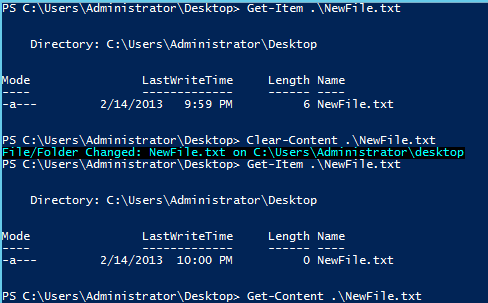
As shown before, any changes, including clearing out the content of a file will modify the LastWrite timestamp and if using FileSystemWatcher, will trip it much like the image below shows. Another nice feature of this function is that you do not have to give the full path of the file. As long as the file is in the same directory, it will auto-build the full path that is required to make the stream connection.
image

Lets check out a couple of demos of the function to show how it will not update the current timestamp of 2/14/2013 10:00PM.

"This is a test" | Write-File -File TESTFILE.txt

image

"This is a test for appending data" | 
Write-File -File .\NewFile.txt -Append

image

Write-File -File .\NewFile.txt -ClearContent

image


Download Write-File

Script Repository

Give it a download and let me know what you think!

Updated 15 Feb 2013: I updated this function to allow you to write bytes to a file using –Encoding Byte .

File Access Demo

#region Parameters
Param (
    $File = ("{0}\desktop\NEWFILE.txt" -f $Env:USERPROFILE), 
    $OpenAction = "Append",
    $InputObject = @"
This is a test message! Check it out!
Some more stuff to look at
"@
)
#endregion Parameters

#region Filesystem Watcher
Write-Verbose ("Initializing FileSystemWatcher") -Verbose
$fileWatcher = New-Object System.IO.FileSystemWatcher
$fileWatcher.Path = ("{0}\desktop" -f $Env:USERPROFILE)
Register-ObjectEvent -InputObject $fileWatcher -EventName Created -SourceIdentifier File.Created -Action {
    $Global:t = $event
    Write-Host ("File/Folder Created: {0} on {1}" -f `
    $event.SourceEventArgs.Name,
    (Split-Path $event.SourceEventArgs.FullPath)) -BackgroundColor Black -ForegroundColor Cyan
} | Out-Null
Register-ObjectEvent -InputObject $fileWatcher -EventName Deleted -SourceIdentifier File.Deleted -Action {
    $Global:t = $event
    Write-Host ("File/Folder Deleted: {0} on {1}" -f `
    $event.SourceEventArgs.Name,
    (Split-Path $event.SourceEventArgs.FullPath)) -BackgroundColor Black -ForegroundColor Cyan
} | Out-Null
Register-ObjectEvent -InputObject $fileWatcher -EventName Changed -SourceIdentifier File.Changed -Action {
    $Global:t = $event
    Write-Host ("File/Folder Changed: {0} on {1}" -f `
    $event.SourceEventArgs.Name,
    (Split-Path $event.SourceEventArgs.FullPath)) -BackgroundColor Black -ForegroundColor Cyan
} | Out-Null
#endregion Filesystem Watcher

#region p/invoke signature
$signature = @"
[DllImport("kernel32.dll", SetLastError = true)]
[return: MarshalAs(UnmanagedType.Bool)]
public static extern bool SetFileTime(IntPtr hFile, ref long lpCreationTime, ref long lpLastAccessTime, ref long lpLastWriteTime);
"@
#endregion p/invoke signature

#region Create Win32 API object
[int64]$FILETIMEUNCHANGED = 0xFFFFFFFF
If (-Not $setFileTime) {
    $Global:setFileTime = Add-Type -Name FileTime -MemberDefinition $signature -PassThru
}
#endregion Create Win32 API object

#region Create Initial File
Write-Verbose "Creating file" -Verbose
$fileStream = [io.file]::Create($file)
$fileStream.Close()
Get-Item $file | Select Name,LastWriteTime,LastAccessTime,Length
Write-Verbose "Sleeping for 5 seconds" -Verbose
Start-Sleep -Seconds 5
#endregion Create Initial File

#region Open file and append data using without updating time
Write-Verbose ("Writing '{0}' to {1} but will not update timestamp or alert the FileSystemWatcher" -f $InputObject,$File) -Verbose
$fileStream = New-Object System.IO.StreamWriter -ArgumentList ([IO.File]::Open($file,"Open"))
$setFileTime::SetFileTime($fileStream.BaseStream.Handle,[ref]$FILETIMEUNCHANGED,[ref]$FILETIMEUNCHANGED,[ref]$FILETIMEUNCHANGED) | Out-Null
$fileStream.BaseStream.SetLength(0)
$fileStream.Write($InputObject)
$fileStream.Flush()
$fileStream.Close()
Get-Item $file | Select Name,LastWriteTime,LastAccessTime,Length
Write-Verbose "Sleeping for 5 seconds" -Verbose
Start-Sleep -Seconds 5
#endregion Open file and append data using without updating time

#region Open file and append data and update time
Write-Verbose ("Writing '{0}' to {1} and will update timestamp and throw an alert with the FileSystemWatcher" -f $InputObject,$File) -Verbose
$fileStream = New-Object System.IO.StreamWriter -ArgumentList ([IO.File]::Open($file,"Append"))
$fileStream.WriteLine()
$fileStream.Write($InputObject)
$fileStream.Flush()
$fileStream.Close()
Get-Item $file | Select Name,LastWriteTime,LastAccessTime,Length
Write-Verbose "Showing contents of file" -Verbose
Get-Content $file
#endregion Open file and append data and update time

#region Remove Subscriptions
Write-Verbose ("Removing subscriptions") -Verbose
Get-EventSubscriber | Unregister-Event
Get-Job | Remove-Job -Force
#endregion Remove Subscriptions
Posted in powershell, scripts | Tagged , , , , | 2 Comments

PowerShell and Events: Object Events

Continuing in my little series on PowerShell and different types of events, I will go into working with Object events and how you can use those with the Register-ObjectEvent cmdlet.

Because the parameters are the same as Register-EngineEvent, I won’t re-hash what each parameter does, instead check out this article to learn about some of the parameters that you can use for Support events and Forwarding events.

An object event is a .Net object that not only has the usual Properties and Methods in the object, but also has another member called Event,which you can register a subscription on using Register-EngineEvent that will fire every single time that the event happens. With a wide range of .Net objects out there, there will certainly be something that has an event that you will find useful!

Finding Events

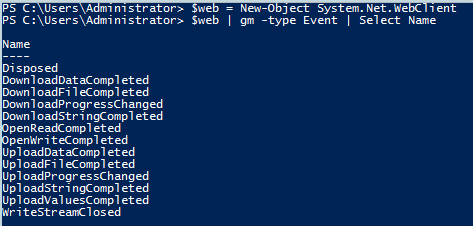
So how do I know if a .Net object has an event or events associated with it? It can be done a number of ways.

Save the object as a variable and use Get-Member

$web = New-Object System.Net.WebClient
$web | gm -type Event | Select Name

image

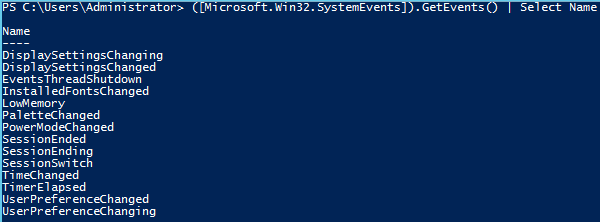
Or use the .GetEvents() method from the object type itself.

([Microsoft.Win32.SystemEvents]).GetEvents() | Select Name

image

With one of these approaches, you will quickly be able to find out if the object has events that you can subscribe to.

Enough about that, it’s time for some demos!

Observable Collection

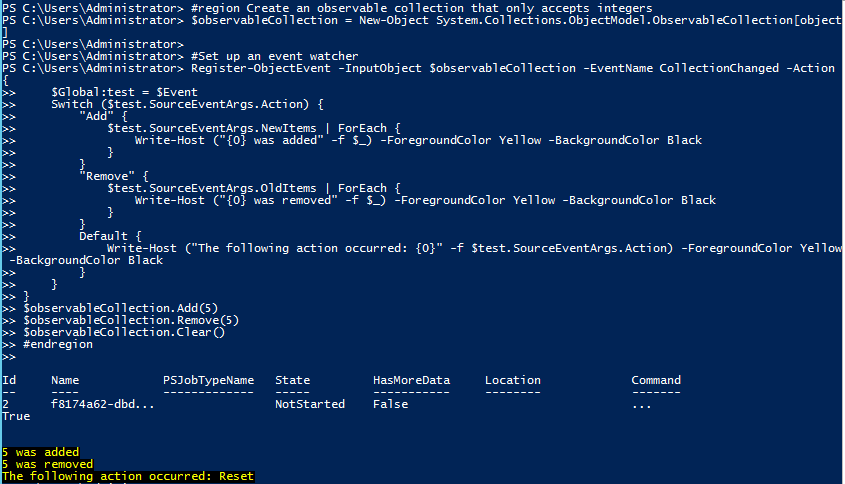
The first example shows how you can use the observable collection object that supplies an event called CollectionChanged which fires off whenever an item is added, removed or the collection is cleared out.

#region Create an observable collection that only accepts integers
$observableCollection = New-Object System.Collections.ObjectModel.ObservableCollection[object]

#Set up an event watcher
Register-ObjectEvent -InputObject $observableCollection -EventName CollectionChanged -Action {
    $Global:test = $Event
    Switch ($test.SourceEventArgs.Action) {
        "Add" {
            $test.SourceEventArgs.NewItems | ForEach {
                Write-Host ("{0} was added" -f $_) -ForegroundColor Yellow -BackgroundColor Black
            }
        }
        "Remove" {
            $test.SourceEventArgs.OldItems | ForEach {
                Write-Host ("{0} was removed" -f $_) -ForegroundColor Yellow -BackgroundColor Black
            }
        }
        Default {
            Write-Host ("The following action occurred: {0}" -f $test.SourceEventArgs.Action) -ForegroundColor Yellow -BackgroundColor Black
        }
    }
}
$observableCollection.Add(5) 
$observableCollection.Remove(5) 
$observableCollection.Clear()
#endregion

image

I went through the motions of adding, removing and clearing out the collection. Each time this happened, the event subscription fired off and reported what happened. This collection also happens to work great with a ListView in a UI as shown in this article.

When I am done with each of these examples, I want to make sure to remove the subscriptions and associated background jobs.

Get-EventSubscriber | Unregister-Event
Get-Job | Remove-Job -Force

Timer Object

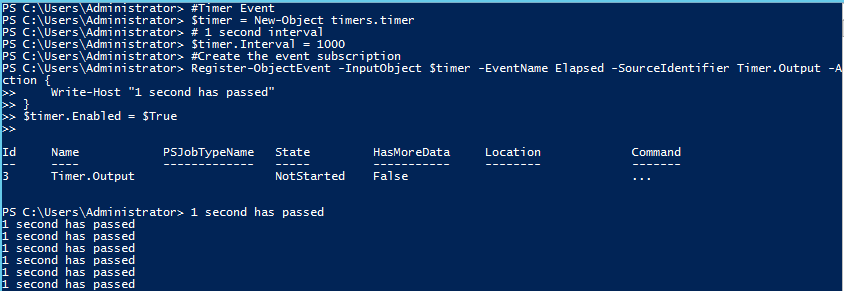
One of the most common object events that I see used is a Timer object that performs an action for each and every tick based on the Interval set. This continues on until you disable the timer. Pretty nice as a monitoring tool to check a process or even a script that is running.

#Timer Event
$timer = New-Object timers.timer
# 1 second interval
$timer.Interval = 1000
#Create the event subscription
Register-ObjectEvent -InputObject $timer -EventName Elapsed -SourceIdentifier Timer.Output -Action {
    Write-Host "1 second has passed"
}
$timer.Enabled = $True

image

#Let run for a few seconds and then stop it
$timer.Enabled = $False

Pretty simple stuff here. I created a timer object and set the interval to 1000 milliseconds (1 second) and at every interval tick, it performs an action. In this case, the action is just a simple display to the console. Nothing spectacular, but gives you an idea about where you could run with this. If you only wanted to track the first 20 times that this action occurs, you can use the –MaxTriggerCount parameter to only allow the event subscription to run the action block the specified number of times. Note that after you reach the set number, the event does not unsubscribe itself; this must still be done by you or another automated approach.

Monitor a Background Job

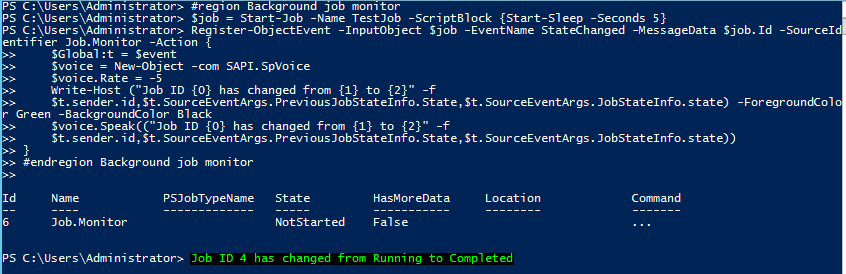
Background jobs are used very frequently by everyone to handle tasks that are long running and would otherwise take up valuable console time. The problem with this is that you don’t know when the job finishes without having to continuously check on it manually with Get-Job. Luckily, there is an event associated with each PSJob object called StateChanged that can easily be subscribed to and alert you when the job state changes, hopefully for a finished job without issues.

#region Background job monitor
$job = Start-Job -Name TestJob -ScriptBlock {Start-Sleep -Seconds 5}
Register-ObjectEvent -InputObject $job -EventName StateChanged -MessageData $job.Id -SourceIdentifier Job.Monitor -Action {
    $Global:t = $event
    $voice = New-Object -com SAPI.SpVoice
    $voice.Rate = -5
    Write-Host ("Job ID {0} has changed from {1} to {2}" -f 
    $t.sender.id,$t.SourceEventArgs.PreviousJobStateInfo.State,$t.SourceEventArgs.JobStateInfo.state) -ForegroundColor Green -BackgroundColor Black
    $voice.Speak(("Job ID {0} has changed from {1} to {2}" -f 
    $t.sender.id,$t.SourceEventArgs.PreviousJobStateInfo.State,$t.SourceEventArgs.JobStateInfo.state))
}
#endregion Background job monitor

image

While you can see the message, there is also an audio cue in the form of a voice notification saying what you are seeing on the console. This is done using the SAPI.SpVoice COM object. Note that there is another way to use a voice with the .Net namespace: System.Speech.Synthesis.

Either way, this provides an excellent to track your background job’s status and alerts you when finished. If using multiple jobs, you will need to subscribe to each jobs state to ensure that you are alerted when each job finishes. For a more complex approach to this, check out my Hey, Scripting Guy! article I wrote that used this method to track a system as it was being rebooted.

Track the Progress of a File Download

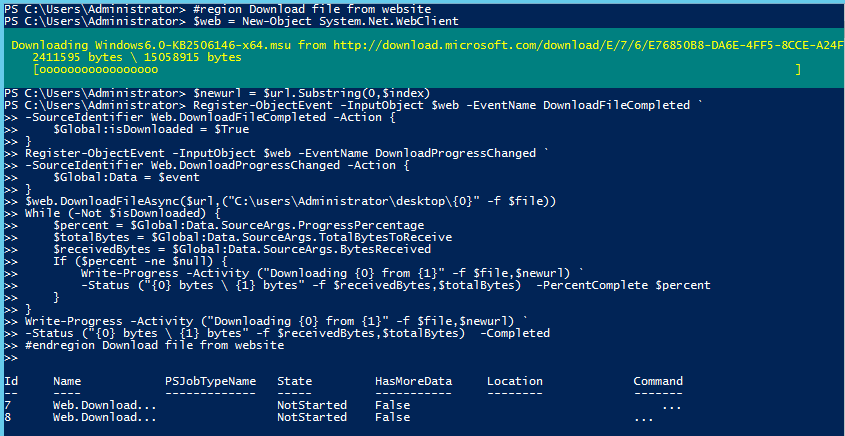
Downloading a file with PowerShell can easily be done using PowerShell. What can be a little more difficult is tracking the progress of that download. Fortunately, we can solve this using 2 events from System.Net.WebClient: DownloadProgressChanged and DownloadFileCompleted.

#region Download file from website
$web = New-Object System.Net.WebClient
$web.UseDefaultCredentials = $True
$url = "http://download.microsoft.com/download/E/7/6/E76850B8-DA6E-4FF5-8CCE-A24FC513FD16/Windows6.0-KB2506146-x64.msu"
$Index = $url.LastIndexOf("/")
$file = $url.Substring($Index+1)
$newurl = $url.Substring(0,$index)
Register-ObjectEvent -InputObject $web -EventName DownloadFileCompleted `
-SourceIdentifier Web.DownloadFileCompleted -Action {    
    $Global:isDownloaded = $True
}
Register-ObjectEvent -InputObject $web -EventName DownloadProgressChanged `
-SourceIdentifier Web.DownloadProgressChanged -Action {
    $Global:Data = $event
}
$web.DownloadFileAsync($url,("C:\users\Administrator\desktop\{0}" -f $file))
While (-Not $isDownloaded) {
    $percent = $Global:Data.SourceArgs.ProgressPercentage
    $totalBytes = $Global:Data.SourceArgs.TotalBytesToReceive
    $receivedBytes = $Global:Data.SourceArgs.BytesReceived
    If ($percent -ne $null) {
        Write-Progress -Activity ("Downloading {0} from {1}" -f $file,$newurl) `
        -Status ("{0} bytes \ {1} bytes" -f $receivedBytes,$totalBytes)  -PercentComplete $percent
    }
}
Write-Progress -Activity ("Downloading {0} from {1}" -f $file,$newurl) `
-Status ("{0} bytes \ {1} bytes" -f $receivedBytes,$totalBytes)  -Completed
#endregion Download file from website

image

Setting up a subscription for both of the events allows this to work effectively. By monitoring the DownloadProgressChanged event we can figure out how much of the total file has been downloaded, which plays well into using a progress bar to track this change. The DownloadFileCompleted helps us to determine when the download has completed (obviously) and also to close out the progress bar.

Tracking File and Folder Changes

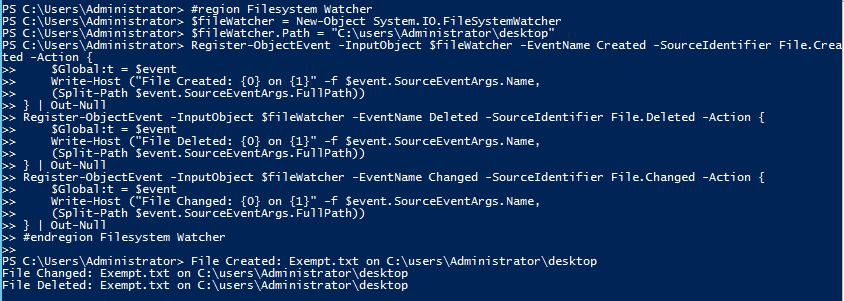
Another use of subscribing to events is by harnessing the System.IO.FileSystemWatcher to basically watch a specific location for the creation, deletion and modification of a file. Great if you want to track a specific location for any of the mentioned actions.

#region Filesystem Watcher
$fileWatcher = New-Object System.IO.FileSystemWatcher
$fileWatcher.Path = "C:\users\Administrator\desktop"
Register-ObjectEvent -InputObject $fileWatcher -EventName Created -SourceIdentifier File.Created -Action {
    $Global:t = $event
    Write-Host ("File Created: {0} on {1}" -f $event.SourceEventArgs.Name,
    (Split-Path $event.SourceEventArgs.FullPath))
} | Out-Null
Register-ObjectEvent -InputObject $fileWatcher -EventName Deleted -SourceIdentifier File.Deleted -Action {
    $Global:t = $event
    Write-Host ("File Deleted: {0} on {1}" -f $event.SourceEventArgs.Name,
    (Split-Path $event.SourceEventArgs.FullPath))
} | Out-Null
Register-ObjectEvent -InputObject $fileWatcher -EventName Changed -SourceIdentifier File.Changed -Action {
    $Global:t = $event
    Write-Host ("File Changed: {0} on {1}" -f $event.SourceEventArgs.Name,
    (Split-Path $event.SourceEventArgs.FullPath))
} | Out-Null
#endregion Filesystem Watcher

image

The only issues with this is that the event cannot tell you who has made the changes to the folder location that is being monitored. But it still provides a great reporting mechanism to audit a folder location and at least alert if a file has been modified.

Monitor System Event for a Time Change

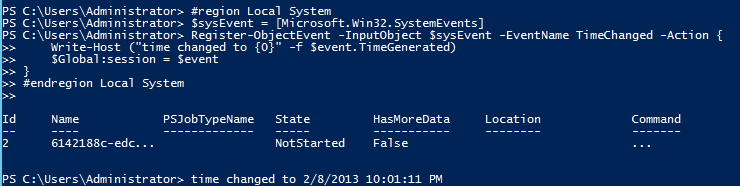
You can also monitor specific system generated events for a number of things. In this case, I am going to track when the time changes on my system.

#region Local System
$sysEvent = [Microsoft.Win32.SystemEvents]
Register-ObjectEvent -InputObject $sysEvent -EventName TimeChanged -Action {
    Write-Host ("time changed to {0}" -f $event.TimeGenerated)
    $Global:session = $event
}
#endregion Local System


image

There are a number of other system events that you can supply to monitor from the system. This would be a nice use for tracking a session ending event such as a server being rebooted using the –Forward parameter on the remote system so it can send the events to the event queue on the local system. Of course, this requires you to use PowerShell remoting to make this happen and to keep the the session active in order to receive the event.

These are just a few of the possible examples of using Register-ObjectEvent to subscribe to various events that are generated by .Net objects. Also do not forget about using the –Support parameter to hide the subscription and use for a more complex event subscription as well as the –Forward parameter to run an event subscription from either a background job or a remote system.

Posted in powershell, scripts | Tagged , , , | 3 Comments

Use PowerShell and WMI to Locate Multiple Files on Any Drive in your Domain

A couple of days ago I was browsing my RSS feeds and came across an article that PowerShell MVP Jeffery Hicks wrote regarding the use of finding files using WMI with a function called Get-CimFile. That article is listed below:

http://jdhitsolutions.com/blog/2013/01/find-files-with-wmi-and-powershell/

In this article, Jeff shows how you can specify a filename and you can search through WMI to find a file or files quicker than what you could using Get-ChildItem. Of course, this is under the pretense that you have no idea where this file could be at (otherwise you would just use Get-ChildItem). In the article it was mentioned that one could add for optional credentials since Get-WMIObject already has a Credential parameter. In the comments it was asked about allowing wildcard support to the search as well.

Well, I had some free time and decided to take this on and add those features as well as making my own personal changes to include allowing for multiple files and allowing the use of just an extension or extensions. Another thing I did was remove the PSJobs infrastructure that Jeff used with the –AsJob parameter. If you’ve read my other blog posts, you probably already know why I did this, if not you can find the article here. Nothing terribly against using PSJobs as it definitely has its place in the PowerShell ecosystem, but I felt like making the change to runspaces instead.

Alternate Credentials

The first item I added was allowing the use of alternate credentials so you can access remote systems if you are using a different account. For that, I just added the following parameter for $Credential:

[System.Management.Automation.Credential()]$Credential = 
[System.Management.Automation.PSCredential]::Empty

This method works great because it will allow you to use the –Credential one of two ways by either calling without any arguments: –Credential or with an argument –Credential domain\username. The important part of this is the [System.Management.Automation.PSCredential]::Empty. Without this, you would get a prompt for a credential every time you ran the function.

WildCard Support

This one was a little more complex because I had to check to see if a wildcard character was being used in the –Name parameter. To first determine if a wildcard was being used, I setup a regular expression to perform the search:

[regex]$regex_wildcards = "\*|%|_|\?"

You may be asking, “Why are you allowing a * and ? when they are clearly not legal wildcards for Windows Query Language (WQL)?”. The answer to that will be revealed shortly. Once I know that I am dealing with a wildcard, I then take the filter fragment that I built and replace the “=” with “LIKE” for the filter fragment before it is added to the main filter.

If ($filenameFilter -match $regex_wildcards) {
    $filenameFilter = $filenameFilter -replace "="," LIKE "
}
If ($_extensionFilter -match $regex_wildcards) {
    $_extensionFilter = $_extensionFilter -replace "="," LIKE "
}

Ok, so lets assume we have the main filter completed and are ready to add it into the WMI splat table that will be used for the Get-WMIObject cmldet. If you remember, there is a possibility that there are illegal wildcard characters that will cause this query to fail instantly. So how do we get around this issue? Regex? I suppose, but that seems like overkill. Instead, lets use something that already exists and does everything for you with no work at all! The class being mentioned is Management.Automation.WildcardPattern which has a method called ToWQL() which takes a string containing the filter for its constructor and translates everything, including those illegal wildcards into a WQL friendly string. Watch this example to see it in action:

([Management.Automation.WildcardPattern]"Filename LIKE pow?rsh*.e?e").ToWql()

image

As you can see, everything was translated perfectly into a WQL friendly string. It is important to note that using wildcards will degrade the performance on the query, so use at your own discretion.

The Rest of the Additions

As mentioned before, I swapped out PSJobs for runspaces based on my own personal preferences. I also added the ability to supply multiple files and extensions in case you need to find multiple files/extensions. By doing this, I dynamically build out the filter based on if it is a filename, extension or both.

#region Reformat for WMI    
$firstRun = $True
ForEach ($item in $name) {
    If ($item -match "\.") {
        $index = $item.LastIndexOf(".")
        $filename = $item.Substring(0,$index)
        $_extension = $item.Substring($index+1)
        $filenameFilter= ("Filename='{0}'" -f $filename)
        $_extensionFilter= ("Extension='{0}'" -f $_extension)
        If ($filenameFilter -match $regex_wildcards) {
            $filenameFilter = $filenameFilter -replace "="," LIKE "
        }
        If ($_extensionFilter -match $regex_wildcards) {
            $_extensionFilter = $_extensionFilter -replace "="," LIKE "
        }
        If ($firstRun) {
            If ($filename.length -gt 0 -AND $_extension.length -gt 0) {
                $filter = "{0}({1} AND {2})" -f $filter,$filenameFilter,$_extensionFilter
                $firstRun = $False                
            } ElseIf ($filename.length -gt 0) {
                $filter = "{0}{1}" -f $filter,$filenameFilter
                $firstRun = $False 
            } ElseIf ($_extension.length -gt 0) {
                $filter = "{0}{1}" -f $filter,$_extensionFilter
                $firstRun = $False                 
            }
        } Else {
            If ($filename.length -gt 0 -AND $_extension.length -gt 0) {
                $filter = "{0} OR ({1} AND {2})" -f $filter,$filenameFilter,$_extensionFilter
                $firstRun = $False                
            } ElseIf ($filename.length -gt 0) {
                $filter = "{0} OR {1}" -f $filter,$filenameFilter
                $firstRun = $False 
            } ElseIf ($_extension.length -gt 0) {
                $filter = "{0} OR {1}" -f $filter,$_extensionFilter
                $firstRun = $False                 
            }
        }
    } Else {
        $filenameFilter= ("Filename='{0}'" -f $item)
        If ($filenameFilter -match $regex_wildcards) {
            $filenameFilter = $filenameFilter -replace "="," LIKE "
        }
        If ($firstRun) {
            $filter = "{0}{1}" -f $filter,$filenameFilter
            $firstRun = $False 
        } Else {
            $filter = "{0} OR {1}" -f $filter,$filenameFilter
        }
    }
}  
#Add a closing ) at the end of the filter
If ($Drive.Length -gt 0) {
    $Filter = "{0})" -f $filter
}  

With the use of runspaces, I added the ability to display the number of runspace jobs remaining in the title bar of the console that then reverts back to the original title once the jobs have completed. Just a small tweak that helps to better track the progress of the jobs.

image


Function in Action

Now that I have covered my additions, it is time to see this in action. In the following examples I will use a wildcards and multiple files for the queries. I’ll also show the verbose output so you can see the filter being dynamically built based on the parameters supplied.

The example below shows a simple query and specifies the local drive.

Get-CIMFile -Name powershell.log -Verbose -Drive C:

image


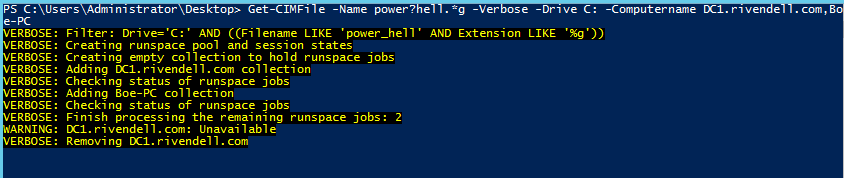
The next example uses wildcards, which you can see were converted for the filter in the verbose stream. I will note that this took at looooong time to complete because of the use of wildcards.

Get-CIMFile -Name power?hell.*g -Verbose -Drive C: `
-Computername DC1.rivendell.com,Boe-PC

image

The final example shows how you can specify more than one item, be it a filename or just an extension.

Get-CIMFile -Name .ps1,powershell.log -Drive C: -Verbose

image

image

Those were just a few of quick examples of using the function to search for files and extensions. A more real world approach was that I used this to quickly search all of the servers in my network for .p12 and .pfx files so we can audit and remove these files from the network.

Download the Function

Script Repository

Posted in powershell, scripts | Tagged , , , | 9 Comments

PowerShell and Events: Engine Events

There are 4 types of events  that you can register and use for Event Handling: Engine Events, Object events (.Net),CIM (PowerShell V3 only) and WMI events . These provide a great way to provide some asynchronous event handling to monitor various activities on your system. Another type of event is used by Windows Forms and WPF, but if you want to see examples of those, I would suggest checking out my articles on WPF.

Generally, the most used type of event handling that I see is usually WMI events followed by Object (.Net) events with Engine events ranking at the bottom. In the case of my next set of articles, I am taking the reverse route by talking about Engine events and working my way up to WMI/CIM events.

This article, as the title mentions, will work with Engine Events and how we can subscribe to events (Register-EngineEvent) used by the PowerShell engine (all 2 of them) and also how we can generate custom events to watch for using New-Event.

The PowerShell Engine

There are 2 events that you can watch for with the PowerShell engine (Exiting and OnIdle). You can find this out also by running the following command:

[System.Management.Automation.PsEngineEvent] | gm -static -type property

   TypeName: System.Management.Automation.PSEngineEvent

Name    MemberType Definition
—-    ———- ———-
Exiting Property   static string Exiting {get;}
OnIdle  Property   static string OnIdle {get;}

Not really a lot to work with, but it is still something for the PowerShell engine. So with that, lets work with these two EngineEvents and see some examples.

PowerShell.Exiting and PowerShell.OnIdle

#Simple example using Register-EngineEvent and PowerShell.Exiting engine event ([System.Management.Automation.PsEngineEvent]::Exiting)
Register-EngineEvent -SourceIdentifier PowerShell.Exiting -Action {
    "PowerShell exited at {0}" -f (Get-Date) | 
        Out-File -FilePath "C:\users\Administrator\desktop\powershell.log" -Append
}

Here we will write a log file giving the date that the PowerShell console is closed. But before I do that we are going to go ahead and set up another event for the OnIdle as well and check on the logfile.

#Simple example using Register-EngineEvent and PowerShell.OnIdle engine event ([System.Management.Automation.PsEngineEvent]::OnIdle)
Register-EngineEvent -SourceIdentifier PowerShell.OnIdle -Action {
    "PowerShell idle at {0}" -f (Get-Date) | 
    Out-File -FilePath "C:\users\Administrator\desktop\powershell.log" -Append
}

image

You will notice that each time you register and event, it will output a System.Management.Automation.PSEventJob object. If you don’t want to see that, just add | Out-Null at the end of the command.

I want to see if we are actually subscribed to the events, so I will use Get-EventSubscriber to look at each of these.

Get-EventSubscriber

SubscriptionId   : 2
SourceObject     :
EventName        :
SourceIdentifier : PowerShell.Exiting
Action           : System.Management.Automation.PSEventJob
HandlerDelegate  :
SupportEvent     : False
ForwardEvent     : False

SubscriptionId   : 3
SourceObject     :
EventName        :
SourceIdentifier : PowerShell.OnIdle
Action           : System.Management.Automation.PSEventJob
HandlerDelegate  :
SupportEvent     : False
ForwardEvent     : False

I think we have spent enough time letting the logfile run, so now I will stop the event subscriber and check out the log.

Get-EventSubscriber | Unregister-Event

You will also note that the jobs also stop as soon as you do this.

image

Ok, now lets back up a bit and pretend that I did not actually kill the event subscribers and instead chose to close the PowerShell console instead. You will remember that the first event subscriber was set to fire as PowerShell is exiting and write to the log file. So if I did that and we then look at the log file, you would see the following:

Get-Content powershell.log

PowerShell idle at 1/30/2013 8:33:15 PM
PowerShell idle at 1/30/2013 8:33:16 PM
PowerShell idle at 1/30/2013 8:33:17 PM
PowerShell exited at 1/30/2013 8:33:17 PM

-SupportEvent And Your PowerShell Profile

One last thing with the Register-EngineEvent is that it has a parameter called –SupportEvent, which when used with the cmdlet, doesn’t output an object nor can you use Get-Job to see the job. In fact, if you use Get-EventSubscriber, you will not be able to see the subscription unless you specify the –Force parameter. The reason for this is that there are times when an a specific event subscription is merely a go between for another “parent” event subscriber and the event itself and you do not wish for this subscription to be found.

So with that, lets say that you want to keep the last 100 items of your history when you exit your PowerShelll console and be able to load those back up on your next console session. Put this in for PowerShell profile and you will get that capability! This will use the –SupportEvent because I have no need to view that event subscriber or see the associated job.

If (Test-Path (Join-Path $Home "ps_history.xml")) {
    Add-History -InputObject (Join-Path $Home "ps_history.xml")
}
Register-EngineEvent -SourceIdentifier powershell.exiting -SupportEvent -Action {  
    Get-History -Count 100 | Export-Clixml (Join-Path $Home "ps_history.xml") 
}

Assuming that we put this in my profile, running Get-History would show you the current history of my session.

image

I will now close and re-open my PowerShell session and check my history again to make sure that there is nothing it.

image

Now I will import the file back into my session and view my history again.

image

One last note, the –SupportEvent parameter is available all of the Register-*Event cmdlets and not just Register-EngineEvent.

Creating Custom Events

Up next is New-Event, which allows you to create custom events which are added to the event queue that can be viewed by using the Get-Event cmdlet. This allows you to generate your own types of events that can be handled by the Register-EngineEvent cmdlet to perform any task you want. But before we get back to Register-EngineEvent, lets create a new event and then view it in the queue.

New-Event -SourceIdentifier Something.Else -Sender PowerShell.Something -MessageData "Nothing useful" | Out-Null
Get-Event

image

And with that, you can see the event I created sitting the queue. Nothing too crazy, but lets now throw Register-EngineEvent into the mix and see what happens.

Register-EngineEvent -SourceIdentifier Something.Else -Action {
    Write-Host ("Event from {0} occurred!`nCheck out `$createdEvent to see the event!" -f $Event.Sender)
    $Global:createdEvent = $event
}

#Create the new event again so it gets caught by the subscription
New-Event -SourceIdentifier Something.Else -Sender PowerShell.Something -MessageData "Nothing useful" | Out-Null


image

We subscribed to a new event with a SourceIdentifier of ‘Something.Else’ and then generated an actual event with the same SourceIdentifier and just as expected, the subscriber picked up on it and wrote the output to the screen.

You will also note that I created a Global variable to store that event to be viewed in my current console. The reason for that is that the $Event variable is an automatic variable that only has data in the scope of the Action scriptblock. Because of that, we wouldn’t be able to view the data from that variable or the other Event related variables: $Eventargs and $EventSubscriber.

If you want to explore these variables, you can run the following code that will create an event subscription and fire off when you create a new event. The only difference is that this will take you into a nested prompt in which you can actually view these automatic variables, if they have data available.

Register-EngineEvent -SourceIdentifier Something.Else -Action {
    $host.EnterNestedPrompt()
}

#Create the new event again so it gets caught by the subscription
New-Event -SourceIdentifier Something.Else -Sender PowerShell.Something -MessageData "Nothing useful" | Out-Null

image

Forwarding Events

The last thing I will talk about is forwarding events from either a remote system or from a background job that you can take action on, if needed. And when I say a remote system, I mean using PowerShell Remoting, not as though you were using Remote Desktop or some other method of remotely accessing a computer.

The –Forward parameter, but like the –SupportEvent parameter, is not limited to Register-Engine event, but is available in all of the Register-*Event, so the examples here can be used in the other cmdlets as well.

This example shows how you can use this in a background job to write events outside of the job scope using the –Forward parameter.

#Show no events are in queue
Get-Event

Start-Job -Name TestJob -ScriptBlock {
    Register-EngineEvent -SourceIdentifier This.Nothing -Forward
    Start-Sleep -seconds 2
    New-Event -SourceIdentifier This.Nothing -Message "Job ended"
}

#Wait for job to finish
Get-Job | Wait-Job

#Show the new event waiting in queue from background job
Get-Event

image

Let’s make more interesting, I will setup a loop in the job that will write an event every 5 seconds and then register an event subscription at the parent console to write the date each time the event in the job fires.

#Show no events are in queue
Get-Event

#Register the event subscription for the forwarded event
Register-EngineEvent -SourceIdentifier This.Nothing -Action {
    Write-Host ("Date: {0}" -f $event.messagedata) -BackgroundColor Black -ForegroundColor Yellow
}

Start-Job -Name TestJob -ScriptBlock {
    While ($True) {
        Register-EngineEvent -SourceIdentifier This.Nothing -Forward
        Start-Sleep -seconds 5
        New-Event -SourceIdentifier This.Nothing -Message ("{0}" -f (Get-Date))
    }
}

image

And, as I mentioned earlier, this can be used on remote systems such as using PowerShell remoting. The first example is using Invoke-Command against a remote system.

#Show no events are in queue
Get-Event

#Run command from remote system
Invoke-Command -ComputerName DC1.rivendell.com -ScriptBlock {

    #Register the event to forward and create the new event
    Register-EngineEvent -SourceIdentifier This.Nothing -Forward
    New-Event -SourceIdentifier This.Nothing -Message ("Message from {0}" -f $env:COMPUTERNAME) | Out-Null
}

#Show the new event waiting in queue from the remote system
Get-Event

image

This second example uses New-PSSession to create the initial session and then Enter-PSSession to connect into the interactive session to forward an event back to my remote system.

#Show no events are in queue
Get-Event

#Run command from remote system
$session = New-PSSession -ComputerName DC1.rivendell.com 

Enter-PSSession $session

#Register the event to forward and create the new event
Register-EngineEvent -SourceIdentifier This.Nothing -Forward
New-Event -SourceIdentifier This.Nothing -Message ("Message from {0}" -f $env:COMPUTERNAME) | Out-Null

Exit-PSSession

#Show the new event waiting in queue from the remote system
Get-Event

image

Some very cool stuff that you can do with just the engine events! There is a lot of power to be had in these cmdlets for you to explore such as using these events for monitoring activity both locally and remotely using the Register-EngineEvent and New-Event cmdlets.

Hopefully you learned something new with this article and can apply this knowledge to your own projects. I would love to hear what you have done with the engine events in your environment.

Posted in powershell, scripts | Tagged , , | 7 Comments

Report the CrashOnAuditFail Setting on Your Computers

CrashOnAuditFail is a setting on each operating system that is used to essentially stop your system if it can no longer write to the Security log. the stop us typically a Blue Screen of Death (BSOD) that bring the system down when it can no longer write to the security log.

STOP 0xC0000244 when security log full

Most of the time this can be due to a improperly configured event log setting that has a small size and doesn’t allow for archiving. Other times, it is unauthorized activity on the system and every now and then, it could just be another issue (such as something accidently stopping the Services.exe process). Depending on your environment, you may have this enabled, or you may not.

Either way, it might be a good idea to know if this is enabled on your systems in your network. I will show you how you can write a quick function that can hit all of the remote systems and report back the status of this setting. All of this can be checked from the registry by navigating through  HKLM\SYSTEM\CurrentControlSet\Control\Lsa and looking at the value of crashonauditfail. There are 3 valid values that are used on this key that are worth noting.


Value

Meaning

0

The feature is off. The system does not halt, even when it cannot record events in the Security Log.

1

The feature is on. The system halts when it cannot record an event in the Security Log.

2

The feature is on and has been triggered. The system halted because it could not record an auditable event in the Security Log. Only members of the

So now that we have that out of the way, we can now begin looking at how to get this data from a system. Since the possibility exists that we will be remotely looking for this value, I am going to use the [Microsoft.Win32.RegistryKey]::OpenRemoteBaseKey() method to connect to the remote system’s registry hive.

$remotereg=[Microsoft.Win32.RegistryKey]::OpenRemoteBaseKey`
("LocalMachine","Dc1.rivendell.com")

If it didn’t work, we would see some sort of error, but just in case, you can run the following code to see the subkeys:

$remotereg.GetSubKeyNames()

image

With that out of the way, we can now proceed to connect to the lsa subkey in the registry.

$regkey  = $remotereg.opensubkey(`
"SYSTEM\CurrentControlSet\Control\lsa",$False)

I specify the $False in the OpenSubKey() method because I am not planning writing to the registry key.

Lastly, I now need to get the value of the crashonauditfail key.

$regkey.GetValue("crashonauditfail")

image

In this case, we can see that CrashOnAuditFail is disabled. It may be better to translate this to something a little easier to understand, so I use a hash table to make this simpler.

$crashOnAuditState = @{
    0 = 'Disabled'
    1 = 'Enabled'
    2 = 'Tripped'
}

Now I can do this:

$crashOnAuditState[$regkey.GetValue('crashonauditfail')]

image

A little better for someone to read and understand. Of course, something like this is made better as either a script or a function. Luckily, I wrote a function that allows you to run this again multiple remote systems that returns the state of the setting.

As with all functions that reside in a script, you must dot source the script to load the function into the current PowerShell session before use. So lets see an example of this function.

Get-CrashOnAuditFail -Computername Boe-Pc,DC1.rivendell.com

image

If this sounds like something that you can use, feel free to download the script and give it a run. Let me know what you think of it!

Download the Script

Script Repository

Posted in powershell, scripts | Tagged , , , | Leave a comment