Finding a File’s MFT Timestamp using PowerShell

During my last couple of articles dealing with writing and reading files without updating their LastAccess and LastWrite timestamps which has seen a bit of popularity from folks.  While these methods work great for the casual onlooker, digging down deeper into the file will show that in fact, there is another timestamp that does get updated, the MFT (ChangeTime) timestamp. A former co-worker of mine, Patrick Olsen was able to show this using some of his utilities. This led me down 2 paths:

  1. How I can get this MFT timestamp using PowerShell?
  2. How can I block this MFT timestamp from being updated?

This article aims to knock of the first question by finding the MFT timestamp using a combination of P/Invoke and PowerShell.

Using the same methods that Patrick used to look at the MFT timestamp on a file called “NewFile.txt”, we can see all of the available timestamps on the file. The SleuthKit tools can be downloaded from the following site:

http://www.sleuthkit.org/sleuthkit/download.php

.\mmls.exe \\.\PhysicalDrive0

image

.\fls.exe -rp -o 21262336 \\.\PhysicalDrive0 | 
Select-String -Pattern "NewFile.txt"

image

.\istat.exe -o 21262336 \\.\PhysicalDrive0 115472-128-9

image

Here you can see the MFT timestamp from the NewFile.txt and it clearly shows it being at 23:31:52 on 17 Feb 2013. Using the Write-File function, I will write to the file and you will only see the MFT timestamp being updated while everything else will remain the same.

Write-File -File NewFile.txt -InputObject "This is a test" -Append

Now lets take another look at those timestamps.

.\istat.exe -o 21262336 \\.\PhysicalDrive0 115472-128-9

image

As you can see, everything remained the same with the exception of the MFT timestamp. So how do I accomplish this same type check using PowerShell? The answer lies with using the NtQueryInformationFile function. Fortunately, there was an already available example that had exactly what I needed. I stripped out all of the unneeded code from the C# example and made it into something that would work great with my PowerShell function.

        $sig = @'
        using System;
        using System.Runtime.InteropServices; // for DllImport and friends
        using Microsoft.Win32.SafeHandles; // for SafeHandle
        using System.Collections.Generic; // for ParseFileAttributes helper function (List<FileAttributes> only
        using System.IO; // for test main (FileStream) only
        using System.Text; // for test main (Encoding) only
        using System.Threading; // for test main (Thread.Sleep) only
        using System.Diagnostics; // for test main (Trace.Write[Line]) only
        public class Nt
        {

            struct IO_STATUS_BLOCK
            {
                internal uint status;
                internal ulong information;
            }
            enum FILE_INFORMATION_CLASS
            {
                FileDirectoryInformation = 1,        // 1
                FileFullDirectoryInformation,        // 2
                FileBothDirectoryInformation,        // 3
                FileBasicInformation,            // 4
                FileStandardInformation,        // 5
                FileInternalInformation,        // 6
                FileEaInformation,            // 7
                FileAccessInformation,            // 8
                FileNameInformation,            // 9
                FileRenameInformation,            // 10
                FileLinkInformation,            // 11
                FileNamesInformation,            // 12
                FileDispositionInformation,        // 13
                FilePositionInformation,        // 14
                FileFullEaInformation,            // 15
                FileModeInformation = 16,        // 16
                FileAlignmentInformation,        // 17
                FileAllInformation,            // 18
                FileAllocationInformation,        // 19
                FileEndOfFileInformation,        // 20
                FileAlternateNameInformation,        // 21
                FileStreamInformation,            // 22
                FilePipeInformation,            // 23
                FilePipeLocalInformation,        // 24
                FilePipeRemoteInformation,        // 25
                FileMailslotQueryInformation,        // 26
                FileMailslotSetInformation,        // 27
                FileCompressionInformation,        // 28
                FileObjectIdInformation,        // 29
                FileCompletionInformation,        // 30
                FileMoveClusterInformation,        // 31
                FileQuotaInformation,            // 32
                FileReparsePointInformation,        // 33
                FileNetworkOpenInformation,        // 34
                FileAttributeTagInformation,        // 35
                FileTrackingInformation,        // 36
                FileIdBothDirectoryInformation,        // 37
                FileIdFullDirectoryInformation,        // 38
                FileValidDataLengthInformation,        // 39
                FileShortNameInformation,        // 40
                FileHardLinkInformation = 46        // 46    
            }
            [StructLayout(LayoutKind.Explicit)]
            struct FILE_BASIC_INFORMATION
            {
                [FieldOffset(0)]
                internal long CreationTime;
                [FieldOffset(8)]
                internal long LastAccessTime;
                [FieldOffset(16)]
                internal long LastWriteTime;
                [FieldOffset(24)]
                internal long ChangeTime;
                [FieldOffset(32)]
                internal ulong FileAttributes;
            }
            [DllImport("ntdll.dll", SetLastError = true)]
            static extern IntPtr NtQueryInformationFile(SafeFileHandle fileHandle, ref IO_STATUS_BLOCK IoStatusBlock, IntPtr pInfoBlock, uint length, FILE_INFORMATION_CLASS fileInformation);

            public static bool GetFourFileTimes(string path2file,
                    out DateTime creationTime, out DateTime lastAccessTime, out DateTime lastWriteTime, out DateTime changeTime, out string errMsg)
            {
                bool brc = false;
                creationTime = default(DateTime);
                lastAccessTime = default(DateTime);
                lastWriteTime = default(DateTime);
                changeTime = default(DateTime);
                errMsg = string.Empty;
                IntPtr p_fbi = IntPtr.Zero;
                try
                {
                    FILE_BASIC_INFORMATION fbi = new FILE_BASIC_INFORMATION();
                    IO_STATUS_BLOCK iosb = new IO_STATUS_BLOCK();
                    using (FileStream fs = new FileStream(path2file, FileMode.Open, FileAccess.Read, FileShare.Read))
                    {
                        p_fbi = Marshal.AllocHGlobal(Marshal.SizeOf(fbi));                
                        IntPtr iprc = NtQueryInformationFile(fs.SafeFileHandle, ref iosb, p_fbi, (uint)Marshal.SizeOf(fbi), FILE_INFORMATION_CLASS.FileBasicInformation);
                        brc = iprc == IntPtr.Zero && iosb.status == 0;
                        if (brc)
                        {
                            brc = false;
                            fbi = (FILE_BASIC_INFORMATION)Marshal.PtrToStructure(p_fbi, typeof(FILE_BASIC_INFORMATION));
                            creationTime = DateTime.FromFileTime(fbi.CreationTime);
                            lastAccessTime = DateTime.FromFileTime(fbi.LastAccessTime);
                            lastWriteTime = DateTime.FromFileTime(fbi.LastWriteTime);
                            changeTime = DateTime.FromFileTime(fbi.ChangeTime);
                            brc = true;
                        }
                    }
                }
                catch (Exception ex)
                {
                    brc = false;
                    errMsg = ex.Message;
                }
                finally
                {
                    if (p_fbi != IntPtr.Zero) { Marshal.FreeHGlobal(p_fbi); }
                }
                return brc;
            }
        }
'@

I was then able to use Add-Type to load up the code and then set up some variables that will be used as references for checking the file timestamps.

#region Create Win32 API object
If (-Not $Global:NTQueryFile) {
    $Global:NTQueryFile = Add-Type -TypeDefinition $sig -PassThru
}
#endregion Create Win32 API object

#region Create reference variables
$creationTime = (Get-Date)
$lastAccessTime = (Get-Date)
$lastWriteTime = (Get-Date)
$changeTime = (Get-Date)
$errorMsg = $null
#endregion Create reference variables

From there I call the public function GetFourFileTimes to get the timestamps of a specified file.

[NT]::GetFourFileTimes($item,
    [ref]$creationTime,
    [ref]$lastAccessTime,
    [ref]$lastWriteTime,
    [ref]$changeTime,
    [ref]$errorMsg
    )
New-Object PSObject -Property @{
    FileName = $item
    CreationDate = $creationTime
    LastWriteTime = $lastWriteTime
    LastAccessTime = $lastAccessTime 
    ChangeTime = $changeTime
}

I wrapped all of this up into a function called Get-FileTimeStamp, that when used gives you a similar output of the MFT timestamp (now ChangeTime) along with other timestamps.

Get-FileTimeStamp -File .\NewFile.txt

image

As you can see, it is the exact same time as used with the istat.exe file available in the  SleuthKit suite.

The next obvious step is to figure out how to prevent the MFT timestamp from being updated when accessing or even writing to a file. I have a couple of ideas in mind and just need to put the code together and test it out before publishing an article and associated function.  But rest assured that I will post my findings as soon as I am confident that it works properly!

Until then, feel free to download the script using the link below and let me know what you think!

Download Get-FileTimeStamp

Script Repository

Posted in powershell | Tagged , , , , , | 2 Comments

Fix Spaces in Hyperlinks That Exist in a Word Document

While hanging out in the PowerShell forums, I came across a question that talked about going out to a Sharepoint site and finding all word documents and then scanning each document and fixing all of the hyperlinks that had spaces in it. While I didn’t provide the answer for connecting to Sharepoint, I was able to help the user out with opening up and fixing any hyperlinks with spaces.

This example word document has three hyperlinks in it, 2 are valid and 1 is using a link that has spaces in it.

image

The first step in this is to connect to the word document using the Word.Application COM object.

$word = New-Object -ComObject Word.Application
$document = $word.documents.open("C:\users\administrator\desktop\TEST.docx")


Finding all of the hyperlinks is actually very simple using the hyperlinks property.

$document.Hyperlinks

image

We can tell from the image that the last hyperlink has some spaces in it that need to be updated. But there is a gotcha to this that I will show a little later on. But first, how am I going to fix the hyperlink? I could use regex or a replace method for the space, but that just seems like a little too much for something like this. Fortunately, we can use the System.URI class to make this conversion without any hassle.

([uri]"http://domain.com/This is a bad link").AbsoluteUri

image

Perfect! Now we can work on making the updates to the bad hyperlink or hyperlinks, if applicable.

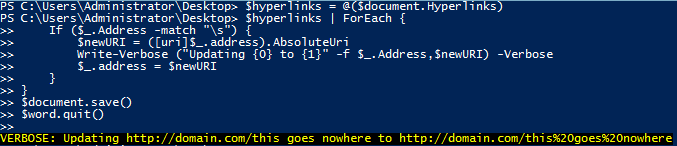
$hyperlinks = @($document.Hyperlinks) 
$hyperlinks | ForEach {
    If ($_.Address -match "\s") {
        $newURI = ([uri]$_.address).AbsoluteUri
        Write-Verbose ("Updating {0} to {1}" -f $_.Address,$newURI) -Verbose
        $_.address = $newURI
    }
}
$document.save()
$word.quit()

image

You will notice that I had to wrap the $document.hyperlinks in “@()” to make it an array. There is a quirk when working with COM objects in that even though you may have multiple outputs that resemble a collection, it does not behave like a collection in the way that you can iterate through each of the objects or even pull a specific item using array slicing. By forcing it into a collection of objects.

Now that I have finished this up, lets look at that hyperlink again.

image

All fixed! All seems great, however, the gotcha that I was talking about is that if you hover over the hyperlink, it still looks like it just has spaces in it.

image

Another interesting thing is that even when looking at the link via PowerShell, you will see that it doesn’t show the “%20” that you would expect to see and instead shows spaces still.

image

This is important to note when running this code as it will always attempt to “fix” the hyperlink. I am not completely sure why it doesn’t show up correctly even when viewed through PowerShell, but I would assume it is another quirk of working with the word COM object.

Hope that this helps out those that have come across this issue and wanted an automated solution to fix it!

Posted in powershell | Tagged , , | 2 Comments

TCP Communication with PowerShell Available in MEAP

One of my chapters in the upcoming PowerShell Deep Dives book just became available as part of the MEAP program at Manning. If you aren’t a part of the early access program, you should definitely check it out! Otherwise, you can wait until it gets published later this year. Either way, I had a lot of fun writing this chapter and hope you enjoy it too!

http://manning.com/hicks/

Posted in News, powershell | Tagged , , , | 1 Comment

Fun with PowerShell and Permutations

Somewhere a while back I was reading about working with trying to find all possible combinations of a given word, called Permutations. Since my main goal was to take a given word (or string) and cycle through all of the possible combinations, I figure this would make for a fun attempt at a PowerShell function.

I really don’t need to calculate the number of permutations, but just for the heck of it, I through something quick together to get the possible combinations. But first I had to figure out what the formula was to make this happen. In this case, I was aiming for a Permutation with no repetition. This means that each item in the string can only be used once, so if I chose “cat”, it can only have the “c”,”a” and “t” instead of possibly having all “c’s”, “a’s” and “t’s”. Knowing this, the formula that I needed consisted of this:

3!

I use a factorial with the number of characters in the string to determine how many permutations there are. An easier way to look at it is like this:

3*2*1

This gives me the answer of 6. So I know that there are 6 possible permutations to “cat”. My PowerShell approach is pretty primitive, but works just fine for me.

$string = "cat"
Invoke-Expression ($String.length..1 -join "*")

image

Like I said, nothing earth shattering here. The next step was to make my function to the permutation possible. I had seen others do this using a variety of languages from C#, java, etc… and figure if they can do this, the so can I in PowerShell.

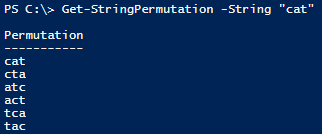
In the end, I came up with a function on Get-StringPermutation that can take a string and show all possible permutations to it.

Get-StringPermutation -String "cat"

image

Larger strings can be piped into Format-Wide and specifying a column size to display everything.

Get-StringPermutation -String "super" | 
Format-Wide -Column 4

image

Of course, if you wanted to know how many permutations there were, you can do this:

$permutations = Get-StringPermutation -String "super"
$permutations.count

Of course, you could always pipe the output into Measure-Object as well to get the answer, which in the case of “super”, is 120.

The basics of the function include using a StringBuilder to add the String which allows for easier access to move each letter of the string around. That means that I can re-order all of the letters in the string to get all possible combinations.

There is definitely a ton of room for improvement on this code. Possible inclusions are allowing a collection of items to find all permutations or allowing for repetition as well.

The function can be downloaded from the Script Repository and I also have the source code available below to view as well. Check them both out and let me know what you think!

Download

http://gallery.technet.microsoft.com/scriptcenter/Get-StringPermutation-107c7a75

Source Code

Function Get-StringPermutation {
    <#
        .SYNOPSIS
            Retrieves the permutations of a given string. Works only with a single word.
 
        .DESCRIPTION
            Retrieves the permutations of a given string Works only with a single word.
       
        .PARAMETER String           
            Single string used to give permutations on
       
        .NOTES
            Name: Get-StringPermutation
            Author: Boe Prox
            DateCreated:21 Feb 2013
            DateModifed:21 Feb 2013
 
        .EXAMPLE
            Get-StringPermutation -String "hat"
            Permutation                                                                          
            -----------                                                                          
            hat                                                                                  
            hta                                                                                  
            ath                                                                                  
            aht                                                                                  
            tha                                                                                  
            tah        

            Description
            -----------
            Shows all possible permutations for the string 'hat'.

        .EXAMPLE
            Get-StringPermutation -String "help" | Format-Wide -Column 4            
            help                  hepl                  hlpe                 hlep                
            hpel                  hple                  elph                 elhp                
            ephl                  eplh                  ehlp                 ehpl                
            lphe                  lpeh                  lhep                 lhpe                
            leph                  lehp                  phel                 phle                
            pelh                  pehl                  plhe                 pleh        

            Description
            -----------
            Shows all possible permutations for the string 'hat'.
 
    #>
    [cmdletbinding()]
    Param(
        [parameter(ValueFromPipeline=$True)]
        [string]$String = 'the'
    )
    Begin {
        #region Internal Functions
        Function New-Anagram { 
            Param([int]$NewSize)              
            If ($NewSize -eq 1) {
                return
            }
            For ($i=0;$i -lt $NewSize; $i++) { 
                New-Anagram  -NewSize ($NewSize - 1)
                If ($NewSize -eq 2) {
                    New-Object PSObject -Property @{
                        Permutation = $stringBuilder.ToString()                  
                    }
                }
                Move-Left -NewSize $NewSize
            }
        }
        Function Move-Left {
            Param([int]$NewSize)        
            $z = 0
            $position = ($Size - $NewSize)
            [char]$temp = $stringBuilder[$position]           
            For ($z=($position+1);$z -lt $Size; $z++) {
                $stringBuilder[($z-1)] = $stringBuilder[$z]               
            }
            $stringBuilder[($z-1)] = $temp
        }
        #endregion Internal Functions
    }
    Process {
        $size = $String.length
        $stringBuilder = New-Object System.Text.StringBuilder -ArgumentList $String
        New-Anagram -NewSize $Size
    }
    End {}
}
Posted in powershell, scripts | Tagged , | 1 Comment

Read File Without Updating LastAccess TimeStamp using PowerShell

In my last article I showed you how to write to a file covertly without updating the LastWrite and LastAccess time and even avoid being tripped by the FileSystemWatcher event.  This is a follow-up to that article that uses many of the same techniques, but instead allows you to read a file without updating the LastAccess timestamp.

https://learn-powershell.net/2013/02/14/write-to-an-existing-file-without-updating-lastwritetime-or-lastaccesstimestamps-using-powershell/

Simply retrieving the properties of an item or opening up a file will cause the LastAccessTime attribute to report the current time that the action took place.

image

It would be nice to be able to read a file without this being updated, now wouldn’t it? Of course it would! Instead of using a StreamWriter like in my previous article, I will instead use the StreamReader class to make the initial connection to a file, call the SetFileTime() method defined using a Win32 API against the handle that was created and then grab all of the contents of the file to read. Depending on what I want to do, I can figure out what type of encoding to read the file in or I can even output the content in bytes. Perfect if I want to get a binary file and output it to another file or append to an existing file.

The following example will show two attempts at reading a text file first without updating the LastAccess timestamp and then another attempt at reading the file without using the SetFileTime() method and watching the timestamp get updated.

$file = ".\NewFile.txt"
$signature = @"
[DllImport("kernel32.dll", SetLastError = true)]
[return: MarshalAs(UnmanagedType.Bool)]
public static extern bool SetFileTime(IntPtr hFile, ref long lpCreationTime, ref long lpLastAccessTime, ref long lpLastWriteTime);
"@
#endregion p/invoke signature

#region Create Win32 API object
[int64]$FILETIMEUNCHANGED = 0xFFFFFFFF
If (-Not $setFileTime) {
    $Global:setFileTime = Add-Type -Name FileTime -MemberDefinition $signature -PassThru
}

#region Check file name and convert to full path
If (-Not ([uri]$file).IsAbsoluteUri) {
    Write-Verbose ("{0} is not a full path, using current directory: {1}" -f $file,$pwd)
    $file = (Join-Path $pwd ($file -replace "\.\\",""))
}

Get-Item $file | Select Name,LastAccess*
#Open the file to read
$fileStream = New-Object System.IO.StreamReader -ArgumentList ([IO.File]::Open($file,"Open"))
#Tell file system operations to not updated LastAccess timestamp
$setFileTime::SetFileTime($fileStream.basestream.handle,[ref]$null,[ref]$FILETIMEUNCHANGED,[ref]$null)

#Read all contents of the file
$fileStream.ReadToEnd()
#Close the file stream
$fileStream.BaseStream.Close()
Get-Item $file | Select Name,LastAccess*
Start-Sleep -Seconds 5
Get-Content $file
Get-Item $file | Select Name,LastAccess*

image

It’s a lot of stuff to go through, but you can see that I use a Stream object with [IO.File]::Open() to create the initial stream to the text file that is then supplied as an argument to the System.IO.StreamReader constructor. This is done because if I attempt to connect to the file just using the StreamReader constructor, it will actually cause the SetFileTime() method to not work properly, thus causing the LastAccess timestamp to update (which is not what I want to happen). The rest of this is pretty straightforward. I call the ReadToEnd() method to read all of the lines in the text file and then close the StreamReader via the BaseStream.Close() method. I wait 5 seconds and then read the file by using Get-Content and watch as the timestamp is updated this time.

As with my last article on writing to a file without updating the timestamps, this example wouldn’t be complete without a little function that makes the job much easier as well as allowing you to read a file in bytes, if needed.

Get-FileContent

Using the techniques shown earlier, I put this into a nice function called Get-FileContent that you can use to read the content of a file in a specified encoding which includes bytes. The following examples will show the function in action as it reads a file without updating the LastAccess timestamp.

Reading a file

Get-FileContent -File .\NewFile.txt

image

Reading a file in bytes

Get-FileContent -File .\NewFile.txt -Encoding Byte

image

Copying a file in bytes to another existing file using Write-File

Get-FileContent -File .\HonoraryScriptingGuy.png -Encoding Byte | 
Write-File -File .\TEST.png -Encoding byte

image

Like nothing ever happened!

The Get-FileContent function is available to download from the link below in the Script Repository. As always, if you find a use for this, I would love to hear about it!

Download Get-FileContent

http://gallery.technet.microsoft.com/scriptcenter/Read-file-without-updating-15eb9cb8

Posted in powershell, scripts | Tagged , , , | Leave a comment