List All Files Regardless of 260 Character Path Restriction Using PowerShell and Robocopy

A common pain had by many System Administrators is when you are trying to recursively list all files and folders in a given path or even retrieve the total size of a folder. After waiting for a while in hopes of seeing the data you expect, you instead are greeted with the following message showing a failure to go any deeper in the folder structure.

Get-ChildItem -recurse .\PowerShellScripts | Select -Expand Fullname

image

The infamous PathTooLongException that occurs when you hit the 260 character limit on a fully qualified path. Seeing this message means heartburn because now we are unable to get a good idea on just how many files (and how big those files are) when performing the folder query.

A lot of different reasons for what causes this issue are available, such as users that are mapped to a folder deep in the folder structure using a drive letter and then continuing to build more folders and sub-folders underneath each other.  I won’t go into the technical reason for this issue, but you can find one conversation that talks about it here. What I a going to do is show you how to get around this issue and see all of the folders and files as well as giving you a total size of a given folder.

So how do we accomplish this feat? The answer lies in a freely available (and already installed) piece of software called robocopy.exe. Because robocopy is not a windows specific utility, it does not adhere to the 260 character limit (unless you want to using the /256 switch) meaning that you can set it off and it will grab all of the files and folders based on the switches that you use for it.

Using some switches in robocopy, we can list all of the files along with the size and last modified time as well as showing the total count and size of all files.

robocopy .\PowerShellScripts NULL /L /S /NJH /BYTES /FP /NC /NDL /XJ /TS /R:0 /W:0

image

As you can see, regardless of the total characters in the path, I can easily see all of the data I was hoping to see in my original query now available. So what do the switches do you ask? The table below will explain each switch.


/L

List only – don’t copy, timestamp or delete any files.

/S

copy Subdirectories, but not empty ones.

/NJH

No Job Header.

/BYTES

Print sizes as bytes.

/FP

include Full Pathname of files in the output.

/NC

No Class – don’t log file classes.

/NDL

No Directory List – don’t log directory names.

/TS

include source file Time Stamps in the output.

/R:0

number of Retries on failed copies: default 1 million.

/W:0

Wait time between retries: default is 30 seconds.

/XJ

eXclude Junction points. (normally included by default)

I use the /XJ so I do not get caught up in an endless spiral of junction points that eventually result in errors and false data. If running a scan against folders that might be using mount points, it would be a good idea to use Win32_Volume to get the paths to those mount points. Something like this would work and you can then use Caption as the source path.

$drives = Get-WMIObject -Class Win32_Volume -Filter "NOT Caption LIKE '\\\\%'" |
    Select Caption, Label

There is also /MaxAge and /MinAge where you can specify n number of days to filter based on the LastWriteTime of a file.

This is great and all, but the output is just a collection of strings and not really a usable object that can be sorted or filtered with PowerShell. For this, I use regular expressions to parse out the size in bytes, lastwritetime and full path to the file. The end result is something like this:

$item = "PowerShellScripts"
$params = New-Object System.Collections.Arraylist
$params.AddRange(@("/L","/S","/NJH","/BYTES","/FP","/NC","/NDL","/TS","/XJ","/R:0","/W:0"))
$countPattern = "^\s{3}Files\s:\s+(?<Count>\d+).*"
$sizePattern = "^\s{3}Bytes\s:\s+(?<Size>\d+(?:\.?\d+)\s[a-z]?).*"
((robocopy $item NULL $params)) | ForEach {
    If ($_ -match "(?<Size>\d+)\s(?<Date>\S+\s\S+)\s+(?<FullName>.*)") {
        New-Object PSObject -Property @{
            FullName = $matches.FullName
            Size = $matches.Size
            Date = [datetime]$matches.Date
        }
    } Else {
        Write-Verbose ("{0}" -f $_)
    }
}

image

Now we have something that works a lot better using PowerShell. I can take this output and do whatever I want with it. If I want to just get the size of the folder, I can either take this output and then use Measure-Object to get the sum of the Size property or use another regular expression to pull the data at the end of the robocopy job that displays the count and total size of the files.

To get this data using robocopy and pulling the data at the end of the job, I use something like this:

$item = "PowerShellScripts"
$params = New-Object System.Collections.Arraylist
$params.AddRange(@("/L","/S","/NJH","/BYTES","/FP","/NC","/NDL","/TS","/XJ","/R:0","/W:0"))
$countPattern = "^\s{3}Files\s:\s+(?<Count>\d+).*"
$sizePattern = "^\s{3}Bytes\s:\s+(?<Size>\d+(?:\.?\d+)).*"
$return = robocopy $item NULL $params
If ($return[-5] -match $countPattern) {
    $Count = $matches.Count
}
If ($Count -gt 0) {
    If ($return[-4] -match $sizePattern) {
        $Size = $matches.Size
    }
} Else {
    $Size = 0
}
$object = New-Object PSObject -Property @{
    FullName = $item
    Count = [int]$Count
    Size = ([math]::Round($Size,2))
}
$object.pstypenames.insert(0,'IO.Folder.Foldersize')
Write-Output $object
$Size=$Null

image

Not only was able to use robocopy to get a listing of all files regardless of the depth of the folder structure, but I am also able to get the total count of all files and the total size in bytes. Pretty handy to use when you run into issues with character limit issues when scanning folders.

This is all great and can be fit into any script that you need to run to scan folders. Obvious things missing are the capability to filter for specific extensions, files, etc… But I think the tradeoff of being able to bypass the character limitation is acceptable in my own opinion as I can split out the extensions and filter based on that.

As always, having the code snippets to perform the work is one thing, but being able to put this into a function is where something like this will really shine. so with that, here is my take on a function to accomplish this called Get-FolderItem.

You will notice that I do not specify a total count or total size of the files in this function. I gave it some thought and played with the idea of doing this but in the end I felt that a user would really be more interested in the files that are actually found and you could always save the output to a variable and use Measure-Object to get that information. If there are enough people asking for this to be added into the command, then I will definitely look into doing this. (Hint: If you use the –Verbose parameter, you can find this information for each folder scanned in the Verbose output!).

I’ll show various examples using my known “bad” folder to show how I can get all of the files from that folder and subfolders beneath it.

Get-FolderItem -Path .\PowerShellScripts | 
	Format-Table

image

I only chose to use Format-Table at the end to make it easier to view the output. If you were outputting this to a CSV file or anything else, you must remove Format-Table.

Get-ChildItem .\PowerShellScripts | 
	Get-FolderItem | Format-Table

image

Instead of searching from the PowerShell Scripts folder, I use Get-ChildItem and pipe that information into Get-FolderItem. Note that only directories will be scanned while files are ignored.

You can also specify a filter based on the LastWriteTime to find files older than a specified time. In this case, I will look for files older than a year (365 days).

Get-FolderItem -Path .\PowerShellScripts -MinAge 365 | 
	Format-Table

image

Likewise, now I want only the files that are newer then 6 months (186 days)

Get-FolderItem -Path .\PowerShellScripts -MaxAge 186 | 
	Format-Table

image

It is important to understand that MaxAge means everything after the given days while MinAge is everything before the days given. This is based off of robocopy’s own parameters filtering by days.

Lastly, let’s get the count and size of the files.

$files = Get-FolderItem -Path .\PowerShellScripts
$files | Measure-Object -Sum -Property Length | 
    Select Count,@{L='SizeMB';E={$_.Sum/1MB}}

image

So with that, you can now use this function to generate a report of all files on a server or file share, regardless of the size of characters in the full path. The script file is available for download at the link below. As always, I am always interested in hearing what you think of this article and the script!

Download Get-FolderItem

Script Repository

Posted in powershell, scripts | Tagged , , , | 48 Comments

Use PowerShell To Calculate the Hash of a File

I’m pretty sure that everyone has something similar to a hash calculator that has been written in PowerShell or some other language and I am no different. This is my take on a simple file hash calculator to determine the hash of a given file or files based off of a given algorithm.

For those of you who may not know what I am talking about, calculating a file hash is useful to determine if a file has been modified from its current state. Usually when you download a file from the internet, there will be an associated checksum that has the expected hash of the file you are downloading. If the hashes match up, then there is nothing to worry about. But if the hash of the downloaded file differs from the expected hash, then that may raise concern as to the integrity of the file and if it has been compromised in any way.

To calculate a hash for a file, I will use the Security.Cryptography.HashAlgorithm class and its static method Create() which will create an instance of a given algorithm to use for the calculation. So what are my possible algorithm choices? Good question, they are:

  • MD5 
  • SHA1
  • SHA256
  • SHA384
  • SHA512
  • RIPEM160

For this example, I will just stick with MD5 and continue by creating the instance.

$algorithm = [Security.Cryptography.HashAlgorithm]::Create("MD5")

From this instance, I will then use the ComputeHash() method which will allow me to compute the hash of a given file based on whether I supply a file stream or the bytes of a file. First I will use the bytes method to show how easy it is to get the MD5 hash from a file.

$fileBytes = [io.File]::ReadAllBytes("C:\users\Administrator\desktop\NewFile.txt")
$bytes = $algorithm.ComputeHash($fileBytes)
-Join ($bytes | ForEach {"{0:x2}" -f $_})

image

First, I get the read all of the bytes of the file into memory and then use the ComputeHash() method of the MD5 instance and then translate that into a hex output using the {0:x2} formatter and make it all on one line by specifying –Join at the beginning line of code. While this method does work great, the gotcha is that this will start to fall apart when working with larger files. If you try this on a 3GB file  for instance and you don’t have the memory to support it, then you will the operation fail due to insufficient memory.

image

The Factory.wim file is 4Gb in size and is more than double what the ReadAllBytes() method allows.

The way to get around this issue is by using the other possible parameter that ComputeHash accepts which is a stream.

$hash = [Security.Cryptography.HashAlgorithm]::Create( "MD5" )
$stream = ([IO.StreamReader]"C:\users\Administrator\desktop\newfile.txt").BaseStream
-join ($hash.ComputeHash($stream) | ForEach { "{0:x2}" -f $_ })
$stream.Close()

image

Same amount of code and the same results. But the difference here is that if I ran this against a large file, it wouldn’t freak out with an error about memory running out. Lets try that factory.wim file again and see what happens.

image

It took a little bit of time, but I had no issues with getting the hash of the 4Gb file using the stream. So with that, your best option is to use a stream to handle any file, regardless of size. This will save you from a hassle if you happen to try to calculate a hash for a larger file.

Of course, this is always better as a function that can be re-used with little to no effort and wouldn’t be nicer to allow the option to pick multiple algorithms or be able to run Get-ChildItem and then pipe the output into a function to get the hashes? Of course it would be! That is why I have a function called Get-FileHash that will do all of this for you. It is a simple function that performs a simple hash calculation of all of the possible hashes if you choose.

Lets take a look at some examples of using it.

Get-FileHash -Path .\NewFile.txt -Algorithm MD5

image

Get-FileHash -Path .\newfile.txt -Algorithm MD5,SHA1,SHA512,SHA256,RIPEMD160 | Format-List

image

Get-ChildItem -Filter *.txt | 
    Get-FileHash -Algorithm MD5

image

This even works against UNC paths as well!

image

And yes, it works against files of any size, such as the 4GB image.

:\dell\Image\Factory.wim -Algorithm SHA256

The download for this function is available at the link below. As always, thank you for stopping by and I am always interested in hearing what you think about this function.


Download Get-FileHash

Script Repository

Posted in powershell, scripts | Tagged , , , , , | 14 Comments

Get Available Constructors Using PowerShell

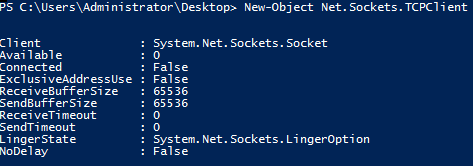
Working with PowerShell sometimes (or a lot of the time) involves using .Net types to create objects that can be used for more in depth scripting of various items. It is one thing to know the type that you need for the task at hand, but another all together to use that type and build  an object that can be used for whatever purpose. Sometimes it is as simple as just doing the following:

New-Object Net.Sockets.TCPClient

image

But did you know that there are other parameters that can be used with this type? You can actually specify a system name and port number as an argument to the object creation that will actually perform a port query.

New-Object Net.Sockets.TCPClient -ArgumentList dc1.rivendell.com,389

image

You can see that not only did it create the TCPClient object, but it already attempted a port connection to the server. Pretty cool stuff!

So how do you figure out what to use when creating an object? Well, you can either go out to the MSDN site and search for that specific type and look at the various constructors available, or you can dig a little in the .Net object and find out yourself!

([type]"Net.Sockets.TCPClient").GetConstructors() | ForEach {
    $_.GetParameters()
} | Select Name,ParameterType

image

Ok, so it still isn’t that clear at to what parameters are required for each available constructor for this type. But at least you now know more than before. Lets take it another step forward and actually see what each constructor has available.

([type]"Net.Sockets.TCPClient").GetConstructors() | ForEach {
    ($_.GetParameters() | ForEach {$_.ToString()}) -Join ", "
} 

image

That’s a little better. At least we can now more easily see the parameters and respective parameter types that are required for the constructor. The initial blank line means that this constructor also accepts no parameters to create the object.

To make this a little easier, I use a function I wrote called… Get-Constructor. Using this, I am able to quickly get all available constructors either written out as a simple string, or as an object if I wish to dive deeper into the .Net object. The download for this function is available below in the Script Repository.

A couple examples of Get-Constructor in action:

Display as a simple string

Get-Constructor -Type Net.Sockets.TCPClient

image

As an object

Get-Constructor -Type Net.Sockets.TCPClient -AsObject

image

A couple more just for fun

Get-Constructor -Type string

image


Get-Constructor -Type adsisearcher

image

That is all there is to it! Feel free to give it a download and let me know what you think!

Download Get-Constructor

Script Repository

Posted in powershell, scripts | Tagged , , | 4 Comments

SQL Saturday 197 in Omaha and PowerShell Sessions

SQL Saturday is coming to Omaha, Nebraska on April 6, 2013 (Saturday) and there are some PowerShell sessions available that will be there! Granted, there are not many PowerShell sessions at this event, but some are better than none in this case.

As for the PowerShell sessions, there is a Pre-Conference happening on Friday being presented by none other than PowerShell MVP Jeffery Hicks (Blog | Twitter)! He is doing an all day session titled “Prof. PowerShell Or How I Learned to Stop Worrying and Love PowerShell” that provides an excellent crash course into PowerShell V3.  The lone PowerShell session during SQL Saturday is “Getting Started with PowerShell’s Job Infrastructure”, also being given by Jeffery Hicks.

For myself, I will be attending the session on Saturday, but I encourage anyone in the area to register and check out not only the PowerShell session, but the other sessions as well. Check out the link below for more information.

http://www.sqlsaturday.com/eventhome.aspx

Posted in News, powershell | Tagged , , , | Leave a comment

Translate Color Name to ARGB Using PowerShell

ARGB stands for Alpha Red Green Blue and is something I use quite often when I work with a WPF and want to get a color for font or something else. Basically, if you want a color like Green, sometimes you have to use the ARGB type, which is #FF008000. Figuring out what this is can be annoying unless you have web access. Fortunately,  I wrote a simple function that can do this for me with little effort. While not everyone will find this useful, I figured I would post the code here along with some examples.

Function Get-ARGBColor {
    Param ([string[]]$Color)
    Begin {
        Add-Type –assemblyName PresentationFramework
    }
    Process {
        If (-Not $PSBoundParameters['Color']) {
            $Color = [windows.media.colors] | Get-Member -static -Type Property | Select -Expand Name        
        }
        ForEach ($c in $color) {
            Try {
                $ARGB = [windows.media.color]$c
                New-Object PSObject -Property @{
                    ARGB = "$([windows.media.colors]::$c)"
                    Color = $c
                }
            } Catch {
                Write-Warning "$c is not a valid color"
            }
        }
    }
}
Get-ARGBColor -Color Green

image

Get-ARGBColor -Color Red,Yellow,Blue

image

If you just want to list out all available pre-defined colors, just run the command without any parameters.

image

image

Posted in powershell | Tagged , , , | Leave a comment