
A common task that a System Administrator might face in their day is restarting a service on a remote system. While this can be accomplish using the Services.MSC or another various GUI, you have to load the GUI, then connect to the remote system, locate the service and finally perform the action on the service.
There are a few ways that this can be done using WMI (Win32_Services) and using Get-Service along with Stop/Start/Restart-Service cmdlets.
Using WMI
The first method of managing a service that I will go into is using WMI to accomplish this task. First I will connect to the specific service that I want to manipulate, in this case, the windows update client service: wuauserv.
$service = Get-WmiObject -ComputerName DC1 -Class Win32_Service `
-Filter "Name='wuauserv'"
$service

We now have our WMI service object for wuauserv. Lets take a look at all of the available methods for this object.
$Service | Get-Member -Type Method

The methods that we are most concerned with for this article are StartService() and StopService().
With this knowledge of what methods we can use to start and stop the remote service, lets go ahead and stop the service.
$service.stopservice()
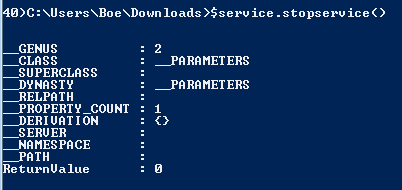
Note the ReturnValue property that is returned here after calling the Stop() method. A 0 means that the stop method was successful. For more information on other return values, please check out this msdn page.
Unfortunately, the WMI object is not dynamic nor does it have a way to let you refresh the object to see if the Stop worked or not. With that, we have to perform the query again.
$service = Get-WmiObject -ComputerName DC1 -Class Win32_Service `
-Filter "Name='wuauserv'"
$service

As you can see, the service has now been stopped. Starting a service is just as simple using the StartService() method, as seen below:
$service.StartService()
$service = Get-WmiObject -ComputerName DC1 -Class Win32_Service `
-Filter "Name='wuauserv'"
$service
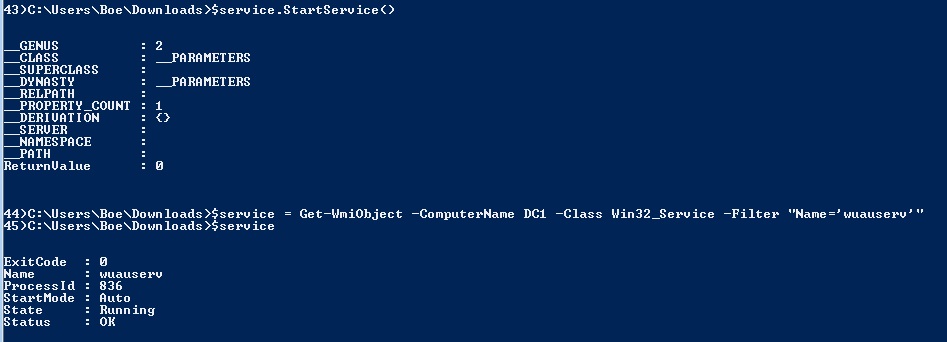
Again, the return code is a 0, so we know it started successfully. More info on other return codes for the Start method can be found here.
Another way to use WMI to start/stop the services is Invoke-WMIMethod.
Invoke-WMIMethod
You can use the Invoke-WMIMethod cmdlet to perform the same type of action that we did using Get-WMIObject and calling the service object’s method.
Invoke-WmiMethod -Path "Win32_Service.Name='wuauserv'" `
-Name StopService -Computername DC1

Notice that the return object when using Invoke-WMIMethod is exactly the same as the method we used earlier.
Using existing cmdlets: Get-Service,Stop/Start/Restart-Service
One of the nice things that PowerShell can do both locally and remotely is query a service using the Get-Service cmdlet.
$service = get-service -ComputerName dc1 -Name wuauserv
$service

This works just as well as the WMI method but returns a different object: System.ServiceProcess.ServiceController
Lets look at some of the methods that are available from this object:
$service | Get-Member -Type Method
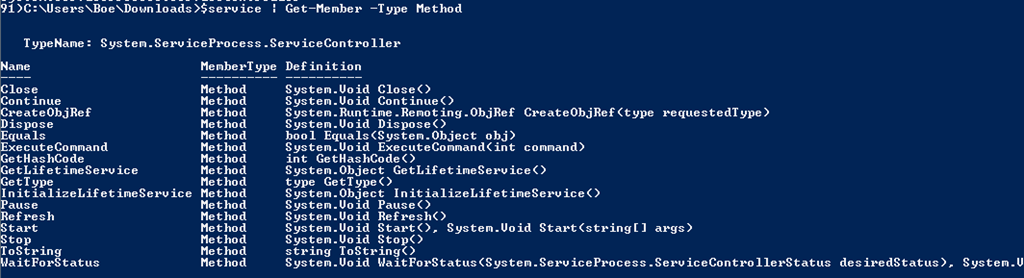
Much like the WMI object, we have a Start() and Stop() method that we can use to manage the service object. But if you take a closer look, we also see a Refresh() object as well. While we have the same issue where the object doesn’t automatically update itself when the state changes, it does allow us to refresh the object and show us the new state without having to perform another query.
$service.Start()
$service.Refresh()
$service
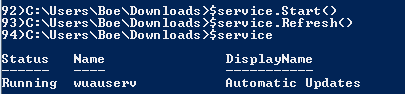
As you can tell, this works rather nicely even though we do not get a return code of any type to let us know if this worked or not.
Ok, so I mentioned that you can also use Start/Stop/Restart-Service to accomplish the same type of service actions? But if you look at the parameters, you will not see a –Computername parameter that is so common in cmdlets that allow remote connections, such as Get-Service.
Get-Help Get-Service -Parameter Computername
Get-Help Start-Service -Parameter Computername
Get-Help Stop-Service -Parameter Computername
Get-Help Restart-Service -Parameter Computername

So how can we use those cmdlets to manipulate the state of a remote service if there is no –Computername parameter? Fortunately, the cmdlets have an –InputObject parameter that allows us to supply the service object, even if it is a remote object to manipulate the state of the service.
Get-Help Start-Service -Parameter InputObject
Get-Help Stop-Service -Parameter InputObject
Get-Help Restart-Service -Parameter InputObject

Lets stop the Wuauserv service:
Stop-Service -InputObject $service -Verbose
$service.Refresh()
$service

Now I will start it up again:
Start-Service -InputObject $service -Verbose
$service.Refresh()
$service

Now for something we haven’t been able to do at all with the WMI or the System.ServiceProcess.ServiceController object is perform a restart of the service easily without having to call a Stop and then Start method. We can now use the Restart-Service cmdlet to accomplish this task.
Restart-Service -InputObject $service -Verbose
$service.Refresh()
$service

And of course, you can easily run these through the pipeline as well with no effort at all.
Get-Service -ComputerName dc1 -Name wuauserv | Stop-Service -Verbose
Get-Service -ComputerName dc1 -Name wuauserv | Start-Service -Verbose
Get-Service -ComputerName dc1 -Name wuauserv | Restart-Service -Verbose

In conclusion
So as you see, there are a number of ways that you can manipulate the state of a remote service with little to no effort at all. That is the beauty of PowerShell in that there are multiple paths to accomplishing the same goal and all can be done very easily!

 Learn Powershell | Achieve More
Hi, I want to start same service from the different four server Can U help me out how can I start by Powershell. I need your help
Kindly reply me also in my mail.
I was able to remotely connect to another machine and get the service info I needed, but there is never a ReturnValue that I can retrieve. I can see all the other properties listed out (__GENUS, __CLASS, etc.), but there’s no return value and when I try to log the object itself, it just returns “System.Management.ManagementBaseObject” rather than a number I can use to check the status.
Reblogged this on Max's IT World.
check this https://blogs.technet.microsoft.com/heyscriptingguy/2013/10/13/powertip-use-poweshell-to-start-service-on-remote-machine/
Reblogged this on ozduck.
Is there possibility to suppress the message displayed after invoking $service.StartService()?
This one to be exact:
__GENUS : 2
__CLASS : __PARAMETERS
__SUPERCLASS :
__DYNASTY : __PARAMETERS
__RELPATH :
__PROPERTY_COUNT : 1
__DERIVATION : {}
__SERVER :
__NAMESPACE :
__PATH :
ReturnValue : 0
PSComputerName :
Pipe it to Out-Null.
$service.StartService() | Out-Null
Pingback: Starting,Stopping and Restarting Remote Services with PowerShell | Learn Powershell | Achieve More | Soyka's Blog
“Get-Service -ComputerName dc1 -Name wuauserv | Stop-Service -Verbose”
That syntax works for me in PS3 on Windows 7, controlling a service on a Win XP box.
The same syntax works with Get-Process & Stop-Process as well. Thanks for the tip.
Thx, this was useful!
I had the same problem in that I couldn’t pipe the Get-Service into Restart-Service to restart a remote service. ie this command “Get-Service -ComputerName dc1 -Name wuauserv | Restart-Service -Verbose”, did not work for me.
However this one liner did work for me :-
Restart-Service -InputObject $(get-service -ComputerName dc1 -Name wuauserv) -Verbose
I think you’ll find that if executed from a computer named dc2, this example;
“Get-Service -ComputerName dc1 -Name wuauserv | Restart-Service -Verbose”
would actually get the service name from the dc1, but then restart the wuauserv service locally on dc2.
What OS are you running this against? I cannot reproduce the same type of action that you are showing with the local system having its service restarted instead of the remote system that you are piping into the *-Service cmdlet via the services object. I’ve ran this against several systems and each time the remote service is stopped, started or restarted.
PS C:\WINDOWS\system32> $Env:Computername
BOE-PC
PS C:\WINDOWS\system32> Get-Service -ComputerName dc1 -Name wuauserv
Status Name DisplayName
—— —- ———–
Running wuauserv Automatic Updates
PS C:\WINDOWS\system32> Get-Service -ComputerName dc1 -Name wuauserv | Stop-Service -Verbose
VERBOSE: Performing operation “Stop-Service” on Target “Automatic Updates (wuauserv)”.
PS C:\WINDOWS\system32> Get-Service -ComputerName dc1 -Name wuauserv
Status Name DisplayName
—— —- ———–
Stopped wuauserv Automatic Updates
PS C:\WINDOWS\system32> Get-Service -ComputerName dc1 -Name wuauserv | Start-Service -Verbose
VERBOSE: Performing operation “Start-Service” on Target “Automatic Updates (wuauserv)”.
PS C:\WINDOWS\system32> Get-Service -ComputerName dc1 -Name wuauserv
Status Name DisplayName
—— —- ———–
Running wuauserv Automatic Updates
If you try running the following command, you can see that Restart/Stop/Start-Service takes in the object from the pipeline through the inputobject parameter.
Trace-Command parameterbinding {Get-Service -ComputerName dc1 -Name wuauserv | Start-Service -Verbose} -PSHost
…
DEBUG: ParameterBinding Information: 0 : BIND PIPELINE object to parameters: [Start-Service]
DEBUG: ParameterBinding Information: 0 : PIPELINE object TYPE = [System.ServiceProcess.ServiceController]
DEBUG: ParameterBinding Information: 0 : RESTORING pipeline parameter’s original values
DEBUG: ParameterBinding Information: 0 : Parameter [InputObject] PIPELINE INPUT ValueFromPipeline NO COERCION
DEBUG: ParameterBinding Information: 0 : BIND arg [wuauserv] to parameter [InputObject]
DEBUG: ParameterBinding Information: 0 : Binding collection parameter InputObject: argument type
[ServiceController], parameter type [System.ServiceProcess.ServiceController[]], collection type Array, element type
[System.ServiceProcess.ServiceController], no coerceElementType
…
I get the same as Colin, running on W2K8 R2 PS2.0.
Good spot Colin
Pingback: Episode 174 – Matt Graeber using PowerShell in Infosec « PowerScripting Podcast