
So I have been literally sitting on this script for about a year now and am finally looking to publish it after seeing Josh Atwell’s awesome post about writing a countdown timer in the PowerShell console and using it as motivation to stop being lazy with it. I figured I would take a break from doing some judging in this years Scripting Games to finish up this little ‘project’ and get it out of the way.
My take on this doesn’t use the console to display a countdown timer, but instead uses WPF to display the countdown timer. Like I said, I actually had this back around July when I wanted to have a countdown of some sort to let me know when the Omaha Half Marathon was happening and whipped it together with the plan of cleaning it up later on and blogging about it. Well, fast forward several months and here we go!
My requirements for this countdown timer is that had to consist of the following things:
- Allow me to specify an end date
- Allow a custom message to state what the countdown was for
- Allow different font colors and sizes for both the countdown numbers and the custom message
- Allow resizing of the countdown display with everything resizing proportionally
- Ability to change the opacity of the display
- Allow display to remain on top or fall behind other windows
- Some sort of action when the countdown reaches 0
Ok, with that out of the way, I went forth by first coming up with my UI template using XAML (of course) and then verifying that everything is lined up correctly.
    <Window
        xmlns='http://schemas.microsoft.com/winfx/2006/xaml/presentation'
        xmlns:x='http://schemas.microsoft.com/winfx/2006/xaml'
        x:Name='Window' ResizeMode = 'NoResize' WindowStartupLocation = 'CenterScreen' Title = '$title' Width = '860' Height = '321' ShowInTaskbar = 'True' WindowStyle = 'None' AllowsTransparency = 'True'>
        <Window.Background>
        <SolidColorBrush Opacity= '0' ></SolidColorBrush>
        </Window.Background>
        <Grid x:Name = 'Grid' HorizontalAlignment="Stretch" VerticalAlignment = 'Stretch' ShowGridLines='false'  Background = 'Transparent'>
            <Grid.ColumnDefinitions>
                <ColumnDefinition Width="*"/>
                <ColumnDefinition Width="*"/>
                <ColumnDefinition Width="2"/>
                <ColumnDefinition Width="*"/>
                <ColumnDefinition Width="*"/>
                <ColumnDefinition Width="2"/>
                <ColumnDefinition Width="*"/>
                <ColumnDefinition Width="*"/>
                <ColumnDefinition Width="2"/>
                <ColumnDefinition Width="*"/>
                <ColumnDefinition Width="*"/>
            </Grid.ColumnDefinitions>
            <Grid.RowDefinitions>
                <RowDefinition Height = '*'/>
                <RowDefinition Height = '*'/>
            </Grid.RowDefinitions>
            <Viewbox VerticalAlignment = 'Stretch' HorizontalAlignment = 'Stretch' StretchDirection = 'Both' Stretch = 'Fill' Grid.Row = '0' Grid.Column = '0'>
                <Label x:Name='d_DayLabel' FontSize = '$FontSize' FontWeight = '$FontWeight' Foreground = '$CountDownColor' FontStyle = '$FontStyle' />
            </Viewbox>
            <Viewbox VerticalAlignment = 'Stretch' HorizontalAlignment = 'Stretch' StretchDirection = 'Both' Stretch = 'Fill' Grid.Row = '0' Grid.Column = '1'>
                <Label x:Name='DayLabel' FontWeight = '$FontWeight' Content = 'Days' FontSize = '$FontSize' FontStyle = '$FontStyle' Foreground = '$MessageColor' />
            </Viewbox>
            <Viewbox VerticalAlignment = 'Stretch' HorizontalAlignment = 'Stretch' StretchDirection = 'Both' Stretch = 'Fill' Grid.Row = '0' Grid.Column = '2'>
                <Label Width = '5' />
            </Viewbox>
            <Viewbox VerticalAlignment = 'Stretch' HorizontalAlignment = 'Stretch' StretchDirection = 'Both' Stretch = 'Fill' Grid.Row = '0' Grid.Column = '3'>
                <Label x:Name='d_HourLabel' FontSize = '$FontSize' FontWeight = '$FontWeight' Foreground = '$CountDownColor' FontStyle = '$FontStyle'/>
            </Viewbox>
            <Viewbox VerticalAlignment = 'Stretch' HorizontalAlignment = 'Stretch' StretchDirection = 'Both' Stretch = 'Fill' Grid.Row = '0' Grid.Column = '4'>
                <Label x:Name='HourLabel' FontWeight = '$FontWeight' Content = 'Hours' FontSize = '$FontSize' FontStyle = '$FontStyle' Foreground = '$MessageColor' />
            </Viewbox>
            <Viewbox VerticalAlignment = 'Stretch' HorizontalAlignment = 'Stretch' StretchDirection = 'Both' Stretch = 'Fill' Grid.Row = '0' Grid.Column = '5'>
                <Label Width = '5' />
            </Viewbox>
            <Viewbox VerticalAlignment = 'Stretch' HorizontalAlignment = 'Stretch' StretchDirection = 'Both' Stretch = 'Fill' Grid.Row = '0' Grid.Column = '6'>
                <Label x:Name='d_MinuteLabel' FontSize = '$FontSize' FontWeight = '$FontWeight' Foreground = '$CountDownColor' FontStyle = '$FontStyle'/>
            </Viewbox>
            <Viewbox VerticalAlignment = 'Stretch' HorizontalAlignment = 'Stretch' StretchDirection = 'Both' Stretch = 'Fill' Grid.Row = '0' Grid.Column = '7'>
                <Label x:Name='MinuteLabel' FontWeight = '$FontWeight' Content = 'Minutes' FontSize = '$FontSize' FontStyle = '$FontStyle' Foreground = '$MessageColor' />
            </Viewbox>
            <Viewbox VerticalAlignment = 'Stretch' HorizontalAlignment = 'Stretch' StretchDirection = 'Both' Stretch = 'Fill' Grid.Row = '0' Grid.Column = '8'>
                <Label Width = '5' />
            </Viewbox>
            <Viewbox VerticalAlignment = 'Stretch' HorizontalAlignment = 'Stretch' StretchDirection = 'Both' Stretch = 'Fill' Grid.Row = '0' Grid.Column = '9'>
                <Label x:Name='d_SecondLabel' FontSize = '$FontSize' FontWeight = '$FontWeight' Foreground = '$CountDownColor' FontStyle = '$FontStyle' />
            </Viewbox>
            <Viewbox VerticalAlignment = 'Stretch' HorizontalAlignment = 'Stretch' StretchDirection = 'Both' Stretch = 'Fill' Grid.Row = '0' Grid.Column = '10'>
                <Label x:Name='SecondLabel' FontWeight = '$FontWeight' Content = 'Seconds' FontSize = '$FontSize' FontStyle = '$FontStyle' Foreground = '$MessageColor' />
            </Viewbox>
            <Viewbox VerticalAlignment = 'Stretch' HorizontalAlignment = 'Stretch' StretchDirection = 'Both' Stretch = 'Fill' Grid.Row = '1' Grid.ColumnSpan = '11'>
                <Label x:Name = 'TitleLabel' FontWeight = '$FontWeight' Content = '$Message' FontSize = '$FontSize' FontStyle = '$FontStyle' Foreground = '$MessageColor' />
            </Viewbox>
        </Grid>
    </Window>
After that is done, I can then start writing the backend code to handle all of the events that will make this countdown work like it is supposed to and provide all of the requirements that I listed above.
Some code used for this here:
    ##Connect to controls
    $TitleLabel = $Global:Window.FindName("TitleLabel")
    $d_DayLabel = $Global:Window.FindName("d_DayLabel")
    $DayLabel = $Global:Window.FindName("DayLabel")
    $d_HourLabel = $Global:Window.FindName("d_HourLabel")
    $HourLabel = $Global:Window.FindName("HourLabel")
    $d_MinuteLabel = $Global:Window.FindName("d_MinuteLabel")
    $MinuteLabel = $Global:Window.FindName("MinuteLabel")
    $d_SecondLabel = $Global:Window.FindName("d_SecondLabel")
    $SecondLabel = $Global:Window.FindName("SecondLabel")

    ##Events
    $window.Add_MouseRightButtonUp({
        $this.close()
        })
    $Window.Add_MouseLeftButtonDown({
        $This.DragMove()
        })
    #Timer Event
    $Window.Add_SourceInitialized({
        #Create Timer object
        Write-Verbose "Creating timer object"
        $Global:timer = new-object System.Windows.Threading.DispatcherTimer
        #Fire off every 5 seconds
        Write-Verbose "Adding 1 second interval to timer object"
        $timer.Interval = [TimeSpan]"0:0:1.00"
        #Add event per tick
        Write-Verbose "Adding Tick Event to timer object"
        $timer.Add_Tick({
            If ($EndDate -gt (Get-Date)) {
                $d_DayLabel.Content = ([datetime]"$EndDate" - (Get-Date)).Days
                $d_HourLabel.Content = ([datetime]"$EndDate" - (Get-Date)).Hours
                $d_MinuteLabel.Content = ([datetime]"$EndDate" - (Get-Date)).Minutes
                $d_SecondLabel.Content = ([datetime]"$EndDate" - (Get-Date)).Seconds
            } Else {
                $d_DayLabel.Content = $d_HourLabel.Content = $d_MinuteLabel.Content = $d_SecondLabel.Content = 0
                $d_DayLabel.Foreground = $d_HourLabel.Foreground = $d_MinuteLabel.Foreground = $d_SecondLabel.Foreground = Get-Random -InputObject $Colors
                $DayLabel.Foreground = $HourLabel.Foreground = $MinuteLabel.Foreground = $SecondLabel.Foreground = Get-Random -InputObject $Colors
                If ($EndFlash) {
                    $TitleLabel.Foreground = Get-Random -InputObject $Colors
                }
                If ($EndBeep) {
                    [console]::Beep()
                }
            }
            })
        #Start timer
        Write-Verbose "Starting Timer"
        $timer.Start()
        If (-NOT $timer.IsEnabled) {
            $Window.Close()
            }
        })
    $Global:Window.Add_KeyDown({
        Switch ($_.Key) {
            {'Add','OemPlus' -contains $_} {
                If ($Window.Opacity -lt 1) {
                    $Window.Opacity = $Window.Opacity + .1
                    $Window.UpdateLayout()
                    }
                }
            {'Subtract','OemMinus' -contains $_} {
                If ($Window.Opacity -gt .2) {
                    $Window.Opacity = $Window.Opacity - .1
                    $Window.UpdateLayout()
                    }
                }
            "r" {
                If ($Window.ResizeMode -eq 'NoResize') {
                    $Window.ResizeMode = 'CanResizeWithGrip'
                    }
                Else {
                    $Window.ResizeMode = 'NoResize'
                    }
                }
            "o" {
                If ($Window.TopMost) {
                    $Window.TopMost = $False
                    }
                Else {
                    $Window.TopMost = $True
                    }
                }
            }
        })
    $Window.Topmost = $True
Once that was done, I decided that I wanted to make sure that I kept the console available for other commands (when you typically run a UI it will take over the console, preventing you from doing anything else), I decided to create a background runspace and send all of the parameters to that runspace and call the code. By doing this, the countdown timer will display AND I can still run commands and whatever else from the console.
Some of the code is here that I used to make this happen:
$rs = [RunspaceFactory]::CreateRunspace()
$rs.ApartmentState = “STA”
$rs.ThreadOptions = “ReuseThread”
$rs.Open()
$rs.SessionStateProxy.SetVariable('EndDate',$EndDate)
$rs.SessionStateProxy.SetVariable('Message',$Message)
$rs.SessionStateProxy.SetVariable('Title',$Title)
If ($PSBoundParameters['EndFlash']) {
    $rs.SessionStateProxy.SetVariable('EndBeep',$EndBeep)
}
If ($PSBoundParameters['EndBeep']) {
    $rs.SessionStateProxy.SetVariable('EndFlash',$EndFlash)
}
$rs.SessionStateProxy.SetVariable('FontWeight',$FontWeight)
$rs.SessionStateProxy.SetVariable('FontStyle',$FontStyle)
$rs.SessionStateProxy.SetVariable('FontSize',$FontSize)
$rs.SessionStateProxy.SetVariable('CountDownColor',$CountDownColor)
$rs.SessionStateProxy.SetVariable('MessageColor',$MessageColor)
$psCmd = {Add-Type -AssemblyName PresentationCore,PresentationFramework,WindowsBase}.GetPowerShell()
$psCmd.Runspace = $rs
$psCmd.Invoke()
$psCmd.Commands.Clear()
$psCmd.AddScript({
...
}).BeginInvoke() | out-null
So lets see this thing in action:
.\Start-CountDownTimer.ps1 -EndDate (Get-Date "06/11/2012 12:00:00 AM") `
-Message "Time Until Tech-Ed 2012" -MessageColor Green `
-CountDownColor Black -EndBeep -EndFlash

And there you go! You can also change the opacity by using the + and – keys:

As well as resizing by clicking ‘r’ and simply resizing by dragging on the lower right hand corner.


Move the timer by holding down the left mouse button and dragging it around. Close the countdown timer by right-clicking on the countdown timer.
Now to show off using the –EndFlash parameter to watch the countdown ui show different colors once it reaches 0. I would show the –EndBeep, but you might not be able to hear it through the internet  .
.
.\Start-CountDownTimer.ps1 -EndDate (Get-Date) -EndBeep -EndFlash

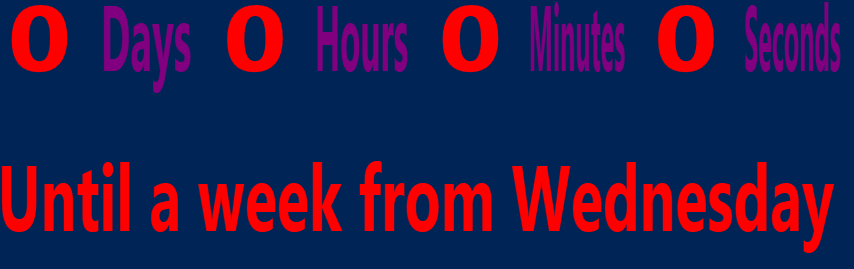
As you can see, the colors for both the timer and message will change with each tick.
With that, I met all of my requirements that I wanted to have with this script. I know that there are a lot more things that I could add to this, but in this case, I am satisfied with the end results.
Download
You can download the script here.
Key Input Tips:
r: Toggles the resize mode of the clock so you can adjust the size.
o: Toggles whether the countdown remains on top of windows or not.
+: Increases the opacity of the clock so it is less transparent.
-: Decreases the opacity of the clock so it appears more transparent.
Let me know what you think of it!



 Learn Powershell | Achieve More