In my previous article, I showed you a function to query remote servers for their network information using background runspaces to speed things up. To follow up on that article based on some questions and comments I received from that article, I am going to show you why I made the decision to use background runspaces to handle the processing of each query instead of using PSJobs such as Start-Job.
This is not meant to be a deep dive into the PSJob architecture or into creating your own runspaces, but merely to show you the benefits of using the runspaces for better performance.
With that said, I am not against using PSJobs at all. PowerShell jobs are a great addition to V2 (and V3, of course) and help greatly with running other tasks in the background while still freeing up the console for other uses as well as running many jobs in parallel against several systems. There is overhead (object serialization, new process created which means your system has to allocate memory and processor resources for it) though when you run a background job using the PSJobs in starting the job, stopping the job and retrieving the output from the job (if applicable). Another big thing is that there is no throttling mechanism at all with background jobs unless you write your own.
I find myself using background runspaces more lately because you do not have to worry about another process (or processes), no serialization of data is required and you can specify throttling of the runspaces via the runspacepool. Another thing I like is the ability to share variables across runspaces.
PowerShell MVP Dr. Tobias Weltner put together a great webcast that provides a nice presentation of not only the use of PSjob and runspaces, but some other things to help improve the performance of your code. I recommend checking it out.
One of his examples shows just how much overhead is involved with just a single background job which fits right in with how I want to start this out and I do not wish to re-invent the wheel on something that is already a great example. Lets check it out:
# (C) 2012 Dr. Tobias Weltner
# you may freely use this code for commercial or non-commercial purposes at your own risk
# as long as you credit its original author and keep this comment block.
# For PowerShell training or PowerShell support, feel free to contact tobias.weltner@email.de

$code = {
  $begin = Get-Date
  $result = Get-Process
  $end = Get-Date

  $begin
  $end
  # play here by reducing the returned data,
  # i.e. use select-object to pick specific properties:
  $result
}

$start = Get-Date

$job = Start-Job -ScriptBlock $code
$null = Wait-Job $job
$completed = Get-Date

$result = Receive-Job $job
$received = Get-Date

$spinup = $result[0]
$exit = $result[1]

$timeToLaunch = ($spinup - $start).TotalMilliseconds
$timeToExit = ($completed - $exit).TotalMilliseconds
$timeToRunCommand = ($exit - $spinup).TotalMilliseconds
$timeToReceive = ($received - $completed).TotalMilliseconds

'{0,-30} : {1,10:#,##0.00} ms' -f 'Time to set up background job', $timeToLaunch
'{0,-30} : {1,10:#,##0.00} ms' -f 'Time to run code', $timeToRunCommand
'{0,-30} : {1,10:#,##0.00} ms' -f 'Time to exit background job', $timeToExit
'{0,-30} : {1,10:#,##0.00} ms' -f 'Time to receive results', $timeToReceive

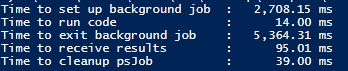
Ok, so as you can see, it takes approximately 2 1/2 seconds to set up the job and then a whopping 5 seconds to exit the background job. Everything else isn’t too bad as far as time goes for this single job.
Ok, so we see the performance of the PSJob, but what about the runspace that I keep talking about? Well, there was not a runspace script that matched this, so I simply modified the PSJob code to make it work! Check it out:
# (C) 2012 Dr. Tobias Weltner
# you may freely use this code for commercial or non-commercial purposes at your own risk
# as long as you credit its original author and keep this comment block.
# For PowerShell training or PowerShell support, feel free to contact tobias.weltner@email.de
#Addition modification by Boe Prox to show the use of PSJobs and its performance

$code = {
  $begin = Get-Date
  $result = Get-Process
  $end = Get-Date

  $begin
  $end
  $result
}

$start = Get-Date

$newPowerShell = [PowerShell]::Create().AddScript($code)
$job = $newPowerShell.BeginInvoke()
While (-Not $job.IsCompleted) {}
$completed = Get-Date

$result = $newPowerShell.EndInvoke($job)
$received = Get-Date

$newPowerShell.Dispose()
$cleanup = Get-Date

$spinup = $result[0]
$exit = $result[1]

$timeToLaunch = ($spinup - $start).TotalMilliseconds
$timeToExit = ($completed - $exit).TotalMilliseconds
$timeToRunCommand = ($exit - $spinup).TotalMilliseconds
$timeToReceive = ($received - $completed).TotalMilliseconds
$timeToCleanup = ($cleanup - $received).TotalMilliseconds

'{0,-30} : {1,10:#,##0.00} ms' -f 'Time to set up background job', $timeToLaunch
'{0,-30} : {1,10:#,##0.00} ms' -f 'Time to run code', $timeToRunCommand
'{0,-30} : {1,10:#,##0.00} ms' -f 'Time to exit background job', $timeToExit
'{0,-30} : {1,10:#,##0.00} ms' -f 'Time to receive results', $timeToReceive
'{0,-30} : {1,10:#,##0.00} ms' -f 'Time to cleanup runspace', $timeToCleanup

Definitely a noticeable performance different here with little under half a second to set up the job compared to 2 1/2 seconds for the PSjob and check out that exit time, pretty much non-existent compared to a little over 5 seconds! Now of course results may vary on your system based on various circumstances, but the one thing that will remain constant is that the runspace will win every time over PSjobs.
The Performance Test
I know what you are thinking: “This is all fine and stuff, but how about a real world application of this being used?” Well, you are in luck. I am going to do some testing using the function I wrote in the previous blog post and bring in some other examples using a variety of methods to include:
- Good old fashion synchronous query of servers (simple ForEach iteration with a query)
- Queued background jobs (use a queued object to ‘throttle’ the background jobs along with eventing;throttle set to 10)
- A different type of ‘queued’ background jobs (using a queued object again, but this time doesn’t use eventing to handle when jobs are completed. It waits for all 10 jobs to completed before moving on;throttle set to 10)
- Non-queued background jobs (run all jobs at once and wait for all to complete)
- Runspace query (my function from my previous article;throttle set to 10)
Because I want to test this out over a number of systems,I am going to run each type of test against the following number of systems:200, 150, 75, 20, 5 and 1. By doing this, we can see how each type of query handles against an increasing amount of systems.
This is not a completely fool-proof test but I am using one system as my remote system vs. many remote systems to rule out potential issues with one remote system being taxed on resources during a specific test which could skew the results. The goal is to try and keep everything on the same level for each run to provide the most accurate results. Now why did I choose to use a WMI query as my test? The answer is because of the previous blog post talking about how much faster using runspaces are for a remote WMI query. I already had a great working function that does a simple query that can be easily ported to the other scenarios with little effort.
Scenarios Covered
So lets check out the code that I will be using to test each of these scenarios:
Synchronous Query
Measure-Command {
$Computername = $servers
ForEach ($Computer in $Computername) {
    If (Test-Connection -ComputerName $Computer -Count 1 -quiet) {
        Get-WmiObject -Computer $Computer Win32_NetworkAdapterConfiguration -Filter "IPEnabled='$True'" -EA 0 | ForEach {
            $IpHash =  @{
                Computername = $_.DNSHostName
                DNSDomain = $_.DNSDomain
                IPAddress = $_.IpAddress
                SubnetMask = $_.IPSubnet
                DefaultGateway = $_.DefaultIPGateway
                DNSServer = $_.DNSServerSearchOrder
                DHCPEnabled = $_.DHCPEnabled
                MACAddress  = $_.MACAddress
                WINSPrimary = $_.WINSPrimaryServer
                WINSSecondary = $_.WINSSecondaryServer
                NICName = $_.ServiceName
                NICDescription = $_.Description
            }
            $IpStack = New-Object PSObject -Property $IpHash
            #Add a unique object typename
            $IpStack.PSTypeNames.Insert(0,"IPStack.Information")
            $IpStack
        }
    }
}
}
Non-queued background jobs
Measure-Command {
$Computername = $servers
ForEach ($Computer in $Computername) {
    Start-Job -Name $Computer -ScriptBlock {
            param($Computer)
            $WMIhash = @{
                Class = "Win32_NetworkAdapterConfiguration"
                Filter = "IPEnabled='$True'"
                ErrorAction = "Stop"
            }
            $VerbosePreference = 'continue'
            $i=0
            If (Test-Connection -Computer $Computer -count 1 -Quiet) {
                $Wmihash.Computername = $computer
                Try {
                    Get-WmiObject @WMIhash | ForEach {
                        $IpHash =  @{
                            Computername = $_.DNSHostName
                            DNSDomain = $_.DNSDomain
                            IPAddress = $_.IpAddress
                            SubnetMask = $_.IPSubnet
                            DefaultGateway = $_.DefaultIPGateway
                            DNSServer = $_.DNSServerSearchOrder
                            DHCPEnabled = $_.DHCPEnabled
                            MACAddress  = $_.MACAddress
                            WINSPrimary = $_.WINSPrimaryServer
                            WINSSecondary = $_.WINSSecondaryServer
                            NICName = $_.ServiceName
                            NICDescription = $_.Description
                        }
                        $IpStack = New-Object PSObject -Property $IpHash
                        #Add a unique object typename
                        $IpStack.PSTypeNames.Insert(0,"IPStack.Information")
                        $IpStack
                    }
                } Catch {
                    Write-Warning ("{0}: {1}" -f $Computer)
                    Write-Output $False
                }
            } Else {
                Write-Warning ("{0}: Unable to connect!" -f $Computer)
            }
    } -Argument $Computer
}

Get-Job | Wait-Job | Out-Null
}
Get-Job | Remove-Job
Queued background jobs with a throttle of 10
[cmdletbinding()]
Param (
    [Int32]$MaxJobs = 10,
    [parameter(ValueFromPipeLine=$True,ValueFromPipeLineByPropertyName=$True)]
    [string[]]$Computername = $servers
)
Function Global:Get-NetInfo {
    $VerbosePreference = 'continue'
    If ($queue.count -gt 0) {
        Write-Verbose ("Queue Count: {0}" -f $queue.count)
        $Computer = $queue.Dequeue()
        $j = Start-Job -Name $Computer -ScriptBlock {
                param($Computer)
                $WMIhash = @{
                    Class = "Win32_NetworkAdapterConfiguration"
                    Filter = "IPEnabled='$True'"
                    ErrorAction = "Stop"
                }
                $VerbosePreference = 'continue'
                $i=0
                If (Test-Connection -Computer $Computer -count 1 -Quiet) {
                    $Wmihash.Computername = $computer
                    Try {
                        Get-WmiObject @WMIhash | ForEach {
                            $IpHash =  @{
                                Computername = $_.DNSHostName
                                DNSDomain = $_.DNSDomain
                                IPAddress = $_.IpAddress
                                SubnetMask = $_.IPSubnet
                                DefaultGateway = $_.DefaultIPGateway
                                DNSServer = $_.DNSServerSearchOrder
                                DHCPEnabled = $_.DHCPEnabled
                                MACAddress  = $_.MACAddress
                                WINSPrimary = $_.WINSPrimaryServer
                                WINSSecondary = $_.WINSSecondaryServer
                                NICName = $_.ServiceName
                                NICDescription = $_.Description
                            }
                            $IpStack = New-Object PSObject -Property $IpHash
                            #Add a unique object typename
                            $IpStack.PSTypeNames.Insert(0,"IPStack.Information")
                            $IpStack
                        }
                    } Catch {
                        Write-Warning ("{0}: {1}" -f $Computer)
                        Write-Output $False
                    }
                } Else {
                    Write-Warning ("{0}: Unable to connect!" -f $Computer)
                }
        } -ArgumentList $Computer
        Register-ObjectEvent -InputObject $j -EventName StateChanged -Action {
            #Set verbose to continue to see the output on the screen
            $VerbosePreference = 'continue'
            $serverupdate = $eventsubscriber.sourceobject.name
            $Global:Data += Receive-Job -Job $eventsubscriber.sourceobject
            Write-Verbose "Removing: $($eventsubscriber.sourceobject.Name)"
            Remove-Job -Job $eventsubscriber.sourceobject
            Write-Verbose "Unregistering: $($eventsubscriber.SourceIdentifier)"
            Unregister-Event $eventsubscriber.SourceIdentifier
            Write-Verbose "Removing: $($eventsubscriber.SourceIdentifier)"
            Remove-Job -Name $eventsubscriber.SourceIdentifier
            Remove-Variable results
            If ($queue.count -gt 0 -OR (Get-Job)) {
                Write-Verbose "Running Rjob"
                Get-NetInfo
            } ElseIf (-NOT (Get-Job)) {
                $End = (Get-Date)
                $timeToCleanup = ($End - $Start).TotalMilliseconds
                Write-Host ('{0,-30} : {1,10:#,##0.00} ms' -f 'Time to exit background job', $timeToCleanup) -fore Green -Back Black
                Write-Host -ForegroundColor Green "Check the `$Data variable for report of online/offline systems"
            }
        } | Out-Null
        Write-Verbose "Created Event for $($J.Name)"
    }
}
#Define report
[array]$Global:Data = @()
$Start = Get-Date
#Queue the items up
$Global:queue = [System.Collections.Queue]::Synchronized( (New-Object System.Collections.Queue) )
foreach($item in $Computername) {
    Write-Verbose "Adding $item to queue"
    $queue.Enqueue($item)
}
If ($queue.count -lt $maxjobs) {
    $maxjobs = $queue.count
}
# Start up to the max number of concurrent jobs
# Each job will take care of running the rest
for( $i = 0; $i -lt $MaxJobs; $i++ ) {
    Get-NetInfo
}
Alternate Queued background jobs with a throttle of 10
measure-command {
    $queue = [System.Collections.Queue]::Synchronized( (New-Object System.Collections.Queue) )
    $servers | ForEach {
        $queue.Enqueue($_) | Out-Null
    }
    While ($queue.count -gt 0) {
        1..5 | ForEach {
            $ErrorActionPreference = 'silentlycontinue'
            $computer = $queue.Dequeue()
            Start-Job -Name $Computer -ScriptBlock {
                    param($Computer)
                    $WMIhash = @{
                        Class = "Win32_NetworkAdapterConfiguration"
                        Filter = "IPEnabled='$True'"
                        ErrorAction = "Stop"
                    }
                    $VerbosePreference = 'continue'
                    $i=0
                    If (Test-Connection -Computer $Computer -count 1 -Quiet) {
                        $Wmihash.Computername = $computer
                        Try {
                            Get-WmiObject @WMIhash | ForEach {
                                $IpHash =  @{
                                    Computername = $_.DNSHostName
                                    DNSDomain = $_.DNSDomain
                                    IPAddress = $_.IpAddress
                                    SubnetMask = $_.IPSubnet
                                    DefaultGateway = $_.DefaultIPGateway
                                    DNSServer = $_.DNSServerSearchOrder
                                    DHCPEnabled = $_.DHCPEnabled
                                    MACAddress  = $_.MACAddress
                                    WINSPrimary = $_.WINSPrimaryServer
                                    WINSSecondary = $_.WINSSecondaryServer
                                    NICName = $_.ServiceName
                                    NICDescription = $_.Description
                                }
                                $IpStack = New-Object PSObject -Property $IpHash
                                #Add a unique object typename
                                $IpStack.PSTypeNames.Insert(0,"IPStack.Information")
                                $IpStack
                            }
                        } Catch {
                            Write-Warning ("{0}: {1}" -f $Computer)
                            Write-Output $False
                        }
                    } Else {
                        Write-Warning ("{0}: Unable to connect!" -f $Computer)
                    }
            } -Argument $Computer
        }
        Get-Job | Wait-Job | Out-Null
        Get-Job | Remove-Job
    }
}
Runspace query with throttle of 10
Measure-Command {
Get-NetworkInfo -Computername $servers -Throttle 10
}
Note that the function is available here for download.
Now that we know the code that will be used (and modified to support the number of systems each time), we can now kick off the performance testing! The $Servers variable that I use is topped out with 200 systems and as I move down in the number of systems to query each time, I will simple just slice the array: $servers[1..150] for 150 systems and so on.
The common code in each scenario that will be used is:
    If (Test-Connection -ComputerName $Computer -Count 1 -quiet) {
        Get-WmiObject -Computer $Computer Win32_NetworkAdapterConfiguration -Filter "IPEnabled='$True'" -EA 0 | ForEach {
            $IpHash =  @{
                Computername = $_.DNSHostName
                DNSDomain = $_.DNSDomain
                IPAddress = $_.IpAddress
                SubnetMask = $_.IPSubnet
                DefaultGateway = $_.DefaultIPGateway
                DNSServer = $_.DNSServerSearchOrder
                DHCPEnabled = $_.DHCPEnabled
                MACAddress  = $_.MACAddress
                WINSPrimary = $_.WINSPrimaryServer
                WINSSecondary = $_.WINSSecondaryServer
                NICName = $_.ServiceName
                NICDescription = $_.Description
            }
            $IpStack = New-Object PSObject -Property $IpHash
            #Add a unique object typename
            $IpStack.PSTypeNames.Insert(0,"IPStack.Information")
            $IpStack
        }
    }
The Results
Rather than take up all of the space and time going through each cycle and showing the results, I am just going to show everything at once based on running each type of scenario.

The results are pretty cool! As you can see, PSJobs lose every single time regardless of how they are configured. In fact,the synchronous run for a single system is in fact the fastest way to gather the information. What is even more interesting is that the synchronous run is actually faster than any of the PSJobs in this case. What is very important to understand in this case with synchronous beating out PSJobs each time is that this was done running 1 simple query. This simply does not play well into the strength of using PSJobs, especially using the 1st queued approach (not the alternative). If you were running more complicated code in that had different end times based on what it was doing (patching servers, for instance which can have anywhere from 2 patches on 1 server and possibly 8 or more on another), the queued PSjob approach would be faster because it would move on to another system for the servers with less patches while the synchronous would have to wait for each server to finish patching before moving on the next. It was this test that I ran that motivated me to modify how my project, PoshPAIG actually performs (queued PSJobs).
Of course, the real winner here is the runspaces that are created in the background to run each query. Even as the number of systems continue to rise, the runspaces consistently out perform each other type of query scenario. As soon as we hit the 20 system mark, the results are rather impressive at being 12 seconds faster than the nearest competitor and at the 200 system mark, dominates by nearly 2 1/2 minutes over the next fastest time!
Not surprisingly (to me at least), the Non-Queued test fails almost every time with the slowest performance. This is because it requires so much more resources for each process that has to be created and managed by PowerShell that it simply begins to slow down to a crawl to create, watch and handle each job when they are all completed.
In Conclusion
As you have seen, setting up your own background runspace does scale out better than using PSjobs and even using a synchronous approach can actually be faster (given the situation is ideal for it such as using a simple query vs. more complicated code or running code knowing that each job will have a different number of results/actions) than using PSJobs.
I also ran this performance test against an environment consisting of 139 systems (some online and some offline). I did find that the results did match up with what I got here with runspaces taking all but the initial test of ‘1’ system for best performance while the PSJobs were the slowest (Non-Queued was again the slowest as the number of systems rose). The numbers I used were 139, 75, 20, 5 and 1.
This was just one type of test that I performed to determine my results, but there are other ways that could be used as well to show differences between each scenario. I encourage you to try your own tests as well and see how the results stack up.
Let me know what you think about the testing and results!





 .
.


 Learn Powershell | Achieve More