Finding The CachedMode Setting In Outlook 2010 Using PowerShell

I had a requirement come in find the current CachedMode setting on the Outlook 2010 clients for all of the users in the domain. Seems like a simple request that can be solved with the Exchange PowerShell cmdlets, right? Wrong. What I was hoping to use to get this information is the following code:

Get-Mailbox -ResultSize Unlimited |  Get-LogonStatistics | Select Name, ClientName, ClientMode

The ClientMode property is supposed to show you whether the client is running in ExchangeServer (non-cached), or in CachedMode. Unfortunately, this wasn’t the case as every client came back with ‘ExchangeServer’, thus putting the results at risk. With this being an issue, I had to find another way to accomplish task. There was, in fact, 2 other ways that I found that I could pull this information even though it had the risk of not being quite as accurate as querying the server directly. The 2 ways are

  1. Parse all of the logs under %ExchangeInstallDir%Logging\RPC Client Access
    1. RCA_*.log
  2. Query all of the workstations in the domain for a specific registry value.
    1. HKEY_Users\Software\Microsoft\Windows NT\CurrentVersion\Windows Messaging Subsystem\Profiles\<profile>\<stringOfCharacters>003601
      1. Enabled: 84 19 00 00
      2. Disabled: 04 16 00 00

In this case, I went with the workstation registry query because I wasn’t confident that the logs would have as many users as the workstations would. With that now decided, I had to figure out the best way to accomplish this goal.

Because this would be used to query some 4000+ systems, I decided to use runspaces again to handle several jobs at a given time to greatly speed up the query.

Because I am querying the registry remotely on the HKEY_Users key, I need something that can translate the SIDs to a friendly username that can be read.

Function ConvertSID-ToUserName {
    [cmdletbinding()]
    Param (
        [parameter()]
        [string[]]$SID
    )
    Process {
        ForEach ($S in $Sid) {
            Try {
                $s = [system.security.principal.securityidentifier]$s
                $user = $s.Translate([System.Security.Principal.NTAccount])
                New-Object PSObject -Property @{
                    Name = $user.value
                    SID = $s.value
                }                 
            } Catch {
                Write-Warning ("Unable to translate {0}.`n{1}" -f $UserName,$_.Exception.Message)
            }
        }
    }
} #End Function   

This function is simple and provides an easy way to translate the SID to username that will be helpful not only for the report generated later, but also to help determine if that registry key is owned by a currently logged on user.

I use the [microsoft.win32.registrykey] namespace along with the OpenRemoteBasekey static method to connect to the remote registry key to begin the query for CachedMode. I also use regular expressions to filter the list of users and create a hash table of SID to usernames for easier reference throughout the script.

            $rootkey = [Microsoft.Win32.RegistryKey]::OpenRemoteBaseKey("Users",$computer)

            $SIDs = $rootkey.GetSubKeyNames() | Where {
                $_ -match "^S-1-5-\d{2}-\d{10}-\d{9}-\d{9}-\d{5}$"
            }

            #Match up the SID to a username
            $Hash = @{}
            $SIDs | ForEach {
                $Hash.$_ = (ConvertSID-ToUserName $_ | Select -Expand Name)
                $Hash[$hash.$_] = $_
            }

Now we start to iterate through the remaining collection of SIDs in the registry to find out which ones are using Outlook by checking for the Windows Messaging SubSystem key. Because a single user may have more than one Outlook profile, I also iterate through each profile to check the settings. While the ValueName is always going to be 00036601, the actual key that it resides in will not always be the same. Once I find the valuename, I can then use the GetValueNames() method to pull the value.

The value is a collection of bytes that we must use to determine if it is Enabled or Disabled. For this, I use the –BOR bitwise operator to validate if the bytes match an Enabled or Disabled setting.

$SIDs | ForEach {
    $SID = $_
    Try {
        If ($hash.$_ -eq $Username) {
            $LoggedOn = $True
        } Else {
            $LoggedOn = $False
        }                
        $Key = $rootkey.OpenSubKey("$_\Software\Microsoft\Windows NT\CurrentVersion\")
        If ($Key.GetSubKeyNames() -Contains "Windows Messaging Subsystem") {
            $User = $hash.$_
            $Profiles = $Key.OpenSubKey("Windows Messaging SubSystem\Profiles")
            Write-Verbose ("Getting list of profiles")
            $Profiles.GetSubKeyNames() | ForEach {
                $OutlookProfile = $_
                $Profile = $Profiles.OpenSubKey(("$_"))
                $profile.GetSubKeyNames() | ForEach {
                    If ($profile.OpenSubKey("$_").GetValueNames() -Contains "00036601") {
                        Write-Verbose ("Checking value for Cached Mode on profile: {0}" -f $OutlookProfile)
                        $RegKey = $_
                        $Key = $profile.OpenSubKey("$_")
                        $Value = $Key.GetValue("00036601")
                        If ((($Value[0] -bor 0x80) -eq $Value[0]) -AND (($Value[1] -bor 0x1) -eq $Value[1])) {
                            $CachedMode = 'Enabled'
                        } Else {
                            $CachedMode = 'Disabled'
                        }
                        New-Object PSObject -Property @{
                            User = $User
                            OutlookProfile = $OutlookProfile
                            CachedMode = $CachedMode
                            RegValue =  ($Value -Join ",")
                            RegKey = $RegKey
                            RegValueName = "00036601"
                            Computername = $Computer
                            isLoggedOn = $LoggedOn
                            SID = $SID
                        }
                    }
                }
            }
        }
    } Catch {
        Write-Warning ("{0}: {1}" -f $Computer,$_.Exception.Message)
    }
} #End ForEach  

As I mentioned before, since I elected to use runspaces again, I was able to run through around 4000+ systems in a couple hours. Much nicer than a sequential run through all systems. 🙂 So with that, you can easily run this against your enterprise and have the data you need. You can of course pipe this into Export-CSV if you want so you have a nice spreadsheet to view. There may have been better ways to accomplish the same goal, but I found this way to do exactly what I wanted to in a short amount of time. I am always interested in hearing about other ways that others might have used to grab this data as well.

Example

Get-ExchangeCachedMode -Computername "Computer01","Computer02"

image


Download

Script Repository

Posted in powershell, scripts | Tagged , , , | 8 Comments

Installing Updates Via The SCCM Client

Continuing from my last blog entry on checking for pending updates on the SCCM client, I will now show how you can use this information to determine if an installation is already occurring and performing an installation if nothing is happening. While I will not completely re-hash the process for gathering all of the updates, I will do a little refresher on a couple of things.

First off, we need to create that same Com object as before:

#Create the Update Object
$SCCMUpdate = New-Object -ComObject UDA.CCMUpdatesDeployment

The most important part of determining if there is an installation attempt occurring is making sure that we have a reference configured in a variable, in this case, I am using $Progress. If we receive anything other than a 0, then any attempts at an installation will fail.

<#Create the reference variable for progrss.
This is important because if the value of $progress is anything but a 0, then we cannot
proceed with the rest of the installation
#>
[ref]$progress = $Null  

Now we go through the same process of enumerating all of the updates pending on the SCCM client

#Begin enumerating through the updates: Install = 2, ShowHidden = 1, reference to progress for the overload values
$updates = $SCCMUpdate.EnumerateUpdates(2, 1, $Progress)

Note where I used the $Progress variable for the reference to store the progress data. Let’s take a look at the progress to see where it is at.

image

Luckily for us, it is a 0, meaning that we can proceed with the installation attempt of the updates. Here is a table showing the other possible values and their meanings.

0

UPDATE_PROGRESS_NONE

1

UPDATE_PROGRESS_OPTIONAL_INSTALL

2

UPDATE_PROGRESS_MANDATORY_INSTALL

Next, it is time to see if we actually have any updates that need to be installed.

#Find out how many updates are available for installation
$UpdateCount = $updates.GetCount()

image

Perfect, we have some updates to work with!

For this, I will be using the InstallUpdates() method from the UDA.CCMUpdatesDeployment object we created. But before we can attempt that, we need to create a collection of the UpdateIDs, which are required by the InstallUpdates method.

[string[]]$UpdateIDs = For ($i=0;$i -lt $UpdateCount;$i++) {
      $updates.GetUpdate($i).GetID()    
}

image

As you can see, we have the UpdateIds as a collection. Of course, this is not human readable by any means. Fortunately, I have a function that I can use to find out what those updates are exactly.

Get-SCCMClientUpdate -ShowHidden


image

Now it is time to install the updates. Note that there are 3 values which are required for this to work correctly:

  1. Array of UpdateIds
  2. ContentPriority
    1. Possibly values for Download Priority
      1. 0

        PriorityForeground

        1

        PriorityHigh

        2

        PriorityMedium

        3

        PriorityLow

    2. Options for the installation
      1. Possible Option Flags (Note that these are bit-wise flags meaning that you will need to use –BOR)
        1. 0x0001

          UPDATE_CHECK_LOCATIONS

          0x0002

          UPDATE_FORCED_SCAN

          0x0004

          UPDATE_WAIT_AU_AVAILABILITY

          0x0008

          UPDATE_IGNORE_SERVICEWINDOW

          0x0010

          UPDATE_IGNORE_REBOOTWINDOW

          0x0020

          UPDATE_RETRY_DETECT_ON_FAILURE

          0x0040

          UPDATE_RAISE_MOMALERTS_ON_FAILURE

          0x0080

          UPDATE_DISABLE_NONSMS_MOMALERTS

    A quick example of working with the Options flags.

    $Options = 0x0001 -BOR 0x0002 -BOR 0x0020
    $options

    image

    Now we can begin the installation.

    $SCCMUpdate.InstallUpdates($UpdateIDs, 0, $Options)

    Now here is my disclaimer that I am not a SCCM expert and am not really sure where you can easily monitor the installation progress. With the Windows Update Agent, the installation will hold up the console (or script) until it has completed. And once it has completed, you can work with the output to determine what installed and what failed. With the SCCM agent, I have not been able to easily track the installation progress of the updates. One place I was able to locate to see the status and result of installation is at: C:\Windows\System32\CCM\Logs\UpdatesDeployment.log.

    Whether this is the best way or not is uncertain at this point. If there are SCCM experts out there who know of a better way, I am definitely open to hearing about other ways to track the installations and will update this article to mention those ways. But as you can see, installing the pending  updates with the SCCM client is yet another great thing you can do with PowerShell!

    Posted in powershell | Tagged , , , | 5 Comments

    Find Pending Updates via the SCCM Client Agent With PowerShell

    One of the nice things about SCCM is that you can use it along with WSUS to push out software updates for your operating system. an even better thing is that the API is accessible via PowerShell. There are several other areas within the SCCM Client that you can access and work with using PowerShell, but for this case I am focusing solely on the UpdatesDeployment Interface that handles all of the patches being pushed out to the clients from SCCM. In case you haven’t noticed, the Windows Update Agent does not play any role when you are using the SCCM Client agent.

    So where do we begin with connecting to the SCCM Client? We need to find the COM object that corresponds to the interface. In this case, it is the UDA.CCMUpdatesDeployment COM object.

    $SCCMUpdate = New-Object -ComObject UDA.CCMUpdatesDeployment
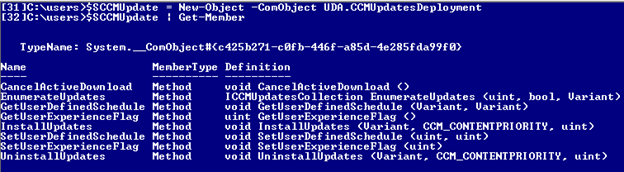
    $SCCMUpdate | Get-Member
    

    image

    Edit: Make sure that you are running this on the 32-bit PowerShell session and not on the 64-bit session, otherwise the COM object creation will fail. Thanks to Jen Egil Ring (Blog | Twitter) for pointing this out!

    I as hoping for a remote way of accomplishing this connection similar to what I did with the windows update agent COM object, but unfortunately, I was unable to get it to work.

    [activator]::CreateInstance([type]::GetTypeFromProgID("UDA.CCMUpdatesDeployment",$Env:Computername))

    So for the time being, this works locally only, or if you are using PowerShell remoting.

    But back to the picture above. As you can see, there are 8 methods that we can use to work with the UpdateDeployment obejct. The only method that I am concerned with here is the EnmerateUpdates() method. Using this we can find out what, if any, updates are available for installation and their current status according to the client. This method requires a few things to be supplied with it in order for the update enumeration to be successful.

    We need the specific UpdateAction (this is a integer value 2 = Install; 3 = Uninstall), a boolean value to state whether to show updates based on the mode of the client, which in the case of the client I am using, the modes is quiet. Lastly, a reference is used for the progress of the update job. More information available about the EnumerateUpdates method is available here.

    $SCCMUpdate.EnumerateUpdates
    $updates = $SCCMUpdate.EnumerateUpdates(2,$True,[ref]"progress")
    $updates | Get-Member
    

    image

    The update collection only has 2 methods, both of which I will show. It is a good idea to use the GetCount method just to see if there are able updates available.

    $updates.GetCount()

    image

    Here we have 12 updates available for installation via the SCCM Client. So the question is, what updates are available? Fortunately, the GetUpdate() method is available to use to get this information. If you notice, the method requires an integer (each index for the collection) to see the update object.

    Lets check out the first update, which is the 0 index for the collection.

    $update = $updates.GetUpdate(0)
    $updates | Get-Member
    

    image

    A lot of methods here that we need to use to view all of the properties for the update object. Some of the methods have specific values that need to be supplied in order to accurately pull information. Here is the code I used to to get the information along with how I handled each method that required data to be supplied.

    $statusHash = [hashtable]@{
        0 = 'JobStateNone'
        1 = 'JobStateAvailable'
        2 = 'JobStateSubmitted'
        3 = 'JobStateDetecting'
        4 = 'JobStateDownloadingCIDef'
        5 = 'JobStateDownloadingSdmPkg'
        6 = 'JobStatePreDownload'
        7 = 'JobStateDownloading'
        8 = 'JobStateWaitInstall'
        9 = 'JobStateInstalling'
        10 = 'JobStatePendingSoftReboot'
        11 = 'JobStatePendingHardReboot'
        12 = 'JobStateWaitReboot'
        13 = 'JobStateVerifying'
        14 = 'JobStateInstallComplete'
        15 = 'JobStateStateError'
        16 = 'JobStateWaitServiceWindo'
    }
    
    [ref]$status=$Null
    [ref]$Complete=$Null
    [ref]$Errors=$Null
    $UpdateObject = New-Object PSObject -Property @{
        KB = $update.GetArticleID()
        BulletinID = {Try {$update.GetBulletinID()} Catch {}}.invoke()
        DownloadSize = $update.GetDownloadSize()
        EnforcementDeadline = $update.GetEnforcementDeadline()
        ExclusiveUpdateOption = $update.GetExclusiveUpdateOption()
        ID = $update.GetID()
        InfoLink = $update.GetInfoLink(1033)
        Manufacture = $update.GetManufacturer(1033)
        Name = $update.GetName(1033)
        NotificationOption = $update.GetNotificationOption()
        Progress = $update.GetProgress($status,$Complete,$Errors)
        UpdateStatus = $statusHash[$status.value]
        ErrorCode = $Errors.Value
        RebootDeadling = $update.GetRebootDeadline()
        State = $update.GetState()
        Summary = $update.GetSummary(1033)
    }
    $UpdateObject.PSTypeNames.Insert(0,'SCCMUpdate.Update')
    $UpdateObject

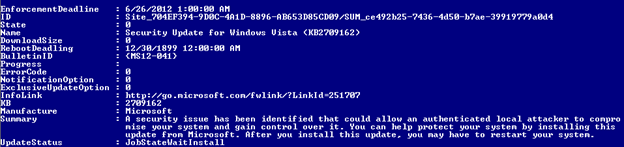
    image

    With that, you can see all of the information about that update object. Pretty handy to know if you are curious as to what is waiting to be installed on your client.

    Let’s dive into a couple of the methods that have some extra requirements so we know better about what is going on. For instance, the Progress method requires some references to Status,Completion and any Errors. More information about the Progress method is here.

    [ref]$status=$Null
    [ref]$Complete=$Null
    [ref]$Errors=$Null
    $update.GetProgress($status,$Complete,$Errors)
    $Status
    $Complete
    $Errors
    

    image

    Some simple translation for the Status code via a hash table:

    $statusHash = [hashtable]@{
        0 = 'JobStateNone'
        1 = 'JobStateAvailable'
        2 = 'JobStateSubmitted'
        3 = 'JobStateDetecting'
        4 = 'JobStateDownloadingCIDef'
        5 = 'JobStateDownloadingSdmPkg'
        6 = 'JobStatePreDownload'
        7 = 'JobStateDownloading'
        8 = 'JobStateWaitInstall'
        9 = 'JobStateInstalling'
        10 = 'JobStatePendingSoftReboot'
        11 = 'JobStatePendingHardReboot'
        12 = 'JobStateWaitReboot'
        13 = 'JobStateVerifying'
        14 = 'JobStateInstallComplete'
        15 = 'JobStateStateError'
        16 = 'JobStateWaitServiceWindo'
    }
    

    Some other methods require the proper language code in order to get the best information. Language ID codes available here. In this case, 1033 is for English – United States.

    $update.GetSummary(1033)
    $update.GetInfoLink(1033)
    $update.GetManufacturer(1033)
    $update.GetName(1033)
    

    The GetBulletinID() method does not always have a value to it and will throw an error if you are not careful. So in this case I use some Try/Catch to handle that error.

    {Try {$update.GetBulletinID()} Catch {}}.invoke()

    To make life simpler, I wrote a function to perform the task without little effort. I named it Get-SCCMClientUpdate and it is available for download on the Script Repository and the download link will be available below. An example of it is here:

    Get-SCCMUpdate -ShowHidden | 
    Format-Table Name,KB,BulletinID,EnforcementDeadline,UpdateStatus
    

    image

    In my testing I was unable to validate how well the Uninstall value being supplied with the –UpdateAction parameter. This could be just due to how the update deployments are being handled, but if anyone else can validate this, then please do so and post in the comments.

    Download Link

    Technet Script Repository

    Posted in powershell, scripts | Tagged , , | 12 Comments

    Setting Up a Windows PowerShell Help Repository

    With the help files not available by default in PowerShell V3, you must now use Update-Help to download the help files needed to properly view help for each cmdlet. The best thing about this is that you will always have the most updated help available for your PowerShell cmdlets. You find something wrong with the help, file it on the Connect site and as soon as it gets fixed, it is now available to you when you download the help again! And by the way, if you haven’t checked out the Connect site, do so now! There are some great bugs and feature requests that you can vote up to get looked at. Plus, the PowerShell team DOES pay attention to these and will comment and resolve these requests.  How cool is that?

    So what happens in an enterprise when all of the servers do not have access to the internet to download the help files for use?  Fortunately, the answer is simple! You can build a repository of help files on a file server that other systems can access. All you need is a system that has internet access to download the files.

    How you setup your repository is up to you,  just make sure that your systems have access to the repository. 🙂 If you don’t have an internet accessible system, you can save the files to a CD and then copy them to your repository for sharing with other systems.

    #Create the repository folder
    New-Item -Path "D:" -Name PoshHelp -ItemType Directory
    #Share the folder
    net share PoshHelp=D:\PoshHelp /Grant:"Authenticated Users",Full
    

    My share is set up on my server, DC1 and is called PoshHelp.

    image

    Once that is done, we can now use Save-Help with the –Destination parameter to specify the location of the repository.

    #Download the help files to the new share
    Save-Help -DestinationPath "\\DC1\PoshHelp" -Module * -Force -ErrorAction SilentlyContinue

    image

    I specified –Module * so everything is downloaded and –ErrorAction SilentlyContinue just because I know that there will be errors, none of which I can resolve on my own. Without the –Module *, only the currently loaded modules in the session and installed modules will be loaded. The –Force overrides the once-per-day limitation, version checking, and the 1 GB per module limit.

    OK, now lets take a look a look at my repository to see if the files have been downloaded.

    Get-ChildItem -Path "\\dc1\poshhelp"

    image

    Looks like they are there to me. Now that leads to the next and last step in the process: update the help on one of my systems.

    #Get updated help
    Update-Help -Module * -SourcePath "\\DC1\PoshHelp" -Force -ErrorAction SilentlyContinue

    image

    And just like that, we now have the latest help in PowerShell. Almost too easy!

    Just remember to run the Save-Help from time to time to update the repository ( a scheduled job would be a nice thing for this sort of task, if possible on your network). You could even set up a system profile on each system to run the Update-Help against the repository so each user will have the latest help available whenever they run the console.

    Posted in powershell, V3 | Tagged , , , , | 2 Comments

    Run PowerShell in Version 2 While PowerShell V3 RC Is Installed

    Many of you have downloaded the latest build of PowerShell V3 (currently in RC). While PowerShell V3 is amazing, you might have wondered how you can run some scripts or other things with PowerShell V2 that are just not working the way you want them to in V3. Given that V3 loads side by side with V2, there must be a way to get this to work without having to uninstall V3 and re-install V2…

    Well, you are in luck because there is a simple switch that you can add with PowerShell.exe. The switch is: –Version 2.

    Simple, isn’t it?

    Don’t believe that it works yet? Here are some examples to make a believer out of you.

    Version 3 using $psversiontable

    $psversiontable

    image

    Version 2 using $psversiontable

    powershell.exe -Version 2
    $psversiontable

    image

    Notice that the PSVersions are in fact different and match what the version should be. Also notice that the CLR versions are completely different (V3 uses .Net 4.0 while V2 uses 2.0).

    Once last example. You know some of the great new commands with V3 or even some commands such as Invoke-RestMethod or old commands you know and love such as with great new parameters such as –Tail on Get-Content. Well, take a look at the number of cmdlets available in V3 and V2 and you will see that all of the new commands in V3 are not available in V2.

    Invoke-RestMethod with V3

    Invoke-RestMethod -Uri http://blogs.msdn.com/b/powershell/rss.aspx |
    Select Title

    image

    Invoke-RestMethod with V2

    powershell.exe -Version 2
    Invoke-RestMethod -Uri http://blogs.msdn.com/b/powershell/rss.aspx |
    Select Title

    image

    Just like I expected, Invoke-RestMethod is not even recognized while Powershell is running with the –Version 2 switch.

    Now for the number of cmdlets visible between the two versions.

    V3 – Number of cmdlets

    Get-Command -type cmdlet | measure-object

    image

    V2 – Number of cmdlets with –Version 2 switch

    powershell.exe -Version 2
    Get-Command -type cmdlet | measure-object

    image

    Definitely a difference in what is available between the versions. So keep that in mind if you happen to use the –Version switch to go V2, otherwise you could be left wondering why some of the V3 commands are not working like you think they should. So a script or module isn’t working just yet under V3, in the same console you can just run powershell.exe –Version 2 and have that script working for you.

    Posted in powershell, V3 | Tagged , , | 4 Comments