Wrapping up my series on PowerShell and Events, I will be talking about Permanent WMI Event Subscriptions and creating these using PowerShell.
Mentioned in my previous article on temporary events, WMI events are a very powerful and useful way to monitor for a wide variety of things with the only downside of those events being stopped when a console session is closed, a system is restarted or some other issue occurs that affects WMI. Enter the permanent WMI events. Unlike the temporary event, the permanent event is persistent object that will last through a reboot and continue to operate until it has been removed from the WMI repository.
There are multiple ways of setting up the WMI events and I will be covering 3 of those ways (as they deal with PowerShell) in this article. But before we dive into building out the event subscriptions, we first need to look at the basics behind building the events.
You need to be running as an Administrator on the system in order to create the event instances.
There are 3 pieces to the puzzle that have to be put together in order to have a fully functioning event subscription. They are the Filter, Consumer and Binding.
Filter
The filter is a WQL query which says what you are looking for. Think back to my previous article on temporary events and how you setup a query that would be used to fire the action block. This is the exact same thing! You define the query and create the Filter WMI object.
Consumer
This would be your “Action” block that is in Register-WMIEvent with the exception of there being 5 possible Consumer classes to use with the Filter. Depending on your objective, you will use 1 of these ( or multiple that are binding by the same Filter) to perform an action of some sort. What are these 5 Consumer classes? Let’s take a look and see!
|
Consumer
|
Description
|
|
ActiveScriptEventConsumer
|
Executes a predefined script in an arbitrary scripting language when an event is delivered to it. This consumer is available on Windows 2000 and above.
|
|
CommandLineEventConsumer
|
Launches an arbitrary process in the local system context when an event is delivered to it. This consumer is available on Windows XP and above.
|
|
LogFileEventConsumer
|
Writes customized strings to a text log file when events are delivered to it. This consumer is available on Windows XP and above.
|
|
NTEventLogEventConsumer
|
Logs a specific message to the Windows NT event log when an event is delivered to it. This consumer is available on Windows XP and above.
|
|
SMTPEventConsumer
|
Sends an email message using SMTP every time that an event is delivered to it. This consumer is available on Windows 2000 and above.
|
Binding
The Binding is literally the glue that holds the Filter and Consumer together. Once you bind both of these together, you are enabling the WMI event subscriber to work right off the bat. To disable an existing WMI subscription, all you have to do is delete the binding instance and you will no longer have the subscription enabled.
Finding the WMI Instances
First off, lets see what I already have for Filters, Consumers and Bindings. We can use Get-WMIObject with the –Class parameter consisting of root\Subscription and then specifying the appropriate class that we wish to view.
#List Event Filters
Get-WMIObject -Namespace root\Subscription -Class __EventFilter

You can tell what kind of query is being used by the Query property of the Filter instance.
#List Event Consumers
Get-WMIObject -Namespace root\Subscription -Class __EventConsumer

#List Event Bindings
Get-WMIObject -Namespace root\Subscription -Class __FilterToConsumerBinding
Here you can see that the NTLogEventConsumer is being used by the __CLASS property and what exactly is being used in the other properties.

You can see from the __PATH property which Filter and Consumer is being used for a WMI event.
Option #1: Using [wmiclass]
The first method of creating the WMI event subscription is by taking advantage of the wmiclass type accelerator and using the CreateInstance() method. First I will start off by creating the instance of the Filter.
#Creating a new event filter
$instanceFilter = ([wmiclass]"\\.\root\subscription:__EventFilter").CreateInstance()
What I have available is an object that I can modify based on my requirements.

There really isn’t a lot to the Filter instance and all I really need to and add is the Query, QueryLanguage, EventNamespace and a name that makes sense.
$instanceFilter.QueryLanguage = "WQL"
$instanceFilter.Query = "select * from __instanceModificationEvent within 5 where targetInstance isa 'win32_Service'"
$instanceFilter.Name = "ServiceFilter"
$instanceFilter.EventNamespace = 'root\cimv2'
I am confident that this is all I need to put in for the Filter instance and need to actually save this instance into the WMI repository. I do this by using the Put() method. Note that you cannot actually see this member by using Get-Member by itself. You have to use the –View property and specify All in order to see the Put method as well as others.
$instancefilter | Get-Member -View All

As I was saying, I will use the Put method to save this instance. When I save this, it will output an object that I will need to hold onto so I can use it’s Path property later on for the Binding.
$result = $instanceFilter.Put()
$newFilter = $result.Path

Up next is the Consumer. I am going to take the same approach as the Filter and first create the instance.
#Creating a new event consumer
$instanceConsumer = ([wmiclass]"\\.\root\subscription:LogFileEventConsumer").CreateInstance()
Next, I configure the object to create a log file whenever the Filter has fired.
$instanceConsumer.Name = 'ServiceConsumer'
$instanceConsumer.Filename = "C:\Scripts\Log.log"
$instanceConsumer.Text = 'A change has occurred on the service: %TargetInstance.DisplayName%'
Make sure that you have a valid path for the logfile, otherwise this will not work out so well. The %TargetInstance.Name% represents the name of the service that is changing, whether it is the state or something else.
Lastly, we need to save the object into the WMI repository.
$result = $instanceConsumer.Put()
$newConsumer = $result.Path
Same as what I did with the Filter, I am saving the path so it can be used with the binding.
Speaking of binding, that is up next to create.
#Bind filter and consumer
$instanceBinding = ([wmiclass]"\\.\root\subscription:__FilterToConsumerBinding").CreateInstance()
Now we bind the Filter and the Consumer together and save the instance.
$instanceBinding.Filter = $newFilter
$instanceBinding.Consumer = $newConsumer
$result = $instanceBinding.Put()
$newBinding = $result.Path
You may have noticed that I saved the Binding path. This will be used to remove the binding instance later on.
I will now stop a service and check the Scripts folder for a logfile.
Stop-Service wuauserv -Verbose


Ok, now I need to remove these before the next example. The following is 1 of the 2 examples that I will show in this article and really benefits from Option 1 more than any other.
##Removing WMI Subscriptions using [wmi] and Delete() Method
([wmi]$newFilter).Delete()
([wmi]$newConsumer).Delete()
([wmi]$newBinding).Delete()
By giving the path of the instance, the [wmi] type accelerator will cast it out to the proper type. This also means that you have access to the Delete() method and can easily remove all of the subscription instances without any issues.
Option #2: Using Set-WMIInstance
Up next is the second approach to creating permanent WMI using the Set-WMIInstance cmdlet. This method makes use of the –Arguments parameter which accepts a hashtable that will be used to define each instance and its properties. This method also lends itself very nicely to “splatting”.
I plan re-creating the same type of Filter and Consumer as Option 1 to keep everything simple and show the same results.
First off I am going to create the hash table that will be used with my splatting and these are also the common parameters which will not be changed with each WMI instance.
#Set up some hash tables for splatting
$wmiParams = @{
    Computername = $env:COMPUTERNAME
    ErrorAction = 'Stop'
    NameSpace = 'root\subscription'
}
Next up is the Filter creation.
#Creating a new event filter
$wmiParams.Class = '__EventFilter'
$wmiParams.Arguments = @{
    Name = 'ServiceFilter'
    EventNamespace = 'root\CIMV2'
    QueryLanguage = 'WQL'
    Query = "select * from __instanceModificationEvent within 5 where targetInstance isa 'win32_Service'"
}
$filterResult = Set-WmiInstance @wmiParams
Instead of saving a path, I am going to save the actual object which will be used for the Binding at the end of this section. You will also notice that I have a hash table within my splatting hash table to handle all of the arguments that will be applied to the creation of the instance.
Moving on to the Consumer creation:
$wmiParams.Class = 'LogFileEventConsumer'
$wmiParams.Arguments = @{
    Name = 'ServiceConsumer'
    Text = 'A change has occurred on the service: %TargetInstance.DisplayName%'
    FileName = "C:\Scripts\Log.log"
}
$consumerResult = Set-WmiInstance @wmiParams
The only things that really changed with my WMI hash table is the Class and Arguments which is easily overwritten by adding new things.
Last is the Binding creation to enable this event subscription.
$wmiParams.Class = '__FilterToConsumerBinding'
$wmiParams.Arguments = @{
    Filter = $filterResult
    Consumer = $consumerResult
}
$bindingResult = Set-WmiInstance @wmiParams
Using the Filter and Consumer object this time, I can create the Binding with no issue at all. You can run the same test as Option 1 and you will see the log file being written to.
The other removal option that I will show is using Remove-WMIObject. Using Get-WMIObject to locate the instance and piping into Remove-WMIObject, you can easily remove one or all of the created WMI instances. Depending on your objective, you can either Filter for each instance using –Filter or just go crazy and remove everything!
##Removing WMI Subscriptions using Remove-WMIObject
#Filter
Get-WMIObject -Namespace root\Subscription -Class __EventFilter -Filter "Name='ServiceFilter'" |
    Remove-WmiObject -Verbose

#Consumer
Get-WMIObject -Namespace root\Subscription -Class LogFileEventConsumer -Filter "Name='ServiceConsumer'" |
    Remove-WmiObject -Verbose

#Binding
Get-WMIObject -Namespace root\Subscription -Class __FilterToConsumerBinding -Filter "__Path LIKE '%ServiceFilter%'"  |
    Remove-WmiObject -Verbose

My previously created instances are now no longer!
Option #3 Using the PowerEvents Module
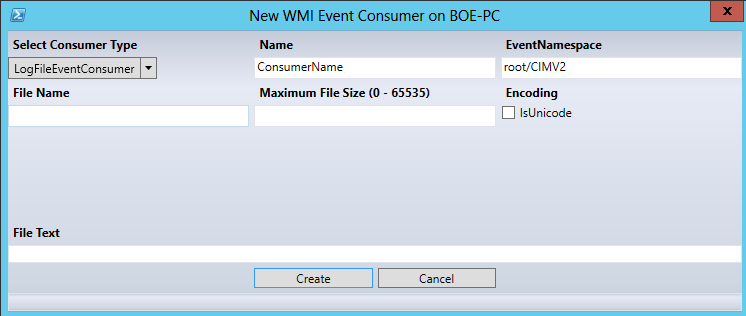
Wrapping up this article, I wanted to throw out an excellent module called PowerEvents (https://powerevents.codeplex.com/) that Trevor Sullivan (Twitter | Blog) has created. Not only does it come with some great examples, but it is incredibly easy to use! Let’s repeat the same type of event subscription that we have done before in the previous options. If you have the option to download and use this, I would recommend it!
First off, since this is a Module (and assuming you are on V2), it will need to be imported first.
#Import the module, if not running PowerShell V3 or above
Import-Module PowerEvents

We only have 3 commands to work with, but that is all we need to get this done.

First I set up some hash tables to splat against the New-WMIEventFilter and New-WMIEventConsumer functions.
#Set up a hash table for parameters
$filterParams = @{
    Computername = $env:COMPUTERNAME
    QueryLanguage = 'WQL'
    Query = "select * from __instanceModificationEvent within 5 where targetInstance isa 'win32_Service'"
    EventNamespace = 'root\CIMV2'
    Namespace = 'root\subscription'
    Name = 'ServiceFilter'
}
$consumerParams = @{
    Computername = $env:COMPUTERNAME
    ConsumerType = 'LogFile'
    Namespace = 'root\subscription'
    FileName = "C:\Scripts\Log.log"
    Name = 'ServiceConsumer'
    Text = 'A change has occurred on the service: %TargetInstance.DisplayName%'
}
Now we can create the Filter and Consumer, keeping in mind that we need to save the output object so it can be used with New-WMIFilterToConsumerBinding function.
#Create the Filter and Consumer
$filterResult = New-WmiEventFilter @filterParams
$consumerResult = New-WmiEventConsumer @consumerParams
Last on this is to bind the Filter and Consumer together.
$bindingParams = @{
    Computername = $env:COMPUTERNAME
    Filter = $filterResult
    Consumer = $consumerResult
}

#Create the binding
$bindingResult = New-WmiFilterToConsumerBinding @bindingParams
Deciding whether or not to save the output of the binding creation is up to you. You could just as easily save it to $Null or even let the object be displayed. Now we have an enabled event subscription in which you will see updates to the logfile as mentioned previously. How to remove these instances is up to you. You can use either of my methods listed in Options 1 and 2 or you can go about it another way.
While I repeated the same type of monitoring with each example, this should at least get you started in the right direction in creating your own types of permanent WMI events!
With that, this wraps up my series on PowerShell and Events with Permanent WMI Events. Hopefully this has shown some various approaches to monitoring using PowerShell.








 Learn Powershell | Achieve More