What Else is New in PowerShell V5

I’ve already gone over OneGet and its inclusion to Windows Management Framework (WMF) 5, but what else was added with PowerShell V5 that everyone can use?

Besides OneGet, there are some improvements to Desired State Configuration (DSC) to include performance improvement, bug fixes and other general optimizations.

L2 Network Switch Management

The other “big ticket item” with V5 is the ability to now manage L2 Network Switches. The module, NetworkSwitch, contains 19 functions which are available to manage a switch. Those functions are listed below:

image

I do not have a switch that would work with this on me, so I will point to the following article that shows a little more information about using this module.

New Cmdlets

Besides that, there are a couple of new cmdlets that I have found which you can use:

Get-ItemPropertyValue

image

This cmdlet lets you get down to the actual value of an item. Very useful for working in the registry.

Let’s look at one of the properties and see what is available.

Get-ItemProperty -Path HKLM:\SOFTWARE\Microsoft\.NETFramework

image

Ok, I want to see the value of InstallRoot.

Get-ItemPropertyValue -Path HKLM:\SOFTWARE\Microsoft\.NETFramework -Name InstallRoot

image

Using this cmdlet, we can now get the value under the property. Pretty cool, but oddly enough, there is no Set-ItemPropertyValue (or a Remove-ItemPropertyValue). Maybe in the next preview release.

Debug-Job

This is an interesting cmdlet that has been added to the latest version of PowerShell.

image

The only parameters that it has are concerning the way to attach to an existing PSJob. Let me kick off a job so we can try this out.

Start-Job -Name Demo -ScriptBlock {
    While ($True) {
        For ($i=0;$i -lt 10; $i++) {
            Write-Verbose "Iteration: $i" -Verbose
            $i
            Start-Sleep -Seconds 1
        }
        Write-Verbose "Resetting" -Verbose
    }
}

image

Per the nature of the job, we cannot see anything. Let’s see what happens when we hook up Debug-Job to our currently running job.

Debug-Job -Name Demo

image

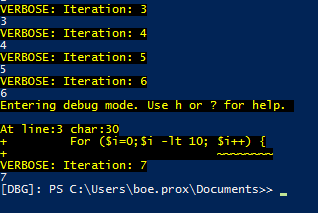
What I notice immediately is that it runs through all of the streams that have already happened prior to getting to the final point of actually going into the PSJob via the debugger.
image

Looking at the help, I can see what my available debugging options are:

image

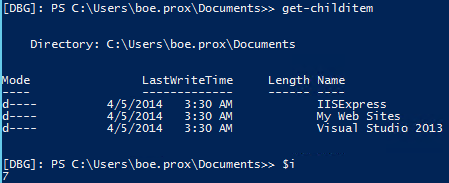
I can explore the job just like I would when I explore a script via the *-PSBreakPoint cmdlets in the console or ISE.
image

image

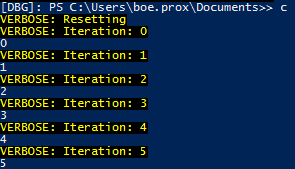
Typing (q)uit will completely stop the job and exit the debugger. Instead, I want to use ( c )ontinue instead.
image

Now we can see that the operation will continue on and provide the status of the streams had used in the job. Unfortunately, there is not a way to just exit the debugger without the output continuing to run. I tried Exit and it behaved much like using Continue. Only a Ctrl+C would stop it displaying the debugging info and still keep the background job running. Possibly a bug.

To finish out, I did find a few more “new cmdlets”, but believe that these are actually bugs with the new release.
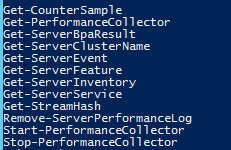
image

There are an additional 11 functions for ServerManagerTasks module which are basically the same functions (minus the “SM” prefix on the noun) which do not work at all and actually act as though they do not exists

Then there is the Get-StreamHash function which serves as a helper function for Get-FileHash but was made public. It doesn’t work by itself even though I tried to match what it was looking for in the parameters. It still needed a variable which was available in Get-FileHash.

I posted Connect items here on those to make sure that they are resolved by the time the main release is available.

https://connect.microsoft.com/PowerShell/feedback/details/847348/wmf-5-preview-get-streamhash-helper-function-for-get-filehash-is-publicly-available-and-throws-errors-when-used-on-its-own

https://connect.microsoft.com/PowerShell/feedback/details/847358/wmf-5-preview-servermanagertasks-module-duplicate-missing-sm-prefix-on-noun-functions-appearing-and-not-usable

So that is it for now. As I find new things with this and the future preview releases, I will be sure to write about them to share what I have found. If you happen to find something that I missed, but sure to drop a line in the comments!

Posted in News, powershell, V5 | Tagged , , , | 2 Comments

Hey, Scripting Guy! Post on a WPF Clock Widget

image

I’m talking about using Windows Presentation Foundation (WPF) to build a clock widget. Something a little fun this time around Smile and I also have another PowerTip as well. Check them out and let me know what you think!

  1. Weekend Scripter: Build a Clock Widget by Using PowerShell and WPF
    1. PowerTip: Use PowerShell to Display Known Colors
Posted in powershell, WPF | Tagged , , , , , | Leave a comment

Checking Out OneGet in PowerShell V5

In case you missed it, Windows Management Framework V5 Preview was released to the public today. One of the big things that this brings to the table is the OneGet module. What this module does is allow you to find and download packages from other shared repositories (in this case Chocolatey is the only one available at this time) and install those to your systems.

By the way, if you have any bug reports or feature request, the appropriate avenue to take is to log it on their codeplex site: https://oneget.codeplex.com/workitem/list/basic

First, let’s take a quick look at all of the available commands within this module.

Get-Command -Module OneGet

image

I’ll step through each of these cmdlets and provide examples (if applicable) of what they do. Note that there are currently no help documentation for this just yet. But there will be before the final release.

Get-PackageSource

This cmdlet will show all available sources that you can query for packages to download and install. In this case, only Chocolatey is available at this time.

Get-PackageSource

image

Note that this is not currently trusted.

Find-Package

This is the cmdlet that will help you to find a package on any of the available package sources. Run it without any parameters and you will get back a lot of packages.

image

There are quite a few parameters that you can use for filtering for names, version,etc…

image

Let’s go ahead and search for one package that we can then install.

Find-Package -Name Sysinternals

image

You can find out more about this package source under C:\Chocolatey

image

Install-Package

I know what I want from the source, now I want to install Sysinternals on my system. For that, I will use Install-Package to make this happen. There are quite a few parameters available here based on what you need to do.

image

I am going go the simple route with my installation and not use any of the parameters and just pipe the results of Find-Package into Install-Package.

Find-Package -Name Sysinternals |
Install-Package -Verbose

image

Remember what I said earlier about this source not being trusted? Well, here is where that comes into play. You will be asked if you want to continue with the installation of the package. This goes along the lines of always make sure you know what you are installing and if you truly trust the source of the package. In this case, I will go ahead and continue on with the installation.

image

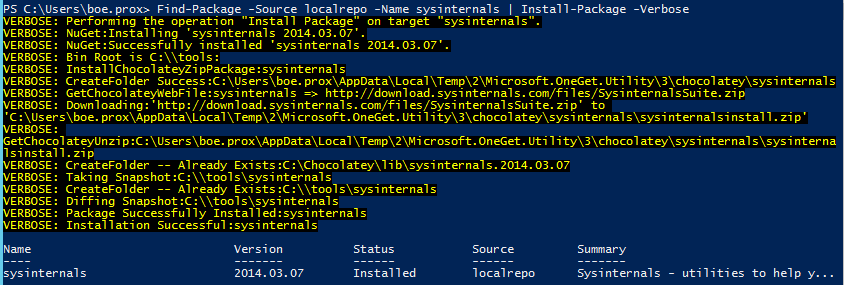
Because I specified a Verbose stream, I can see all of the action happening behind the scenes from the download to the installation of the package. If successful, you will see the output object showing it as being installed.

I want to install at least one more package, but this time I am going to change my trust on the chocolatey provider so I won’t get that prompt again. Only do this if you no kidding trust the provider!

Add-PackageSource -Name chocolatey `
-Location http://chocolatey.org/api/v2 `
-Provider chocolatey -Trusted -Verbose

image

You could also edit the Chocolatey.config file and change the value of Trusted=”True”

Find-Package -Name Putty | 
Install-Package -Verbose

image

Note that there was no prompt this time for confirmation to download and install this package. You can also see how it downloaded and installed a dependent package as well.

You can explore the location of the packages under the C:\Chocolatey\lib folder.

image

For a more UI approach, try this:

Find-Package | Out-Gridview -PassThru | 
Install-Package -Verbose

image

Be patient with this as it may a minute to load everything up (this is going through the pipeline after all), so if you attempt to do anything before it finishes, it will cancel and nothing will show up to install.

7Zip looks like a good install here to choose.

image

Just in case you may not believe that it is actually installed yet…..:

image

Get-Package

By itself, this will show all installed packages on your local machine.

Get-Package

image

Not many parameters available for this cmdlet.

image

Not much to this one. If I want to find just a specific package, I can use one of the parameters to filter for it. Wildcards will not work here though, so if you want to find more than one package with a similar name, just don’t type a full name.

Get-Package -Name Putt

image

Uninstall-Package

This package does exactly what it says, it uninstalls a locally installed package on your local system.

image

In this case, I will remove Putty from my system. Actually, I want to remove both instances in this case.

Get-Package -Name Putt |
Uninstall-Package

image

And it is done! This was actually very fast.

Just like my other example, this provides a great UI approach as well.

Find-Package | Out-Gridview -PassThru | 
Install-Package -Verbose

image

Remove-PackageSource

This cmdlet is pretty self explanatory.

image

For the sake of showing an example, I am going to remove my only source and the re-add it again (you saw this earlier when I use Add-PackageSource to change the IsTrusted property).


Remove-PackageSource -Name chocolatey

image

Don’t be alarmed by the verbose output saying that it is creating a folder and saving a config file. This is just updating the package source config file to show that there are no package sources available now. Digging into the config file, you will see that it no longer has any information in it related to the chocolatey package source.

We can verify that we have no sources now using Get-PackageSource.

image

Now let’s re-add this in so I don’t get in trouble.

Add-PackageSource

Here we…add a package source that we know about so we can access the remote packages.

image

Name The name of the package source
Location This is the url or folder path of the repository hosting the packages
Provider This is the type of provider (Only Chocolatey is supported at this time)
Trusted Determines if this site is to be completely trusted.


I will be using every parameter here (excluding the common ones of course). I want this to be trusted so I will use the –Trusted switch.

Add-PackageSource -Name chocolatey -Provider chocolatey `
-Trusted -Location http://chocolatey.org/api/v2/ -Verbose

image

A quick check of the config file shows that our beloved chocolatey source is now back available to use to use. Now to verify with Get-PackageSource.

image

Perfect! Our source has made its return! It will be more interesting to see how this will integrate with sources in an internal organization once we get more documentation. Also note that this does not verify that the source actually exists and is reachable. It only adds source to the config file.

Add-PackageSource -Name Fail `
-Location http://shouldnotwork `
-Provider Chocolatey -Trusted -Verbose

image

Working with a local repository

After a little research and work, I was able to stand up my own Nuget server to host an internal repository. You can find exactly what you need to do to install the server here. Seriously, do what it says and you will be just fine.

Once that was done, I needed to some packages to test out. There is this link that will help to create packages, but I was feeling a little impatient and used a couple of packages that I had already available from my previous installs.

In short, I now had a server and a couple of packages to use. First I created my package source.

Add-PackageSource -Name localrepo `
-Location http://localhost:50674/nuget/ `
-Provider Chocolatey -Trusted -Verbose

image

Verify the source shows up and then check for available packages.

Get-PackageSource
Find-Package -Source localrepo

image

Lastly, I need to install a package.

Find-Package -Source localrepo -Name sysinternals |
Install-Package -Verbose

image

Now we have a local repository that works great with OneGet!

And with that, we have gone through a simple walkthrough of all of the available cmdlets that OneGet has to offer at this time. Enjoy the latest release!

Posted in powershell | Tagged , , , | 15 Comments

5 Day Hey, Scripting Guy! Series on Remote Endpoints

Today begins my 5 day guest spot on Hey, Scripting Guy! talking about Remote PowerShell Endpoints. I am also doing the Power Tips as well during this week, so be sure to check those out as well! As always, let me know what you think of these and I hope you enjoy them!

  1. Introduction to PowerShell Endpoints
    1. PowerTip: Find Default Session Config Connection in PowerShell
  2. Build Constrained PowerShell Endpoint Using Startup Script
    1. PowerTip: List Remote PowerShell Endpoint Configurations
  3. Build Constrained PowerShell Endpoint Using Configuration File
    1. PowerTip: Test a PSSession Configuration File 
  4. Use Delegated Administration and Proxy Functions
    1. PowerTip: Restore Default PSSession Endpoints
  5. Build a Tool that Uses Constrained PowerShell Endpoint
    1. PowerTip: Use PowerShell to Display Pop-Up Window 
Posted in News, powershell | Tagged , , , , | 1 Comment

Guest Post on Hey, Scripting Guy! Talking About File Signatures

I have a two day guest spot on Hey, Scripting Guy! talking about finding and using File Signatures to identify file types. Be sure to check them out and let me know what you think!

Links to both blog posts will be below.

Weekend Scripter: Use PowerShell to Investigate File Signatures—Part 1
Weekend Scripter: Use PowerShell to Investigate File Signatures—Part 2
Posted in News, powershell | Tagged , , , | Leave a comment