Beginning with PowerShell and Word

This first article will dip our toes into creating the Word Com object, looking at sending text to Word and adjusting some of the various fonts and styles to give you a stepping stone on what you can do. I will be using Word 2013 in this article, so your mileage may vary if using older versions.

Creating the Word Object

Like any COM object, we must use New-Object with the –ComObject parameter to tell PowerShell that we are loading up a Com object.

 
$Word = New-Object -ComObject Word.Application

Now I have created my object as shown in the image below.

image

One thing that you might note is that we can’t see Word opened up, even though the process is actually active.

image

To make Word visible, we have to set the Visibility of the object to $True.

 
$Word.Visible = $True

Now you should see that Word is visible. But we don’t actually have a document loaded yet to start writing. We need to fix that first. We do this by calling the Documents.Add() method. I am keeping the output of this saved to another variable that will be used later on. I then want to select the current pane in Word so I can begin writing data to it.

 
$Document = $Word.Documents.Add()
$Selection = $Word.Selection

Writing to Word

Writing to word is as simple as calling TypeText() and supplying a parameter which is text.

 
$Selection.TypeText("Hello")

image

Ok, nothing really mind blowing here, but this is how we can write in word using PowerShell. If I attempt to do this again, it will not actually start on the next line but append to the existing line.

image

We work around this by calling TypeParagraph().

 
$Selection.TypeParagraph()
$Selection.TypeText("Hello1")
$Selection.TypeParagraph()
$Selection.TypeText("Hello2")
$Selection.TypeParagraph()
$Selection.TypeText("Hello3")
$Selection.TypeParagraph()

image

Working with Styles

So lets start with a fresh slate (actually I am just going to delete all of the words here instead of rebuilding the object) and look at some of the Styles that we can use.

First off, we should see what kind of styles are available to use.

 
[Enum]::GetNames([Microsoft.Office.Interop.Word.WdBuiltinStyle]) | ForEach {
    [pscustomobject]@{Style=$_}
} | Format-Wide -Property Style -Column 4

image

This is just one of the possible options to set a style that also includes using an integer or a string value that matches the names of what you would see in the toolbar for styles.

image

Whatever approach you are comfortable with will be just fine. Just make sure if it the setting isn’t that readable (such as using an integer) that you comment what the style is supposed to be for whoever might be looking at the code later on.

Moving on from that, we will set a couple of styles to show off what we can do. I think we at least need a Title and perhaps some sort of Header to show off what we are doing.

 
$Selection.Style = 'Title'
$Selection.TypeText("Hello")
$Selection.TypeParagraph()
$Selection.Style = 'Heading 1'
$Selection.TypeText("Report compiled at $(Get-Date).")
$Selection.TypeParagraph()

image

Feel free to explore and find some styles that will work with what you are trying to do!

Exploring Fonts

The last item that I will cover today is working with Fonts such as changing the color and going with Bold or Italics.

We can locate the fonts using $Selection.Font

 
$Selection.Font

image

Ok, there is obviously a lot of stuff available here that we can manipulate, but I just focus on the basics. Notice that the Bold and Italic are specified by an integer. Currently, a 0 means that this is turned off. If we want to turn it on, we specify something other than a 0, such as a 1.

 
$Selection.Font.Bold = 1
$Selection.TypeText('This is Bold')
$Selection.Font.Bold = 0
$Selection.TypeParagraph()
$Selection.Font.Italic = 1
$Selection.TypeText('This is Italic')

image

Lastly, we will check out adjusting the colors of the text in word and we can find out the available colors using the following code:

 
[Enum]::GetNames([Microsoft.Office.Interop.Word.WdColor]) | ForEach {
    [pscustomobject]@{Color=$_}
} | Format-Wide -Property Color -Column 4

image

Now we can write some code to take a look at some of these colors.

 
[Enum]::GetNames([Microsoft.Office.Interop.Word.WdColor]) | ForEach {
    $Selection.Font.Color = $_
    $Selection.TypeText("This is $($_)")
    $Selection.TypeParagraph()    
} 
$Selection.Font.Color = 'wdColorBlack'
$Selection.TypeText('This is back to normal')

SNAGHTML48723c4d

Actually, I decided to just go through all of the colors so we can see each and every one!

One last thing! It may be a good idea to save our good work so we can view it later, right? So with that we can use the following code to save the document. We do this using the SaveAs method in the $Document object that we had created earlier. Aren’t you glad we saved that output earlier?

We do need to specify a reference variable which is the path and name of the file as well as a second parameter specifying the save format of the document. as…you guest it…another reference variable! We can find the possible format types using this code.

 
[Enum]::GetNames([microsoft.office.interop.word.WdSaveFormat])

image

And now I can save this document using the following code:

 
$Report = 'C:\Users\proxb\Desktop\ADocument.doc'
$Document.SaveAs([ref]$Report,[ref]$SaveFormat::wdFormatDocument)
$word.Quit()

I am calling the Quit() method to actually quit the application. Unfortunately, this doesn’t actually mean that the memory used to create this object has been freed up. Com objects play a little differently than .Net objects that we create. So with that in mind, I am going to do the following to free up that memory:

 
$null = [System.Runtime.InteropServices.Marshal]::ReleaseComObject([System.__ComObject]$word)
[gc]::Collect()
[gc]::WaitForPendingFinalizers()
Remove-Variable word 

There you go! That was a little dip into the pool of PowerShell and Word to get you going on building out something cool!
Posted in powershell | Tagged , , | 10 Comments

Retrieving a Registry Key LastWriteTime Using PowerShell

While navigating through the registry, you may have noticed that there is something missing from there that you normally see in other places such as the file system. That little thing is a timestamp that might tell you when a particular key has been modified. In this case, you can’t see it because it is not openly visible to be seen. In fact, the timestamp is only available on the registry key itself, not on the values within the key. If a value gets updated, removed or added under the key, the timestamp on the key gets updated.

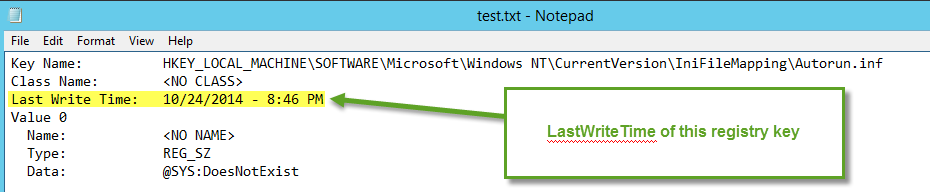
In order to actually view this information you would have to export the registry key in question and make sure to save it as a txt file so that when you open it up, it would list the lastwritetime of the key for you to see.

image

Now wouldn’t be great if we could somehow use some sort of command line approach to retrieving the same timestamp? Well, with a little bit of work, we can accomplish this using PowerShell with some help from our friends with p/invoke and some reflection!

First let’s start off with getting the proper signature which happens to be RegQueryInfoKey from pinvoke.net

image

More information about this actual function can be found at the following link:

http://msdn.microsoft.com/en-us/library/windows/desktop/ms724902%28v=vs.85%29.aspx

I will be making a small change to this with the last parameter: lpftLastWriteTime. Instead of an IntPtr I will be using long as the Ref so it will be easier to convert the value to a DateTime object.

With that, I am going to build out the signature using reflection. Unlike some of my other scripts that use this approach, I only have to build the RegQueryInfoKey signature and have no need to worry about any Enums or Structs.

 
#region Create Win32 API Object
Try {
    [void][advapi32]
} Catch {
    #region Module Builder
    $Domain = [AppDomain]::CurrentDomain
    $DynAssembly = New-Object System.Reflection.AssemblyName('RegAssembly')
    $AssemblyBuilder = $Domain.DefineDynamicAssembly($DynAssembly, [System.Reflection.Emit.AssemblyBuilderAccess]::Run) # Only run in memory
    $ModuleBuilder = $AssemblyBuilder.DefineDynamicModule('RegistryTimeStampModule', $False)
    #endregion Module Builder
 
    #region DllImport
    $TypeBuilder = $ModuleBuilder.DefineType('advapi32', 'Public, Class')
 
    #region RegQueryInfoKey Method
    $PInvokeMethod = $TypeBuilder.DefineMethod(
        'RegQueryInfoKey', #Method Name
        [Reflection.MethodAttributes] 'PrivateScope, Public, Static, HideBySig, PinvokeImpl', #Method Attributes
        [IntPtr], #Method Return Type
        [Type[]] @(
            [Microsoft.Win32.SafeHandles.SafeRegistryHandle], #Registry Handle
            [System.Text.StringBuilder], #Class Name
            [UInt32 ].MakeByRefType(),  #Class Length
            [UInt32], #Reserved
            [UInt32 ].MakeByRefType(), #Subkey Count
            [UInt32 ].MakeByRefType(), #Max Subkey Name Length
            [UInt32 ].MakeByRefType(), #Max Class Length
            [UInt32 ].MakeByRefType(), #Value Count
            [UInt32 ].MakeByRefType(), #Max Value Name Length
            [UInt32 ].MakeByRefType(), #Max Value Name Length
            [UInt32 ].MakeByRefType(), #Security Descriptor Size           
            [long].MakeByRefType() #LastWriteTime
        ) #Method Parameters
    )
 
    $DllImportConstructor = [Runtime.InteropServices.DllImportAttribute].GetConstructor(@([String]))
    $FieldArray = [Reflection.FieldInfo[]] @(       
        [Runtime.InteropServices.DllImportAttribute].GetField('EntryPoint'),
        [Runtime.InteropServices.DllImportAttribute].GetField('SetLastError')
    )
 
    $FieldValueArray = [Object[]] @(
        'RegQueryInfoKey', #CASE SENSITIVE!!
        $True
    )
 
    $SetLastErrorCustomAttribute = New-Object Reflection.Emit.CustomAttributeBuilder(
        $DllImportConstructor,
        @('advapi32.dll'),
        $FieldArray,
        $FieldValueArray
    )
 
    $PInvokeMethod.SetCustomAttribute($SetLastErrorCustomAttribute)
    #endregion RegQueryInfoKey Method
 
    [void]$TypeBuilder.CreateType()
    #endregion DllImport
}
#endregion Create Win32 API object

If you are interested in a more detailed explanation of this process, just check out one of my other articles with the reflection tag to learn more.

I can verify that I at least have everything compiled correctly by looking at the method.

 
[advapi32]::RegQueryInfoKey

image

At least this looks good. We now need to grab a registry key and then figure out what the timestamp is.

 
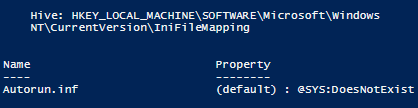
$RegistryKey = Get-Item 'HKLM:\SOFTWARE\Microsoft\Windows NT\CurrentVersion\IniFileMapping\Autorun.inf'
$RegistryKey

image

What better key to use than the one that I showed in my previous example. Now I will create some common variables that will be used with the method.

 
#region Constant Variables
$ClassLength = 255
[long]$TimeStamp = $null
#endregion Constant Variables

With my registry key, I need the registry handle and the name that will be supplied to the method.

 
$ClassName = New-Object System.Text.StringBuilder $RegistryKey.Name
$RegistryHandle = $RegistryKey.Handle

I had to use a StringBuilder because it is required by one of the method parameters. Now that we have enough information, we can proceed with gathering the timestamp.

 
[advapi32]::RegQueryInfoKey(
    $RegistryHandle,
    $ClassName,
    [ref]$ClassLength,
    $Null,
    [ref]$Null,
    [ref]$Null,
    [ref]$Null,
    [ref]$Null,
    [ref]$Null,
    [ref]$Null,
    [ref]$Null,
    [ref]$TimeStamp
)

SNAGHTML5719a54

Most of the parameters here can be $Null, which is why they are that way. We know that this was successful by the return of the IntPtr 0. Any other value would mean that something happened and that would need to be investigated.

We are not quite done yet! We have the timestamp, but it is in a non-usable format and should be converted into a DateTime object using [datetime]::FromFileTime().

 
#Convert to DateTime Object
$LastWriteTime = [datetime]::FromFileTime($TimeStamp)
 
#Return object
$Object = [pscustomobject]@{
    FullName = $RegistryKey.Name
    Name = $RegistryKey.Name -replace '.*\\(.*)','$1'
    LastWriteTime = $LastWriteTime
}
$Object.pstypenames.insert(0,'Microsoft.Registry.Timestamp')
$Object

image

If you compare this to what I showed earlier with the manual exporting of the registry key to a text file, you will see that these times are exactly the same. Well, this also includes the seconds, which the exported file does not.

Now wouldn’t it be nice to have a function that does all of this work for you? Of course you would! I wrote a function called Get-RegistryKeyLastWriteTime that will allow you to get the registry key timestamp from either a remote or local system.

Let’s give it a couple of runs to see how it works. The first example shows how you can pipe an existing registry key object into the function to get the timestamp.

 
$RegistryKey = Get-Item "HKLM:\SOFTWARE\Microsoft\Windows NT\CurrentVersion\IniFileMapping\Autorun.inf"
$RegistryKey | Get-RegistryKeyTimestamp | Format-List

image

The next example runs against a remote system and allows you to specify the hive and subkey that you wish to query.

 
Get-RegistryKeyTimestamp -Computername boe-pc -RegistryHive LocalMachine –SubKey  'SOFTWARE\Microsoft\Windows NT\CurrentVersion\IniFileMapping\Autorun.inf' |
Format-List

image

Works like a champ! Be sure to download this and give it a run and let me know what you think!

Download Get-RegistryKeyLastWriteTime

https://gallery.technet.microsoft.com/scriptcenter/Get-RegistryKeyLastWriteTim-63f4dd96

Posted in powershell | Tagged , , , , , | 1 Comment

What is Your PowerShell Resolution?

As the year is winding down to its final couple of weeks of 2014 before we ring in the new year, it is time again to think about the new year and what things I want to accomplish in terms of IT and PowerShell. Basically I am coming up with my own resolutions for the new year that aren’t related to the usual “go visit this city” or “hit the gym more” type of things. Those are fine but I am more interested in the professional side of the house and things that I would like to accomplish.

Over the past year I was fortunate enough to be re-awarded the Microsoft MVP for Windows PowerShell, continued to write more PowerShell articles in my blog, did some guest spots on Hey, Scripting Guy! and even took a part time gig writing for MCPMag.com. Besides that, I broke out of my speaking shell to speak at NorCal PowerShell Users Group as well as for Philly Posh (both of which were amazing opportunities). I also helped to co-found and co-lead a local PowerShell user group here in Omaha.

This year I wanted to at least look at a couple of things which I want to do, but for one reason or another I just never found the time to accomplish. I figured that those items were make for a great resolution for the New Year. There are some things that I would have like to do more of or hope to continue to do again in 2015 so those will be added again as a reminder to myself of what I would like to do.

So with that, here are a few things (in no particular order) that I am looking to accomplish in 2015 as my PowerShell Resolutions:

  • Learn more about Desired State Configuration (DSC)
  • Speak at a local conference (SQL Saturday, InfoTech, Nebraska.Code(), etc…)
  • Continue to speak at User groups (at least 2 this year)
  • Develop a new project for 2015 (I actually have mine for 2014 published, but haven’t gone ‘public’ with it just yet)

These are things that I hope to do and there are other things that I am looking to do but I decided to limit myself to 4 things here. With that, I am interested to hear what you would like to do with PowerShell in 2015 be it learning something new about it or maybe working on some project in the new year.

Posted in News, powershell | Tagged , , | 6 Comments

Managing Services using PowerShell on MCPMag.com

This month I will be talking about managing Windows services using PowerShell on MCPMag.com. Be sure to stop over there and check out the articles and let me know what you think!

Managing Services, Part 1: Investigating Service Information Using PowerShell

Managing Services, Part 2: Working with Service States

Managing Services, Part 2: Working with Service States

Posted in News, powershell | Tagged , , | Leave a comment

5 Day Spot on Hey, Scripting Guy! Talking Script Troubleshooting

I have a 5 day spot on Hey, Scripting Guy! this week (1-5 Dec) talking about troubleshooting scripts using some built-in cmdlets and using the PowerShell debugger. Be sure to check them out this week and let me know what you think!

I’ll update this page with links to each article in the series (and the PowerTips as well!).

Monday

Tuesday

Wednesday

Thursday

Friday

Posted in powershell | Tagged , , , , | Leave a comment