FSMO Roles and PowerShell

While at work a couple a week ago, I had to move some FSMO (Flexible Single Master Operations) roles around on our network.  What are FSMO roles you say? Well, instead of getting too deep into what they are and how they work, I will reference a link for you to check out. That link is right here. Short story is that if you have issues with any of these, prepare for a fun filled day (or night) keeping your domain from taking a dive.

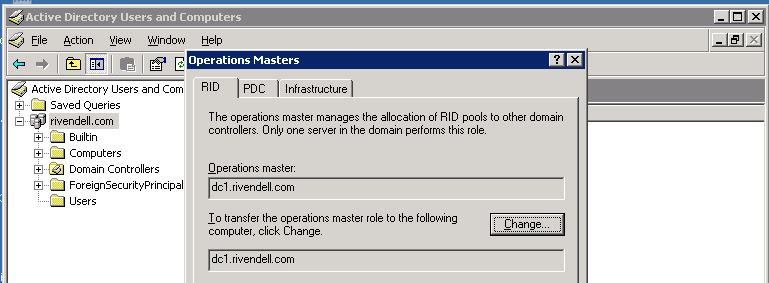
Finding out who owns the FSMO roles can either be accomplished by running the “netdom query fsmo” command line, which gives you info or open up the Active Directory MMC’s to find the information out.

image

image

There are a number of ways to transfer these roles from one Domain Controller to another or to seize a role if you are backed into a corner with no way out due to a DC crashing hard. One way is to use ntdsutil to make transfer/seize the roles. Another option is to use the mmc’s that you can open up to make a FSMO role transfer, but that requires that you know which mmc has which role. In the case of the schema master role, it requires that you register the schmmgmt.dll and then add the schema manager via mmc.exe.
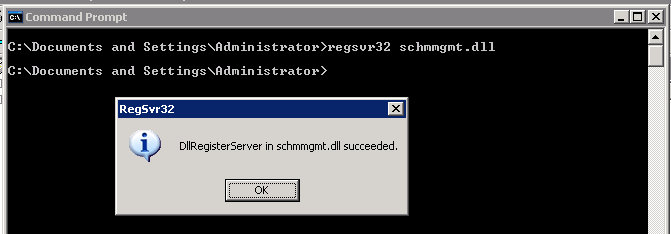
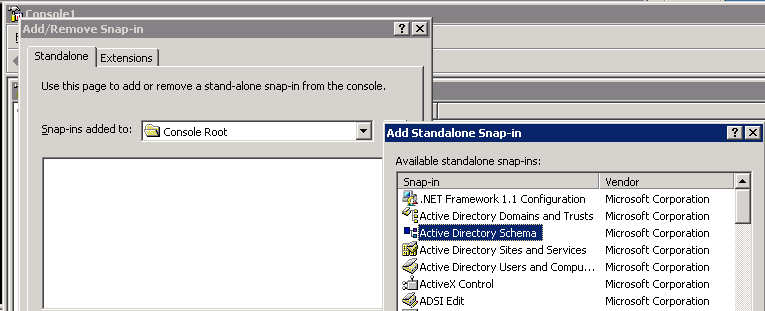
image

image

Both ways are nice but do take a certain amount of time to go and make the changes. You could create a script using ntdsutil, but I am going a different route.

Thankfully, you can use the .NET class system.directoryservices.activedirectory.Forest to connect to a forest and list all domains and domain controllers within the forest. In this case, I am using the static method GetCurrentForest() to get my forest information.

$forest = [system.directoryservices.activedirectory.Forest]::GetCurrentForest()
$Forest

image

As you can see, there is a wealth of information to view. If you really want your mind blown, check out the members of the $forest object.

image

Just an amazing amount of methods to run here. Everything from global catalogs to raising domain or forest functionality to working with Trust relationships. And there is much more, so much more that I am going to limit myself to just working with the FSMO roles for this post.

If you look at some of the properties, you can see a couple that stand out such as SchemaRoleOwner and NamingRoleOwner, both of which are the forest level FSMO roles, meaning that if you have multiple domains, you will still only just have one set of these roles.  So lets see who owns these two roles:

$forest | Select NamingRoleOwner,SchemaRoleOwner

NamingRoleOwner   SchemaRoleOwner
—————   —————
dc1.rivendell.com dc1.rivendell.com

Pretty simple for that, but now I want to know about the rest of the FSMO role owners which are “domain specific” meaning that unlike the other two FSMO roles, each domain within a forest has the rest of the roles. So 2 domains would both have a set of roles for PDC, RID and Infrastructure.  You can view each domain by typing the following command:

$forest.Domains

Forest                  : rivendell.com
DomainControllers       : {dc1.rivendell.com}
Children                : {}
DomainMode              : Windows2000MixedDomain
Parent                  :
PdcRoleOwner            : dc1.rivendell.com
RidRoleOwner            : dc1.rivendell.com
InfrastructureRoleOwner : dc1.rivendell.com
Name                    : rivendell.com

In my case, I only have one domain to worry about. If I had more than one domain, then I would have to find out where in the collection of domains that my domain belonged in that I wished to view. As you can also see, the other three FSMO role owners are clearly listed among the other information.

My function I wrote simplifies this process by doing the legwork for you. It will give you all of the FSMO Role owners for each domain in a forest and also listing the owner of the forest level FSMO roles as well.

Get-FSMORoleOwner
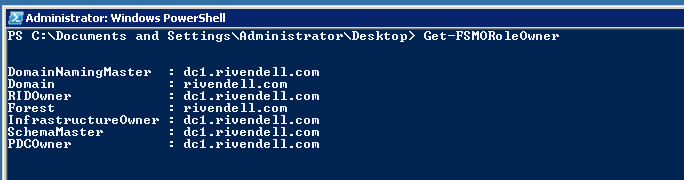
image

If you want to filter by a specific domain, you can use the Where-Object cmdlet to perform that task.

Get-FSMORoleOwner | Where {$_.Domain -eq 'domain.com'}

Changing the FSMO Role Owners

I have showed you how you can use the .net class to show the FSMO Role owners, now lets take it a step forward by showing you how you can transfer and in a more extreme situation, seizing a role and moving it to a domain controller.

First thing we need to do is connect to a domain using this line:

$domain = $forest.Domains[0]

From there we need to select the Domain Controller that we want to to give a FSMO role to. In my case, I only have one Domain Controller, but I will still filter for that specific DC.

$DomainController = $domain.DomainControllers | Where {$_.Name -eq "dc1.rivendell.com"}
$DomainController.GetType().ToString()

I also decided to find out what kind of object we have once we filter for a specific Domain Controller.  The object that we get is System.DirectoryServices.ActiveDirectory.DomainController

Now lets look at the methods on this object and see if there is anything that I can use to transfer and seizing the roles.

$DomainController | Get-Member -Type Method | Select Name

Name
—-
CheckReplicationConsistency
Dispose
EnableGlobalCatalog
Equals
GetAllReplicationNeighbors
GetDirectoryEntry
GetDirectorySearcher
GetHashCode
GetReplicationConnectionFailures
GetReplicationCursors
GetReplicationMetadata
GetReplicationNeighbors
GetReplicationOperationInformation
GetType
IsGlobalCatalog
MoveToAnotherSite
SeizeRoleOwnership
SyncReplicaFromAllServers
SyncReplicaFromServer
ToString
TransferRoleOwnership
TriggerSyncReplicaFromNeighbors

Here we find two methods that match what we need:

SeizeRoleOwnership

TransferRoleOwnership

Each of these requires the System.DirectoryServices.ActiveDirectory.ActiveDirectoryRole object before it will let the Domain Controller transfer or seize the role. Looking at the properties, we find the data we are looking for:

[System.DirectoryServices.ActiveDirectory.ActiveDirectoryRole] | Get-Member -static -Type Property | Select Name

Name
—-
InfrastructureRole
NamingRole
PdcRole
RidRole
SchemaRole

Ok, now we are ready to transfer/seize the role and give it to the Domain Controller:

$DomainController.TransferRoleOwnership("NamingRole")

Warning!!!

Do not seize a FSMO role from a Domain Controller is healthy and running! Once you seize a FSMO role from a Domain Controller, that DC can never be brought back online and onto the network, otherwise you will experience a lot of fun with your domain. And by fun I mean you will have all sorts of issues to contend with. Now with that taken care of, here is the seizing (which I did not actually do on my DC):

$DomainController.SeizeRoleOwnership("NamingRole")

I also wrote a function called Set-FSMORoleOwner to wither transfer or seize a FSMO role. You can define the Domain Controller, Role and whether to transfer or seize the role. Being this is an advanced functon, I made sure to take advantage of the –WhatIf parameter so you can be sure you doing what you mean to do. Also you can specify –PassThru to show the current FSMO Role owners after making the change.

Set-FSMORoleOwner -DomainController dc1.rivendell.com -Role PdcRole -Transfer
Set-FSMORoleOwner -DomainController dc1.rivendell.com -Role PdcRole,SchemaRole -Transfer
Set-FSMORoleOwner -DomainController dc1.rivendell.com -Role PdcRole -Seize -WhatIf
Set-FSMORoleOwner -DomainController dc1.rivendell.com -Role PdcRole -Seize
Set-FSMORoleOwner -DomainController dc1.rivendell.com -Role PdcRole -Transfer -PassThru

Hope you enjoyed this posting on working with FSMO Roles and the advanced functions that I wrote to go along with this. Below are the links to where I posted the functions as well as the actual code for the functions.

Get-FSMORoleOwner Code

Technet

Poshcode

Function Get-FSMORoleOwner {  
<#    
.SYNOPSIS    
    Retrieves the list of FSMO role owners of a forest and domain    
      
.DESCRIPTION    
    Retrieves the list of FSMO role owners of a forest and domain  
      
.NOTES    
    Name: Get-FSMORoleOwner  
    Author: Boe Prox  
    DateCreated: 06/9/2011    
  
.EXAMPLE  
    Get-FSMORoleOwner  
      
    DomainNamingMaster  : dc1.rivendell.com  
    Domain              : rivendell.com  
    RIDOwner            : dc1.rivendell.com  
    Forest              : rivendell.com  
    InfrastructureOwner : dc1.rivendell.com  
    SchemaMaster        : dc1.rivendell.com  
    PDCOwner            : dc1.rivendell.com  
      
    Description  
    -----------  
    Retrieves the FSMO role owners each domain in a forest. Also lists the domain and forest.    
            
#>  
[cmdletbinding()]   
Param() 
Try {  
    $forest = [system.directoryservices.activedirectory.Forest]::GetCurrentForest()   
    ForEach ($domain in $forest.domains) {  
        $forestproperties = @{  
            Forest = $Forest.name  
            Domain = $domain.name  
            SchemaRole = $forest.SchemaRoleOwner  
            NamingRole = $forest.NamingRoleOwner  
            RidRole = $Domain.RidRoleOwner  
            PdcRole = $Domain.PdcRoleOwner  
            InfrastructureRole = $Domain.InfrastructureRoleOwner  
            }  
        $newobject = New-Object PSObject -Property $forestproperties  
        $newobject.PSTypeNames.Insert(0,"ForestRoles")  
        $newobject  
        }  
    }  
Catch {  
    Write-Warning "$($Error)"  
    }  
}

Set-FSMORoleOwner Code

Technet

Poshcode


Function Set-FSMORoleOwner { 
<#   
.SYNOPSIS   
    Performs a transfer of a FSMO role to a specified Domain Controller.  
     
.DESCRIPTION   
    Performs a transfer of a FSMO role to a specified Domain Controller. 
 
.PARAMETER DomainController 
    Fully Qualified Domain Name of the Domain Controller to take a transfer role to 
 
.PARAMETER Role 
    Name of the role to transfer to domain controller 
 
.PARAMETER Transfer 
    Transfers the specified role and give to specified domain controller.  
 
.PARAMETER Seize 
    Seize the specified role and give to specified domain controller.    
 
.PARAMETER PassThru 
    Show the FSMO role owners after performing action     
 
.NOTES   
    Name: Set-FSMORoleOwner 
    Author: Boe Prox 
    DateCreated: 06/9/2011   
 
.EXAMPLE 
    Set-FSMORoleOwner -DomainController DC1.Rivendell.com -Role RidRole 
     
    Description 
    ----------- 
    Transfers the RidRole to DC1.Rivendell.com  
 
.EXAMPLE 
    Set-FSMORoleOwner -DomainController DC1.Rivendell.com -Role PdcRole -Transfer -PassThru 
     
    NamingRole  : dc2.rivendell.com  
    Domain              : rivendell.com  
    RidRole            : dc2.rivendell.com  
    Forest              : rivendell.com  
    InfrastructureRole : dc2.rivendell.com  
    SchemaRole        : dc2.rivendell.com  
    PdcRole            : dc1.rivendell.com      
     
    Description 
    ----------- 
    Transfers the PdcRole to DC1.Rivendell.com and displays the current FSMO Role Owners. 
 
.EXAMPLE 
    Set-FSMORoleOwner -DomainController DC1.Rivendell.com -Role PdcRole,RidRole,SchemaRole -Transfer -PassThru 
     
    NamingRole         : dc2.rivendell.com  
    Domain              : rivendell.com  
    RidRole            : dc1.rivendell.com  
    Forest              : rivendell.com  
    InfrastructureRole : dc2.rivendell.com  
    SchemaRole        : dc1.rivendell.com  
    PdcRole            : dc1.rivendell.com      
     
    Description 
    ----------- 
    Transfers the PdcRole,RidRole and SchemaRole to DC1.Rivendell.com and displays the current FSMO Role Owners.   
     
.EXAMPLE 
    Set-FSMORoleOwner -DomainController DC1.Rivendell.com -Role PdcRole -Seize -PassThru 
     
    WARNING: Performing this action is irreversible! 
    The Domain Controller that originally holds this role should be rebuilt to avoid issues on the domain! 
     
    NamingRole  : dc2.rivendell.com  
    Domain              : rivendell.com  
    RidRole            : dc2.rivendell.com  
    Forest              : rivendell.com  
    InfrastructureRole : dc2.rivendell.com  
    SchemaRole        : dc2.rivendell.com  
    PdcRole            : dc1.rivendell.com      
     
    Description 
    ----------- 
    Seizes the PdcRole and places it on DC1.Rivendell.com and displays the current FSMO Role Owners.   
           
#> 
[cmdletbinding( 
    SupportsShouldProcess = 'True', 
    ConfirmImpact = 'High', 
    DefaultParameterSetName = 'Transfer' 
    )]  
Param ( 
    [parameter(Position=1,Mandatory = 'True',ValueFromPipeline = 'True', 
        HelpMessage='Enter the Fully Qualified Domain Name of the Domain Controller')] 
    [ValidateCount(1,1)] 
    [string[]]$DomainController, 
    [parameter(Position=2,Mandatory = 'True', 
        HelpMessage = "InfrastructureRole,NamingRole,PdcRole,RidRole,SchemaRole")] 
    [Alias('fsmo','fsmorole')] 
    [ValidateSet('InfrastructureRole','NamingRole','PdcRole','RidRole','SchemaRole')] 
    [ValidateCount(1,5)] 
    [string[]]$Role, 
    [parameter(Position=4,ParameterSetName='Transfer')] 
    [Switch]$Transfer,     
    [parameter(Position=4,ParameterSetName='Seize')] 
    [Switch]$Seize, 
    [parameter(Position=5)] 
    [switch]$PassThru 
    ) 
Begin {} 
Process { 
    Try { 
        Write-Verbose "Connecting to Forest" 
        $forest = [system.directoryservices.activedirectory.Forest]::GetCurrentForest() 
        Write-Verbose "Locating $DomainController"  
        $dc = $forest.domains | ForEach { 
            $_.Domaincontrollers | Where { 
                $_.Name -eq $DomainController 
                } 
            } 
        } 
    Catch { 
        Write-Warning "$($Error)" 
        Break 
        } 
    If (-NOT [string]::IsNullOrEmpty($dc)) { 
        ForEach ($r in $role) { 
            Switch ($PScmdlet.ParameterSetName) { 
               "Transfer" { 
                Write-Verbose "Beginning transfer of $r to $DomainController" 
                    If ($PScmdlet.ShouldProcess("$DomainController","Transfer Role: $($Role)")) { 
                        Try { 
                            $dc.TransferRoleOwnership($r) 
                            } 
                        Catch { 
                            Write-Warning "$($Error[0])" 
                            Break 
                            } 
                        } 
                    } 
                "Seize" { 
                    Write-Warning "Performing this action is irreversible!`nThe Domain Controller that originally holds this role should be rebuilt to avoid issues on the domain!" 
                    Write-Verbose "Seizing $r and placing on $DomainController" 
                    If ($PScmdlet.ShouldProcess("$DomainController","Seize Role: $($Role)")) { 
                        Try { 
                            $dc.SeizeRoleOwnership($r) 
                            } 
                        Catch { 
                            Write-Warning "$($Error[0])" 
                            Break 
                            } 
                        }                
                    } 
                Default { 
                    Write-Warning "You must specify either -Transfer or -Seize!" 
                    Break 
                    } 
                } 
            } 
        } 
    Else { 
        Write-Warning "Unable to locate $DomainController!" 
        Break 
        } 
    } 
End { 
    If ($PSBoundParameters['PassThru']) { 
        $forest = [system.directoryservices.activedirectory.Forest]::GetCurrentForest() 
        ForEach ($domain in $forest.domains) { 
            $forestproperties = @{ 
                Forest = $Forest.name  
                Domain = $domain.name  
                SchemaRole = $forest.SchemaRoleOwner  
                NamingRole = $forest.NamingRoleOwner  
                RidRole = $Domain.RidRoleOwner  
                PdcRole = $Domain.PdcRoleOwner  
                InfrastructureRole = $Domain.InfrastructureRoleOwner  
                } 
            $newobject = New-Object PSObject -Property $forestproperties 
            $newobject.PSTypeNames.Insert(0,"ForestRoles") 
            $newobject         
            } 
        } 
    } 
}
Posted in powershell, scripts | Tagged , , | 4 Comments

PowerShell Patch Audit/Install GUI (PoshPAIG) Released

For the past few months, I have been working on a project for work that has pretty much been taking me away from working other items such as PoshWSUS. This project, which I have named PoshPAIG (yea, it’s the best I could come up with for CodePlex) which stands for PowerShell Patch Audit/Installation GUI. This utility allows you to input a server name via a host file, active directory query or by right clicking and adding the name yourself. You then have options to Audit Patches, Install Patches or Reboot Servers. I also included the capability to create a CSV file reporting the status after the Audit or Install of patches and the option GUI report which presents the report via a Grid-View.

Initial Planning

My initial plan was to make this into one file, which would have easily topped out at over 1000 lines of code.  But as I started to work and make changes here and there, I found that this would need to evolve into something much more than I had anticipated. The moment I took the leap to add Help files that included pictures and something better than just a simple popup window with text showing a few basic help items, I realized that I would need to use multiple files, not only for the images but actually for specific parts of the help file I was putting together.  Once I started down that path, I saw that it would make writing and debugging my code easier by separating some of the functions I used into their own separate files that I would call at the loading of the jobs.

I wrote the GUI using XAML for WPF and then compiled it via PowerShell. I admit that this was my first go at using WPF and have to say that I did enjoy it quite a bit! I went the easy route since it was my first time by using Stack Panels instead of Grids. I’ve started to use Grids more now on my last two projects, but do not feel like re-coding this project to use Grids at this point in time. At some point I may come back to this and re-do it using grids, but not any time in the near future. I used some of my old code that I put together for my command line auditing/installation of patches with some minor adjustments here and there. Most notably is my Get-PendingUpdates script that allowed me to create the remote COM object to perform the patch audit and save some time using PSExec (ok, not sure about saving time, but it makes it easier to compile the report).  By doing the auditing this way, I already have my nice object to add into my current report and also update the grid table that shows how many patches are waiting to be install on each server (By the way, the number of patches for each server is updated in real-time as the utility runs thanks to some great background jobs and a lot of research and pain Smile ).

VBScript as a tool

I did go back in time a little bit and am using the same VBScript code to perform the patch installations. Now why VBScript you ask? Simple. I did not want to go into this with the assumption that PowerShell is installed on each and every server and then have it fail multiple times because there is nothing that can run the script. Using VBScript was an easy and simple decision as I can encase it in a Here-String and then just use Out-File to create it on the remote system which can then be called using the wonderful tool PSexec.exe. After a successful completion, the VBScript outputs a nice CSV file which is then grabbed using Import-CSV which I can then make a few adjustments and add into my report.

Important Notes

This tool is still in an Alpha state, meaning that some features will not work and some bugs that I am working on fixing. The most glaring piece that will not work is the Reboot Host capability. I decided to focus on a few other things and pushed this off until the next version. While I do not like releasing things that are not 100% complete, I felt that the most used features (audit and install) would be available to use to the user with potential bugs that I can pick off as I see them.

I have the project currently out at CodePlex instead of the Technet Script Repository for the time being as this is not in a stabile enough state to have out there yet. But rest assured that after the next couple versions, I will push it out to the repository for another place to download this utility.

PoshPAIG In Action

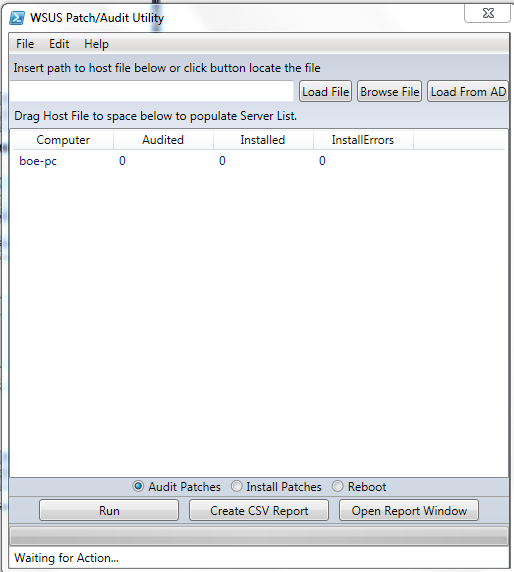
Ok, I have given a decent amount of background into this utility and now it is time to show it in action.  After downloading the zip file from the CodePlex site, you can then unzip it to whichever location you wish. Keep in mind that you must keep all of the files in their same location and not move or delete anything. Doing so could potentially make this utility unusable.

Running PoshPAIG

After you have unzipped the files to the location of your determination, you can then run the utility via the PowerShell console (as an administrator) by navigating to the folder and typing:

. .\Open-WSUSUtility.ps

This must be run using the console and not the ISE due to issues with PSExec and how it is handled in the ISE. A friendly warning is given if you do this on accident. Also, a check is performed to make sure you are running PowerShell in STA mode and if not, it will attempt to re-run the script by opening another instance of PowerShell in STA. Lastly, a check is performed to make sure you are an Administrator. If this check fails, then you should open an instance of PowerShell as an administrator.

image

image

image

Adding servers to server list

Ok, lets start out by adding a server to the server list. There are a few ways to accomplish this and I will start out by showing the way to add just one system into the list. The first way is by Right-clicking on the server list and selecting the “Add Server” context menu. Doing so brings up a dialog to enter a server name to add to the list.

image

image

What you have next is the server added to the list and you can now see the current status for the patches on the server. In this case, there are no patches as the server was just added.

image

Other ways to add servers to the server list are to use the Browse File, which opens a dialog that allows you to locate a file containing a list of servers. Load File allows you to load the file that was designated in the text box to the right of the button. Lastly, we have the Load from AD, which opens a dialog box listing the current domain (if applicable) and allows you to accept the default domain or input another domain and loads all servers that have their accounts residing in that domain.  It is important to note that I currently do not have anything configured to allow for alternate credentials for the other domains (but it is something that is on my To-Do list).

image

Auditing Patches

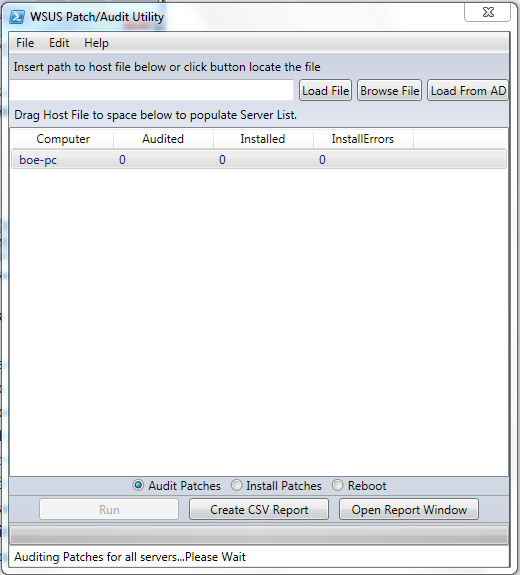
Auditing patches is a pretty simple process that can be done one of 2 ways depending on what you want to do. The key thing is to make sure that the Radio Button is checked for Audit Patches. You can audit a single server by double clicking on the server, which will begin the auditing of patches on the server. I have plans to add another context menu to right click on the server and select Run or something like that. If you have more than 1 server in the list and you click the Run button, the auditing process will begin for the first 5 servers in the list and will continue to update itself and run until all servers have been processed. During either of these times, the Run button is disabled to prevent any issues from occurring during the process.

image

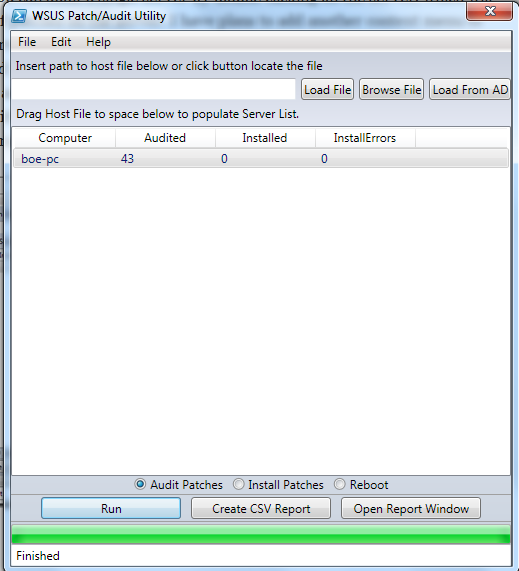
Looking at the next image, you can see that the process has finished and the progress bar is at the maximum position. Also, and the more important part in my opinion, is that the server list has updated itself to show that there are now 43 patches waiting to be installed. As each server completes the auditing process, the server list automatically updates itself in real time to show you how many patches are available to install.

image

Audit Reporting

Now that I have performed the auditing of the server, the next step is to find out what those patches are that are waiting to be installed. How do we do that, you ask? Simple! To view a simple report just to see what is waiting, you can click the  Open Report Window to open up a GridView report that can be sorted and filtered as needed.

image

As you can tell, I have quite a few patches that have not been downloaded, but are available to install. I can filter for KBs, Download status, title and computer. Another option for reporting is to create a CSV report that can be emailed to others. Another thing to note is that the report is created in the same directory as the utility (this will be changed in the future to allow the user to determine where it will be saved to) and also the path is displayed in the status bar.

image

Installing Patches

Installing the patches works exactly like the Auditing of patches. The only exception is that you must have the radio button checked for Install Patches. By doing this, you are telling the utility to perform a patch installation when clicking the Run button or double clicking on the server.

image

image

Looking at the image above, we can see that 1 patch did install successfully out of the 43 that were available to install. We know that only 1 patch was downloaded to the system, so this is ok. Had there been issues with a patch that was being installed, it would be reflected in the InstallErrors column. Much like the auditing, this information is updated in real-time as the installation is completed for each system.

Install Reporting

Again, just like the Audit Reporting, the reporting of patches that are installed is performed the same way. Let’s take a look at the gridview report and see what it shows.

image

As you can see, the patch shows as being installed successfully. Note that if the patch does not install successfully, the error will show in the report. The same goes for the CSV report that is created. I did have to cheat a little as I forgot to clear the report prior to the installation and had to filter for the patch that was installed.

Extra Items

Some extra things that are available in the utility are the menu items at the top of the utility. The include an Exit, Clear All, Clear Report, Clear Server List, About and Help. These are pretty much self explanatory. The Help is a set of help files (still work in progress) that will help a user to figure out what to do with the utility.

Conclusion

I hope that you find this utility to be useful and I welcome everyone’s opinion either on this site or on CodePlex. This is still in Alpha and I have a list of things to do to include adding the reboot feature, more information for the help files, fix a bug in the reporting for the installation of patches, etc… Thanks again for giving me support in making this utility a success!

Coming up next version…

At the time of this being published, I have already made some significant updates to PoshPAIG to include the following items:

  1. Notes section that displays the status of activity for each server
  2. Ability to select multiple servers to audit/install/remove
  3. Get a report of all installed patches on server/s
  4. View entire WindowsUpdate.log or last 25/50/100 lines
  5. Run wuauclt with detectnow or resetauthorization switches on servers
  6. Reboot selected servers
  7. Better reporting for patch installations
  8. Time taken for completion of actions

Here is a screenshot of it showing the new Notes column as well as some right-click menus.

image

I still have more testing to do with a few of these features but am hopeful that this will be released within the next few weeks.

Download PoshPAIG 1.4

PoshCode

Posted in GUI, scripts, WSUS | Tagged , , , , , | 41 Comments

Patch Installation using PowerShell, VBScript and PSExec

In my current environment, I am one of many people in our shop that carry the same task as many of you. That task is to patch our systems to ensure we keep ourselves up to date on the latest security updates. This can be done many different ways from manually downloading and installing patches, setting deadlines in WSUS to complete the installations, managing the installations via Group Policy to name a few of the possible scenarios.  Another way that I will show you combines a melting pot of technologies using PowerShell, VBScript and PSExec.exe to completely automate this task. If you have seen my other function, Get-PendingUpdates and its associated blog posting here, then I would consider this the partner module to that.

VB…What?!?

Ok, you might be asking me: “Boe, why would we use this old legacy scripting language when we have the awesomeness that is PowerShell?” Good question! The answer to that is that while we do have PowerShell which makes our jobs and life soooo much easier, most of us simply do not have it installed on every system, or some systems older and cannot have PowerShell installed on them. Hence, we have VBscript which bridges that gap and gives us a scripting language that works on legacy systems all the way up to our Win2K8R2 systems. The trick to this is that instead of having a vbscript file to copy each time, I simply use a here-string to contain the code and then use Out-File to write the vbscript to the remote machine. This also makes this code more portable as you only have one file to deal with as opposed to multiple files.

The Module

I decided to go with a module so I can only export the one function I need while leaving the other functions that do the background work hidden. With that in mind, when you copy the code you must save it with a .psm1 extension and use the Import-Module cmdlet. I wrote the module so that you can supply a collection of computers if needed and it will do all of the processing of each system itself. You will need to download PSExec from here and place it in the same directory from where ever you are calling the function from. The Install-Patches function is the only visible function that you have available to run, but there are a total of 3 functions that are available within the module (Install-Patches,Create-UpdateVBS and Format-InstallPatchLog). It will then call the Create-UpdateVBS function to use the hardcoded Here-String of the vbs code and use the Out-File cmdlet to create the required Update.vbs file on each system.

I cannot take credit for most of this vbscript as it was created by Microsoft and is available to view from their site here. I say most because I did make some adjustments to make it more PowerShell friendly such as writing out the log file to a CSV instead of a text file. I also made some adjustments such as accepting a EULA if needed for an update prior to installing.  I also took out the downloading of updates as well since they will have already been downloaded to the machine from WSUS (or downloaded if set up to do so on your computer to do so automatically).

After the file has been created successfully, the Install-Patches function continues on and uses PSExec to remotely (or not remotely if running against your local machine) install the patches. I chose this route as I have not found a feasible way to remotely install patches. Using a WMI method with the Win32_Process and Create method does not work and neither does PowerShell remoting. This is a “by design” feature of the COM object and does not look to be changed any time soon. PSexec is my best approach at working around this obstacle. After the Update.vbs script a CSV file is created either showing what patches were installed or showing that no patches were installed for one reason or another.

After PSExec runs, I then check the value of $LASTEXITCODE, which tells you the return code of the application that ran with a 0 being successful. $LASTEXITCODE is described as:

Contains the exit code of the last win32 executable execution


If no issues are encountered with PSExec, then the next function that is called is Format-InstallPatchLog which takes the created CSV file and makes a couple of adjustments to the log file before presenting it as the output object.

Module in Action

Ok, enough talk about the module itself and now onto the actual module in action. The first thing I do is import my module into the PowerShell console using the following line of code:

Import-Module Install-Patches.psm1 -Force

image

I use the –Force switch because I already had the module imported and wanted to “overwrite” the existing function. I say “overwrite” because if you run the command while with –Verbose, you will see that it actually removes the existing function before adding the new function.

The next step is to make sure that you are in the same directory as PSExec.exe to be sure that the function will properly, otherwise it will throw a message and halt the function.

image

Ok, lets actually run the function against a remote system and see what happens.

Install-Patches -Computername DC1

image

As you can see, the PSExec operation took place against DC1 as expected and the reporting object was also returned which is good. Looking at this, we can see that the InstallResultCode is reporting that a reboot is required to complete the patch installation. This is by design that the installation does not automatically reboot the system. It is important to keep in mind that if there are more patches, then it will take longer to run through the installation of each patch. This function does accept a collection of systems and also accepts those from the pipeline as well which allows you some flexibility in how you would like to run the command.

There may be instances when a result code is not displayed or says “Unable to determine Result Code”. This means that the result code returned from the script could not be decoded by the function. That is not to say that the code can never be figured out, it is that I chose to not include the hundreds of possible codes in the script. If you would like a listing of all of the codes to search from, you can find that here.

With that, you can see how this might prove useful to you based on your environment. You could pipe the results into a CSV file if you wanted something to email folks with. This also makes it easy to determine if any patches failed or which systems would need to be rebooted after the installations. You can even use Get-PendingUpdates as an extra measure to make sure no other patches have snuck in and need to be installed.

Code

As always, the code is available to copy from either here or from the following locations:

Script Repository

PoshCode

<#
Save this with a .PSM1 extension and use Import-Module to properly load the functions.
ie: Install-Patches.psm1
Import-Module Install-Patches.psm1
#>
#Validate user is an Administrator
Write-Verbose "Checking Administrator credentials"
If (-NOT ([Security.Principal.WindowsPrincipal] [Security.Principal.WindowsIdentity]::GetCurrent()).IsInRole(`
    [Security.Principal.WindowsBuiltInRole] "Administrator"))
{
    Write-Warning "You are not running this as an Administrator!`nPlease re-run this with an Administrator account."
    Break
}

Function Create-UpdateVBS {
Param ($computername)
#Create Here-String of vbscode to create file on remote system
$vbsstring = @"
ON ERROR RESUME NEXT
CONST ForAppending = 8
CONST ForWriting = 2
CONST ForReading = 1
strlocalhost = "."
Set oShell = CreateObject("WScript.Shell") 
set ofso = createobject("scripting.filesystemobject")
Set updateSession = CreateObject("Microsoft.Update.Session")
Set updateSearcher = updateSession.CreateupdateSearcher()
Set updatesToInstall = CreateObject("Microsoft.Update.UpdateColl")
Set searchResult = updateSearcher.Search("IsInstalled=0 and Type='Software'")
Set objWMI = GetObject("winmgmts:\\" & strlocalhost & "\root\CIMV2")
set colitems = objWMI.ExecQuery("SELECT Name FROM Win32_ComputerSystem")
	For Each objcol in colitems
		strcomputer = objcol.Name
	Next
set objtextfile = ofso.createtextfile("C:\" & strcomputer & "_patchlog.csv", True)
objtextfile.writeline "Computer,Title,KB,InstallResultCode"
If searchresult.updates.count = 0 Then
	Wscript.echo "No updates to install."
	objtextfile.writeline strcomputer & ",NA,NA,NA"
	Wscript.Quit
Else
For I = 0 To searchResult.Updates.Count-1
    set update = searchResult.Updates.Item(I)
	    If update.IsDownloaded = true Then
	       updatesToInstall.Add(update)	
	End If
Next
End If
err.clear
Wscript.Echo "Installing Updates"
Set installer = updateSession.CreateUpdateInstaller()
installer.Updates = updatesToInstall
Set installationResult = installer.Install()
	If err.number <> 0 Then
		objtextfile.writeline strcomputer & "," & update.Title & ",NA," & err.number
	Else		
		For I = 0 to updatesToInstall.Count - 1
		objtextfile.writeline strcomputer & "," & updatesToInstall.Item(i).Title & ",NA," & installationResult.GetUpdateResult(i).ResultCode 
		Next
	End If
Wscript.Quit
"@

Write-Verbose "Creating vbscript file on $computer"
Try {
    $vbsstring | Out-File "\\$computername\c$\update.vbs" -Force
    Return $True
    }
Catch {
    Write-Warning "Unable to create update.vbs!"
    Return $False
    }
}


Function Format-InstallPatchLog {
    [cmdletbinding()]
    param ($computername)
    
    #Create empty collection
    $installreport = @()
    #Check for logfile
    If (Test-Path "\\$computername\c$\$($computername)_patchlog.csv") {
        #Retrieve the logfile from remote server
        [array]$CSVreport = Import-Csv "\\$computername\c$\$($computername)_patchlog.csv"
        If ($csvreport[0].title -ne "NA") {
            #Iterate through all items in patchlog
            ForEach ($log in $CSVreport) {
                $temp = "" | Select Computer,Title,KB,InstallResultCode
                $temp.Computer = $log.Computer
                $temp.Title = $log.title.split('\(')[0]
                $temp.KB = ($log.title.split('\(')[1]).split('\)')[0]
                Switch ($log.InstallResultCode) {
                    1 {$temp.InstallResultCode = "No Reboot required"}
                    2 {$temp.InstallResultCode = "Reboot Required"}
                    4 {$temp.InstallResultCode = "Failed to Install Patch"}
                    "-2145124316" {$temp.InstallResultCode = "Update is not available to install"}
                    Default {$temp.InstallResultCode = "Unable to determine Result Code"}            
                    }
                $installreport += $temp
                }
            }
        Else {
            $temp = "" | Select Computer, Title, KB,InstallResultCode
            $temp.Computer = $computername
            $temp.Title = "NA"
            $temp.KB = "NA"
            $temp.InstallResultCode = "NA"  
            $installreport += $temp            
            }
        }
    Else {
        $temp = "" | Select Computer, Title, KB,InstallResultCode
        $temp.Computer = $computername
        $temp.Title = "NA"
        $temp.KB = "NA"
        $temp.InstallResultCode = "NA"  
        $installreport += $temp      
        }
    Write-Output $installreport
}

Function Install-Patches {
<#    
.SYNOPSIS    
    Install patches on a local or remote computer and generates a report.
.DESCRIPTION  
    Install patches on a local or remote computer and generates a report with status of installation.
.PARAMETER Computername  
    Name of the computer to install patches on.           
.NOTES    
    Name: Install-Patches 
    Author: Boe Prox  
    DateCreated: 19May2011   
        
.LINK    
    https://boeprox.wordpress.com  
.EXAMPLE    
    Install-Patches -Computername Server1
    
    Description
    -----------
    Installs patches on Server1 and displays report with installation status.

.EXAMPLE    
    Install-Patches -Computername Server1,Server2,Server3
    
    Description
    -----------
    Installs patches on Server1,Server2 and Server3 and displays report with installation status.    
#>
[cmdletbinding()]
Param(
    [Parameter(Mandatory = $True,Position = 0,ValueFromPipeline = $True)]  
    [string[]]$Computername
    )
Begin {
    If (-Not (Test-Path psexec.exe)) {
        Write-Warning "PSExec not in same directory as script!"  
        Break
        }
    }
Process {
    ForEach ($computer in $computername) {
        If ((Test-Connection -ComputerName $computer -Count 1 -Quiet)) {
            Write-Verbose "Creating update.vbs file on remote server."
            If (Create-UpdateVBS -computer $computer) {
                Write-Verbose "Patching computer: $($computer)"
                .\psexec.exe -accepteula -s -i \\$computer cscript.exe C:\update.vbs
                If ($LASTEXITCODE -eq 0) {
                    Write-Verbose "Successful run of install script!"
                    Write-Verbose "Formatting log file and adding to report"
                    Format-InstallPatchLog -computer $computer
                    }            
                Else {
                    Write-Warning "Unsuccessful run of install script!"
                    $report = "" | Select Computer,Title,KB,IsDownloaded,InstallResultCode
                    $report.Computer = $computer
                    $report.Title = "ERROR"
                    $report.KB = "ERROR"
                    $report.IsDownloaded = "ERROR"
                    $report.InstallResultCode = "ERROR" 
                    Write-Output $report
                    }
                }
            Else {
                Write-Warning "Unable to install patches on $computer"
                $report = "" | Select Computer,Title,KB,IsDownloaded,InstallResultCode
                $report.Computer = $computer
                $report.Title = "ERROR"
                $report.KB = "ERROR"
                $report.IsDownloaded = "ERROR"
                $report.InstallResultCode = "ERROR" 
                Write-Output $report
                }
            }
        Else {
            Write-Warning "$($Computer): Unable to connect!"
            } 
        } 
    }   
}
Export-ModuleMember Install-Patches
Posted in powershell, scripts | Tagged , , , | 3 Comments

Audit VMware VM’s for Creator and write to vCenter VM notes with PowerShell and PowerCLI 4.1.1

I will start off by saying that this was not my idea to create this awesome script. The real hero behind this is Alan Renouf who first published the original script here. 

For anyone working with VMware and PowerShell, Alan’s blog is a “must bookmark” as it contains some great information regarding using PowerCLI, including this great script for reporting your virtual infrastructure state.

What I have done is added some error handling to the script and added a few PowerCLI 4.1.1 changes to it as well as removing the Quest AD cmdlets for translating the usernames.

The jist of what all of this can do can be found by checking out Alan’s blog and viewing all of his posting. The only thing I will cover is that I found that I could not use the Set-CustomField cmdlet as it had changed in 4.1.1. So instead, I used the Set-Annotation cmdlet to perform the same task. Also because the default max for the Get-VIEvent is for 100 logs and our infrastructure had been around for a while, I went with a more “wilder” number to make sure I got everything. Obviously, this hinders performance and should be changed after the initial run to speed things up.

In the end, what we have here is an amazing way to have some accountability over who created what VM and when it was created. What I have done at work is created a scheduled job that runs nightly to make any updates as required. This could even be expanded to send out a nightly email of new VM’s which were created during the day.


#Credit to Alan Renouf for original script
#http://www.virtu-al.net/2010/02/23/who-created-that-vm/

Begin {
    If (-NOT (Get-CustomAttribute "CreatedBy" -ea silentlycontinue)) {
        Write-Host "Creating 'CreatedBy' attribute"
        New-CustomAttribute -Name "CreatedBy" -TargetType VirtualMachine
        }
    If (-NOT (Get-CustomAttribute "CreatedOn" -ea silentlycontinue)) {
        Write-Host "Creating 'CreatedOn' attribute"
        New-CustomAttribute -Name "CreatedOn" -TargetType VirtualMachine
        }
    Try {        
        $vms = Get-VM
        }
    Catch {
        Write-Warning "$($Error[0])"
        Break
        }
    }#End Begin
Process {
    ForEach ($vm in $vms) {
        If (-NOT $vm.CustomFields['CreatedBy']) {
            Write-Host "Looking for creator of $($vm.name)"
            Try {
                $event = $vm | Get-VIEvent -MaxSamples 500000 -Types Info | Where {
                    $_.GetType().Name -eq "VmBeingDeployedEvent" -OR $_.Gettype().Name -eq "VmCreatedEvent" -or $_.Gettype().Name -eq "VmRegisteredEvent"`
                     -or $_.Gettype().Name -eq "VmClonedEvent"
                    }#End Where
                If (($event | Measure-Object).Count -eq 0) {
                    $username = "Unknown"
                    $created = "Unknown"
                    }#End If
                Else {
                    If ([system.string]::IsNullOrEmpty($event.username)) {
                        $username = "Unknown"
                        }#End If
                    Else {
                        $username = $event.username
                        }#End Else
                    $created = $event.CreatedTime
                    }#End Else
                Write-Host "Updating $($vm.name) attributes"
                $VM | Set-Annotation -CustomAttribute "CreatedBy" -Value $username | Out-Null
                $VM | Set-Annotation -CustomAttribute "CreatedOn" -Value $created | Out-Null
                }
            Catch {
                Write-Warning "$($Error[0])"
                Return
                }
            }#End If
        }#End ForEach
    }#End Process
Posted in PowerCLI, powershell, scripts, VMWare | Tagged , , | 2 Comments

Guest Blog on “Hey Scripting Guy!” About Administrator Credential Check

Once again I had the great honor of being asked to write a guest blog for the Hey Scripting Guy! Microsoft blog (my second guest blog). This time I was asked to pick a topic from the Scripting Games that dealt with a best practice to help improve a script or function. I looked at the topics and decided to write about validating the current user Administrator credentials prior to running a command. You can find the article here to read. Hope you like it!

Posted in News, powershell | Tagged , , , | Leave a comment