PowerShell Binary Clock: Round 2

As you have seen in my previous post where I built a “proof of concept” binary clock (which I think was the first binary clock built using PowerShell, but have not been able to confirm yet), it worked as well as you would expect a binary clock to work, but I really wasn’t liking the look of it. I mean, it looks like a binary clock, but it really doesn’t look all that cool. The use of radial buttons and a weak background color doesn’t exactly scream out “Hey, place me on your desktop!”.

The first PowerShell binary clock.

Ryan Grant took out my call for others to build a binary clock and put out a nice version of a Sexagesimal binary clock using Show-UI that is great!

image

My latest update to my original Binary Clock makes it seem more like a WPF clock using some of better features that my other clock lacked.  I’ve removed the radial buttons in place of using ellipses to handle the on/off ‘lights’ to show when the binary clock ellipses are set to a 1 or 0. I also wanted to do away with the background and make only the ellipses visible. So with that, my clock looks like this:

image

The white background you see is actually the color of the background behind the clock, not the actual clock itself.

I configured the script to either allow for user input to determine the colors for both the on/off colors and also for the date stamp on the clock.

For instance, after you dot source the script, you can use the following code to set the colors to whatever you want.

.\Binary_Clock.ps1
Start-BinaryClock -OnColor Blue -OffColor Green -DateColor Silver

image

If you choose to not define the colors, randomly specified colors will be used instead.

Start-BinaryClock

image

Key inputs

I added some features to this clock such as being able to resize the clock by using the “r” key to being up the resizer in the bottom right hand corner. Another feature is to change the opacity using the ““ and “+” keys to make more transparent and less transparent. The “o” key toggles whether the clock remains at the top of all windows or not. Lastly, the “d” key shows or hides the date on the clock.

I use the following code to add the key inputs for the clock.

$Global:Window.Add_KeyDown({
    Switch ($_.Key) {
        {'Add','OemPlus' -contains $_} {
            If ($Window.Opacity -lt 1) {
                $Window.Opacity = $Window.Opacity + .1
                $Window.UpdateLayout()
                }            
            }
        {'Subtract','OemMinus' -contains $_} {
            If ($Window.Opacity -gt .2) {
                $Window.Opacity = $Window.Opacity - .1
                $Window.UpdateLayout()
                }             
            }
        "r" {
            If ($Window.ResizeMode -eq 'NoResize') {
                $Window.ResizeMode = 'CanResizeWithGrip'
                }      
            Else {
                $Window.ResizeMode = 'NoResize'             
                }       
            } 
        "d" {
            Switch ($MonthLabel.visibility) {
                'Collapsed' {$MonthLabel.visibility = 'Visible';$DayLabel.Visibility = 'Visible'}
                'Visible' {$MonthLabel.visibility = 'Collapsed ';$DayLabel.Visibility = 'Collapsed '}
                }
            }    
        "o" {
            If ($Window.TopMost) {
                $Window.TopMost = $False
                }
            Else {
                $Window.TopMost = $True
                }
            }     
        }
    })

Here is a example of the clock with the opacity turned down using the “-“ key:

image

Here is an example of the clock without the date using the “d” key:

image

Lastly, here is the clock with the re-size grip enabled using the “r” key:

image

Another thing about re-sizing the clock is that everything adjusts accordingly and will stretch in the direction that you drag using the re-sizer grip. A couple examples:

image

image

image

I was able to make this work by adding a TextBlock inside of a ViewBox. The viewbox properties include the stretchdirection and stretch properties that basically lets the text inside the textblock to stretch in any direction that you choose.  Here is the XAML code that allows me to stretch the text:

            <Viewbox VerticalAlignment = 'Stretch' HorizontalAlignment = 'Stretch' Grid.Column = '12' Grid.RowSpan = '7'
            StretchDirection = 'Both' Stretch = 'Fill'>
                <TextBlock x:Name = 'DayLabel' VerticalAlignment = 'Stretch' HorizontalAlignment = 'Stretch'
                FontWeight = 'Bold'> 
                    <TextBlock.LayoutTransform>
                        <RotateTransform Angle="90" />
                    </TextBlock.LayoutTransform>            
                </TextBlock>
            </Viewbox>
            <Viewbox VerticalAlignment = 'Stretch' HorizontalAlignment = 'Stretch' Grid.Column = '13' Grid.RowSpan = '7'
            StretchDirection = 'Both' Stretch = 'Fill'>
                <TextBlock x:Name = 'MonthLabel' VerticalAlignment = 'Stretch' HorizontalAlignment = 'Stretch'
                FontWeight = 'Bold'>
                    <TextBlock.LayoutTransform>
                        <RotateTransform Angle="90" />
                    </TextBlock.LayoutTransform>               
                </TextBlock>
            </Viewbox>

Mouse Inputs

You can use the left-button to drag and move the clock around and you can close the clock by right-clicking on the clock. Code for this action is below:

$Window.Add_MouseRightButtonUp({
    $This.close()
    })
$Window.Add_MouseLeftButtonDown({
    $This.DragMove()
    }) 


Code

Script Repository

PoshCode

Updated code thanks to a great find by Robert!

Check out his blog here too! Crazy smart guy!

Turns out I couldn’t use the [system.windows.media.brush] for the color parameters at the start of the script because they require the following assemblies be loaded first:

#Load Required Assemblies
Add-Type –assemblyName PresentationFramework
Add-Type –assemblyName PresentationCore
Add-Type –assemblyName WindowsBase

So instead, I updated it to be a [string] and now it works great!

Function Start-BinaryClock {
<#
.SYNOPSIS
    This is a binary clock that lists the time in hours, minutes and seconds
    
.DESCRIPTION
    This is a binary clock that lists the time in hours, minutes and seconds.
    
    Key Input Tips:
    r: Toggles the resize mode of the clock so you can adjust the size.
    d: Toggles the date to hide/show
    o: Toggles whether the clock remains on top of windows or not.
    +: Increases the opacity of the clock so it is less transparent.
    -: Decreases the opacity of the clock so it appears more transparent.
    
    Right-Click to close.
    Use left mouse button to drag clock.
    
.PARAMETER OnColor
    Define the color used for the active time (1).
    
.PARAMETER OffColor
    Define the color used for the inactive time (0).
    
.PARAMETER RandomColor    
    Default parameter if manual colors are not used. Picks a random color for On and Off colors.

.NOTES  
    Name: BinaryClock.ps1
    Author: Boe Prox
    DateCreated: 07/05/2011
    Version 2.0 

.EXAMPLE
    Start-BinaryClock
    
Description
-----------
Starts the binary clock using randomly generated colors 

.EXAMPLE
    Start-BinaryClock -OnColor Red -OffColor Gold -DateColor Black
    
Description
-----------
Starts the binary clock using using specified colors.        
#>
[cmdletbinding(
    DefaultParameterSetName = 'RandomColor'
    )]
Param (
    [parameter(Mandatory = 'True',ParameterSetName = 'SetColor')]
    [String] $OnColor,
    [parameter(Mandatory = 'True',ParameterSetName = 'SetColor')]
    [String] $OffColor,
    [parameter(ParameterSetName = 'RandomColor')]
    [Switch]$RandomColor, 
    [parameter(Mandatory = 'True',ParameterSetName = 'SetColor')]
    [String] $DateColor   
    )
If ($PSCmdlet.ParameterSetName -eq 'RandomColor') {
    [switch]$RandomColor = $True
    }
   
$Global:rs = [RunspaceFactory]::CreateRunspace()
$rs.ApartmentState = “STA”
$rs.ThreadOptions = “ReuseThread”
$rs.Open() 
$psCmd = {Add-Type -AssemblyName PresentationCore,PresentationFramework,WindowsBase}.GetPowerShell() 
$rs.SessionStateProxy.SetVariable('OnColor',$OnColor)
$rs.SessionStateProxy.SetVariable('OffColor',$OffColor)
$rs.SessionStateProxy.SetVariable('RandomColor',$RandomColor)
$rs.SessionStateProxy.SetVariable('DateColor',$DateColor)
$psCmd.Runspace = $rs 
$psCmd.Invoke() 
$psCmd.Commands.Clear() 
$psCmd.AddScript({ 

#Load Required Assemblies
Add-Type –assemblyName PresentationFramework
Add-Type –assemblyName PresentationCore
Add-Type –assemblyName WindowsBase

##Colors
If ($RandomColor) {
    #On Color
    $OnColor = "#{0:X}" -f (Get-Random -min 1 -max 16777215)
    Try {
        [system.windows.media.brush]$OnColor | Out-Null
        }
    Catch {
        $OnColor = "White"
        }
    #Off Color
    $OffColor = "#{0:X}" -f (Get-Random -min 1 -max 16777215)
    Try {
        [system.windows.media.brush]$OffColor | Out-Null
        }
    Catch {
        $OffColor = "Black"
        }
    #DateColor Color
    $DateColor = "#{0:X}" -f (Get-Random -min 1 -max 16777215)
    Try {
        [system.windows.media.brush]$DateColor | Out-Null
        }
    Catch {
        $DateColor = "Black"
        }        
    }

[xml]$xaml = @"
<Window
    xmlns='http://schemas.microsoft.com/winfx/2006/xaml/presentation'
    xmlns:x='http://schemas.microsoft.com/winfx/2006/xaml'
    x:Name='Window' WindowStyle = 'None' WindowStartupLocation = 'CenterScreen' Width = '170' Height = '101' ShowInTaskbar = 'True' 
    ResizeMode = 'NoResize' Title = 'Clock' AllowsTransparency = 'True' Background = 'Transparent' Opacity = '1' Topmost = 'True'>
        <Grid x:Name = 'Grid' HorizontalAlignment="Stretch" ShowGridLines='false'  Background = 'Transparent'>
            <Grid.ColumnDefinitions>
                <ColumnDefinition Width="*"/>
                <ColumnDefinition Width="2"/>
                <ColumnDefinition Width="*"/>
                <ColumnDefinition Width="5"/>
                <ColumnDefinition Width="*"/>
                <ColumnDefinition Width="2"/>
                <ColumnDefinition Width="*"/>
                <ColumnDefinition Width="5"/>
                <ColumnDefinition Width="*"/>
                <ColumnDefinition Width="2"/>
                <ColumnDefinition Width="*"/>                
                <ColumnDefinition Width="2"/>
                <ColumnDefinition Width="*" x:Name = 'DayColumn'/> 
                <ColumnDefinition Width="*" x:Name = 'MonthColumn'/> 
            </Grid.ColumnDefinitions>
            <Grid.RowDefinitions>
                <RowDefinition Height = '*'/>
                <RowDefinition Height = '2'/>
                <RowDefinition Height = '*'/>
                <RowDefinition Height = '2'/>
                <RowDefinition Height = '*'/>                
                <RowDefinition Height = '2'/>
                <RowDefinition Height = '*'/>
                <RowDefinition Height = '2'/>
                <RowDefinition x:Name = 'timerow' Height = '0'/>
            </Grid.RowDefinitions>
            <Ellipse Grid.Row = '0' Grid.Column = '0' Fill = 'Transparent'/>
            <Ellipse Grid.Row = '2' Grid.Column = '0' Fill = 'Transparent' />
            <Ellipse x:Name = 'HourA0' Grid.Row = '6' Grid.Column = '0' Fill = 'Transparent' />
            <Ellipse x:Name = 'HourA1' Grid.Row = '4' Grid.Column = '0' Fill = 'Transparent' />    
            <Ellipse x:Name = 'HourB0' Grid.Row = '6' Grid.Column = '2' Fill = 'Transparent'/>
            <Ellipse x:Name = 'HourB1' Grid.Row = '4' Grid.Column = '2' Fill = 'Transparent' />
            <Ellipse x:Name = 'HourB2' Grid.Row = '2' Grid.Column = '2' Fill = 'Transparent' />
            <Ellipse x:Name = 'HourB3' Grid.Row = '0' Grid.Column = '2' Fill = 'Transparent' />
            <Ellipse Grid.Row = '0' Grid.Column = '4' Fill = 'Transparent'/>
            <Ellipse x:Name = 'MinuteA0' Grid.Row = '6' Grid.Column = '4' Fill = 'Transparent' />
            <Ellipse x:Name = 'MinuteA1' Grid.Row = '4' Grid.Column = '4' Fill = 'Transparent' />
            <Ellipse x:Name = 'MinuteA2' Grid.Row = '2' Grid.Column = '4' Fill = 'Transparent' /> 
            <Ellipse x:Name = 'MinuteB0' Grid.Row = '6' Grid.Column = '6' Fill = 'Transparent'/>
            <Ellipse x:Name = 'MinuteB1' Grid.Row = '4' Grid.Column = '6' Fill = 'Transparent' />
            <Ellipse x:Name = 'MinuteB2' Grid.Row = '2' Grid.Column = '6' Fill = 'Transparent' />
            <Ellipse x:Name = 'MinuteB3' Grid.Row = '0' Grid.Column = '6' Fill = 'Transparent' />  
            <Ellipse Grid.Row = '0' Grid.Column = '8' Fill = 'Transparent'/>
            <Ellipse x:Name = 'SecondA0' Grid.Row = '6' Grid.Column = '8' Fill = 'Transparent' />
            <Ellipse x:Name = 'SecondA1' Grid.Row = '4' Grid.Column = '8' Fill = 'Transparent' />
            <Ellipse x:Name = 'SecondA2' Grid.Row = '2' Grid.Column = '8' Fill = 'Transparent' />  
            <Ellipse x:Name = 'SecondB0' Grid.Row = '6' Grid.Column = '10' Fill = 'Transparent'/>
            <Ellipse x:Name = 'SecondB1' Grid.Row = '4' Grid.Column = '10' Fill = 'Transparent' />
            <Ellipse x:Name = 'SecondB2' Grid.Row = '2' Grid.Column = '10' Fill = 'Transparent' />
            <Ellipse x:Name = 'SecondB3' Grid.Row = '0' Grid.Column = '10' Fill = 'Transparent' />                                                                                  
            <Viewbox VerticalAlignment = 'Stretch' HorizontalAlignment = 'Stretch' Grid.Column = '12' Grid.RowSpan = '7'
            StretchDirection = 'Both' Stretch = 'Fill'>
                <TextBlock x:Name = 'DayLabel' VerticalAlignment = 'Stretch' HorizontalAlignment = 'Stretch'
                FontWeight = 'Bold'> 
                    <TextBlock.LayoutTransform>
                        <RotateTransform Angle="90" />
                    </TextBlock.LayoutTransform>            
                </TextBlock>
            </Viewbox>
            <Viewbox VerticalAlignment = 'Stretch' HorizontalAlignment = 'Stretch' Grid.Column = '13' Grid.RowSpan = '7'
            StretchDirection = 'Both' Stretch = 'Fill'>
                <TextBlock x:Name = 'MonthLabel' VerticalAlignment = 'Stretch' HorizontalAlignment = 'Stretch'
                FontWeight = 'Bold'>
                    <TextBlock.LayoutTransform>
                        <RotateTransform Angle="90" />
                    </TextBlock.LayoutTransform>               
                </TextBlock>
            </Viewbox>
        </Grid>
</Window>
"@ 

$reader=(New-Object System.Xml.XmlNodeReader $xaml)
$Global:Window=[Windows.Markup.XamlReader]::Load( $reader )
$Global:DayLabel = $Global:window.FindName("DayLabel")
$Global:MonthLabel = $Global:window.FindName("MonthLabel")
$Global:DayColumn = $Global:window.FindName("DayColumn")
$Global:MonthColumn = $Global:window.FindName("MonthColumn")
$Global:TimeRow = $Global:window.FindName("TimeRow")
$Global:Grid = $Global:window.FindName("Grid")

##Events 
#Key Events
$Global:Window.Add_KeyDown({
    Switch ($_.Key) {
        {'Add','OemPlus' -contains $_} {
            If ($Window.Opacity -lt 1) {
                $Window.Opacity = $Window.Opacity + .1
                $Window.UpdateLayout()
                }            
            }
        {'Subtract','OemMinus' -contains $_} {
            If ($Window.Opacity -gt .2) {
                $Window.Opacity = $Window.Opacity - .1
                $Window.UpdateLayout()
                }             
            }
        "r" {
            If ($Window.ResizeMode -eq 'NoResize') {
                $Window.ResizeMode = 'CanResizeWithGrip'
                }      
            Else {
                $Window.ResizeMode = 'NoResize'             
                }       
            } 
        "d" {
            Switch ($MonthLabel.visibility) {
                'Collapsed' {$MonthLabel.visibility = 'Visible';$DayLabel.Visibility = 'Visible'}
                'Visible' {$MonthLabel.visibility = 'Collapsed ';$DayLabel.Visibility = 'Collapsed '}
                }
            }    
        "o" {
            If ($Window.TopMost) {
                $Window.TopMost = $False
                }
            Else {
                $Window.TopMost = $True
                }
            }     
        }
    }) 
        
$Window.Add_MouseRightButtonUp({
    $This.close()
    })
$Window.Add_MouseLeftButtonDown({
    $This.DragMove()
    })  
         
$update = {
$DayLabel.Text = "$(((Get-Date).ToLongDateString() -split ',')[0] -split '')"
$DayLabel.Foreground = $DateColor
$MonthLabel.Text = Get-Date -u "%B %d %G"
$MonthLabel.Foreground = $DateColor
$hourA,$hourB = [string](Get-Date -f HH) -split "" | Where {$_}
$minuteA,$minuteB = [string](Get-Date -f mm) -split "" | Where {$_}
$secondA,$secondB = [string](Get-Date -f ss) -split "" | Where {$_}

$hourAdock = $grid.children | Where {$_.Name -like "hourA*"}
$minuteAdock = $grid.children | Where {$_.Name -like "minuteA*"}
$secondAdock = $grid.children | Where {$_.Name -like "secondA*"}
$hourBdock = $grid.children | Where {$_.Name -like "hourB*"}
$minuteBdock = $grid.children | Where {$_.Name -like "minuteB*"}
$secondBdock = $grid.children | Where {$_.Name -like "secondB*"}

#hourA
[array]$splittime = ([convert]::ToString($houra,2)) -split"" | Where {$_}
[array]::Reverse($splittime)
$i = 0
ForEach ($hdock in $hourAdock) {
    Write-Verbose "i: $($i)"
    Write-Verbose "split: $($splittime[$i])"
    If ($splittime[$i] -eq "1") {
        $hdock.Fill = $OnColor
        }
    Else {
        $hdock.Fill = $OffColor
        }
    $i++
    }
$i = 0

#hourB
[array]$splittime = ([convert]::ToString($hourb,2)) -split"" | Where {$_}
[array]::Reverse($splittime)
$i = 0
ForEach ($hdock in $hourBdock) {
    Write-Verbose "i: $($i)"
    Write-Verbose "split: $($splittime[$i])"
    If ($splittime[$i] -eq "1") {
        $hdock.Fill = $OnColor
        }
    Else {
        $hdock.Fill = $OffColor
        }
    $i++
    }
$i = 0

#minuteA
[array]$splittime = ([convert]::ToString($minutea,2)) -split"" | Where {$_}
[array]::Reverse($splittime)
$i = 0
ForEach ($hdock in $minuteAdock) {
    Write-Verbose "i: $($i)"
    Write-Verbose "split: $($splittime[$i])"
    If ($splittime[$i] -eq "1") {
        $hdock.Fill = $OnColor
        }
    Else {
        $hdock.Fill = $OffColor
        }
    $i++
    }
$i = 0

#minuteB
[array]$splittime = ([convert]::ToString($minuteb,2)) -split"" | Where {$_}
[array]::Reverse($splittime)
$i = 0
ForEach ($hdock in $minuteBdock) {
    Write-Verbose "i: $($i)"
    Write-Verbose "split: $($splittime[$i])"
    If ($splittime[$i] -eq "1") {
        $hdock.Fill = $OnColor
        }
    Else {
        $hdock.Fill = $OffColor
        }
    $i++
    }
$i = 0

#secondA
[array]$splittime = ([convert]::ToString($seconda,2)) -split"" | Where {$_}
[array]::Reverse($splittime)
$i = 0
ForEach ($hdock in $secondAdock) {
    Write-Verbose "i: $($i)"
    Write-Verbose "split: $($splittime[$i])"
    If ($splittime[$i] -eq "1") {
        $hdock.Fill = $OnColor
        }
    Else {
        $hdock.Fill = $OffColor
        }
    $i++
    }
$i = 0

#secondB
[array]$splittime = ([convert]::ToString($secondb,2)) -split"" | Where {$_}
[array]::Reverse($splittime)
$i = 0
ForEach ($hdock in $secondBdock) {
    Write-Verbose "i: $($i)"
    Write-Verbose "split: $($splittime[$i])"
    If ($splittime[$i] -eq "1") {
        $hdock.Fill = $OnColor
        }
    Else {
        $hdock.Fill = $OffColor
        }
    $i++
    }
$i = 0
}

$Global:Window.Add_KeyDown({
    If ($_.Key -eq "F5") {
        &$update 
        }
    })

#Timer Event
$Window.Add_SourceInitialized({
    #Create Timer object
    Write-Verbose "Creating timer object"
    $Global:timer = new-object System.Windows.Threading.DispatcherTimer 

    Write-Verbose "Adding interval to timer object"
    $timer.Interval = [TimeSpan]"0:0:.10"
    #Add event per tick
    Write-Verbose "Adding Tick Event to timer object"
    $timer.Add_Tick({
        &$update
        Write-Verbose "Updating Window"
        })
    #Start timer
    Write-Verbose "Starting Timer"
    $timer.Start()
    If (-NOT $timer.IsEnabled) {
        $Window.Close()
        }
    })

&$update
$window.Showdialog() | Out-Null             
}).BeginInvoke() | out-null
}
Posted in powershell, scripts | Tagged , , , | 1 Comment

Building a Binary Clock with PowerShell

I was busy surfing the web when I could have been working on some PowerShell scripts (or doing yard work outside) when I came across a binary clock. I don’t quite remember how I got to the page showing a binary clock, but regardless, it happened. Here is one page showing a binary clock.  This got me thinking about what it would take to write some code to create my very own binary clock using PowerShell. At first I thought about just making a “proof of concept” by just displaying a single instance of time in the console. But of course that is not very impressive, so I knew I would need to build out a WPF version of the clock.

If you want to know more about a binary clock, read this.

Now I know a lot of you will be saying “Boe, why don’t you use Show-UI since it is fricking amazing?”. My answer to that is , yes I know and will eventually make the leap over to it. But at this time I am not able to put a lot of time into using Show-UI as where I work restricts my ability to run modules and such downloaded from the internet without jumping through several hurdles That being said, I do have it downloaded and ready to run on my laptop and have plans to port my various GUI projects over to it when time permits.

Building the GUI

As I stated, I am not using Show-UI, so therefore I am working with XAML and PowerShell to build out my GUI and make the necessary control and event connections. Having built a few GUI’s now, I am more comfortable in writing the XAML and deciding what I will need to make it work the way that I want it to. For those of you unfamiliar with XAML, I suggest using your favorite search engine to learn more about it. It is a great way to build out your front end GUI! I decided on a Grid as it would make aligning everything much easier, especially since I can show the grid lines and see where I am at. I also used labels to display some other information that I will cover later on in the post.

image

Clock showing the grid lines.

One item I decided on was to use Radio Buttons to act as my on/off buttons for the binary clock. The issue that I first ran into was figuring out how to make sure that when one button was turned ‘on’, that the other buttons would not turn ‘off’. Turns out the answer was fairly simple: put each Radio Button into a group by itself so each button is independent of the other buttons when turned on or off.

As I started to put this together, I also had to find a way to convert a time into binary and then have it represented correctly on my clock. Luckily, I found the system.convert class to be my ally in converting a decimal value into Binary. By using the static method, ToString, I can easily perform the conversion of decimal values 7 and 9 into binary.

[convert]::ToString(7,2)

111

[convert]::ToString(9,2)

1001

Pretty simple, isn’t it?

Because I have the binary clock represented by 6 columns, I split the time out into 6 chunks by using –Split. That way, I can work with each value by itself and convert it into binary that can be used for the setting the clock to the correct time. Lets see an example o this by grabbing the hours:

$hourA,$hourB = [string](Get-Date -f HH) -split "" | Where {$_}

image

This trick allows me to store each piece of the array in its own variable rather than using the [0] and [1] method.

Another trick I use is to filter using Where-Object to only grab the parts of the array that actually contains the data. All of the extra empty space is removed.

Another gotcha that I ran into is that I first had to reverse the order of the binary array by using the [array]::Reverse() method. This allows you to supply an existing array into the method and reverse the order without having to save the results to a new variable! Very helpful stuff!

image

By reversing the array before using it for the GUI will help to ensure that my clock now behaves properly by managing the buttons in the correct fashion.

I configured a timer on the WPF window to run at every .1 second. I found timing issues and a lot of inconsistency if I made the value any higher. Sometimes a little trial and error can help out when working on these kind of items.

Extra Items

After finishing all of this, I decided to add a few little extra items just because I thought they would be useful to folks. The first item is a helper column that makes it easier to translate what each binary value means. This can be accomplished by hitting the ‘h’ key while the window for the clock is active.

The second item was to add a date on the top that can be hidden or visible using the ‘d’ key.

Lastly, if you want to see what the time is in a more “human” format, clicking the ‘t’ key will bring up a digital clock for you.

I chose to run the clock in a different runspace so the console would be free to use without having to stop the clock to run other commands or opening a second PowerShell console.

Conclusion

Hopefully everyone finds this to be a pretty cool application. While nothing too special, it was a lot of fun putting this together and working through a few roadblocks along the way. I have no doubt that there are better ways that I could have gone about building this clock, but I also encourage everyone that likes this to take the code and expand upon it. By expanding I mean make the code shorter and more efficient, port it over to Show-UI, make it look fancier and just have fun doing it!

Examples

Here are a few screenshots showing what the Binary clock looks like and also using the various keys.

binaryclock

Default clock

binaryclock_date

Clock showing the date using the ‘d’ key.

binaryclock_help

Clock showing the helper values using the ‘h’ key.

binaryclock_time

Clock showing the time in a “human readable” format using the ‘t’ key.


Code

Poshcode

Script Repository

<#
.SYNOPSIS
    This is a binary clock that lists the time in hours, minutes and seconds
    
.DESCRIPTION
    This is a binary clock that lists the time in hours, minutes and seconds. Also available is the ability to 
    display the time in a "human readable" format, display the date and display a helper display showoing how to read
    the binary numbers to determine the time.
    
    Tips:
    Use the "h" key show and hide the helper column to better understand what the binary values are.
    Use the "d" key to show and hide the current date.
    Use the "t" key to show the time in a more "human readable" format.

.NOTES  
    Name: BinaryClock/ps1
    Author: Boe Prox
    DateCreated: 07/05/2011
    Version 1.0 
#>
$rs = [RunspaceFactory]::CreateRunspace()
$rs.ApartmentState = “STA”
$rs.ThreadOptions = “ReuseThread”
$rs.Open() 
$psCmd = {Add-Type -AssemblyName PresentationCore,PresentationFramework,WindowsBase}.GetPowerShell() 
$psCmd.Runspace = $rs 
$psCmd.Invoke() 
$psCmd.Commands.Clear() 
$psCmd.AddScript({ 

#Load Required Assemblies
Add-Type –assemblyName PresentationFramework
Add-Type –assemblyName PresentationCore
Add-Type –assemblyName WindowsBase


[xml]$xaml = @"
<Window
    xmlns='http://schemas.microsoft.com/winfx/2006/xaml/presentation'
    xmlns:x='http://schemas.microsoft.com/winfx/2006/xaml'
    x:Name='Window' Title='Binary Clock' WindowStartupLocation = 'CenterScreen' Width = '205' Height = '196' ShowInTaskbar = 'True' ResizeMode = 'NoResize' >
        <Window.Background>
        <LinearGradientBrush StartPoint='0,0' EndPoint='0,1'>
            <LinearGradientBrush.GradientStops> <GradientStop Color='#C4CBD8' Offset='0' /> <GradientStop Color='#E6EAF5' Offset='0.2' /> 
            <GradientStop Color='#CFD7E2' Offset='0.9' /> <GradientStop Color='#C4CBD8' Offset='1' /> </LinearGradientBrush.GradientStops>
        </LinearGradientBrush>
    </Window.Background>
        <Grid x:Name = 'Grid1' HorizontalAlignment="Stretch" ShowGridLines='False'>
            <Grid.ColumnDefinitions>
                <ColumnDefinition x:Name = 'Column1' Width="*"/>
                <ColumnDefinition Width="*"/>
                <ColumnDefinition Width="Auto"/>
                <ColumnDefinition Width="*"/>
                <ColumnDefinition Width="*"/>
                <ColumnDefinition Width="Auto"/>
                <ColumnDefinition Width="*"/>
                <ColumnDefinition Width="*"/>                
                <ColumnDefinition x:Name = 'helpcolumn' Width="0"/>
            </Grid.ColumnDefinitions>
            <Grid.RowDefinitions>
                <RowDefinition x:Name = 'daterow' Height = '0'/>
                <RowDefinition Height = '*'/>
                <RowDefinition Height = '*'/>
                <RowDefinition Height = '*'/>                
                <RowDefinition Height = '*'/>
                <RowDefinition x:Name = 'timerow' Height = '0'/>
            </Grid.RowDefinitions>
            <RadioButton x:Name = 'HourA0' IsChecked = 'False' GroupName = 'A' Grid.Row = '4' Grid.Column = '0' HorizontalAlignment = 'Center' VerticalAlignment = 'Center' /> 
            <RadioButton x:Name = 'HourA1' IsChecked = 'False' GroupName = 'B' Grid.Row = '3' Grid.Column = '0' HorizontalAlignment = 'Center' VerticalAlignment = 'Center' /> 
            <RadioButton x:Name = 'HourB0' IsChecked = 'False' GroupName = 'C' Grid.Row = '4' Grid.Column = '1' HorizontalAlignment = 'Center' VerticalAlignment = 'Center' /> 
            <RadioButton x:Name = 'HourB1' IsChecked = 'False' GroupName = 'D' Grid.Row = '3' Grid.Column = '1' HorizontalAlignment = 'Center' VerticalAlignment = 'Center' />
            <RadioButton x:Name = 'HourB2' IsChecked = 'False' GroupName = 'E' Grid.Row = '2' Grid.Column = '1' HorizontalAlignment = 'Center' VerticalAlignment = 'Center' /> 
            <RadioButton x:Name = 'HourB3' IsChecked = 'False' GroupName = 'F' Grid.Row = '1' Grid.Column = '1' HorizontalAlignment = 'Center' VerticalAlignment = 'Center' />
            <RadioButton x:Name = 'MinuteA0' IsChecked = 'False' GroupName = 'G' Grid.Row = '4' Grid.Column = '3' HorizontalAlignment = 'Center' VerticalAlignment = 'Center' /> 
            <RadioButton x:Name = 'MinuteA1' IsChecked = 'False' GroupName = 'H' Grid.Row = '3' Grid.Column = '3' HorizontalAlignment = 'Center' VerticalAlignment = 'Center' />
            <RadioButton x:Name = 'MinuteA2' IsChecked = 'False' GroupName = 'I' Grid.Row = '2' Grid.Column = '3' HorizontalAlignment = 'Center' VerticalAlignment = 'Center' /> 
            <RadioButton x:Name = 'MinuteB0' IsChecked = 'False' GroupName = 'J' Grid.Row = '4' Grid.Column = '4' HorizontalAlignment = 'Center' VerticalAlignment = 'Center' />                                                
            <RadioButton x:Name = 'MinuteB1' IsChecked = 'False' GroupName = 'K' Grid.Row = '3' Grid.Column = '4' HorizontalAlignment = 'Center' VerticalAlignment = 'Center' /> 
            <RadioButton x:Name = 'MinuteB2' IsChecked = 'False' GroupName = 'L' Grid.Row = '2' Grid.Column = '4' HorizontalAlignment = 'Center' VerticalAlignment = 'Center' />                         
            <RadioButton x:Name = 'MinuteB3' IsChecked = 'False' GroupName = 'M' Grid.Row = '1' Grid.Column = '4' HorizontalAlignment = 'Center' VerticalAlignment = 'Center' /> 
            <RadioButton x:Name = 'SecondA0' IsChecked = 'False' GroupName = 'N' Grid.Row = '4' Grid.Column = '6' HorizontalAlignment = 'Center' VerticalAlignment = 'Center' /> 
            <RadioButton x:Name = 'SecondA1' IsChecked = 'False' GroupName = 'O' Grid.Row = '3' Grid.Column = '6' HorizontalAlignment = 'Center' VerticalAlignment = 'Center' />
            <RadioButton x:Name = 'SecondA2' IsChecked = 'False' GroupName = 'P' Grid.Row = '2' Grid.Column = '6' HorizontalAlignment = 'Center' VerticalAlignment = 'Center' />
            <RadioButton x:Name = 'SecondB0' IsChecked = 'False' GroupName = 'Q' Grid.Row = '4' Grid.Column = '7' HorizontalAlignment = 'Center' VerticalAlignment = 'Center' />
            <RadioButton x:Name = 'SecondB1' IsChecked = 'False' GroupName = 'R' Grid.Row = '3' Grid.Column = '7' HorizontalAlignment = 'Center' VerticalAlignment = 'Center' />
            <RadioButton x:Name = 'SecondB2' IsChecked = 'False' GroupName = 'S' Grid.Row = '2' Grid.Column = '7' HorizontalAlignment = 'Center' VerticalAlignment = 'Center' />
            <RadioButton x:Name = 'SecondB3' IsChecked = 'False' GroupName = 'T' Grid.Row = '1' Grid.Column = '7' HorizontalAlignment = 'Center' VerticalAlignment = 'Center' />
            <Label FontWeight = 'Bold' Grid.Row = '4' Grid.Column = '8' Content = '1' HorizontalAlignment = 'Center' VerticalAlignment = 'Center' />
            <Label FontWeight = 'Bold' Grid.Row = '3' Grid.Column = '8' Content = '2' HorizontalAlignment = 'Center' VerticalAlignment = 'Center' />
            <Label FontWeight = 'Bold' Grid.Row = '2' Grid.Column = '8' Content = '4' HorizontalAlignment = 'Center' VerticalAlignment = 'Center' />
            <Label FontWeight = 'Bold' Grid.Row = '1' Grid.Column = '8' Content = '8' HorizontalAlignment = 'Center' VerticalAlignment = 'Center' />
            <Label FontWeight = 'Bold' x:Name = 'H1Label' Grid.Row = '5' Grid.Column = '0' HorizontalAlignment = 'Center' VerticalAlignment = 'Center' />
            <Label FontWeight = 'Bold' x:Name = 'H2Label' Grid.Row = '5' Grid.Column = '1' HorizontalAlignment = 'Center' VerticalAlignment = 'Center' />
            <Label FontWeight = 'Bold' Grid.Row = '5' Grid.Column = '2' HorizontalAlignment = 'Center' VerticalAlignment = 'Center' Content = ":" />
            <Label FontWeight = 'Bold' x:Name = 'M1Label' Grid.Row = '5' Grid.Column = '3' HorizontalAlignment = 'Center' VerticalAlignment = 'Center' />
            <Label FontWeight = 'Bold' x:Name = 'M2Label' Grid.Row = '5' Grid.Column = '4' HorizontalAlignment = 'Center' VerticalAlignment = 'Center' />
            <Label FontWeight = 'Bold' Grid.Row = '5' Grid.Column = '5' HorizontalAlignment = 'Center' VerticalAlignment = 'Center' Content = ":" />
            <Label FontWeight = 'Bold' x:Name = 'S1Label' Grid.Row = '5' Grid.Column = '6' HorizontalAlignment = 'Center' VerticalAlignment = 'Center' />
            <Label FontWeight = 'Bold' x:Name = 'S2Label' Grid.Row = '5' Grid.Column = '7' HorizontalAlignment = 'Center' VerticalAlignment = 'Center' />
            <Label FontWeight = 'Bold' x:Name = 'datelabel' Grid.Row = '0' Grid.Column = '1' Grid.ColumnSpan = "6" HorizontalAlignment = 'Center' VerticalAlignment = 'Center' />
        </Grid>
</Window>
"@ 

$reader=(New-Object System.Xml.XmlNodeReader $xaml)
$Global:Window=[Windows.Markup.XamlReader]::Load( $reader )

$datelabel =  $Global:window.FindName("datelabel")
$H1Label =  $Global:window.FindName("H1Label")
$H2Label =  $Global:window.FindName("H2Label")
$M1Label =  $Global:window.FindName("M1Label")
$M2Label =  $Global:window.FindName("M2Label")
$S1Label =  $Global:window.FindName("S1Label")
$S2Label =  $Global:window.FindName("S2Label")
$timerow =  $Global:window.FindName("timerow")
$daterow =  $Global:window.FindName("daterow")
$helpcolumn =  $Global:window.FindName("helpcolumn")
$Global:Column1 = $Global:window.FindName("Column1")
$Global:Grid = $column1.parent

##Events
#Show helper column   
$Global:Window.Add_KeyDown({
    If ($_.Key -eq "h") {
        Switch ($helpcolumn.width) {
            "*" {$helpcolumn.width = "0"}
            0 {$helpcolumn.width = "*"}
            }
        }
    }) 

#Show time column   
$Global:Window.Add_KeyDown({
    If ($_.Key -eq "t") {
        Switch ($timerow.height) {
            "*" {$timerow.height = "0"}
            0 {$timerow.height = "*"}
            }
        }
    }) 
#Show date column   
$Global:Window.Add_KeyDown({
    If ($_.Key -eq "d") {
        Switch ($daterow.height) {
            "*" {$daterow.height = "0"}
            0 {$daterow.height = "*"}
            }
        }
    })     

$update = {
$datelabel.content = Get-Date -f D
$hourA,$hourB = [string](Get-Date -f HH) -split "" | Where {$_}
$minuteA,$minuteB = [string](Get-Date -f mm) -split "" | Where {$_}
$secondA,$secondB = [string](Get-Date -f ss) -split "" | Where {$_}

$hourAradio = $grid.children | Where {$_.Name -like "hourA*"}
$minuteAradio = $grid.children | Where {$_.Name -like "minuteA*"}
$secondAradio = $grid.children | Where {$_.Name -like "secondA*"}
$hourBradio = $grid.children | Where {$_.Name -like "hourB*"}
$minuteBradio = $grid.children | Where {$_.Name -like "minuteB*"}
$secondBradio = $grid.children | Where {$_.Name -like "secondB*"}

#hourA
$H1Label.content = $hourA
[array]$splittime = ([convert]::ToString($houra,2)) -split"" | Where {$_}
[array]::Reverse($splittime)
$i = 0
ForEach ($hradio in $hourAradio) {
    Write-Verbose "i: $($i)"
    Write-Verbose "split: $($splittime[$i])"
    If ($splittime[$i] -eq "1") {
        $hradio.Ischecked = $True
        }
    Else {
        $hradio.Ischecked = $False
        }
    $i++
    }
$i = 0

#hourB
$H2Label.content = $hourB
[array]$splittime = ([convert]::ToString($hourb,2)) -split"" | Where {$_}
[array]::Reverse($splittime)
$i = 0
ForEach ($hradio in $hourBradio) {
    Write-Verbose "i: $($i)"
    Write-Verbose "split: $($splittime[$i])"
    If ($splittime[$i] -eq "1") {
        $hradio.Ischecked = $True
        }
    Else {
        $hradio.Ischecked = $False
        }
    $i++
    }
$i = 0

#minuteA
$M1Label.content = $minuteA
[array]$splittime = ([convert]::ToString($minutea,2)) -split"" | Where {$_}
[array]::Reverse($splittime)
$i = 0
ForEach ($hradio in $minuteAradio) {
    Write-Verbose "i: $($i)"
    Write-Verbose "split: $($splittime[$i])"
    If ($splittime[$i] -eq "1") {
        $hradio.Ischecked = $True
        }
    Else {
        $hradio.Ischecked = $False
        }
    $i++
    }
$i = 0

#minuteB
$M2Label.content = $minuteB
[array]$splittime = ([convert]::ToString($minuteb,2)) -split"" | Where {$_}
[array]::Reverse($splittime)
$i = 0
ForEach ($hradio in $minuteBradio) {
    Write-Verbose "i: $($i)"
    Write-Verbose "split: $($splittime[$i])"
    If ($splittime[$i] -eq "1") {
        $hradio.Ischecked = $True
        }
    Else {
        $hradio.Ischecked = $False
        }
    $i++
    }
$i = 0

#secondA
$S1Label.content = $secondA
[array]$splittime = ([convert]::ToString($seconda,2)) -split"" | Where {$_}
[array]::Reverse($splittime)
$i = 0
ForEach ($hradio in $secondAradio) {
    Write-Verbose "i: $($i)"
    Write-Verbose "split: $($splittime[$i])"
    If ($splittime[$i] -eq "1") {
        $hradio.Ischecked = $True
        }
    Else {
        $hradio.Ischecked = $False
        }
    $i++
    }
$i = 0

#secondB
$S2Label.content = $secondB
[array]$splittime = ([convert]::ToString($secondb,2)) -split"" | Where {$_}
[array]::Reverse($splittime)
$i = 0
ForEach ($hradio in $secondBradio) {
    Write-Verbose "i: $($i)"
    Write-Verbose "split: $($splittime[$i])"
    If ($splittime[$i] -eq "1") {
        $hradio.Ischecked = $True
        }
    Else {
        $hradio.Ischecked = $False
        }
    $i++
    }
$i = 0
}

$Global:Window.Add_KeyDown({
    If ($_.Key -eq "F5") {
        &$update 
        }
    })

#Timer Event
$Window.Add_SourceInitialized({
    #Create Timer object
    Write-Verbose "Creating timer object"
    $Global:timer = new-object System.Windows.Threading.DispatcherTimer 

    Write-Verbose "Adding interval to timer object"
    $timer.Interval = [TimeSpan]"0:0:.10"
    #Add event per tick
    Write-Verbose "Adding Tick Event to timer object"
    $timer.Add_Tick({
        &$update
        Write-Verbose "Updating Window"
        })
    #Start timer
    Write-Verbose "Starting Timer"
    $timer.Start()
    If (-NOT $timer.IsEnabled) {
        $Window.Close()
        }
    })

&$update
$window.Showdialog() | Out-Null            
}).BeginInvoke() | out-null
Posted in powershell, scripts | Tagged , , , , | 3 Comments

Quick Hits: Translate Windows Error Codes

Sometimes while working in Windows you might see some logs or receive an error message that are just numbers. Something like a 5 or maybe a 32. Regardless, these are nothing short of confusing and make you have to Google (or Bing) to find out what exactly that number means. Or maybe you have a crazy curiosity to see what numbers translate to a windows error… Either way, there is a .NET namespace that can answer all of those questions. That namespace is ComponentModel.Win32Exception.

Lets look at the error code 5.

[ComponentModel.Win32Exception]5

image

How about error code 32…

[ComponentModel.Win32Exception]32

image

One more, I have this error in my windowsupdate.log that I don’t feel like looking up online:

[ComponentModel.Win32Exception]0x800700de

image

Pretty cool, isn’t it?

Ok, so this isn’t groundbreaking, but it is just another cool thing that you can do with PowerShell.

For even more fun, you can run this to find all sorts of error codes:

1..1000 | % {"$($_): $((([ComponentModel.Win32Exception]$_) -split ": ")[1])"} | more

image

This shows error codes 614-662 and would continue on to 1000.

Feel free to take it beyond 1000 and see what other error codes there are to see.

Posted in scripts | Tagged , , | 6 Comments

Working with Software Rollback Policies using PowerShell

One of the things I deal with a lot where I work when performing patch installations is that the number of .NET patches is just amazing! Obviously, these patches are a must to get installed, but sometimes they do not always install with the greatest of ease.  The most common error I see with installing a .NET patch mentions that the rollback policy must be enabled for the installation to continue.  This KB article provides more information about this as well.

The fix is to go to the registry and navigate to HKLM\Software\Policies\Microsoft\Windows\Installer and then locate the DisableRollback value name. Simply changing this value from a 1 to 0 will enable the rollback setting and the .NET patch will install without any issues.

Now this isn’t really a difficult task by any means, but it is tedious, especially if you have to do this against some 100+ systems. Can you imagine how long it would take and the tiresome clicking noise that you would have to put up with? That would drive me crazy! Enter PowerShell, the best tool for this job. Something that I say and am sure others say that if you have to do something more than once, automate it! So, with that, I put together a module of 3 commands to work with the rollback setting that can be run against one or more computers remotely so you can run the command once and move on with the installations across the network.

The biggest piece to this module that allows me to use it to make the changes lies in the Microsoft.Win32.RegistryKey namespace. The first thing we do is to create the object that makes the connection to the remote registry on a computer. For this, I look at the static methods that I can use to make this connection. The connection that stands out is the OpenRemoteBaseKey() method. This method takes two values: microsoft.win32.registryhive and the computername. Lets see what the microsoft.win32.registryhive properties are so we make sure we get the correct key.

[microsoft.win32.registryhive] | Get-Member -static -type Property

Name            MemberType
—-            ———-
ClassesRoot     Property
CurrentConfig   Property
CurrentUser     Property
DynData         Property
LocalMachine    Property
PerformanceData Property
Users           Property

Now we know what we can use with the static method to connect. We need the LocalMachine value so we can get to the DisableRollback value name.

Now I will connect to my server, DC1 and show the subkeys using the GetSubKeyNames() method from the object I created.

$computer = 'dc1'
$registry = [Microsoft.Win32.RegistryKey]::OpenRemoteBaseKey("LocalMachine",$computer)
$registry.GetSubKeyNames()

image

Using this newly created object, you can then connect to other keys within the registry and view the data within the value names. For instance, I will continue on down to find the DisableRollback value on DC1.

$subkey = $registry.OpenSubKey("Software\Policies\Microsoft\Windows\Installer",$True)
$subkey.GetValue('DisableRollback')

image

I used two methods to accomplish task: OpenSubKey() and GetValue() which allows me to open the subkeys and then to open the value name and get the data from that value. The $True that I added at the end of the OpenSubKey() tells that I am opening this key as Read/Write vs. the default of Read Only. This is more important if you are going to modify the data in a value or creating a subkey.

Now with that, I can change the value, or create the value name with the value using the SetValue() method. Depending on whether the value exists, you can use either two or three values with the method. In the case of my module, I use three values to create the value using the defined value and to make it as a DWORD value.

First I need to find out the correct value to place to create the right kind of key.

[Microsoft.Win32.RegistryValueKind] | Get-Member -static -type Property

Name         MemberType
—-         ———-
Binary       Property
DWord        Property
ExpandString Property
MultiString  Property
QWord        Property
String       Property
Unknown      Property

$registry.SetValue("DisableRollback",0,"DWORD")
$registry.GetValue('DisableRollback')

image

So that is a little background on what you can do with PowerShell to make changes to a remote computer registry values. Hopefully Microsoft and the PowerShell team will come up with come cmdlets that do this without having to go through these hoops. But in the meantime, here is an excellent module by Shay Levi that fills in that gap.

The module that I put together is only specific for working with the rollback policy, but you can most definitely take the code and adjust it to your own ideas. Below are a couple of examples with screen shots of my module in action.

Import-Module .\RollbackPolicyModule.psm1 -Verbose
Get-RollbackPolicy -Computername DC1

image

Enable-RollbackPolicy -Computername DC1 -Passthru

image

Disable-RollbackPolicy -Computername DC1 -Passthru

image

There you have it, nothing groundbreaking by any means. But this also shows that it doesn’t matter what you decide to use PowerShell for, just as long as it helps you to accomplish exactly what you need to do, then that is all that counts.


Code

PoshCode

Script Repository

Function Get-RollbackPolicy {
<#  
.SYNOPSIS  
     Retieves the current rollback policy on a local or remote computer
         
.DESCRIPTION  
    Retieves the current rollback policy on a local or remote computer
    
.PARAMETER Computername
    The name of the computer or computers to perform the query against
               
.NOTES  
    Name: Get-RollbackPolicy
    Author: Boe Prox
    DateCreated: 06/24/2011
    Links: 

.EXAMPLE
Get-RollbackPolicy -Computername DC1

Rollback                                Computer                               
--------                                --------                               
Enabled                                 dc1     

Description
-----------
Performs a query against the server, DC1 and returns whether the rollback setting has been enabled 
or disabled.

.EXAMPLE
Get-RollbackPolicy -Computername DC1,server1,server2

Rollback                                Computer                               
--------                                --------                               
Enabled                                 dc1     
Disabled                                server1   
Enabled                                 server2   

Description
-----------
Performs a query against the server, DC1 and returns whether the rollback setting has been enabled 
or disabled.
#>
[cmdletbinding()]
Param (
    [parameter()]
    [string[]]$Computername
    )
Process {
    ForEach ($computer in $computername) {
        Try {
            #Make initial registry connection   
            Write-Verbose "Making registry connection to remote computer"     
            $registry = [Microsoft.Win32.RegistryKey]::OpenRemoteBaseKey("LocalMachine",$computer)
            #Connect to the subkey where the rollback is located
            Write-Verbose "Making registry connection to 'Software' key" 
            If ($registry.GetSubkeyNames() -contains "Software") {
                $subkey = $registry.OpenSubKey("Software",$True)
                Write-Verbose "Making registry connection to 'Policies' key"
                If ($subkey.GetSubKeyNames() -contains "Policies") {
                    $subkey = $subkey.OpenSubKey("Policies",$True)
                    Write-Verbose "Making registry connection to 'Microsoft' key"
                    If ($subkey.GetSubKeyNames() -contains "Microsoft") {
                        $subkey = $subkey.OpenSubKey("Microsoft",$True)
                        Write-Verbose "Making registry connection to 'Windows' key"
                        If ($subkey.GetSubKeyNames() -contains "Windows") {
                            $subkey = $subkey.OpenSubKey("Windows",$True)
                            Write-Verbose "Making registry connection to 'Installer' key"
                            If ($subkey.GetSubKeyNames() -contains "Installer") {
                                $subkey = $subkey.OpenSubKey("Installer",$True)
                                Write-Verbose "Checking to see if 'DisableRollback' value name exists"
                                If ($subkey.GetValueNames() -contains "DisableRollback") {
                                    #Get the value of DisableRollback
                                    Write-Verbose "Retrieving value of 'DisableRollback'"
                                    $value = $subkey.GetValue('DisableRollback')
                                    Switch ($value) {
                                        0 {$hash = @{Computer = $computer;Rollback = "Enabled"}}
                                        1 {$hash = @{Computer = $computer;Rollback = "Disabled"}}
                                        Default {$hash = @{Computer = $computer;Rollback = "Unknown"}}
                                        }                                    
                                    }
                                Else {
                                    Write-Warning "$($computer): Missing 'DisableRollback' value name in registy!"
                                    $hash = @{Computer = $computer;Rollback = "Missing DisableRollback value name"}
                                    }
                                }
                            Else {
                                Write-Warning "$($computer): Missing 'Installer' key in registy!"
                                $hash = @{Computer = $computer;Rollback = "Missing Installer key"}
                                }
                            }
                        Else {
                            Write-Warning "$($computer): Missing 'Windows' key in registy!"
                            $hash = @{Computer = $computer;Rollback = "Missing Windows key"}
                            }
                        }
                    Else {
                        Write-Warning "$($computer): Missing 'Microsoft' key in registy!"
                        $hash = @{Computer = $computer;Rollback = "Missing Microsoft key"}
                        }
                    }
                Else {
                    Write-Warning "$($computer): Missing 'Policies' key in registy!"
                    $hash = @{Computer = $computer;Rollback = "Missing Policies key"}
                    }
                }
            Else {
                Write-Warning "$($computer): Missing 'Software' key in registy!"
                $hash = @{Computer = $computer;Rollback = "Missing Software key"}
                }
            }
        Catch {
            Write-Warning "$($computer): $($Error[0])"
            $hash = @{Computer = $computer;Rollback = ($error[0].exception.innerexception.message -split "`n")[0]}
            }
        Finally {
            $object = New-Object PSObject -Property $hash
            $object.PSTypeNames.Insert(0,'RollbackStatus')
            Write-Output $object        
            }
        }
    }
}

Function Disable-RollbackPolicy {
<#  
.SYNOPSIS  
     Disables the rollback policy on a local or remote computer
    
.DESCRIPTION  
    Disables the rollback policy on a local or remote computer
    
.PARAMETER Computername
    The name of the computer or computers to disable the rollback policy on

.PARAMETER Passthru
    Displays the returned object after disabling the policy.
    
.NOTES  
    Name: Disable-RollbackPolicy
    Author: Boe Prox
    DateCreated: 06/24/2011
    Links: 

.EXAMPLE
Disable-RollbackPolicy -Computername DC1 -Passthru

Rollback                                Computer                               
--------                                --------                               
Disabled                                DC1    

Description
-----------
This disables the rollback policy on DC1 and returns the object showing that the policy has 
been disabled.

.EXAMPLE
Disable-RollbackPolicy -Computername DC1,server1,server2 -Passthru

Rollback                                Computer                               
--------                                --------                               
Disabled                                DC1    
Disabled                                server1  
Disabled                                server2  

Description
-----------
This disables the rollback policy on DC1,server1 and server2 and returns the object showing that the policy has 
been disabled.
#>
[cmdletbinding(
    SupportsShouldProcess = 'True'
    )]
Param (
    [parameter()]
    [string[]]$Computername,
    [parameter()]
    [Switch]$Passthru
    )
Process {
    ForEach ($computer in $computername) {
        Try {
            #Make initial registry connection   
            Write-Verbose "Making registry connection to remote computer"     
            $registry = [Microsoft.Win32.RegistryKey]::OpenRemoteBaseKey("LocalMachine",$computer)
            If ($PScmdlet.ShouldProcess("$computer","Disable Rollback")) {
                #Connect to the subkey where the rollback is located
                Write-Verbose "Making registry connection to 'Software' key" 
                If ($registry.GetSubkeyNames() -notcontains "Software") {
                    $registry.CreateSubKey("Software")
                    $subkey = $registry.OpenSubKey("Software",$True)
                    }
                Else {
                    $subkey = $registry.OpenSubKey("Software",$True)
                    }
                Write-Verbose "Making registry connection to 'Policies' key"
                If ($subkey.GetSubKeyNames() -notcontains "Policies") {
                    $subkey.CreateSubKey("Policies")
                    $subkey = $subkey.OpenSubKey("Policies",$True)
                    }
                Else {
                    $subkey = $subkey.OpenSubKey("Policies",$True)
                    }
                Write-Verbose "Making registry connection to 'Microsoft' key"
                If ($subkey.GetSubKeyNames() -notcontains "Microsoft") {
                    $subkey.CreateSubKey("Microsoft")
                    $subkey = $subkey.OpenSubKey("Microsoft",$True)
                    }
                Else {
                    $subkey = $subkey.OpenSubKey("Microsoft",$True)
                    }
                Write-Verbose "Making registry connection to 'Windows' key"
                If ($subkey.GetSubKeyNames() -notcontains "Windows") {
                    $subkey.CreateSubKey("Windows")
                    $subkey = $subkey.OpenSubKey("Windows",$True)
                    }
                Else {
                    $subkey = $subkey.OpenSubKey("Windows",$True)
                    }
                Write-Verbose "Making registry connection to 'Installer' key"
                If ($subkey.GetSubKeyNames() -notcontains "Installer") {
                    $subkey.CreateSubKey("Installer")
                    $subkey = $subkey.OpenSubKey("Installer",$True)
                    }
                Else {
                    $subkey = $subkey.OpenSubKey("Installer",$True)
                    }
                Write-Verbose "Checking to see if 'DisableRollback' value name exists"
                If ($subkey.GetValueNames() -notcontains "DisableRollback") {
                    Write-Verbose "Creating DisableRollback value name and setting to 1 (Disable)"
                    $subkey.SetValue("DisableRollback","1","DWord") 
                    }                                 
                Else {
                    Write-Verbose "Disabling Rollback"
                    $subkey.SetValue("DisableRollback","1","DWord") 
                    }
                If ($PSBoundParameters['Passthru']) {
                    Write-Verbose "Retrieving value of 'DisableRollback'"
                    $value = $subkey.GetValue('DisableRollback')
                    Switch ($value) {
                        0 {$hash = @{Computer = $computer;Rollback = "Enabled"}}
                        1 {$hash = @{Computer = $computer;Rollback = "Disabled"}}
                        Default {$hash = @{Computer = $computer;Rollback = "Unknown"}}
                        }                     
                    }                    
                }
            }
        Catch {
            Write-Warning "$($computer): $($Error[0])"
            }
        Finally {
            If ($PSBoundParameters['Passthru']) {        
                $object = New-Object PSObject -Property $hash
                $object.PSTypeNames.Insert(0,'RollbackStatus')
                Write-Output $object   
                }
            }            
        }
    }
}

Function Enable-RollbackPolicy {
<#  
.SYNOPSIS  
     Enables the rollback policy on a local or remote computer
    
.DESCRIPTION  
    Enables the rollback policy on a local or remote computer
    
.PARAMETER Computername
    Name of computer or computers to enable the rollback policy
    
.PARAMETER Passthru
    Displays the object after enabling the rollback policy on a computer
           
.NOTES  
    Name: Enable-RollbackPolicy
    Author: Boe Prox
    DateCreated: 06/24/2011
    Links: 

.EXAMPLE
Enable-RollbackPolicy -Computername DC1 -Passthru

Rollback                                Computer                               
--------                                --------                               
Enable                                DC1    

Description
-----------
This enables the rollback policy on DC1 and returns the object showing that the policy has 
been enabled.

.EXAMPLE
Enable-RollbackPolicy -Computername DC1,server1,server2 -Passthru

Rollback                                Computer                               
--------                                --------                               
Enable                                DC1    
Enable                                server1    
Enable                                server2    

Description
-----------
This enables the rollback policy on DC1,server1 and server2 and returns the object showing that the policy has 
been enabled.
#>
[cmdletbinding(
    SupportsShouldProcess = 'True'
    )]
Param (
    [parameter()]
    [string[]]$Computername,
    [parameter()]
    [Switch]$Passthru
    )
Process {
    ForEach ($computer in $computername) {
        Try {
            #Make initial registry connection   
            Write-Verbose "Making registry connection to remote computer"     
            $registry = [Microsoft.Win32.RegistryKey]::OpenRemoteBaseKey("LocalMachine",$computer)
            If ($PScmdlet.ShouldProcess("$computer","Enable Rollback")) {
                #Connect to the subkey where the rollback is located
                Write-Verbose "Making registry connection to 'Software' key" 
                If ($registry.GetSubkeyNames() -notcontains "Software") {
                    $registry.CreateSubKey("Software")
                    $subkey = $registry.OpenSubKey("Software",$True)
                    }
                Else {
                    $subkey = $registry.OpenSubKey("Software",$True)
                    }
                Write-Verbose "Making registry connection to 'Policies' key"
                If ($subkey.GetSubKeyNames() -notcontains "Policies") {
                    $subkey.CreateSubKey("Policies")
                    $subkey = $subkey.OpenSubKey("Policies",$True)
                    }
                Else {
                    $subkey = $subkey.OpenSubKey("Policies",$True)
                    }
                Write-Verbose "Making registry connection to 'Microsoft' key"
                If ($subkey.GetSubKeyNames() -notcontains "Microsoft") {
                    $subkey.CreateSubKey("Microsoft")
                    $subkey = $subkey.OpenSubKey("Microsoft",$True)
                    }
                Else {
                    $subkey = $subkey.OpenSubKey("Microsoft",$True)
                    }
                Write-Verbose "Making registry connection to 'Windows' key"
                If ($subkey.GetSubKeyNames() -notcontains "Windows") {
                    $subkey.CreateSubKey("Windows")
                    $subkey = $subkey.OpenSubKey("Windows",$True)
                    }
                Else {
                    $subkey = $subkey.OpenSubKey("Windows",$True)
                    }
                Write-Verbose "Making registry connection to 'Installer' key"
                If ($subkey.GetSubKeyNames() -notcontains "Installer") {
                    $subkey.CreateSubKey("Installer")
                    $subkey = $subkey.OpenSubKey("Installer",$True)
                    }
                Else {
                    $subkey = $subkey.OpenSubKey("Installer",$True)
                    }
                Write-Verbose "Checking to see if 'DisableRollback' value name exists"
                If ($subkey.GetValueNames() -notcontains "DisableRollback") {
                    Write-Verbose "Creating DisableRollback value name and setting to 0 (Enable)"
                    $subkey.SetValue("DisableRollback","0","DWord") 
                    }                                 
                Else {
                    Write-Verbose "Enabling Rollback"
                    $subkey.SetValue("DisableRollback","0","DWord") 
                    }
                If ($PSBoundParameters['Passthru']) {
                    Write-Verbose "Retrieving value of 'DisableRollback'"
                    $value = $subkey.GetValue('DisableRollback')
                    Switch ($value) {
                        0 {$hash = @{Computer = $computer;Rollback = "Enabled"}}
                        1 {$hash = @{Computer = $computer;Rollback = "Disabled"}}
                        Default {$hash = @{Computer = $computer;Rollback = "Unknown"}}
                        }                     
                    }
                }
            }
        Catch {
            Write-Warning "$($computer): $($Error[0])"
            }
        Finally {
            If ($PSBoundParameters['Passthru']) {
                $object = New-Object PSObject -Property $hash
                $object.PSTypeNames.Insert(0,'RollbackStatus')
                Write-Output $object   
                }
            }
        }
    }
}

Export-ModuleMember -Function Get-RollbackPolicy,Enable-RollbackPolicy,Disable-RollbackPolicy
Posted in Modules, powershell | Tagged , , , | 1 Comment

FSMO Roles and PowerShell

While at work a couple a week ago, I had to move some FSMO (Flexible Single Master Operations) roles around on our network.  What are FSMO roles you say? Well, instead of getting too deep into what they are and how they work, I will reference a link for you to check out. That link is right here. Short story is that if you have issues with any of these, prepare for a fun filled day (or night) keeping your domain from taking a dive.

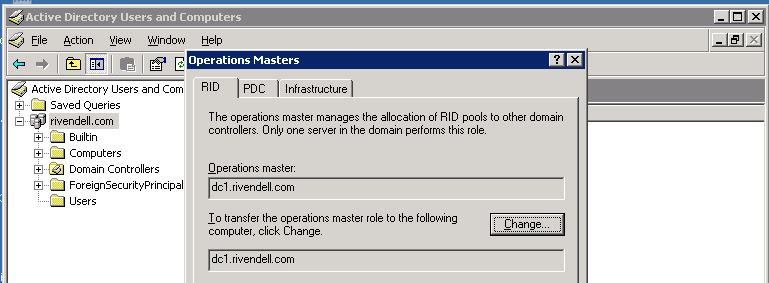
Finding out who owns the FSMO roles can either be accomplished by running the “netdom query fsmo” command line, which gives you info or open up the Active Directory MMC’s to find the information out.

image

image

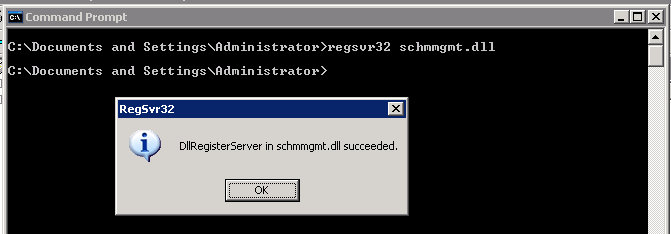
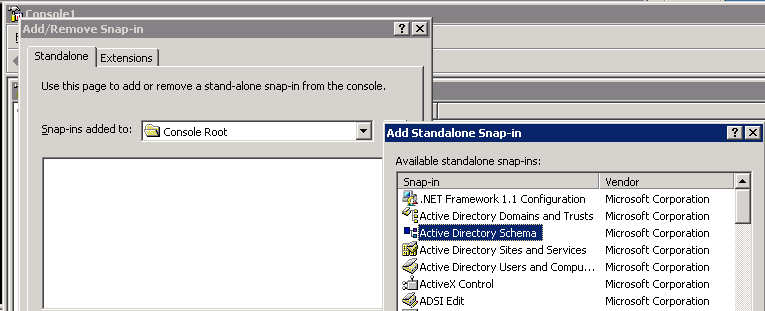
There are a number of ways to transfer these roles from one Domain Controller to another or to seize a role if you are backed into a corner with no way out due to a DC crashing hard. One way is to use ntdsutil to make transfer/seize the roles. Another option is to use the mmc’s that you can open up to make a FSMO role transfer, but that requires that you know which mmc has which role. In the case of the schema master role, it requires that you register the schmmgmt.dll and then add the schema manager via mmc.exe.

image

image

Both ways are nice but do take a certain amount of time to go and make the changes. You could create a script using ntdsutil, but I am going a different route.

Thankfully, you can use the .NET class system.directoryservices.activedirectory.Forest to connect to a forest and list all domains and domain controllers within the forest. In this case, I am using the static method GetCurrentForest() to get my forest information.

$forest = [system.directoryservices.activedirectory.Forest]::GetCurrentForest()
$Forest

image

As you can see, there is a wealth of information to view. If you really want your mind blown, check out the members of the $forest object.

image

Just an amazing amount of methods to run here. Everything from global catalogs to raising domain or forest functionality to working with Trust relationships. And there is much more, so much more that I am going to limit myself to just working with the FSMO roles for this post.

If you look at some of the properties, you can see a couple that stand out such as SchemaRoleOwner and NamingRoleOwner, both of which are the forest level FSMO roles, meaning that if you have multiple domains, you will still only just have one set of these roles.  So lets see who owns these two roles:

$forest | Select NamingRoleOwner,SchemaRoleOwner

NamingRoleOwner   SchemaRoleOwner
—————   —————
dc1.rivendell.com dc1.rivendell.com

Pretty simple for that, but now I want to know about the rest of the FSMO role owners which are “domain specific” meaning that unlike the other two FSMO roles, each domain within a forest has the rest of the roles. So 2 domains would both have a set of roles for PDC, RID and Infrastructure.  You can view each domain by typing the following command:

$forest.Domains

Forest                  : rivendell.com
DomainControllers       : {dc1.rivendell.com}
Children                : {}
DomainMode              : Windows2000MixedDomain
Parent                  :
PdcRoleOwner            : dc1.rivendell.com
RidRoleOwner            : dc1.rivendell.com
InfrastructureRoleOwner : dc1.rivendell.com
Name                    : rivendell.com

In my case, I only have one domain to worry about. If I had more than one domain, then I would have to find out where in the collection of domains that my domain belonged in that I wished to view. As you can also see, the other three FSMO role owners are clearly listed among the other information.

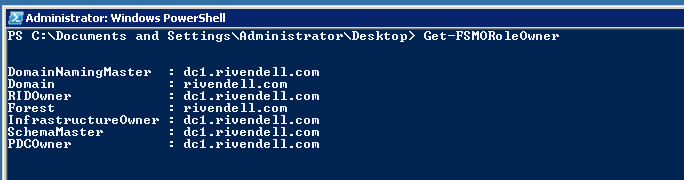
My function I wrote simplifies this process by doing the legwork for you. It will give you all of the FSMO Role owners for each domain in a forest and also listing the owner of the forest level FSMO roles as well.

Get-FSMORoleOwner

image

If you want to filter by a specific domain, you can use the Where-Object cmdlet to perform that task.

Get-FSMORoleOwner | Where {$_.Domain -eq 'domain.com'}

Changing the FSMO Role Owners

I have showed you how you can use the .net class to show the FSMO Role owners, now lets take it a step forward by showing you how you can transfer and in a more extreme situation, seizing a role and moving it to a domain controller.

First thing we need to do is connect to a domain using this line:

$domain = $forest.Domains[0]

From there we need to select the Domain Controller that we want to to give a FSMO role to. In my case, I only have one Domain Controller, but I will still filter for that specific DC.

$DomainController = $domain.DomainControllers | Where {$_.Name -eq "dc1.rivendell.com"}
$DomainController.GetType().ToString()

I also decided to find out what kind of object we have once we filter for a specific Domain Controller.  The object that we get is System.DirectoryServices.ActiveDirectory.DomainController

Now lets look at the methods on this object and see if there is anything that I can use to transfer and seizing the roles.

$DomainController | Get-Member -Type Method | Select Name

Name
—-
CheckReplicationConsistency
Dispose
EnableGlobalCatalog
Equals
GetAllReplicationNeighbors
GetDirectoryEntry
GetDirectorySearcher
GetHashCode
GetReplicationConnectionFailures
GetReplicationCursors
GetReplicationMetadata
GetReplicationNeighbors
GetReplicationOperationInformation
GetType
IsGlobalCatalog
MoveToAnotherSite
SeizeRoleOwnership
SyncReplicaFromAllServers
SyncReplicaFromServer
ToString
TransferRoleOwnership
TriggerSyncReplicaFromNeighbors

Here we find two methods that match what we need:

SeizeRoleOwnership

TransferRoleOwnership

Each of these requires the System.DirectoryServices.ActiveDirectory.ActiveDirectoryRole object before it will let the Domain Controller transfer or seize the role. Looking at the properties, we find the data we are looking for:

[System.DirectoryServices.ActiveDirectory.ActiveDirectoryRole] | Get-Member -static -Type Property | Select Name

Name
—-
InfrastructureRole
NamingRole
PdcRole
RidRole
SchemaRole

Ok, now we are ready to transfer/seize the role and give it to the Domain Controller:

$DomainController.TransferRoleOwnership("NamingRole")

Warning!!!

Do not seize a FSMO role from a Domain Controller is healthy and running! Once you seize a FSMO role from a Domain Controller, that DC can never be brought back online and onto the network, otherwise you will experience a lot of fun with your domain. And by fun I mean you will have all sorts of issues to contend with. Now with that taken care of, here is the seizing (which I did not actually do on my DC):

$DomainController.SeizeRoleOwnership("NamingRole")

I also wrote a function called Set-FSMORoleOwner to wither transfer or seize a FSMO role. You can define the Domain Controller, Role and whether to transfer or seize the role. Being this is an advanced functon, I made sure to take advantage of the –WhatIf parameter so you can be sure you doing what you mean to do. Also you can specify –PassThru to show the current FSMO Role owners after making the change.

Set-FSMORoleOwner -DomainController dc1.rivendell.com -Role PdcRole -Transfer
Set-FSMORoleOwner -DomainController dc1.rivendell.com -Role PdcRole,SchemaRole -Transfer
Set-FSMORoleOwner -DomainController dc1.rivendell.com -Role PdcRole -Seize -WhatIf
Set-FSMORoleOwner -DomainController dc1.rivendell.com -Role PdcRole -Seize
Set-FSMORoleOwner -DomainController dc1.rivendell.com -Role PdcRole -Transfer -PassThru

Hope you enjoyed this posting on working with FSMO Roles and the advanced functions that I wrote to go along with this. Below are the links to where I posted the functions as well as the actual code for the functions.

Get-FSMORoleOwner Code

Technet

Poshcode

Function Get-FSMORoleOwner {  
<#    
.SYNOPSIS    
    Retrieves the list of FSMO role owners of a forest and domain    
      
.DESCRIPTION    
    Retrieves the list of FSMO role owners of a forest and domain  
      
.NOTES    
    Name: Get-FSMORoleOwner  
    Author: Boe Prox  
    DateCreated: 06/9/2011    
  
.EXAMPLE  
    Get-FSMORoleOwner  
      
    DomainNamingMaster  : dc1.rivendell.com  
    Domain              : rivendell.com  
    RIDOwner            : dc1.rivendell.com  
    Forest              : rivendell.com  
    InfrastructureOwner : dc1.rivendell.com  
    SchemaMaster        : dc1.rivendell.com  
    PDCOwner            : dc1.rivendell.com  
      
    Description  
    -----------  
    Retrieves the FSMO role owners each domain in a forest. Also lists the domain and forest.    
            
#>  
[cmdletbinding()]   
Param() 
Try {  
    $forest = [system.directoryservices.activedirectory.Forest]::GetCurrentForest()   
    ForEach ($domain in $forest.domains) {  
        $forestproperties = @{  
            Forest = $Forest.name  
            Domain = $domain.name  
            SchemaRole = $forest.SchemaRoleOwner  
            NamingRole = $forest.NamingRoleOwner  
            RidRole = $Domain.RidRoleOwner  
            PdcRole = $Domain.PdcRoleOwner  
            InfrastructureRole = $Domain.InfrastructureRoleOwner  
            }  
        $newobject = New-Object PSObject -Property $forestproperties  
        $newobject.PSTypeNames.Insert(0,"ForestRoles")  
        $newobject  
        }  
    }  
Catch {  
    Write-Warning "$($Error)"  
    }  
}

Set-FSMORoleOwner Code

Technet

Poshcode


Function Set-FSMORoleOwner { 
<#   
.SYNOPSIS   
    Performs a transfer of a FSMO role to a specified Domain Controller.  
     
.DESCRIPTION   
    Performs a transfer of a FSMO role to a specified Domain Controller. 
 
.PARAMETER DomainController 
    Fully Qualified Domain Name of the Domain Controller to take a transfer role to 
 
.PARAMETER Role 
    Name of the role to transfer to domain controller 
 
.PARAMETER Transfer 
    Transfers the specified role and give to specified domain controller.  
 
.PARAMETER Seize 
    Seize the specified role and give to specified domain controller.    
 
.PARAMETER PassThru 
    Show the FSMO role owners after performing action     
 
.NOTES   
    Name: Set-FSMORoleOwner 
    Author: Boe Prox 
    DateCreated: 06/9/2011   
 
.EXAMPLE 
    Set-FSMORoleOwner -DomainController DC1.Rivendell.com -Role RidRole 
     
    Description 
    ----------- 
    Transfers the RidRole to DC1.Rivendell.com  
 
.EXAMPLE 
    Set-FSMORoleOwner -DomainController DC1.Rivendell.com -Role PdcRole -Transfer -PassThru 
     
    NamingRole  : dc2.rivendell.com  
    Domain              : rivendell.com  
    RidRole            : dc2.rivendell.com  
    Forest              : rivendell.com  
    InfrastructureRole : dc2.rivendell.com  
    SchemaRole        : dc2.rivendell.com  
    PdcRole            : dc1.rivendell.com      
     
    Description 
    ----------- 
    Transfers the PdcRole to DC1.Rivendell.com and displays the current FSMO Role Owners. 
 
.EXAMPLE 
    Set-FSMORoleOwner -DomainController DC1.Rivendell.com -Role PdcRole,RidRole,SchemaRole -Transfer -PassThru 
     
    NamingRole         : dc2.rivendell.com  
    Domain              : rivendell.com  
    RidRole            : dc1.rivendell.com  
    Forest              : rivendell.com  
    InfrastructureRole : dc2.rivendell.com  
    SchemaRole        : dc1.rivendell.com  
    PdcRole            : dc1.rivendell.com      
     
    Description 
    ----------- 
    Transfers the PdcRole,RidRole and SchemaRole to DC1.Rivendell.com and displays the current FSMO Role Owners.   
     
.EXAMPLE 
    Set-FSMORoleOwner -DomainController DC1.Rivendell.com -Role PdcRole -Seize -PassThru 
     
    WARNING: Performing this action is irreversible! 
    The Domain Controller that originally holds this role should be rebuilt to avoid issues on the domain! 
     
    NamingRole  : dc2.rivendell.com  
    Domain              : rivendell.com  
    RidRole            : dc2.rivendell.com  
    Forest              : rivendell.com  
    InfrastructureRole : dc2.rivendell.com  
    SchemaRole        : dc2.rivendell.com  
    PdcRole            : dc1.rivendell.com      
     
    Description 
    ----------- 
    Seizes the PdcRole and places it on DC1.Rivendell.com and displays the current FSMO Role Owners.   
           
#> 
[cmdletbinding( 
    SupportsShouldProcess = 'True', 
    ConfirmImpact = 'High', 
    DefaultParameterSetName = 'Transfer' 
    )]  
Param ( 
    [parameter(Position=1,Mandatory = 'True',ValueFromPipeline = 'True', 
        HelpMessage='Enter the Fully Qualified Domain Name of the Domain Controller')] 
    [ValidateCount(1,1)] 
    [string[]]$DomainController, 
    [parameter(Position=2,Mandatory = 'True', 
        HelpMessage = "InfrastructureRole,NamingRole,PdcRole,RidRole,SchemaRole")] 
    [Alias('fsmo','fsmorole')] 
    [ValidateSet('InfrastructureRole','NamingRole','PdcRole','RidRole','SchemaRole')] 
    [ValidateCount(1,5)] 
    [string[]]$Role, 
    [parameter(Position=4,ParameterSetName='Transfer')] 
    [Switch]$Transfer,     
    [parameter(Position=4,ParameterSetName='Seize')] 
    [Switch]$Seize, 
    [parameter(Position=5)] 
    [switch]$PassThru 
    ) 
Begin {} 
Process { 
    Try { 
        Write-Verbose "Connecting to Forest" 
        $forest = [system.directoryservices.activedirectory.Forest]::GetCurrentForest() 
        Write-Verbose "Locating $DomainController"  
        $dc = $forest.domains | ForEach { 
            $_.Domaincontrollers | Where { 
                $_.Name -eq $DomainController 
                } 
            } 
        } 
    Catch { 
        Write-Warning "$($Error)" 
        Break 
        } 
    If (-NOT [string]::IsNullOrEmpty($dc)) { 
        ForEach ($r in $role) { 
            Switch ($PScmdlet.ParameterSetName) { 
               "Transfer" { 
                Write-Verbose "Beginning transfer of $r to $DomainController" 
                    If ($PScmdlet.ShouldProcess("$DomainController","Transfer Role: $($Role)")) { 
                        Try { 
                            $dc.TransferRoleOwnership($r) 
                            } 
                        Catch { 
                            Write-Warning "$($Error[0])" 
                            Break 
                            } 
                        } 
                    } 
                "Seize" { 
                    Write-Warning "Performing this action is irreversible!`nThe Domain Controller that originally holds this role should be rebuilt to avoid issues on the domain!" 
                    Write-Verbose "Seizing $r and placing on $DomainController" 
                    If ($PScmdlet.ShouldProcess("$DomainController","Seize Role: $($Role)")) { 
                        Try { 
                            $dc.SeizeRoleOwnership($r) 
                            } 
                        Catch { 
                            Write-Warning "$($Error[0])" 
                            Break 
                            } 
                        }                
                    } 
                Default { 
                    Write-Warning "You must specify either -Transfer or -Seize!" 
                    Break 
                    } 
                } 
            } 
        } 
    Else { 
        Write-Warning "Unable to locate $DomainController!" 
        Break 
        } 
    } 
End { 
    If ($PSBoundParameters['PassThru']) { 
        $forest = [system.directoryservices.activedirectory.Forest]::GetCurrentForest() 
        ForEach ($domain in $forest.domains) { 
            $forestproperties = @{ 
                Forest = $Forest.name  
                Domain = $domain.name  
                SchemaRole = $forest.SchemaRoleOwner  
                NamingRole = $forest.NamingRoleOwner  
                RidRole = $Domain.RidRoleOwner  
                PdcRole = $Domain.PdcRoleOwner  
                InfrastructureRole = $Domain.InfrastructureRoleOwner  
                } 
            $newobject = New-Object PSObject -Property $forestproperties 
            $newobject.PSTypeNames.Insert(0,"ForestRoles") 
            $newobject         
            } 
        } 
    } 
}
Posted in powershell, scripts | Tagged , , | 4 Comments