Guest spot on the PowerScripting Podcast

I had the excellent opportunity to be a guest on the PowerScripting podcast earlier in September (1SEPT2011) to talk about my latest project: PoshPAIG.

For anyone who hasn’t checked out the podcast, I HIGHLY recommend you do so. There is a huge amount of content between the amazing guests, great news and topics on the podcast. Also the social interaction with everyone during a the live broadcast is great fun as well!

It was an amazing time and I got to spend some time talking about not only PoshPAIG, but other things PowerShell. Both Jonathan Walz (Twitter) and Hal Rottenberg (Twitter | Blog) are amazing hosts who were very professional and made me feel right at home in talking about things.

The iTunes link isn’t available just yet (a tornado struck Jonathan’s house, so obviously there are more important things to do than work on a podcast.) so you can view the video from the podcast here or you can view the video below.  Once the iTunes link is made available, I will make another post with the link. Thanks again to Hal, Jonathan and Teresa, the ScriptingWife (Twitter) for allowing me the great pleasure of being on the podcast. Smile

My Guest appearance talking about PoshPAIG

http://static.bambuser.com/r/player.swf?vid=1940278

Posted in News, powershell | Tagged , , , | Leave a comment

Don’t assume a Cmdlet has -WhatIf

Imagine that you are writing a script, or preparing to run a command that will perform a change on your domain. For instance, you are running the FailoverClusters module and want to move a cluster group on a given condition. Just to be cautious, you add the –WhatIf parameter at the end of the Move-ClusterGroup cmdlet to only simulate actually moving that cluster group which might affect email, file access, or possibly the backend SQL instance for sharepoint or another application. But guess what, that parameter doesn’t exists! Now you have just begun failing over a resource group on your cluster bringing an outage to your environment and your bosses demanding an explanation. How could this have been avoided? Fortunately, this did not happen to me as I was being over-cautious and wanted to make sure that the –WhatIf parameter was actually available for the Move-ClusterGroup cmdlet. Sure enough, it wasn’t there and I quickly commented out that line and replaced it with a start-sleep command to simulate the moving of the cluster groups in my cluster balancing script.

Now this might be easier to find if your typing in the console and tabbing into the WhatIf, but what if your working on a multi-line script, or in a hurry?  Sometimes in the heat of the writing you just might type –WhatIf without really knowing for sure if the cmdlet you’re using actually supports it.

Jeffrey Hicks (Twitter|Blog) and Sean Kearney (Twitter|Blog) wrote some great articles on adding –WhatIf support to advanced functions here and here. So with that, I am not going to go into doing that here and why having this will save yourself from yourself, but instead I will talk about the current cmdlets that are available and their use (or lack of use) of the –WhatIf parameter to potentially save you from yourself when running a command that implements some sort of change.

You might be wondering: How can I find out if a cmdlet has the WhatIf parameter? You’re in luck because here are three ways to find out!

You can find out if a cmdlet supports the WhatIf parameter one of a few ways:

  1. Use Get-Help <cmdlet> and look for the WhatIf

 image

2.  Start typing –wha and then hit tab to see if it auto-completes.

image

image

3.  Or you run this one-liner to find all of the cmdlets that support –WhatIf

Get-Command -type cmdlet | Where {$_.Parameters['Whatif']} | 
Format-Wide -Property Name -Column 4

image

The count of cmdlets supporting WhatIf in the picture is 85.  All of these cmdlets perform some sort of action that either sets, deletes, creates, stops, starts, etc… You get the idea. A lot of cmdlets that have the ability to effect change on your environment, both positive and negative (if not used correctly).

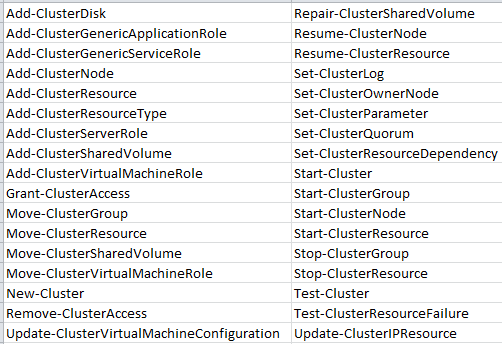
But back to a almost issue that I had a few days ago. After I noticed this, I decided to find out what other cmdlets in the FailoverClusters module do not have the –WhatIf parameter available. Here is what I found:

Get-Command -module FailOverClusters | Where { -Not $_.Parameters['whatif']} |
Select Name

image

I see several cmdlets list above that need to have the –WhatIf parameter available. All of the Move* cmdlets and Stop* cmdlets to name a few. I am sure there could be a number of reason why WhatIf wasn’t included in some of these cmdlets, but hopefully there will be an update or something in the next Service Pack that might add WhatIf to some, if not all of the cmdlets that make a change to a system. It also makes me want to check out other modules or snapins such as the Exchange Snapin and PowerCLI snapin.

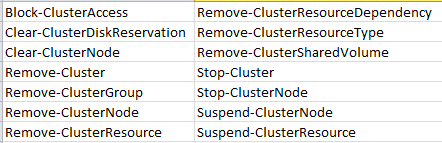
To be fair, here are the cmdlets in the FailoverClusters module that do support –WhatIf

Get-Command -module FailOverClusters | Where {$_.Parameters['whatif']} |
Select Name

image

Not that many compared to what it should have. But still better than nothing.

This is just my opinion, but any cmdlet, advanced function, script, etc… that performs any type of action or change, whether it is performing a create, delete, set, update, etc… needs to have some sort of –WhatIf or confirmation before making that change. It really takes not time at all to implement this and saves you and others time, money and possibly your employment.

So remember fellow PowerSheller’s:

Don’t assume a cmdlet has –WhatIf. Double check before adding that to your script and running it to test the action. This can be done by using one of the 3 methods I listed earlier or any other method you can think of!

Posted in News, powershell | Tagged , , , , | 1 Comment

Checking for failing Hard Drives using S.M.A.R.T and PowerShell

I noticed a link to an article on twitter yesterday that talked about how you can use PowerShell to query for a SMART enabled hard drive and detect a possible imminent failure. It was an interesting article and showed me something I didn’t know regarding detecting a potential failure on a drive.

What is SMART you ask? Good question, SMART stands for Self-Monitoring, Analysis and Reporting Technology and is used, as cited in this Wikipedia article:

The purpose of S.M.A.R.T. is to warn a user of impending drive failure while there is still time to take action, such as copying the data to a replacement devices

While I enjoyed the article and the PowerShell example that referenced the MSStorageDriver_FailurePredictStatus class used to determine if a drive was failing, something kept nagging at me saying that I could really put something useful together that would give you more information if a potential failure was detected rather than bringing up the device manager and looking for the drive and its data.

So with that, I went ahead and started looking at what it would take to not only detect if a failure was going to happen, but to also look for that drive and gather some more information. Understand that this only works on local drives, not SAN attached or network drives.

The first thing I did was deciding to use the Win32_DiskDrive class as that lists each local hard drive installed on my computers. Once I had that information, I then had to figure out what items from each of the WMI classes I could use to match the failed drive up with the appropriate information. At last I found my two items:

gwmi win32_diskdrive |
Select PNPDeviceID

PNPDeviceID
———–
IDE\DISKST9320320AS_____________________________DE05____\5&446824F&0&0.0.0

Get-WmiObject -namespace root\wmi -class MSStorageDriver_FailurePredictStatus | 
Select InstanceName

InstanceName
————
IDE\DiskST9320320AS_____________________________DE05____\5&446824f&0&0.0.0_0

Ok, close… But not completely equal. The problem is that the InstanceName has an extra _0 after it,thus ruining the chance to perform a –filter in the get-WmiObject to locate the appropriate drive. I cannot perform a wildcard query either because of that extra stuff at the end. Looks like this is a job for Regular Expressions!

Here is the RegEx code that I used to parse the string:

[regex]$regex = "(?<DriveName>\w+\\[A-Za-z0-9_]*)\w+"

I created a RegEx object that I can use later to grab an important piece of the drive name that I can add into a wildcard search to locate the proper drive. Some key pieces from this expression:

  • (?<DriveName>) This allows me to use a named group which makes it easier to locate the correct match. More information on this can be found here.
  • \w+ This allows me to search for anyword or character with a couple of limitations. More information on that can be found here.
  • \\ The “\” backslash is the escape character used in Regular Expressions in PowerShell. By doing this, I am escaping a “\” backslash for my query.
  • [A-Za-z0-9_] I am looking for a Upper or Lower case letter or a number within the range given plus any underscores. More information can be found here.
  • * This means to search for 1 or more of whatever you have preceding this, in my case look for more matching letters or numbers.

That was a very brief look into the RegEx values I used to pull the drive information that can then be used to perform my wmi query and find the drive.

$drive = $regex.Matches('IDE\DiskST9320320AS_____________________________DE05____\5&446824f&0&0.0.0_0') | ForEach {
$_.Groups['DriveName'].value
}
$drive

image

Now we are able to use this to query the Win32_DiskDrive class and find the matching drive.

gwmi Win32_DiskDrive| Where {$_.PNPDeviceID -like "$drive*"}

image

And now we have the problem drive.

The finished Advanced Function that I came up with is Get-FailingDrive which can be ran against either a local or remote machine/s. If a drive using SMART shows that a failure may occur, it will then retrieve more information about that drive and display the information for the user.

For the sake of showing the output, I am modifying a piece of the code to return a non-failing drive. But the code I am making available to download is configured properly.

Get-FailingDrive

image

The Reason code appears to be vendor specific based on limited research. However, there is a list of reason codes available here.

Of course, I have performed limited testing and use of this code on my laptop at home, so I welcome any and all feedback so I can make improvements as needed. Thanks!


Download Script

Script Repository

PoshCode

(remove ‘.doc’ extension)

Code

Function Get-FailingDrive {
<#
.SYNOPSIS
    Checks for any potentially failing drives and reports back drive information.
    
.DESCRIPTION
    Checks for any potentially failing drives and reports back drive information. This only works
    against local hard drives using SMART technology. Reason values and their meanings can be found
    here: http://en.wikipedia.org/wiki/S.M.A.R.T#Known_ATA_S.M.A.R.T._attributes
    
.PARAMETER Computer
    Remote or local computer to check for possible failed hard drive.
    
.PARAMETER Credential
    Provide alternate credential to perform query.

.NOTES
    Author: Boe Prox
    Version: 1.0
    http://learn-powershell.net

.EXAMPLE
    Get-FailingDrive
    
    WARNING: ST9320320AS ATA Device may fail!


    MediaType       : Fixed hard disk media
    InterFace       : IDE
    DriveName       : ST9320320AS ATA Device
    Reason          : 1
    SerialNumber    : 202020202020202020202020533531584e5a4d50
    FailureImminent : True
    
    Description
    -----------
    Command ran against the local computer to check for potential failed hard drive.
#>
    [cmdletbinding()]
    Param (
        [parameter(ValueFromPipeline=$True,ValueFromPipelineByPropertyName=$True)]
        [string[]]$Computername,
        [parameter()]
        [System.Management.Automation.PSCredential]$Credential
    )
    Begin {
        $queryhash = @{}
        $BadDriveHash = @{}
    }
    Process {
        ForEach ($Computer in $Computername) {
            If ($PSBoundParameters['Computer']) {
                $queryhash['Computername'] = $Computer
                $BadDriveHash['Computername'] = $Computer
            } Else {
                $queryhash['Computername'] = $Env:Computername
                $BadDriveHash['Computername'] = $Env:Computername            
            }
            If ($PSBoundParameters['Credential']) {
                $queryhash['Credential'] = $Credential
                $BadDriveHash['Credential'] = $Credential
            }            
            Write-Verbose "Creating SplatTable"
            $queryhash['NameSpace'] = 'root\wmi'
            $queryhash['Class'] = 'MSStorageDriver_FailurePredictStatus'
            $queryhash['Filter'] = "PredictFailure='False'"
            $queryhash['ErrorAction'] = 'Stop'
            $BadDriveHash['Class'] = 'win32_diskdrive'
            $BadDriveHash['ErrorAction'] = 'Stop'
            [regex]$regex = "(?<DriveName>\w+\\[A-Za-z0-9_]*)\w+"
            Try {
                Write-Verbose "Checking for failed drives"
                Get-WmiObject @queryhash | ForEach {
                    $drive = $regex.Matches($_.InstanceName) | ForEach {$_.Groups['DriveName'].value}
                    Write-Verbose "Gathering more information about failing drive"
                    $BadDrive = gwmi @BadDriveHash | Where {$_.PNPDeviceID -like "$drive*"}
                    If ($BadDrive) {
                        Write-Warning "$($BadDriveHash['Computername']): $($BadDrive.Model) may fail!"
                        New-Object PSObject -Property @{
                            DriveName = $BadDrive.Model
                            FailureImminent  = $_.PredictFailure
                            Reason = $_.Reason
                            MediaType = $BadDrive.MediaType
                            SerialNumber = $BadDrive.SerialNumber
                            InterFace = $BadDrive.InterfaceType
                            Partitions = $BadDrive.Partitions
                            Size = $BadDrive.Size
                            Computer = $BadDriveHash['Computername']
                        }
                    }
                }
            } Catch {
                Write-Warning "$($Error[0])"
            }
        }
    }
}

Posted in powershell, scripts | Tagged , , , | 6 Comments

Guest Blogger on Hey, Scripting Guy! for PoshPAIG

Yep, that is right! My articles on PoshPAIG 1.6 are live at the Hey, Scripting Guy! site. I have 2 articles this weekend talking about the latest updates and issues I ran into while working on this update. I will update the links as the articles come out.

Saturday: http://blogs.technet.com/b/heyscriptingguy/archive/2011/08/13/use-powershell-to-audit-and-install-windows-patches.aspx

Sunday: http://blogs.technet.com/b/heyscriptingguy/archive/2011/08/14/lessons-learned-while-writing-the-powershell-poshpaig-module.aspx

Enjoy!

Boe

Posted in GUI, News, powershell | Tagged , , | 2 Comments

Show-UI Weather Widget and a Non Show-UI widget

image

Ok, this weather widget created by Joel “Jaykul” Bennett (Blog | Twitter) is just amazingly cool. This widget auto-updates the temperature and even updates the picture to reflect the current conditions outside. The requirement to run this is by having the Show-UI module downloaded on your computer. If you like to build UI’s or are curious about what it takes to build one, I would highly recommend you download this and give it a run.

Now while I have Show-UI available at home and have put a couple small UIs together for my own learning, having it at work is another story all together. The change management process is pretty brutal and I am not all that confident that it will get approval (long story and not one that I will go into here). So, being that I wanted this widget at work, I went on the task of creating a widget just like the one that was created with Show-UI so I can use it at work. While working on this, I found that the amount of code required to make this happen was almost 3 1/2 times the code required in Show-UI (110 vs. 31). That and just the look of the code to me on the Show-UI just seems more organized and easier to work with (once I got past the initial learning curve and started writing some small UI’s to get a feel for it).

This difference in the amount of code is, to me, more than enough reason to build UI’s using Show-UI. While there is a requirement for downloading and running the module in order to take advantage of this, if you have the option of doing so, then I would recommend it! I am currently in the process of taking my existing UI’s and making them using Show-UI (it is taking a little while as I am working on other projects as well both work and personal).

Some great sites showing various examples of using Show-UI

http://www.dougfinke.com/blog/index.php/category/showui/

http://blog.startautomating.com/ShowUI.posts.html

http://www.ravichaganti.com/blog/?cat=279

So what are you waiting for? Download Show-UI and put together some cool UIs to show off!

So if you’re in the same boat as me at your workplace where you waiting to get Show-UI approved for work, you can use the code below to have your own weather widget. But I would recommend you use Joel’s code if you do have Show-UI available at your office.

Non Show-UI Weather Widget download

Remove .doc extension to view code in notepad. Change extension to .ps1 to run with PowerShell.

Weather.ps1

Weather Widget Code (Non Show-UI)

Param ($ZipCode = 68123)
$Global:rs = [RunspaceFactory]::CreateRunspace()
$rs.ApartmentState = “STA”
$rs.ThreadOptions = “ReuseThread”
$rs.Open()
$psCmd = {Add-Type -AssemblyName PresentationCore,PresentationFramework,WindowsBase}.GetPowerShell()
$rs.SessionStateProxy.SetVariable('ZipCode',$ZipCode)
$psCmd.Runspace = $rs
$psCmd.Invoke()
$psCmd.Commands.Clear()
$psCmd.AddScript({ 

#Load Required Assemblies
Add-Type –assemblyName PresentationFramework
Add-Type –assemblyName PresentationCore
Add-Type –assemblyName WindowsBase
$update = {
    $h = (Get-Date).Hour
    $channel = ([xml](New-Object Net.WebClient).DownloadString("http://weather.yahooapis.com/forecastrss?p=$ZipCode")).rss.channel
    $temp.text = $channel.item.condition.temp + [char]176
    $HiLow.text = "Hi: {0}`tLow: {1}" -f $channel.item.forecast[0].High,$channel.item.forecast[0].low
    if($h -gt ([DateTime]$channel.astronomy.sunrise).Hour -and $h -lt ([DateTime]$channel.astronomy.sunset).Hour) {
    $dayOrNight = 'd'
    } else {
    $dayOrNight = 'n'
    }
    $Image.source = "http`://l.yimg.com/a/i/us/nws/weather/gr/{0}{1}.png" -f $channel.item.condition.code, $dayOrNight
    }
[xml]$xaml = @"
<Window
    xmlns='http://schemas.microsoft.com/winfx/2006/xaml/presentation'
    xmlns:x='http://schemas.microsoft.com/winfx/2006/xaml'
    x:Name='Window' WindowStyle = 'None' WindowStartupLocation = 'CenterScreen' SizeToContent = "WidthAndHeight" ShowInTaskbar = 'True'
    ResizeMode = 'NoResize' Title = 'Weather' AllowsTransparency = 'True' Background = 'Transparent' Opacity = '1' Topmost = 'True'>
        <Grid x:Name = 'Grid' Background = 'Transparent'>
            <Rectangle RadiusX = '10' RadiusY = '10' StrokeThickness = '0' Width = '170' Height = '80'
             HorizontalAlignment = 'Left' VerticalAlignment = 'Top' Margin = '60,40,0,0'>
                <Rectangle.Fill>
                    <LinearGradientBrush StartPoint = '0.5,0' EndPoint = '0.5,1'>
                        <LinearGradientBrush.GradientStops>
                            <GradientStop Color='#FF007bff' Offset='0' />
                            <GradientStop Color='#FF40d6ff' Offset='1' />
                        </LinearGradientBrush.GradientStops>
                    </LinearGradientBrush>
                </Rectangle.Fill>
            </Rectangle>
        <TextBlock x:Name = 'temp' FontSize=  '80' Foreground = 'White' Margin  = '130,0,0,0'>
            <TextBlock.Effect>
                <DropShadowEffect Color = 'Black' ShadowDepth = '0' BlurRadius = '8' />
            </TextBlock.Effect>
        </TextBlock>
        <TextBlock x:Name = 'HiLow' FontSize=  '13' Foreground = 'White' Margin  = '90,95,0,0'>
            <TextBlock.Effect>
                <DropShadowEffect Color = 'Black' ShadowDepth = '0' BlurRadius = '8' />
            </TextBlock.Effect>
        </TextBlock>
        <Image x:Name = 'Image' Stretch = 'Uniform' Width = '250.0' Height = '180.0' />
        </Grid>
</Window>
"@

$reader=(New-Object System.Xml.XmlNodeReader $xaml)
$Global:Window=[Windows.Markup.XamlReader]::Load( $reader )

$Image = $Window.Content.Children | Where {$_.Name -eq 'Image'}
$temp = $Window.FindName("temp")
$location = $Window.FindName("location")
$HiLow = $Window.FindName("HiLow")

$Window.Add_MouseLeftButtonDown({
    $This.DragMove()
    })

#Timer Event
$Window.Add_SourceInitialized({
    #Create Timer object
    Write-Verbose "Creating timer object"
    $Global:timer = new-object System.Windows.Threading.DispatcherTimer
    #Fire off every 1 minutes
    Write-Verbose "Adding 1 minute interval to timer object"
    $timer.Interval = [TimeSpan]"0:1:0.00"
    #Add event per tick
    Write-Verbose "Adding Tick Event to timer object"
    $timer.Add_Tick({
        Try {
            &$Update
            }
        Catch {
            $temp.text = 'N/A'
            }
        [Windows.Input.InputEventHandler]{ $Global:Window.UpdateLayout() }
        Write-Verbose "Updating Window"
        })
    #Start timer
    Write-Verbose "Starting Timer"
    $timer.Start()
    If (-NOT $timer.IsEnabled) {
        $Window.Close()
        }
    })
$Window.Add_Loaded({
    Try {
        &$Update
        }
    Catch {
        $temp.text = 'N/A'
        }
    })
$Window.ShowDialog() | Out-Null
}).BeginInvoke() | out-null
Posted in powershell, scripts | Tagged , , , , | 2 Comments