
I have a guest spot on the PowerShell Magazine that went live today. Check it out here:
http://www.powershellmagazine.com/2012/10/22/pstip-quickly-generate-a-password/
Enjoy!
I have a guest spot on the PowerShell Magazine that went live today. Check it out here:
http://www.powershellmagazine.com/2012/10/22/pstip-quickly-generate-a-password/
Enjoy!
In a previous article, I demonstrated adding a button to your created window and using it. I also mentioned that only 1 button could have been added due to the window treating that as a single child and that only 1 child control can exist under the window in your UI. To get around this issue, you can use a number of layouts such as a canvas, grid or StackPanel, to name a few that can allow you to add more than one control object to your UI. Each one has its own strengths and weaknesses as far as when and where to use each one. Sometimes you might use multiple layouts and other times you might just use one.
For this article, as you can tell, I will be discussing the use of a Canvas as the layout of choice. Personally, I have not used a canvas in my UI builds, but that doesn’t mean that I won’t dive in to understand better how to use a canvas and also to show you one either!
Canvases are a basic layout that is unique to the other layouts because of the precise location of each control by specifying the coordinates on the canvas to place each of the controls. Besides that, there really isn’t a whole lot to the canvas that can’t be done better with other layouts. But being that I want to show off each control, I will look at some of the events,methods and properties of the Canvas, some of which will be similar to what I have showed with the Window control. So with that, lets load up the XAML and see our initial UI.
#Build the GUI
[xml]$xaml = @"
<Window
    xmlns="http://schemas.microsoft.com/winfx/2006/xaml/presentation"
    xmlns:x="http://schemas.microsoft.com/winfx/2006/xaml"
    x:Name="Window" Title="Initial Window" WindowStartupLocation = "CenterScreen"
    Width = "800" Height = "600" ShowInTaskbar = "True">
        <Canvas x:Name="Canvas">
            <Button x:Name = "Button1" Height = "75" Width = "100" Content = 'Button1' ToolTip = "Button1"
            Background="Red" Canvas.Left = '50' Canvas.Top = '50'/>
            <Button x:Name = "Button2" Height = "75" Width = "100" Content = 'Button2' ToolTip = "Button2"
            Background="Yellow" Canvas.Left = '50' Canvas.Bottom = '50'/>
            <Button x:Name = "Button3" Height = "75" Width = "100" Content = 'Button3' ToolTip = "Button3"
            Background="Green" Canvas.Right = '50' Canvas.Bottom = '50'/>
            <Button x:Name = "Button4" Height = "75" Width = "100" Content = 'Button4' ToolTip = "Button4"
            Background="Blue" Canvas.Right = '50' Canvas.Top = '50'/>
        </Canvas>
</Window>
"@

$reader=(New-Object System.Xml.XmlNodeReader $xaml)
$Window=[Windows.Markup.XamlReader]::Load( $reader )

#Connect to Control
$button1 = $Window.FindName("Button1")
$button2 = $Window.FindName("Button2")
$button3 = $Window.FindName("Button3")
$button4 = $Window.FindName("Button4")
$Canvas = $Window.FindName("Canvas")


$Window.ShowDialog() | Out-Null

Here you have the Window that is using a Canvas as its layout. With the Canvas, I can now add multiple controls (buttons in this case) that I wouldn’t have been able to do with just a window. And another important thing is that I can also dictate where each button will reside at by using the coordinates on the Canvas for each button. The trick is to remember that you cannot have both Top and Bottom or Left and Right specified as only the first one specified will be used to place the control. The last thing worth knowing is that when you specify the value for either of the locations, it is telling you how far away from that direction will be padded away from that location.
Let me show this off a little by making some adjustments on the fly with each button. This is also important because you can’t use any of the child control properties (the button in this case) to control the new location of the child control during runtime. You will need to call [System.Windows.Controls.Canvas] with the SetLeft/SetRight/SetTop/SetBottom static method. This static method requires both the Control object and the new value to move the control to. In this case, I will push button1 which will bring everything into the center another 25.
##Events
#Button1 click event
$button1.Add_Click({
    #Move Button1
    $locationY = [System.Windows.Controls.Canvas]::GetTop($button1)
    $locationX = [System.Windows.Controls.Canvas]::GetLeft($button1)
    [System.Windows.Controls.Canvas]::SetTop($button1,($locationY + 25))
    [System.Windows.Controls.Canvas]::SetLeft($button1,($locationX + 25))

    #Move Button2
    $locationY = [System.Windows.Controls.Canvas]::GetBottom($button2)
    $locationX = [System.Windows.Controls.Canvas]::GetLeft($button2)
    [System.Windows.Controls.Canvas]::SetBottom($button2,($locationY + 25))
    [System.Windows.Controls.Canvas]::SetLeft($button2,($locationX + 25))

    #Move Button3
    $locationY = [System.Windows.Controls.Canvas]::GetBottom($button3)
    $locationX = [System.Windows.Controls.Canvas]::GetRight($button3)
    [System.Windows.Controls.Canvas]::SetBottom($button3,($locationY + 25))
    [System.Windows.Controls.Canvas]::SetRight($button3,($locationX + 25))

    #Move Button4
    $locationY = [System.Windows.Controls.Canvas]::GetTop($button4)
    $locationX = [System.Windows.Controls.Canvas]::GetRight($button4)
    [System.Windows.Controls.Canvas]::SetTop($button4,($locationY + 25))
    [System.Windows.Controls.Canvas]::SetRight($button4,($locationX + 25))
})
First click:

After 6 more clicks:

Each click brings the buttons closer and closer together until one overlaps the other.
So what can we do with a control that overlaps another on the canvas? Well, we can set it so the control on the bottom is overlapping the top one instead by adjusting the Z index of each control. In the example below, whenever you click on the button on the bottom, it will come to the top instead of being below the other button.
#Button click event
$button1.Add_Click({
    [System.Windows.Controls.Canvas]::SetZIndex($button1,1)
    [System.Windows.Controls.Canvas]::SetZIndex($button2,0)
})

$button2.Add_Click({
    [System.Windows.Controls.Canvas]::SetZIndex($button1,0)
    [System.Windows.Controls.Canvas]::SetZIndex($button2,1)
})
$button3.Add_Click({
    [System.Windows.Controls.Canvas]::SetZIndex($button3,1)
    [System.Windows.Controls.Canvas]::SetZIndex($button4,0)
})

$button4.Add_Click({
    [System.Windows.Controls.Canvas]::SetZIndex($button4,1)
    [System.Windows.Controls.Canvas]::SetZIndex($button3,0)
})
Before:

After:

Probably not the coolest example, but when you think about it, you can hide controls underneath each other if they are the same size. Perfect if you want to hide specific buttons or textboxes and make them appear on specific actions in the UI. Also important is that while I just used 0 and 1 to specify each index, for each control you want to stack on top of each other will require and extra Z index to be added (0,1,2 for 3 controls, etc…). Note: The Z index is not Canvas specific and can be applied to other layouts as well in their own way.
For something a little more fun, this next code will bring up one button that will move to a random location when you highlight it with your mouse. It is nothing really complex but shows something else that you can do with a canvas.
Function Set-Canvas {
    [cmdletbinding()]
    Param (
        [string]$Top,
        [string]$Bottom,
        [string]$Left,
        [string]$Right,
        $Control
    )
    Process {
        If ($PSBoundParameters['Top']) {
            [System.Windows.Controls.Canvas]::SetTop($Control,$Top)
            Write-Host ("Moving {0} to X: {1}" -f $Control.name, $Top)
        }
        If ($PSBoundParameters['Bottom']) {
            [System.Windows.Controls.Canvas]::SetBottom($Control,$Bottom)
            Write-Host ("Moving {0} to X: {1}" -f $Control.name, $Bottom)
        }
        If ($PSBoundParameters['Left']) {
            [System.Windows.Controls.Canvas]::SetLeft($Control,$Left)
            Write-Host ("Moving {0} to Y: {1}" -f $Control.name, $Left)
        }
        If ($PSBoundParameters['Right']) {
            [System.Windows.Controls.Canvas]::SetRight($Control,$Right)
            Write-Host ("Moving {0} to Y: {1}" -f $Control.name, $Right)
        }
    }
}

#Build the GUI
[xml]$xaml = @"
<Window
    xmlns="http://schemas.microsoft.com/winfx/2006/xaml/presentation"
    xmlns:x="http://schemas.microsoft.com/winfx/2006/xaml"
    x:Name="Window" Title="Initial Window" WindowStartupLocation = "CenterScreen"
    Width = "800" Height = "600" ShowInTaskbar = "True">
        <Canvas x:Name="Canvas">
            <Button x:Name = "Button" Height = "75" Width = "100" Content = 'Push Me' ToolTip = "This is a button"
            Background="Green"/>
        </Canvas>
</Window>
"@

$reader=(New-Object System.Xml.XmlNodeReader $xaml)
$Window=[Windows.Markup.XamlReader]::Load( $reader )

#Connect to Control
$button = $Window.FindName("Button")
$Canvas = $Window.FindName("Canvas")

##Events

#Make the button move somewhere else
$button.Add_MouseEnter({
    Set-Canvas -Bottom (Get-Random -input (0..(564 - $button.ActualHeight))) -Right (Get-Random -input (0..(784 - $button.ActualWidth))) -Control $Button
})

$Window.ShowDialog() | Out-Null
As you can see, using a Canvas provides one possibly way of adding more than one control to your UI. You can set the control to an explicit location on the canvas by specifying a coordinate on the canvas. Moving a control around at runtime requires a little more work, but can be accomplished. In my opinion, there are better layouts that can be used to configure the layout of the controls, such as using a Grid or StackPanel. Regardless, this is just another possibility to use with your UI.
I am going to skip saying what control is next because I am not quite sure which one I will tackle next.
One of the biggest pain points when working with WPF and PowerShell is that everything is done on a single thread with the UI. This includes performing various activities related to events such as button clicking and selecting data. While an operation is being performed (especially a long running operation), you will most likely see the window appear to be hung and unable to be moved or really any sort of action similar to below:

So it might not look like much is happening here, and you would be right. The window is hung as it is loading up in the background. Sometimes it may show a Not Responding message, and other times (like now) it will not. As I mentioned, this is due to only a single thread being used to handle both the UI and the operation, meaning that only one thing can be handled at a time. The longer the operation, the longer the the wait to even move the window some place else. Perhaps this isn’t too bad for some people, but if most people see this, they start to complain or believe something is wrong.
Usually, my solution for this has been to use many PSJobs along with an event watcher (Register-ObjectEvent) to check on each background PowerShell job and handle the data from each job when it completes. When the last job is finished and the event handler performs the last data update, it would then perform a cleanup by removing the last job and itself, thus freeing up resources. I have used this method or something similar to this in a few of my scripts and also my project: PoshPAIG. While this method does in fact do its job, it is prone to issues with the background jobs and as you can see from a previous post, it can be a pretty heavy operation. Also mentioned in that post was the use of background runspaces that you create to handle other operations.
Similar to PSJobs, background runspaces cannot access other variables between other runspaces, which is by design to prevent issues. The way around this is to use a thread safe collection, such as a synchronized hash table, which is what I plan on using in the following example as it will provide easier access to the WPF controls.
Display the UI
$syncHash = [hashtable]::Synchronized(@{})
$newRunspace =[runspacefactory]::CreateRunspace()
$newRunspace.ApartmentState = "STA"
$newRunspace.ThreadOptions = "ReuseThread"
$newRunspace.Open()
$newRunspace.SessionStateProxy.SetVariable("syncHash",$syncHash)
$psCmd = [PowerShell]::Create().AddScript({
    [xml]$xaml = @"
    <Window
        xmlns="http://schemas.microsoft.com/winfx/2006/xaml/presentation"
        xmlns:x="http://schemas.microsoft.com/winfx/2006/xaml"
        x:Name="Window" Title="Initial Window" WindowStartupLocation = "CenterScreen"
        Width = "600" Height = "800" ShowInTaskbar = "True">
        <TextBox x:Name = "textbox" Height = "400" Width = "600"/>
    </Window>
"@

    $reader=(New-Object System.Xml.XmlNodeReader $xaml)
    $syncHash.Window=[Windows.Markup.XamlReader]::Load( $reader )
    $syncHash.TextBox = $syncHash.window.FindName("textbox")
    $syncHash.Window.ShowDialog() | Out-Null
    $syncHash.Error = $Error
})
$psCmd.Runspace = $newRunspace
$data = $psCmd.BeginInvoke()
The first line is where I set up my synchronized hash table that will then be fed into the new runspace by using the SessionState.SetVariable() method on the new runspace object. This will set up the runspace to already know what that variable is and what might already be assigned to it. But, by using this sync’d hash table, it is now thread safe so we can manipulate the contents of the hash table in a different runspace. You will notice that I decided to store the relevant controls to this hash table so they will be made available outside of the UI’s runspace.
I am also placing everything for the UI in its own runspace so I can have my console free to do whatever I wish. Keep in mind that even though the console is open to use while the UI is still running, if I close the PowerShell console, the UI will also close as well.

With the UI open, I still have access to my console or ISE to do whatever I need to do. The next step is to actually make the connection to the other runspace and push some data to my UI. Looking at my synchronized hash table, you can see each control that I decided to add to the hash table in the case that I need to manipulate it.
$syncHash
Now if you think that you can read the control for all of its information, you will be partially right.
$syncHash.Window

Not exactly the information you would want to be seeing while looking at the Window control. The reason for this is that we do not have ownership of this control in our current runspace. The owner of this control is in another thread.
For further proof, lets try to push some simple text to the textbox and see what happens.
$syncHash.TextBox.Text = 'test'
So how does on get around this issue? The answer lies within the Dispatcher object for each control. This object allows you to access the object while it is in a different thread to manipulate it (in this case, push data to the UI). Using the Invoke() method of the dispatcher object and supplying 2 parameters (Callback, DispatcherPriority). The callback is a delegate that you can assign a script block that contains the code you want to run against the UI through the dispatcher. The Dispatcher Priority tell what the priority of the operation should be when the Dispatcher is used. In most cases, using ‘Normal’ should be enough. The table below lists the possible priorities that can be used.
|
Description |
Member name |
|
Invalid |
The enumeration value is -1. This is an invalid priority. |
|
Inactive |
The enumeration value is 0. Operations are not processed. |
|
SystemIdle |
The enumeration value is 1. Operations are processed when the system is idle. |
|
ApplicationIdle |
The enumeration value is 2. Operations are processed when the application is idle. |
|
ContextIdle |
The enumeration value is 3. Operations are processed after background operations have completed. |
|
Background |
The enumeration value is 4. Operations are processed after all other non-idle operations are completed. |
|
Input |
The enumeration value is 5. Operations are processed at the same priority as input. |
|
Loaded |
The enumeration value is 6. Operations are processed when layout and render has finished but just before items at input priority are serviced. Specifically this is used when raising the Loaded event. |
|
Render |
The enumeration value is 7. Operations processed at the same priority as rendering. |
|
DataBind |
The enumeration value is 8. Operations are processed at the same priority as data binding. |
|
Normal |
The enumeration value is 9. Operations are processed at normal priority. This is the typical application priority. |
|
Send |
The enumeration value is 10. Operations are processed before other asynchronous operations. This is the highest priority. |
Ok, enough talk about this and lets finally see this in action! For my example, I am going to simply change the background color of the Window to Black while the UI is open and from a different runspace.
$syncHash.Window.Dispatcher.invoke(
    [action]{$syncHash.Window.Background='Black'},
    "Normal"
)

And there you have it! Easily modify the UI from another runspace with no effort at all!
Function Update-Window {
    Param (
        $Title,
        $Content,
        [switch]$AppendContent
    )
    $syncHash.textbox.Dispatcher.invoke([action]{
        $syncHash.Window.Title = $title
        If ($PSBoundParameters['AppendContent']) {
            $syncHash.TextBox.AppendText($Content)
        } Else {
            $syncHash.TextBox.Text = $Content
        }
    },
    "Normal")
}
This function is just a simple function that I can use to append or overwrite whatever happens to the in the text box. It uses the same method that I showed above with changing the Window’s background color, but instead of using the Window’s dispatcher, I am now using the Textbox’s dispatcher object to perform the operations.
Update-Window -Title ("Services on {0}" -f $Env:Computername) `
              -Content (Get-Service | Sort Status -Desc| out-string)

Very cool! I was able to run Get-Service from my ISE and take the output from the cmdlet and write it to my textbox. Given, this is a very simple demo, but you can make this as complex as needed for UIs that have more moving parts. You could even use this as a debugging method to write out all Verbose and Debug statements from your scripts or functions out to another window if you wanted to.
Summary
So I have now shown you how you can share data between runspaces that can make building UIs much simpler, especially when it comes to long running jobs. Using a synchronized hash table and then supplying that to another runspace gets you setup for working between runspaces and then using the Dispatcher object on each control gets you ability to actually write to the controls. Personally, I think this is a huge leap forward for writing UIs as it now allows you to off load operations to another runspace while keeping your main window free to move or do whatever you want with it. I am very much looking forward to expanding on this and seeing what else I can do.
In my case, this is the next step in evolution for both of my projects: PoshPAIG and PoshChat that will rely less on a timer object to help handle data and message traffic to being able to directly write to a control from another runspace. I hope to see what you will do with this in your UI builds in the future!
In my second installment of working with PowerShell and WPF, I will touch on the subject of Buttons. They can be a pretty important part of your UI and should be treated as such. Ok, so buttons seem pretty simple; you either click a button or you don’t click a button. And that is pretty much it. I will cover a couple of cases of using a button and handling the button click as well as handling a couple of other events that really work with any other control.
First thing is first, lets set up the button with XAML and show the initial UI:
[xml]$xaml = @"
<Window
    xmlns="http://schemas.microsoft.com/winfx/2006/xaml/presentation"
    xmlns:x="http://schemas.microsoft.com/winfx/2006/xaml"
    x:Name="Window" Title="Initial Window" WindowStartupLocation = "CenterScreen"
    Width = "800" Height = "600" ShowInTaskbar = "True">
    <Button x:Name = "Button" Height = "75" Width = "100" Content = 'Push Me' ToolTip = "This is a button" />
</Window>
"@

$reader=(New-Object System.Xml.XmlNodeReader $xaml)
$Window=[Windows.Markup.XamlReader]::Load( $reader )

#Connect to Control
$button = $Window.FindName("Button")

$Window.ShowDialog() | Out-Null

Not exactly mind blowing, but this is the button in the Window. So you may be wondering why the button is in the dead center of the Window. Well, this is because I haven’t used any other layouts within the Window such as a canvas or grid. I cannot add another button either because only 1 child control can exist directly under the window itself. This is why you would use another layout underneath such as a grid or canvas because then you could add multiple controls to that instead. With that, my next article will be about Canvases. 
Moving on, now that we do have our button, we can look at doing some customizations with the button to make it look more appealing to the user.
Setting the background color and help bring that button out in a form.
$button.Background = "Green"

With the different colors, you may have to adjust your text color as well as adding other things to the text to make it work in the button.
$button.Foreground = "White"
$button.FontSize = "12"
$button.FontWeight = "Bold"

For something fun and different, you could add an image on the button instead of the usual text or background color. There is a little more work involved, but it is worth it. For this, I will show both the PowerShell\.Net and XAML implementation.
PowerShell\.Net
#Add Image to Button
$image = New-Object System.Windows.Controls.Image
$image.Source = "C:\users\Administrator\Desktop\Avengers.jpg"
$image.Stretch = 'Fill'
$button.Content = $image
XAML
[xml]$xaml = @"
<Window
    xmlns="http://schemas.microsoft.com/winfx/2006/xaml/presentation"
    xmlns:x="http://schemas.microsoft.com/winfx/2006/xaml"
    x:Name="Window" Title="Initial Window" WindowStartupLocation = "CenterScreen"
    Width = "800" Height = "600" ShowInTaskbar = "True">
    <Button x:Name = "Button" Height = "75" Width = "100" ToolTip = "This is a button">
        <Image Source = "C:\users\Administrator\Desktop\Avengers.jpg" Stretch = "Fill"/>
    </Button>
</Window>
"@

$reader=(New-Object System.Xml.XmlNodeReader $xaml)
$Window=[Windows.Markup.XamlReader]::Load( $reader )

#Connect to Control
$button = $Window.FindName("Button")

$Window.ShowDialog() | Out-Null
The end result will be the same for the button:

Besides the obligatory Click event, there are a couple of other events I will show that can also be used with other controls if you choose to do so.
You knew it was coming and here it is, the click event for the button! For this, I chose to randomly change the background color of the window with each click.
#On click, change window background color
$button.Add_Click({
    $Window.Background = (Get-Random -InputObject "Black","Red","Green","White","Blue","Yellow","Cyan")
})
Lets do a couple of clicks of the button…


You get the idea…
This is a fun way of changing the mouse cursor (or do something else for that matter) when the cursor enters and leaves the specified control, in this case, the button. Basically we assign the event to the control and specify whatever actions we want to happen when the mouse enters the control.
#Make the mouse act like something is happening
$button.Add_MouseEnter({
    $Window.Cursor = [System.Windows.Input.Cursors]::Hand
})
#Switch back to regular mouse
$button.Add_MouseLeave({
    $Window.Cursor = [System.Windows.Input.Cursors]::Arrow
})
Because the mouse cursor will not show up on print screen or snipping tool, here is what you would see of the cursor when it goes into the button:
And once the mouse leaves the button:
In closing, there really wasn’t a lot for the button to work with. It gets clicked or it doesn’t get clicked. But you can add some cool things to the button to make it something other than a typical button. As always, these are some of the things that I would look to use for the button, but if you have a question or wanted to know something more, just let me know and I will update/answer the question here!
Building a user interface (UI) in PowerShell may sound like a difficult process and you may not even know where to begin to accomplish something like this. Luckily, there are a few choices on what you can use to create a simple or complex UI that can be handed off to an individual to use with little to no effort. Whether you use WinForms of WPF as your building block for your UI, you still have more options with each to help build a nice UI. For the sake of this series of articles, I am going to be focusing on WPF and will show some of the controls that you can use to build a nice application for others to use.
With WPF, you have options on what you want to use to build out the interface. ShowUI, XAML and .Net are the most common ways to accomplish this. Each has its own strengths to use, but I personally usually stick with using XAML and sometimes use .Net to build dynamic controls on the fly if needed. But whatever path you choose is completely up to you as either of these ways will get you to your goal.
My goal with this is to start from the beginning and try to cover some basics of working with WPF and PowerShell over time. This is by no means a comprehensive all in one WPF guide. That would take up too much time and there are many things that I still do not know at this time. With that, this means that am I an expert at this (I’m an ITPro, not Dev  ) but I have been able to build a few UI’s (PoshPAIG, PoshChat, Profile Removal, etc…) and want to share my knowledge with others and also provide a reference for myself in the process!
Both actually! I won’t actually show both ways to accomplish the same task, but I will start out with the XAML approach and make updates to the existing object using PowerShell/.Net.
In every initial example, you will see me take the XAML code and plug it into PowerShell to display. In order to do this, I need to cast the data as xml using [xml] and then loading up the xml into PowerShell using System.Xml.XmlNodeReader and [Windows.Markup.XamlReader]::Load.
#Build the GUI
[xml]$xaml = @"
<Window
    xmlns="http://schemas.microsoft.com/winfx/2006/xaml/presentation"
    xmlns:x="http://schemas.microsoft.com/winfx/2006/xaml"
    x:Name="Window" Title="Initial Window" WindowStartupLocation = "CenterScreen"
    Width = "800" Height = "600" ShowInTaskbar = "True">
</Window>
"@

$reader=(New-Object System.Xml.XmlNodeReader $xaml)
$Window=[Windows.Markup.XamlReader]::Load( $reader )
The Initial Window
This really is the starting point for most of your WPF UIs. The Window itself. I will be using the same code as above to demonstrate the initial Window. After which, I will rely on using Powershell to adjust or add various things to the existing object. You can find a plethora of information here on the msdn page.
Because this is going to be a generic Window with nothing spectacular, I will make the Width 800 and the Height 600 while starting the window up in the Center screen by setting WindowStartupLocation to ‘CenterScreen’. I also chose the name the Window as ‘Windows’ which is done in XAML by specifying x:Name = ‘Window’. And yes, when you are working in XAML, the properties are Case Sensitive! After loading up the code into PowerShell as an object, you can start the Window up by using the ShowDialog() method. Do not use Show() unless you want to lock up your console or ISE!
So lets go ahead and check out this exciting Window!
$Window.ShowDialog()

As you can see, nothing that groundbreaking. The window did come up in the center screen along with the size being what I set. The title also shows up correctly. You can close the window simply by clicking on the red X. Also, when you close the window, you will see $False appear on the console.
Now that we have the window up and running, we can look at few of the properties that you may wish to use to make the window look a little nicer. In case you are wondering why I said a few, it is because there are a ton of properties and many of those will go beyond the scope of what I plan to do here.
A tooltip provides a message to the user simply by hovering the mouse cursor over the object, in this case, the window.
$window.ToolTip = "This is a window. Cool, isn't it?"

You can set the Window to be transparent if you’d like. A word of caution is that you will lose your ability to close the Window with the red X. You will need to configure an alternate means of closing the window (see the event for Click To Close later in this article). You will need to set the 3 items posted in the source code below. The Opacity must be a value between 0 and 1.0 in order to work properly
$Window.AllowsTransparency = $True
$Window.Opacity = .5
$window.WindowStyle = 'None'

As you can see, it is transparent with no visible way to close it!
Setting the background color of your window is simple! Just use the Backgroundcolor property and give it a color!
$Window.Background = 'Green'
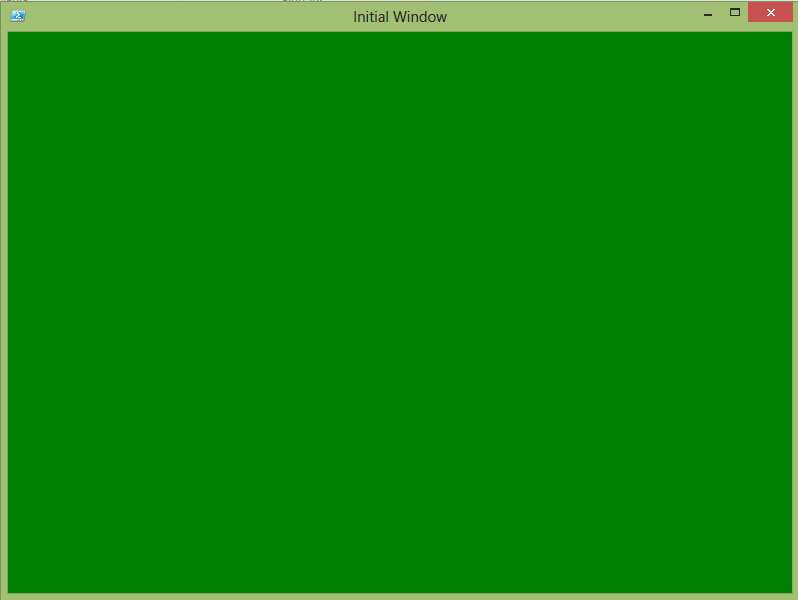
Besides adding a background color, you can add text to your Window via the Content property. Besides that, you can customize your text using a variety of methods listed below in the code.
$Window.FontSize = 24
$Window.FontStyle = 'Italic' #"Normal", "Italic", or "Oblique
$Window.FontWeight = 'Bold' #http://msdn.microsoft.com/en-us/library/system.windows.fontweights
$Window.Foreground = 'Red'
$Window.Content = "This is a test!"

Events are designed to fire off when a certain action occurs. Whether it is a timed event that fires on a tick, or a mouse click or even if the Window is closing or opening. You can supply a script block to the action block of the event to perform whatever task it is you need done with the event. Be sure to include all of the events prior to the code that is opening the Window, otherwise you might be left wondering what is going on.
As seen in my demo of a transparent window, there will be a time when you might need an alternate way to close the window. Luckily, that can be done with your mouse just by clicking on the window with either your left or right mouse button and using the $Window object’s Close() method. In this case, I am going to close the Window using the Right mouse button.
$Window.Add_MouseRightButtonDown({
    $Window.close()
})
Same issues with using transparency means that you have no real way to move your window around. We get around that by once again using the MouseRight/LeftButton event and then using the DragMove() method.
$Window.Add_MouseRightButtonDown({
    $Window.DragMove()
})
When your window closes, you may need to perform some additional tasks such as saving to a config file, cleanup, etc… Luckily we can use the Closed event with whatever actions that need to be taken to accomplish this.
$Window.Add_Closed({
    Write-Verbose "Performing cleanup"
})
When your Window first opens up, you may need to perform some initializations before presenting everything to the user. For this approach, I typically use the OnLoaded event.
$Window.Add_Loaded({
    Write-Verbose "Starting up application"
})
Sometimes you need a timer to handle certain actions on each tick. The approach I usually take is to initialize my timer when the window is loaded and then supply the code that that will run on each tick of the timer.
$Window.Add_Loaded({
    $timer.Add_Tick({
        [Windows.Input.InputEventHandler]{ $Global:Window.UpdateLayout() }
        #Write-Verbose "Updating Window"
    })
    #Start timer
    Write-Verbose "Starting Timer"
    $timer.Start()
})
That concludes the initial article on WPF and building your first Window. Like I said at the beginning, this is just 1 step on a multi-step process to really create something cool. If you have anything that you would like to see about a specific control that I talk about, feel free to leave something in the comments. If there is something that you would like to see me tackle, let me know and I will see what I can do and hopefully we will learn something new together!
Buttons

 Learn Powershell | Achieve More