
My latest article on the PowerShell Magazine went live today. I talk about working with the new UpdateServices module on Windows Server 2012. Check it out!
My latest article on the PowerShell Magazine went live today. I talk about working with the new UpdateServices module on Windows Server 2012. Check it out!

Today I had the pleasure of being named an Honorary Scripting Guy along with 9 other individuals. I am grateful for this honor and look forward to many more articles and contributions to the PowerShell community!
Full article here:
Moving on with my WPF series, we are now going to look at using StackPanels for a layout. A StackPanel is a layout that you can use to arrange child controls either vertically or horizontally. StackPanels are pretty simple to use and provide a nice way of organizing your layout without much effort. Using some creativity, one could build a very usable UI that someone can use for day to day operations.
A simple look at the StackPanel below will show a couple buttons and a label in a vertical layout.
#Build the GUI
[xml]$xaml = @"
<Window
    xmlns="http://schemas.microsoft.com/winfx/2006/xaml/presentation"
    xmlns:x="http://schemas.microsoft.com/winfx/2006/xaml"
    x:Name="Window" Title="Initial Window" WindowStartupLocation = "CenterScreen"
    SizeToContent = "WidthAndHeight" ShowInTaskbar = "True" Background = "lightgray">
    <StackPanel >
        <Button Width = "100" Height = "100" Background = "White" Content = "Button1"/>
        <Label Width = "100" Height = "100" Background = "White" Content = "Label"/>
        <Button Width = "100" Height = "100" Background = "White" Content = "Button2"/>
    </StackPanel>
</Window>
"@

$reader=(New-Object System.Xml.XmlNodeReader $xaml)
$Window=[Windows.Markup.XamlReader]::Load( $reader )

$Window.Showdialog() | Out-Null

Notice that the layout of the controls are based on the order that you place them from top to bottom. This is always true with the Orientation property of StackPanel is set to the default value of Vertical. We can reverse this layout if we set the Orientation to Horizontal and also the FlowDirection property to RightToLeft as in the example below.
#Build the GUI
[xml]$xaml = @"
<Window
    xmlns="http://schemas.microsoft.com/winfx/2006/xaml/presentation"
    xmlns:x="http://schemas.microsoft.com/winfx/2006/xaml"
    x:Name="Window" Title="Initial Window" WindowStartupLocation = "CenterScreen"
    SizeToContent = "WidthAndHeight" ShowInTaskbar = "True" Background = "lightgray">
    <StackPanel Orientation = "Horizontal" FlowDirection = "RightToLeft" >
        <Button Width = "100" Height = "100" Background = "White" Content = "Button1"/>
        <Label Width = "100" Height = "100" Background = "White" Content = "Label"/>
        <Button Width = "100" Height = "100" Background = "White" Content = "Button2"/>
    </StackPanel>
</Window>
"@

$reader=(New-Object System.Xml.XmlNodeReader $xaml)
$Window=[Windows.Markup.XamlReader]::Load( $reader )

$Window.Showdialog() | Out-Null

As you can see, the order of the layout has been reversed using the FlowDirection and Orientation properties. In fact, all of this can be done during runtime as well! The example below will show you that just by clicking a specific button, you can change the layout of the StackPanel .
#Build the GUI
[xml]$xaml = @"
<Window
    xmlns="http://schemas.microsoft.com/winfx/2006/xaml/presentation"
    xmlns:x="http://schemas.microsoft.com/winfx/2006/xaml"
    x:Name="Window" Title="Initial Window" WindowStartupLocation = "CenterScreen"
    SizeToContent = "WidthAndHeight" ShowInTaskbar = "True" Background = "lightgray">
        <StackPanel x:Name="StackPanel" Margin = "50,50,50,50" Background = 'White'>
            <Button x:Name = "button1" Height = "75" Width = "150" Content = 'Right -> Left' Background="Yellow" />
            <Button x:Name = "button2" Height = "75" Width = "150" Content = 'Left -> Right' Background="Yellow" />
            <Label x:Name = "label1" Height = "75" Width = "300" Background="MidnightBlue" Foreground = "White"
            HorizontalContentAlignment = 'Center' VerticalContentAlignment = 'Center'/>
            <Button x:Name = "button3" Height = "75" Width = "150" Content = 'Horizontal' Background="Red" />
            <Button x:Name = "button4" Height = "75" Width = "150" Content = 'Vertical' Background="Red" />
        </StackPanel>
</Window>
"@

$reader=(New-Object System.Xml.XmlNodeReader $xaml)
$Window=[Windows.Markup.XamlReader]::Load( $reader )

#Connect to Controls
$button1 = $Window.FindName("button1")
$button2 = $Window.FindName("button2")
$button3 = $Window.FindName("button3")
$button4 = $Window.FindName("button4")
$label1 = $Window.FindName("label1")
$StackPanel = $Window.FindName("StackPanel")

$window.Add_Loaded({
    $label1.Content = ("Orientation: {0}`nFlowDirection: {1}" -f $StackPanel.Orientation,$StackPanel.FlowDirection)
})

$Button1.Add_Click({
    $StackPanel.FlowDirection = "RightToLeft"
    $label1.Content = ("Orientation: {0}`nFlowDirection: {1}" -f $StackPanel.Orientation,$StackPanel.FlowDirection)
})
$Button2.Add_Click({
    $StackPanel.FlowDirection = "LeftToRight"
    $label1.Content = ("Orientation: {0}`nFlowDirection: {1}" -f $StackPanel.Orientation,$StackPanel.FlowDirection)
})
$Button3.Add_Click({
    $StackPanel.Orientation = "Horizontal"
    $label1.Content = ("Orientation: {0}`nFlowDirection: {1}" -f $StackPanel.Orientation,$StackPanel.FlowDirection)
})
$Button4.Add_Click({
    $StackPanel.Orientation = "Vertical"
    $label1.Content = ("Orientation: {0}`nFlowDirection: {1}" -f $StackPanel.Orientation,$StackPanel.FlowDirection)
})

$Window.Showdialog() | Out-Null

Clicking the Horizontal button:

Clicking Right-> Left button:

So as you can see, there really is not a lot of work in adjusting the look and feel of the StackPanel layout as long as it fits your plans.
Adding another child control to the StackPanel layout is pretty simple to do. You will need to first create the new child control and then you can either add it to the end of the stack or insert the control into a specified index of the collection of controls. First, lets take a look at how we can view all of the child controls in the StackPanel .
$StackPanel.Children | Select Name
Name
—-
button1
button2
label1
button3
button4
There is a lot more information available, but for the sake of space, I just wanted to list out the names of each control (also a good reason why you want to supply a name for each control  )
)
Adding a control can be done like this:
$newLabel = New-Object System.Windows.Controls.Label
$newLabel.Content = 'New Label'
$newLabel.Background = Get-Random ('Green','Red','Black','Blue')
$newLabel.Foreground = 'White'
$newLabel.Name = 'NewLabel'
#One of two ways that this can be done
$StackPanel.AddChild($newLabel)
#OR
$StackPanel.Children.Add($newLabel)
Inserting a control into the StackPanel requires that you know where each control is at in the StackPanel before you actually insert the control. I wrote a small function to make it easier to figure this out below:
Function Get-UIElementLookup {
    $i=0
    $Script:uiElement = [ordered]@{}
    $StackPanel.Children | ForEach {$uiElement[$_.Name]=$i;$i++}
}
By the way, [ordered] is only available in PowerShell V3 and finally allows us to use an ordered hash table. Running it allows me to know exactly where I would like to place my new control.
Get-UIElementLookup
$uiElement
Name Value
—- —–
button1 0
button2 1
label1 2
button3 3
button4 4
Now with this info, I can easily determine that I want to insert a label (named newLabel) right after label1.
$newLabel = New-Object System.Windows.Controls.Label
$newLabel.Content = 'New Label'
$newLabel.Background = Get-Random ('Green','Red','Black','Blue')
$newLabel.Foreground = 'White'
$newLabel.Name = 'NewLabel'
$StackPanel.Children.Insert(3,$newLabel)
Ok, lets check out the order of the controls again.
Get-UIElementLookup
$uiElement
Name Value
—- —–
button1 0
button2 1
label1 2
NewLabel 3
button3 4
button4 5
Just like changing the layout, this can all be done during runtime as well. Now you are probably thinking that if I can add a control, then I can certainly remove one as well. You would be very much correct with this question! And in fact, here is where it is nice to know exactly what position the controls are at. To do this, we will use the RemoveAt() method which requires the position of the control as its parameter.
Lets go ahead and remove that newLabel.
 $StackPanel.Children.RemoveAt(3)
Get-UIElementLookup
$uiElement
Name Value
—- —–
button1 0
button2 1
label1 2
button3 3
button4 4
And its gone!
StackPanels can be nested underneath one another very easily. So you could have a horizontal StackPanel with a nested vertical StackPanel and even have nest StackPanels underneath those! It really does help to make a UI look better by nesting StackPanels and adjusting the Orientation
One other thing that I didn’t really cover in detail was hiding a control using the Visibility property on a control. Basically,as it says, it just makes the control invisible on the UI, but still remains in its current place on the layout. This can be done during runtime by changing the property from Visible to Hidden and back.
The code below will give you a little demo of using all of these things that I have covered and makes the changes while running. Its not perfect and you will recognize some of the things that I already showed you, but gives you a good idea of what StackPanels are capable of and perhaps can give you some ideas on things to try as well!

Clicking on various buttons will produce the results that is labeled on the button. You will also see that I added a Canvas that is nested underneath 2 StackPanels just to show the flexibility that is available to work with.
StackPanel Demo Code
Function Get-UIElementLookup {
    $i=0
    $Script:uiElement = [ordered]@{}
    $StackPanel.Children | ForEach {$uiElement[$_.Name]=$i;$i++}
}

#Build the GUI
[xml]$xaml = @"
<Window
    xmlns="http://schemas.microsoft.com/winfx/2006/xaml/presentation"
    xmlns:x="http://schemas.microsoft.com/winfx/2006/xaml"
    x:Name="Window" Title="Initial Window" WindowStartupLocation = "CenterScreen"
    SizeToContent = "WidthAndHeight" ShowInTaskbar = "True" Background = "lightgray">
    <StackPanel Orientation = 'Horizontal'>
        <Button x:Name = 'CloseButton' MinWidth = "400" Content = 'Giant Button of Closing' FontSize = '30'
        Background = 'Black' Foreground = 'White' FontWeight = 'Bold'/>
        <StackPanel x:Name="StackPanel" Margin = "50,50,50,50" Background = 'White'>
            <Button x:Name = "button1" Height = "75" Width = "150" Content = 'Right -> Left' Background="Yellow" />
            <Button x:Name = "button2" Height = "75" Width = "150" Content = 'Left -> Right' Background="Yellow" />
            <Label x:Name = "label1" Height = "75" Width = "300" Background="MidnightBlue" Foreground = "White"
            HorizontalContentAlignment = 'Center' VerticalContentAlignment = 'Center'/>
            <Button x:Name = "button3" Height = "75" Width = "150" Content = 'Horizontal' Background="Red" />
            <Button x:Name = "button4" Height = "75" Width = "150" Content = 'Vertical' Background="Red" />
            <StackPanel x:Name = 'childstackpanel' Orientation = 'Horizontal'>
                <Button x:Name = "button5" Height = "75" Width = "150" Content = 'Add New Label' Background="White" />
                <Button x:Name = "button6" Height = "75" Width = "150" Content = 'Hide Button5' Background="White" />
                <Canvas Height = '80' Width = '100'>
                    <Label Content = "Label in canvas" Background = 'LightGreen'/>
                </Canvas>
            </StackPanel>
        </StackPanel>
    </StackPanel>
</Window>
"@

$reader=(New-Object System.Xml.XmlNodeReader $xaml)
$Window=[Windows.Markup.XamlReader]::Load( $reader )

#Connect to Controls
$button1 = $Window.FindName("button1")
$button2 = $Window.FindName("button2")
$button3 = $Window.FindName("button3")
$button4 = $Window.FindName("button4")
$button5 = $Window.FindName("button5")
$button6 = $Window.FindName("button6")
$CloseButton = $Window.FindName("CloseButton")
$label1 = $Window.FindName("label1")
$StackPanel = $Window.FindName("StackPanel")

$window.Add_Loaded({
    $label1.Content = ("Orientation: {0}`nFlowDirection: {1}" -f $StackPanel.Orientation,$StackPanel.FlowDirection)
    $Script:newLabelExists = $False
    Get-UIElementLookup
})

$Button1.Add_Click({
    $StackPanel.FlowDirection = "RightToLeft"
    $label1.Content = ("Orientation: {0}`nFlowDirection: {1}" -f $StackPanel.Orientation,$StackPanel.FlowDirection)
})
$Button2.Add_Click({
    $StackPanel.FlowDirection = "LeftToRight"
    $label1.Content = ("Orientation: {0}`nFlowDirection: {1}" -f $StackPanel.Orientation,$StackPanel.FlowDirection)
})
$Button3.Add_Click({
    $StackPanel.Orientation = "Horizontal"
    $label1.Content = ("Orientation: {0}`nFlowDirection: {1}" -f $StackPanel.Orientation,$StackPanel.FlowDirection)
})
$Button4.Add_Click({
    $StackPanel.Orientation = "Vertical"
    $label1.Content = ("Orientation: {0}`nFlowDirection: {1}" -f $StackPanel.Orientation,$StackPanel.FlowDirection)
})
$button5.Add_Click({
    If ($Script:newLabelExists) {
        $StackPanel.Children.RemoveAt($uiElement.NewLabel)
        $button5.Content = "Add New Label"
        $Script:newLabelExists = $False
        Get-UIElementLookup
    } Else {
        $newLabel = New-Object System.Windows.Controls.Label
        $newLabel.Content = 'New Label'
        $newLabel.Background = Get-Random ('Green','Red','Black','Blue')
        $newLabel.Foreground = 'White'
        $newLabel.Name = 'NewLabel'
        #randomly insert it into the StackPanel
        $StackPanel.Children.Insert((0..$StackPanel.Children.count | Get-Random),$newLabel)
        $button5.Content = "Remove New Label"
        $Script:newLabelExists = $True
        Get-UIElementLookup
    }
})
$Button6.Add_Click({
    Switch ($button5.Visibility) {
        'Visible' {
            $button6.Content = 'Show Button5'
            $button5.Visibility = 'Hidden'
        }
        'Hidden' {
            $button6.Content = 'Hide Button5'
            $button5.Visibility = 'Visible'
        }
    }
})
$CloseButton.Add_Click({
    $Window.Close()
})
$Window.Showdialog() | Out-Null
But that is not all folks! I also wanted to give a more practical example of what you can do with a StackPanel as well. This might seem odd to those of you who just come across this article without starting at the beginning, but I am going to be using a label as my output window as opposed to a textbox or gridview/listview. Don’t worry, those examples will come in my articles that discuss those items.
In the meantime, the code below will give you a simple System Information window that displays various data about your local system based on the button that is pushed.

One example shown below is using the OS Details button.

System Information UI Code
#Build the GUI
[xml]$xaml = @"
<Window
    xmlns="http://schemas.microsoft.com/winfx/2006/xaml/presentation"
    xmlns:x="http://schemas.microsoft.com/winfx/2006/xaml"
    x:Name="Window" Title="Computer Information" WindowStartupLocation = "CenterScreen"
    SizeToContent = "WidthAndHeight" ShowInTaskbar = "True" Background = "lightgray" ResizeMode = "NoResize">
    <StackPanel Orientation = 'Horizontal' >
        <StackPanel x:Name = "StackPanel" Margin = "5" Background = 'White'>
            <Button x:Name = "osButton" Height = "75" Width = "150" Content = 'OS Details' Background="Yellow" />
            <Button x:Name = "diskspaceButton" Height = "75" Width = "150" Content = 'Disk Space' Background="Yellow" />
            <Button x:Name = "biosButton" Height = "75" Width = "150" Content = 'BIOS' Background="Yellow" />
            <Button x:Name = "netinfoButton" Height = "75" Width = "150" Content = 'Network Information' Background="Yellow" />
        </StackPanel>
        <Label x:Name = 'label1' Width = "400" FontSize = '15'
        Background = 'Black' Foreground = 'White' FontWeight = 'Bold'/>
    </StackPanel>
</Window>
"@

$reader=(New-Object System.Xml.XmlNodeReader $xaml)
$Window=[Windows.Markup.XamlReader]::Load( $reader )

#Connect to Controls
$osButton = $Window.FindName("osButton")
$diskspaceButton = $Window.FindName("diskspaceButton")
$biosButton = $Window.FindName("biosButton")
$netinfoButton = $Window.FindName("netinfoButton")
$label1 = $Window.FindName("label1")
$StackPanel = $Window.FindName("StackPanel")

$osButton.Add_Click({
    $data = Get-WmiObject -Class Win32_OperatingSystem |  ForEach {
        New-Object PSObject -Property @{
            Computername = $env:computername
            OS = $_.Caption
            Version = $_.Version
            SystemDirectory = $_.systemdirectory
            Serialnumber = $_.serialnumber
            InstalledOn = ($_.ConvertToDateTime($_.InstallDate))
            LastReboot = ($_.ConvertToDateTime($_.LastBootUpTime))
        }
    }
    $label1.Content = $data | Out-String
})

$diskspaceButton.Add_Click({
    $data = Get-WmiObject -Class Win32_LogicalDisk | ForEach {
        New-Object PSObject -Property @{
            DeviceID = $_.DeviceID
            TotalSpace = ("{0} GB" -f ($_.Size /1GB))
            FreeSpace = ("{0} GB" -f ($_.FreeSpace /1GB))
            VolumeName = $_.VolumeName
            DriveType = $_.DriveType
        }
    }
    $label1.Content = $Data | Out-String
})

$biosButton.Add_Click({
    $data = Get-WmiObject -Class Win32_Bios| ForEach {
        New-Object PSObject -Property @{
            BIOSStatus = $_.Status
            Version = $_.SMBIOSBIOSVersion
            Manufacturer = $_.Manufacturer
            SerialNumber = $_.SerialNumber
            ReleaseDate = ($_.ConvertToDateTime($_.ReleaseDate))
        }
    }
    $label1.Content = $Data | Out-String
})

$netinfoButton.Add_Click({
    $netInfo = Get-WmiObject -Class win32_networkadapterconfiguration | Where {
        $_.IPAddress -match "(\d{1,3}\.){3}\d{1,3}"
    }
    $related = @($netInfo.GetRelated())
    $Data = $netInfo | ForEach {
        New-Object PSObject -Property @{
            IPAddress = ($_.IPAddress | Out-String)
            DefaultGateway = ($_.DefaultIPGateway | Out-String)
            MAC = $_.MACAddress
            Subnet = ($_.IPSubnet | Out-String)
            DNS = ($_.DNSServerSearchOrder | Out-String)
            DHCP = $_.DHCPServer
            ID = $related[0].NetConnectionID
            Speed = ("{0}" -f ($related[0].Speed))
        }
    }
    $label1.Content = $Data | Out-String
})

$Window.ShowDialog() | Out-Null
That is it for StackPanels. As always, if you have questions or would like to see something else related to this, just leave me a comment and I will see what I can do. My plan for the next article is to take a look at Textboxes.
Continuing on in my series of working with WPF and PowerShell, today’s article is about Labels. While there really isn’t a lot with using labels other than just displaying something in your UI, it is another control in WPF and I want to make sure I show everything no matter what it is. Plus this gives me a change to show another technique that you can do with other controls as well.
A label is a control that can be added to your layout in your UI that can display either text or an image and is a read-only control, meaning that you cannot directly write to it (such as clicking on it and typing away). You can write to it programmatically by performing an action that updates the content property of the label. It is also important to know that labels do not have the ability to wrap text, meaning that if the text in the label is too big, it will keep going beyond the end of the label. To get around this, you can add a TextBlock in the label that supports wrapping.
Lets get started by creating a label and 2 buttons on a canvas.
#Build the GUI
[xml]$xaml = @"
<Window
    xmlns="http://schemas.microsoft.com/winfx/2006/xaml/presentation"
    xmlns:x="http://schemas.microsoft.com/winfx/2006/xaml"
    x:Name="Window" Title="Initial Window" WindowStartupLocation = "CenterScreen"
    Width = "800" Height = "600" ShowInTaskbar = "True" Background = "lightgray">
        <Canvas x:Name="Canvas">
            <Button x:Name = "Button1" Height = "75" Width = "150" Content = 'Change Label Colors' ToolTip = "Button1"
                Background="Red" Canvas.Left = '150' Canvas.Top = '50'/>
            <Button x:Name = "Button2" Height = "75" Width = "150" Content = 'Rotate Label' ToolTip = "Button2"
                Background="Red" Canvas.Right = '150' Canvas.Top = '50'/>
            <Label x:Name = "label1" Height = "75" Width = "300" Content = 'Label1' ToolTip = "label1"
                Background="Red" Canvas.Left = '250' Canvas.Bottom = '200'/>
        </Canvas>
</Window>
"@
$reader=(New-Object System.Xml.XmlNodeReader $xaml)
$Window=[Windows.Markup.XamlReader]::Load( $reader )

#Connect to Control
$button1 = $Window.FindName("Button1")
$button2 = $Window.FindName("Button2")
$label1 = $Window.FindName("label1")
$Canvas = $Window.FindName("Canvas")

$Window.ShowDialog() | Out-Null

As with the button and other controls, we can change the fonts to make it look better or to fit whatever the requirement is.
$label1.FontSize = "12"
$label1.FontWeight = "Bold"
$label1.FontFamily = "Times New Roman"

Centering the text in a label is a breeze with the HorizontalContentAlignment and VerticalContentAlignment property used either in the XAML code or set using the example below:
$label1.HorizontalContentAlignment = 'Center'
$label1.VerticalContentAlignment = 'Center'

Putting an image on is just like what we did with the buttons:
[xml]$xaml = @"
<Window
    xmlns="http://schemas.microsoft.com/winfx/2006/xaml/presentation"
    xmlns:x="http://schemas.microsoft.com/winfx/2006/xaml"
    x:Name="Window" Title="Initial Window" WindowStartupLocation = "CenterScreen"
    Width = "800" Height = "600" ShowInTaskbar = "True" Background = "lightgray">
        <Canvas x:Name="Canvas">
            <Button x:Name = "Button1" Height = "75" Width = "150" Content = 'Change Label Colors' ToolTip = "Button1"
                Background="Red" Canvas.Left = '150' Canvas.Top = '50'/>
            <Button x:Name = "Button2" Height = "75" Width = "150" Content = 'Rotate Label' ToolTip = "Button2"
                Background="Red" Canvas.Right = '150' Canvas.Top = '50'/>
            <Label x:Name = "label1" Height = "75" Width = "300"  ToolTip = "label1"
                Background="Red" Canvas.Left = '250' Canvas.Bottom = '200' >
                <Image Source="C:\Users\Administrator\Desktop\Avengers.JPG" Stretch="Fill"/>
            </Label>
        </Canvas>
</Window>
"@
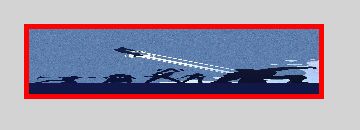
If you look at the two buttons, both of them have a specific action that will happen on the label when pressed. The button on the left will update the label background and foreground color when pressed while the button on the right will actually rotate the label. Because I want to go a little more into rotating the label, we will set up the code for the left button first and check out what it does.
$button1.Add_Click({
    $backgroundColor = (Get-Random -InputObject @("red","black","blue","yellow","green"))
    $foregroundColor = (Get-Random -InputObject @("red","black","blue","yellow","green"))
    $label1.background = $backgroundColor
    $label1.Foreground = $foregroundColor
    $label1.Content = ("Changed foreground color to {0} `rand background color to {1}" -f $foregroundColor,$backgroundColor)
    $Script:Label = $label1.Content
})

One more click…
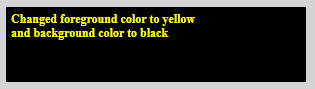
Now that we have done that, it is time to look at rotating a control. Rotating a control isn’t that complicated, but does require you to know the angle of the rotation as well as the coordinate on the control that the UI will rotate on (X and Y coordinates). Once you know these 3 things, it is just a matter of creating a RotateTransform object that can be applied to the control’s RenderTransform property. Note that labels are not the only control that can be rotated!
First lets take a look at the label’s RenderTransform property to see a Before shot.
$label1.RenderTransform

Now lets set up the button click event to rotate the label 45º while keeping the center of the rotation on the X:0 and Y:0 coordinates.
$button2.Add_Click({
    $label1.RenderTransform = New-Object System.Windows.Media.RotateTransform -ArgumentList 45,0,0
})
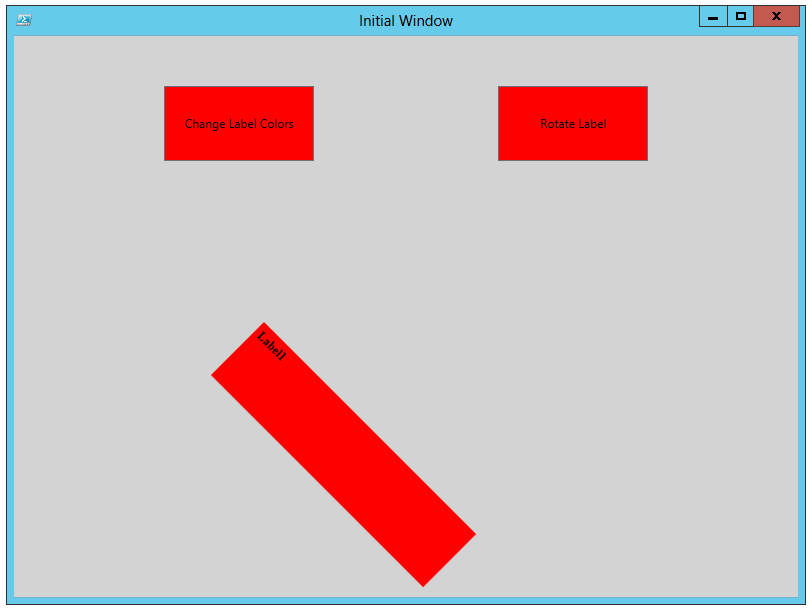
As you can see, the label rotated 45º at the X:0 Y:0 coordinate, which happens to be the upper most left part of the control.
Lets move the center of the rotation to the center of the control and show what happens.
$label1.RenderTransform = New-Object System.Windows.Media.RotateTransform -ArgumentList 45,150,37

You can definitely see a change in where the rotation took place on the UI with the label. Something important to keep in mind when using this action. And just to finish it out, lets see the rotation start from the far right of the label control.
$label1.RenderTransform = New-Object System.Windows.Media.RotateTransform -ArgumentList 45,300,0

Something fun I put together shows both of the buttons in action and gives the rotation more options to make a complete 360º rotation.
Here are a couple of examples of the rotation with the color change.


<#
Labels do not have the ability to perform a textwrap, so any lines that are bigger than
the label will not be shown.
#>

Function Set-Rotation {
    [cmdletbinding()]
    Param (
        [object]$Control,
        [int]$Angle = 45,
        [int]$X = 0,
        [int]$Y = 0
    )
    $Control.RenderTransform = New-Object System.Windows.Media.RotateTransform -ArgumentList $Angle,$X,$Y
}

#Build the GUI
[xml]$xaml = @"
<Window
    xmlns="http://schemas.microsoft.com/winfx/2006/xaml/presentation"
    xmlns:x="http://schemas.microsoft.com/winfx/2006/xaml"
    x:Name="Window" Title="Initial Window" WindowStartupLocation = "CenterScreen"
    Width = "800" Height = "600" ShowInTaskbar = "True" Background = "lightgray">
        <Canvas x:Name="Canvas">
            <Button x:Name = "Button1" Height = "75" Width = "150" Content = 'Change Label Colors' ToolTip = "Button1"
                Background="Red" Canvas.Left = '150' Canvas.Top = '50'/>
            <Button x:Name = "Button2" Height = "75" Width = "150" Content = 'Rotate Label' ToolTip = "Button2"
                Background="Red" Canvas.Right = '150' Canvas.Top = '50'/>
            <Label x:Name = "label1" Height = "75" Width = "300" Content = 'Label1' ToolTip = "label1"
                Background="Red" Canvas.Left = '250' Canvas.Bottom = '200'/>
        </Canvas>
</Window>
"@

$reader=(New-Object System.Xml.XmlNodeReader $xaml)
$Window=[Windows.Markup.XamlReader]::Load( $reader )
$script:i = 1
#Connect to Control
$button1 = $Window.FindName("Button1")
$button2 = $Window.FindName("Button2")
$label1 = $Window.FindName("label1")
$Canvas = $Window.FindName("Canvas")

#You can change the font to any style, similiar to what was done previously with other examples
$label1.FontSize = "12"
$label1.FontWeight = "Bold"
$label1.FontFamily = "Times New Roman"
$Script:Label = $label1.Content

$button1.Add_Click({
    $backgroundColor = (Get-Random -InputObject @("red","black","blue","yellow","green"))
    $foregroundColor = (Get-Random -InputObject @("red","black","blue","yellow","green"))
    $label1.background = $backgroundColor
    $label1.Foreground = $foregroundColor
    $label1.Content = ("Changed foreground color to {0} `rand background color to {1}" -f $foregroundColor,$backgroundColor)
    $Script:Label = $label1.Content
})
$button2.Add_Click({
    <#
        Define the Rotate object and supply the Angle, X position and Y position to determine how the angle is applied
        The top left of the label is considered X:0 Y:0
    #>
     Switch ($i) {
       0 {Set-Rotation -Control $label1 -Angle 0 -X 150 -Y 37;$label1.Content= ("{0}`r`rRotated 360{1}" -f $Label,[char]176)}
       1 {Set-Rotation -Control $label1 -Angle 45 -X 150 -Y 37;$label1.Content= ("{0}`r`rRotated 45{1}" -f $Label,[char]176)}
       2 {Set-Rotation -Control $label1 -Angle 90 -X 150 -Y 37;$label1.Content= ("{0}`r`rRotated 90{1}" -f $Label,[char]176)}
       3 {Set-Rotation -Control $label1 -Angle 135 -X 150 -Y 37;$label1.Content= ("{0}`r`rRotated 135{1}" -f $Label,[char]176)}
       4 {Set-Rotation -Control $label1 -Angle 180 -X 150 -Y 37;$label1.Content= ("{0}`r`rRotated 180{1}" -f $Label,[char]176)}
       5 {Set-Rotation -Control $label1 -Angle 225 -X 150 -Y 37;$label1.Content= ("{0}`r`rRotated 225{1}" -f $Label,[char]176)}
       6 {Set-Rotation -Control $label1 -Angle 270 -X 150 -Y 37;$label1.Content= ("{0}`r`rRotated 270{1}" -f $Label,[char]176)}
       7 {Set-Rotation -Control $label1 -Angle 315 -X 150 -Y 37;$label1.Content= ("{0}`r`rRotated 315{1}" -f $Label,[char]176)}
    }
    $Script:i++
    If ($i -eq 8) {$Script:i=-1}
})

$Window.ShowDialog() | Out-Null
With that, I have shown a few things that you can do with Labels and some things such as the rotating that can also be applied to other controls as well.
Up next will be StackPanels in my series.
I have a guest spot on the PowerShell Magazine that went live today. Check it out here:
http://www.powershellmagazine.com/2012/10/22/pstip-quickly-generate-a-password/
Enjoy!

 Learn Powershell | Achieve More