Create a Hard Link Using PowerShell

Following on the heels of my last article where I talked about creating a symbolic link using PowerShell, I figured I would throw another script out there that will do what mklink.exe does with creating a hard link and do it the PowerShell way.

The process is practically the same as what I did with the symbolic link, so I really don’t want to regurgitate an already existing article.

With mklink.exe, you can do the following to create the hard link in PowerShell:

cmd.exe /c mklink /H C:\users\Administrator\Desktop\WSUSDBMaint `
C:\Users\Administrator\Downloads\Invoke-WSUSDBMaintenance.ps1

image

Once again, I am going to use the kernel32 and the CreateHardLink function this time.

image

Using the given code example, I am able to add this as a type in my PowerShell session.

Add-Type @"
using System;
using System.Runtime.InteropServices;
 
namespace mklink
{
    public class hardlink
    {
        [DllImport("Kernel32.dll")]
        public static extern bool CreateHardLink(string lpFileName,string lpExistingFileName,IntPtr lpSecurityAttributes);
    }
}
"@


The main difference with using this vs. using the CreateSymbolicLink function mentioned in my previous article are the parameters expected.

image

I need a target name, the existing file (no directories allowed this time!) that will be used for the hard link and then I need to supply something for the System.IntPtr (in this case, I just use [IntPtr]:Zero). Nothing too crazy that can’t easily be made into a function. When used, it will return a boolean value, much like CreateSymbolicLink.

[mklink.hardlink]::CreateHardLink(
    'C:\users\Administrator\Desktop\WSUSDBMaint',
    'C:\Users\Administrator\Downloads\Invoke-WSUSDBMaintenance.ps1',
    [IntPtr]::Zero
)

image

This leads us down to the function itself!

New-HardLink -Path C:\PortQry.exe -HardLink Portqry.exe -Verbose

image

Will it work?

image

Yes, it works as advertised. So with that, the script is available to download below at the Script Repository. Check it out and let me know what you think!

Download

Script Repository

Posted in powershell, scripts | Tagged , , , , | 2 Comments

Creating a Symbolic Link using PowerShell

Recently, I had a need to create a symbolic link while running a scan on some systems and found that there was not a native way in PowerShell to accomplish this. Now I can use mklink.exe to make this work, but this will only work under cmd.exe. This means that I cannot actually call mklink.exe under PowerShell.

mklink.exe

image

Instead, I have to first call cmd.exe followed by mklink.exe in order to access the command.

cmd.exe /c mklink.exe

image

So you might think that I would be satisfied with this result. Well, I am not. I shouldn’t have to rely on calling cmd.exe first before using mklink.exe to create a symbolic link. And thanks to using Pinvoke to get into the Win32 API, I do not have to accept this fate!

Going out to pinvoke.net, I see under the kernel32 that there is a function called CreateSymbolicLink that meets what I am looking for.

image


The basics of what I need are below:

[DllImport("kernel32.dll")]
public static extern bool CreateSymbolicLink(strin

I had to add the ‘public’ keyword at the beginning so this function will be available when I add it into my session. This isn’t all of the code, just what was available on the site. I had to do a little C# coding to make this into a type that I can import into my PowerShell session using Add-Type.

Add-Type @"
using System;
using System.Runtime.InteropServices;
 
namespace mklink
{
    public class symlink
    {
        [DllImport("kernel32.dll")]
        public static extern bool CreateSymbolicLink(string lpSymlinkFileName, string lpTargetFileName, int dwFlags);
    }
}
"@
[mklink.symlink]

[mklink.symlink] | get-member -static

image

Now I have a type that can be used to create a symbolic link. All it requires is a Path to use for the link and the actual SymName and then either a 0 (File) or a 1 (Directory) to decide what kind of symbolic link will be created. The resulting value is a boolean value that can be easily added into a If/Else statement to handle the rest of the actions.

[mklink.symlink]::CreateSymbolicLink('C:\Users\Administrator\Desktop\SQL2008Install',
"\\dc1\SharedStorage\SQL 2008",1)

image

Looking at the SQL2008Install symbolic link, you see by the attributes that it is a symbolic link as it is labeled as a ReparsePoint:

image

With that, I now have a symbolic link on my desktop that points to the SQL2008 installation folder on my remote server.

Being that this method requires some work it is only natural that this can become a function that is re-usable.

New-SymLink

This function basically does what I have shown you, but in a function form that is portable and more easy to use. This allows you to create a symbolic link for either a directory or a file.

The Begin part of my function involves checking to see if I have already loaded up my pinvoke type and if not, adding the type using Add-Type.

Begin {
    Try {
        $null = [mklink.symlink]
    } Catch {
        Add-Type @"
        using System;
        using System.Runtime.InteropServices;
 
        namespace mklink
        {
            public class symlink
            {
                [DllImport("kernel32.dll")]
                public static extern bool CreateSymbolicLink(string lpSymlinkFileName, string lpTargetFileName, int dwFlags);
            }
        }
"@
    }
}

The Process block (I am allowing pipeline input for the Path parameter) is where I use my type to create the symbolic link and watch for any issues during this process. As an added item, I will output an object showing the symbolic link and the target path that the link is referencing.

Process {
    #Assume target Symlink is on current directory if not giving full path or UNC
    If ($SymName -notmatch "^(?:[a-z]:\\)|(?:\\\\\w+\\[a-z]\$)") {
        $SymName = "{0}\{1}" -f $pwd,$SymName
    }
    $Flag = @{
        File = 0
        Directory = 1
    }
    If ($PScmdlet.ShouldProcess($Path,'Create Symbolic Link')) {
        Try {
            $return = [mklink.symlink]::CreateSymbolicLink($SymName,$Path,$Flag[$PScmdlet.ParameterSetName])
            If ($return) {
                $object = New-Object PSObject -Property @{
                    SymLink = $SymName
                    Target = $Path
                    Type = $PScmdlet.ParameterSetName
                }
                $object.pstypenames.insert(0,'System.File.SymbolicLink')
                $object
            } Else {
                Throw "Unable to create symbolic link!"
            }
        } Catch {
            Write-warning ("{0}: {1}" -f $path,$_.Exception.Message)
        }
    }
}

Lets see this in action!

New-SymLink -Path "C:\Users\Administrator\Downloads" -SymName Downloads -Directory -Verbose

image

And with that, the function creates a symbolic link for my downloads folder on my desktop. The link to download this function is below. Let me know what you think of this function!

Download

Script Repository

Posted in powershell | Tagged , , , | 15 Comments

Font Dialog Selection using PowerShell

While I was working on an update to my PoshChat project, one of the requests that I had was to allow for font size changes on the client UI. I wanted the user to have the capability to not only select the size, but also to have other options such as bold text, font style, etc… In order to make this happen, I needed some sort of UI to allow the user to make these changes. Sounds like a lot of work was ahead of me, but after some looking on the MSDN site, I was able to find exactly what I was looking for: windows.forms.fontdialog.

Using this UI, I am not able to bring up a selection dialog for a user to pick what they would like.

Add-Type -AssemblyName System.Windows.Forms
$fontDialog = new-object windows.forms.fontdialog
$fontDialog.Showcolor = $True
$fontDialog.FontMustExist = $True
$fontDialog.ShowDialog()

image

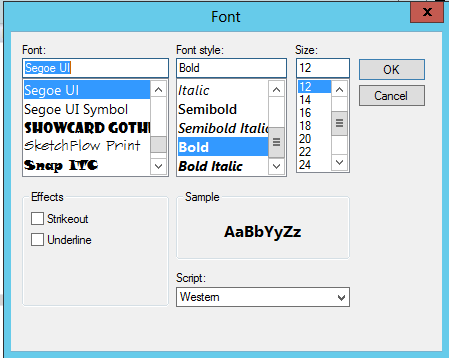
You may have noticed that I specified some options to allow the use of colors and also to ensure that only the fonts that exist on the computer it was run on actually exist. You can limit what is shown on the font dialog by specifying $False to some of the properties if needed. This helps to avoid any unnecessary issues along the way. Lets make a few selections on this dialog and then we can click OK.

image

I have to dig into the $fontdialog object to find the various settings that were selected; in the case the font property of the object. Also note that if you hit OK, the result returned from the dialog is OK and if you hit Cancel, the result returned will be Cancel. Makes it easier to specify the proper logic to handle each action.

image

Here you can see see the Bold property is set to True, which is what I selected as well as the Size property as 12. Diving a bit deeper into the FontFamily property is where we can identify the font family that will be used.

So you can get an idea as to what you have to do in order to see what was selected. If you are only focused on allowing a few things for the font selection regardless of what is selected, then you just grab those properties, otherwise you can grab everything that is needed. Now lets take a look at how I used this in my PoshChat client with a helper function I wrote called Invoke-FontDialog.

Function Script:Invoke-FontDialog {
    [cmdletbinding()]
    Param (
        $Control,
        [switch]$ShowColor,
        [switch]$FontMustExist,
        [switch]$HideEffects
    )
    Begin {
        $Script:fontDialog = new-object windows.forms.fontdialog
        $fontDialog.AllowScriptChange = $False
        If ($PSBoundParameters['ShowColor']) {
            $fontDialog.Showcolor = $True
            $fontDialog.Color = $colors[$Control.Foreground.Color.ToString()]
        }
        If ($PSBoundParameters['FontMustExist']) {
            $fontDialog.FontMustExist = $True
        }   
        If ($PSBoundParameters['HideEffects']) {
            $fontDialog.ShowEffects = $False
        }          
        $styles = New-Object System.Collections.Arraylist
        $textDecorations = $Control.TextDecorations | Select -Expand Location
        If ($textDecorations -contains "Underline") {
            $Styles.Add("Underline") | Out-Null
        }
        If ($textDecorations -contains "Strikethrough") {
            $Styles.Add("Strikeout") | Out-Null
        }    
        If ($Inputbox_txt.FontStyle -eq "Italic") {
            $Styles.Add("Italic") | Out-Null
        } 
        If ($Inputbox_txt.FontWeight -eq "Bold") {
            $Styles.Add("Bold") | Out-Null
        } 
        If ($styles.count -eq 0) {
            $style = "Regular"
        } Else {
            $style = $styles -join ","
        }
    }
    Process {
        $fontDialog.Font = New-Object System.Drawing.Font -ArgumentList $Control.Fontfamily.source,$Control.FontSize,$Style,"Point"
        If ($fontDialog.ShowDialog() -eq "OK") {        
            $Control.fontsize =  $FontDialog.Font.Size
            If ($PSBoundParameters['ShowColor']) {
                $Control.Foreground = $colors[$FontDialog.Color.Name]
            }
            $Control.FontFamily = $fontDialog.Font.FontFamily.Name
            If ($fontDialog.Font.Bold) {
                $Control.FontWeight = "Bold"
            } Else {
                $Control.FontWeight = "Regular"
            }
            If ($fontDialog.Font.Italic) {
                $Control.FontStyle = "Italic"
            } Else {
                $Control.FontStyle = "Normal"
            }     
            If (-Not $PSBoundParameters['HideEffects']) {
                $textDecorationCollection = new-object System.Windows.TextDecorationCollection 
                If ($fontDialog.Font.Underline) {
                    $underline = New-Object System.Windows.TextDecoration
                    $underline.Location = 'Underline'
                    $textDecorationCollection.Add($underline)
                }
                If ($fontDialog.Font.Strikeout) {
                    $strikethrough = New-Object System.Windows.TextDecoration
                    $strikethrough.Location = 'strikethrough'
                    $textDecorationCollection.Add($strikethrough)   
                }
                If ($textDecorationCollection.Count -gt 0) {
                    #Sometimes a control does not have a TextDecorations property
                    If ($Control | Get-Member -Name TextDecorations) {
                        $Control.TextDecorations = $textDecorationCollection
                    }
                }
            }
        }
    }
} 

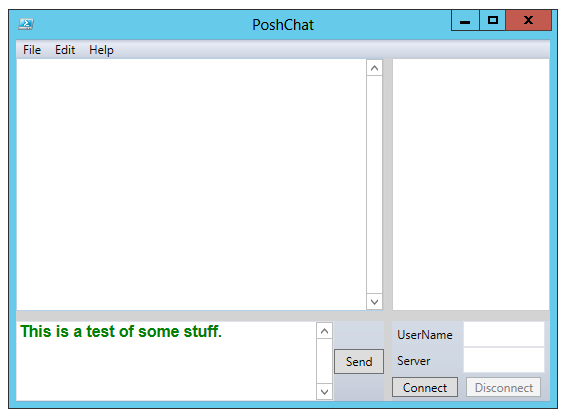
This function will take the control object (a richtextbox for instance) and then applies specific font selections to that window so you can see results like below:

Before:

image

After:

image

Here I changed the color of the text to green, set the font family to Arial, Bold text and font size of 18. Pretty cool stuff! In the case of my client, I had 3 different windows that displayed text and had to handle those separately.  Depending on what type of control you are using, your mileage will vary on how to properly set the values given from the font dialog box to the specific control. Because all of mine are rich textboxes, I do not have to worry much about what happens in the function.

##InputBox Font event
$InputBoxFont.Add_Click({
    Invoke-FontDialog -Control $Inputbox_txt -ShowColor -FontMustExist
})
##OnlineUser Font event
$OnlineUsersFont.Add_Click({
    Invoke-FontDialog -Control $OnlineUsers -ShowColor -FontMustExist
})
##MessageWindow Font event
$MessageWindowFont.Add_Click({
    Invoke-FontDialog -Control $MainMessage -FontMustExist
})

The only difference between all of the text windows here is that the Message window is not allowing Colors to be used (this is because I handle specific types of messages with different colors). How do I handle this? Well, since –ShowColor is not being used, the ShowColor value is set to $False instead of being set to $True. This means that you get the following type of font dialog instead:

image

Now the option to select a font color is no longer available for a user to select! The font selection dialog is pretty flexible to use and gives the users an extra option in customizing their experience with a UI. 

Posted in powershell | Tagged , , | 2 Comments

Using the WSUS API and PowerShell to Perform Maintenance on the SUSDB Database

In my previous article, I showed how you can utilize the Windows Server Update Services (WSUS) API to connect to the SUSDB database that is being used by the WSUS server to perform T-SQL queries against the database for information.

As cool as that is by itself, I am going to take this a step further by utilizing an existing T-SQL script that is used to re-index the SUSDB database so it can be done without the need of SQL software such as osql.exe, sqlcmd.exe or the SQL Server Management Studio (SSMS).

The function that I wrote is called Invoke-WSUSDBMaintenance and is available to download from the Technet Script Repository. This script utilizes the same techniques that I showed in my previous article with the exception of a new method called ExecuteCommandNoResult() which executes the script and doesn’t return any results. I did remove a couple of things from the existing T-SQL code such as the use of PRINT (I don’t really care what is being displayed and it wouldn’t be displayed back to you anyways, I checked) and GO (this is used to execute the commands in sqlcmd.exe and osql.exe and will throw errors if used here).

I have the –WhatIf just in case you wanted to verify that it will work and it has the usual support for –Verbose as well. I did take a different route when loading the assembly for management of the APIs by loading the assembly at the verification of the Update Server name and will throw and error and cause the function to fail if the assembly doesn’t exist.

[ValidateScript({
    If (-Not (Get-Module -List -Name UpdateServices)) {
        Try {
            Add-Type -Path "$Env:ProgramFiles\Update Services\Api\Microsoft.UpdateServices.Administration.dll"            
            $True
        } Catch {
            Throw ("Missing the required assemblies to use the WSUS API from {0}" -f "$Env:ProgramFiles\Update Services\Api")
        }
    } Else {$True}
})]

The only required parameters are for the UpdateServer and the Port that the server is using for communication. From there on out it does its own thing to locate the database and begin the maintenance such as re-indexing the database and updating the statistics.

Invoke-WSUSDBMaintenance -UpdateServer DC1 -Port 80 -Verbose

image

Time of completion will vary depending on how your server is being taxed of course, but it will complete and your SUSDB database should be running better than before! As always, feel free to let me know what you think of this function!

Download

Script Repository

Posted in powershell, WSUS | Tagged , , , | 5 Comments

Use the WSUS API and PowerShell to query the SUSDB Database

While we know that the WSUS API can be used to perform a multitude of WSUS tasks from approving patches, removing clients to creating automatic approval rules. Diving deeper into the API reveals that we can also find out the name of the server (if using a remote SQL database server) that the SUSDB database is residing on. Beyond that, we can actually perform queries to the database (using TSQL) or perform tasks against the database itself.

Lets get started on this! First we need to load up the assemblies for the WSUS API and make our connection to the WSUS server.

If running Windows Server 2008R2 and below and have the WSUS Administrator Console installed:

Add-Type -Path "$Env:ProgramFiles\Update Services\Api\Microsoft.UpdateServices.Administration.dll"    
$Wsus = [Microsoft.UpdateServices.Administration.AdminProxy]::GetUpdateServer("dc1",$False,80)

If running Windows Server 2012 and above with the UpdateServices Module loaded:

$wsus = Get-WSUSServer -Name DC1 -Port 80

Viewing the methods of the $Wsus variable, the method that we are looking for is GetDatabaseConfiguration().

$wsus | Get-Member -Name GetDatabaseConfiguration

image

We can use this method to show the Database configuration interface (not actually connected to the database just yet) that shows the database name, SQL server as well as other properties that may or may not interest you. Lets check it out!

$db = $wsus.GetDatabaseConfiguration().CreateConnection()


image

One thing I noticed were the number of methods between the WSUS server on Server 2003 compared to Server 2012. There are differences in the number of methods in Server 2003 (53) and Server 2012 (46).

=> is what on Server 2003 but not on Windows 2012

<= is what is on Server 2012 but not on Server 2003

image

Seeing these differences makes me what to do some more investigations on other changes between the latest version of the WSUS API and the older version. But that is for another time Smile

Fortunately, the Connect() method is still available to make the database connection, so lets go ahead and make the database connection. Note: I did some instances where an error would be thrown stating “The DBConnection object belongs to other thread.”. After a couple of attempts, I was able to make the connection.

$db.connect()
$db


image

With the database connection made, we can use the GetDataSet() method to make queries against the SUSDB database.

One thing to note is that you are constrained to just the SUSDB database. I admit  that I didn’t spend a lot of time trying to break free of the SUSDB connection to see if I can get to the Master and other databases, but from what I can tell, it doesn’t appear to be an easy thing, if possible at all.

Looking at the required parameters for this method, we can see that it takes a string value which is a query and a System.Data.CommandType.

image

The possible values in the System.Data.CommandType are:

Text
StoredProcedure
TableDirect

image

In this case, I only care about the Text command type.

$result = $db.GetDataSet('select * from INFORMATION_SCHEMA.TABLES',
[System.Data.CommandType]::Text)

image

This probably doesn’t really mean much to anyone, but digging into the Tables property will show more useful data, such as the actual results of the query.

image

What you are looking at is the default format view of the System.Data.DataTable object. There is actually more here behind the scenes that what you are initially seeing. If you try to export this to a CSV file, you will see that it doesn’t work out that well. Digging deeper, we can see more of what is hidden here.

image

So what do you do if all we need is what was queried? The answer to that is to use the Rows property in this object.

$result.tables.rows

image

Now you have something that can be used with Export-Csv to send to a CSV file.

This is just one of the cool things that you can do with the existing database connection to the SUSDB database for WSUS. I have another article lined up that will take this another step forward to show another useful thing that can be accomplished using this technique.

Posted in powershell, WSUS | Tagged , , , , | 5 Comments