Find All SQL Instances Using PowerShell Plus A Little More

A while back I saw this the following post on the PowerShell Magazine that showed how to get all of the instances of a SQL server. This was pretty cool, but only listed the instances and nothing else (well it can return a boolean value if you choose to search for a specific instance). I wanted more out of this ability to locate instances and decided to dive deeper into the registry rabbit hole and came back up with a wealth of information that will turn this into a super-charged function capable of being used in your domain to find out some great information about your SQL server environment!

As specified in the PowerShell Magazine article, you can find the available instance names (SQL 2005 and above) at the following key: HKEY_LOCAL_MACHINE\SOFTWARE\Microsoft\Microsoft SQL Server\Instance Names\SQL.

image

The next trick is to look at the data value that lies within the instance name, in this case MSSQL10.SHIRE and use that to locate its key under the SQL key. I am mostly concerned with what is in the Setup key and what the edition is. I know that there is a Version key,but this is not as accurate as what you can get with the actual file for the sqlservr.exe file. More on that in a minute.

image

Now we can take a look at the SQL version that is running for this particular instance. Using the instance name, you can locate the service under SYSTEM\CurrentControlSet\Services and find the SQL service running the instance and locate the path to the file (imagepath).

image

Those are pretty much the basics of what I will doing in my version of Get-SQLInstance. I have also added a couple of other things such as the ability to determine if this particular SQL server is part of  a cluster (I don’t have a cluster to show the examples, but you will see in the code how it works), find its cluster name and the other nodes in the cluster. What I decided not to do is to allow an option to filter out the nodes and only show the actual cluster itself. It is pretty simple to do this in a script that I will show later on.

$Computer = $computer -replace '(.*?)\..+','$1'
Write-Verbose ("Checking {0}" -f $Computer)
Try { 
    $reg = [Microsoft.Win32.RegistryKey]::OpenRemoteBaseKey('LocalMachine', $Computer) 
    $regKey= $reg.OpenSubKey("SOFTWARE\\Microsoft\\Microsoft SQL Server")

I start out by only using the hostnames of the systems by making sure there are no fully qualified domain names here (my own cosmetic choice) and then attempting the remote registry connection to the system and connecting to the registry path hosting the SQL server information.

If ($regKey.GetSubKeyNames() -contains "Instance Names") {
    $regKey= $reg.OpenSubKey("SOFTWARE\\Microsoft\\Microsoft SQL Server\\Instance Names\\SQL" ) 
    $instances = @($regkey.GetValueNames())
} ElseIf ($regKey.GetValueNames() -contains 'InstalledInstances') {
    $isCluster = $False
    $instances = $regKey.GetValue('InstalledInstances')
} Else {
    Continue
}

Here I am looking for the Instance Names key to determine if this is actually a SQL Server (note that I am also looking for InstalledInstances which is a SQL 2000 key), otherwise this is assumed to not be a SQL Server.

If ($instances.count -gt 0) { 
    ForEach ($instance in $instances) {
        $nodes = New-Object System.Collections.Arraylist
        $clusterName = $Null
        $isCluster = $False
        $instanceValue = $regKey.GetValue($instance)
        $instanceReg = $reg.OpenSubKey("SOFTWARE\\Microsoft\\Microsoft SQL Server\\$instanceValue")
        If ($instanceReg.GetSubKeyNames() -contains "Cluster") {
            $isCluster = $True
            $instanceRegCluster = $instanceReg.OpenSubKey('Cluster')
            $clusterName = $instanceRegCluster.GetValue('ClusterName')
            $clusterReg = $reg.OpenSubKey("Cluster\\Nodes")                            
            $clusterReg.GetSubKeyNames() | ForEach {
                $null = $nodes.Add($clusterReg.OpenSubKey($_).GetValue('NodeName'))
            }
        }
        $instanceRegSetup = $instanceReg.OpenSubKey("Setup")
        Try {
            $edition = $instanceRegSetup.GetValue('Edition')
        } Catch {
            $edition = $Null
        }

A lot of things happening here. If I find at least one instance, the function will continue to gather more information about the SQL server. One of the next checks is to make the determination about whether this is a SQL cluster or not. If it is a cluster, then it will check the Cluster key under the root of Software and get the cluster name and all of the cluster nodes. The edition of the SQL server is also located as well in this code snippet.

Try {
    $ErrorActionPreference = 'Stop'
    #Get from filename to determine version
    $servicesReg = $reg.OpenSubKey("SYSTEM\\CurrentControlSet\\Services")
    $serviceKey = $servicesReg.GetSubKeyNames() | Where {
        $_ -match "$instance"
    } | Select -First 1
    $service = $servicesReg.OpenSubKey($serviceKey).GetValue('ImagePath')
    $file = $service -replace '^.*(\w:\\.*\\sqlservr.exe).*','$1'
    $version = (Get-Item ("\\$Computer\$($file -replace ":","$")")).VersionInfo.ProductVersion
} Catch {
    #Use potentially less accurate version from registry
    $Version = $instanceRegSetup.GetValue('Version')
} Finally {
    $ErrorActionPreference = 'Continue'
}

Up next is the file version gathering (more accurate than looking in the registry) by locating the proper service for the instance and then performing a little cleanup on the image path courtesy of some regex. Once we have the path, it is just a matter of getting the file version information from the file and moving forward.

                        New-Object PSObject -Property @{
                            Computername = $Computer
                            SQLInstance = $instance
                            Edition = $edition
                            Version = $version
                            Caption = {Switch -Regex ($version) {
                                "^11" {'SQL Server 2012';Break}
                                "^10\.5" {'SQL Server 2008 R2';Break}
                                "^10" {'SQL Server 2008';Break}
                                "^9"  {'SQL Server 2005';Break}
                                "^8"  {'SQL Server 2000';Break}
                                Default {'Unknown'}
                            }}.InvokeReturnAsIs()
                            isCluster = $isCluster
                            isClusterNode = ($nodes -contains $Computer)
                            ClusterName = $clusterName
                            ClusterNodes = ($nodes -ne $Computer)
                            FullName = {
                                If ($Instance -eq 'MSSQLSERVER') {
                                    $Computer
                                } Else {
                                    "$($Computer)\$($instance)"
                                }
                            }.InvokeReturnAsIs()
                        }
                    }
                }
            } Catch { 
                Write-Warning ("{0}: {1}" -f $Computer,$_.Exception.Message)
            }  
        }   
    }
}

The rest of the code finishes up by outputting the object that lists all of the information gathered previously. The only other things is that it adds a boolean value if the cluster is in a node and also gets the type of SQL server being used (SQL 2008, etc…). An additional thing is the FullName property which gives a ‘fullname’ of the SQL instance that can be used in a script for a SQL connection using something like SMO.

So with that, it is time to take a little look at this function in action. First lets just look at my own local system. Remember that this is a function so the script needs to be dot sourced first!

Get-SQLInstance

image

Here you can tell that what version I am running as well as the type of SQL server that is being used. Now we can take this a step further by checking out what exists on my remote server.

Get-SQLInstance -Computername DC1

image

Here you can tell that I actually have 2 instances installed on DC1. Both are the same version and type of SQL server.

If you remember , I mentioned something about filtering out the cluster nodes and only showing the cluster server itself. Here is what I have been using when I attempt to locate those systems.

Get-SQLInstance -ComputerName $Computername -Verbose | ForEach {
    If ($_.isClusterNode) {
        If (($list -notcontains $_.Clustername)) {
            Get-SQLInstance -ComputerName $_.ClusterName
            $list += ,$_.ClusterName
        }
    } Else {
        $_
    }
}

If I had a clustered server, then it would only show the cluster name and would not show the nodes in the cluster.

Personally, I use this to scan the active directory domain for reporting purposes using the following code that provides a simple CSV with the SQL information:

$Computername = Get-ADComputer -Filter {operatingSystem -Like '*server*'} | Select -Expand DNSHostName
Get-SQLInstance -ComputerName $Computername -Verbose | ForEach {
    If ($_.isClusterNode) {
        If (($list -notcontains $_.Clustername)) {
            Get-SQLInstance -ComputerName $_.ClusterName
            $list += ,$_.ClusterName
        }
    } Else {
        $_
    }
} | Export-Csv -NoTypeInformation 'SQLServers.csv'


The download for this function is below. Please let me know what you think of it! I am sure improvements can be made to this and will definitely do so if needed.

Download Get-SQLInstance

Get-SQLInstance.ps1

Posted in powershell, scripts | Tagged , , , | 19 Comments

Presentation Materials from the September 2013 Mississippi PowerShell User Group Meeting on ‘WSUS and PowerShell’

For those of you who were unable to attend my talk or for those who want check out my scripts on WSUS and PowerShell that I gave at the Mississippi PowerShell User Group last night, I have my slide deck and demo scripts available for download at the link below.

This was a great time and I had a blast getting to do my first speaking event with the group and to talk PowerShell and WSUS! The session was recorded and it is anticipated that the video will be available next Tuesday. When it has been posted, I will be sure to write a blog post here to let everyone know.

PowerShell and WSUS Demos and Slides

Posted in powershell, WSUS | Tagged , , , , | 3 Comments

Make a Window Flash in Taskbar using PowerShell and PInvoke

While working on a different project, I came across the need to do some sort of notification when something happened during a script. I didn’t need popup or some loud noise to alert me, but something a little subtle to look over and see when an action had occurred.

After some thinking, I decided on making the icon in the taskbar flash when something happened. The trick is that this isn’t something easily done just by itself with PowerShell. I had to go deeper down the rabbit hole into the realm of pinvoke to make something like this happen.

Looking at pinvoke.net, I came across 2 possible solutions to my dilemma:

In the end, I chose FlashWindowEx and the reason for this is that while FlashWindow has the easiest approach to setup and use…

image

…it doesn’t allow the capability to control the flash rate and set number of flashes that can occur before showing a solid pane of the flashing color (usually orange).

With FlashWindowEx, there are more pieces to put together before it will function properly.

image

We have a Struct and some defined constants that handle how the flashing will occur with the window. Before I get started, you can take a look at some of my previous articles that talk about using pinvoke with PowerShell so you can see what has been done in the past.

As I have done in the past, I put the signature into a here-string that will be used with Add-Type to compile the code and make it available to my current session.

Add-Type -TypeDefinition @"
using System;
using System.Collections.Generic;
using System.Linq;
using System.Text;
using System.Runtime.InteropServices;

public class Window
{
    [StructLayout(LayoutKind.Sequential)]
    public struct FLASHWINFO
    {
        public UInt32 cbSize;
        public IntPtr hwnd;
        public UInt32 dwFlags;
        public UInt32 uCount;
        public UInt32 dwTimeout;
    }

    //Stop flashing. The system restores the window to its original state. 
    const UInt32 FLASHW_STOP = 0;
    //Flash the window caption. 
    const UInt32 FLASHW_CAPTION = 1;
    //Flash the taskbar button. 
    const UInt32 FLASHW_TRAY = 2;
    //Flash both the window caption and taskbar button.
    //This is equivalent to setting the FLASHW_CAPTION | FLASHW_TRAY flags. 
    const UInt32 FLASHW_ALL = 3;
    //Flash continuously, until the FLASHW_STOP flag is set. 
    const UInt32 FLASHW_TIMER = 4;
    //Flash continuously until the window comes to the foreground. 
    const UInt32 FLASHW_TIMERNOFG = 12; 


    [DllImport("user32.dll")]
    [return: MarshalAs(UnmanagedType.Bool)]
    static extern bool FlashWindowEx(ref FLASHWINFO pwfi);

    public static bool FlashWindow(IntPtr handle, UInt32 timeout, UInt32 count)
    {
        IntPtr hWnd = handle;
        FLASHWINFO fInfo = new FLASHWINFO();

        fInfo.cbSize = Convert.ToUInt32(Marshal.SizeOf(fInfo));
        fInfo.hwnd = hWnd;
        fInfo.dwFlags = FLASHW_ALL | FLASHW_TIMERNOFG;
        fInfo.uCount = count;
        fInfo.dwTimeout = timeout;

        return FlashWindowEx(ref fInfo);
    }
}
"@

Now I have my compiled code ready to use!

image

The next step is to get the MainWindowHandle of a window that is either minimized or not currently active. In this case, I will use something like notepad as the example.

$handle = (Get-Process -Name Notepad).MainWindowHandle
$handle

image

Now to make the window flash. In this case, I am going to make it flash every 150 milliseconds and only flash 10 times.

[window]::FlashWindow($handle,150,10)

image

Now I have a flashing window!

image

Note:This will only work if the window is not currently in focus! It must either be minimized or the focus shifted to some other window.

All I have to do now is to click on the taskbar icon and bring the window up to the front and it will stop flashing or go back to its original state.

Sounds like a good candidate for a function, right? Well, you are right! I went ahead and put a function together called Invoke-FlashWindow which makes the process of having a window flash easier.

image

The following parameters are being used.

  1. MainWindowHandle
    1. Handle of the window that will be set to flash
  2. FlashRate
    1. The rate at which the window is to be flashed, in milliseconds. Default value is: 0 (Default cursor blink rate)
  3. FlashCount
    1. The number of times to flash the window. Default value is: 2147483647

One example is by using the current PowerShell console and put the console to sleep for a few seconds (enough time to either minimize or shift the focus to something else) and then make the window flash. The use of semicolon is by design.

Start-Sleep -Seconds 5; Get-Process -Id $PID | Invoke-FlashWindow

image


Hopefully you will find some other uses for this script in your environment. You can download the script from the link below.

Download

Technet Script Repository

Posted in powershell, scripts | Tagged , , , , | 2 Comments

Speaking at the Mississippi PowerShell Users Group on WSUS in September

I have the honor of being a speaker at the Mississippi PowerShell Users Group (MSPUG) on September 10th. A big thank you to Mike Robbins (Twitter | Blog) for extending the invitation to talk about one of my chapters from the PowerShell Deep Dives book. In this case, I will be talking about Windows Server Update Services (WSUS) and using the API (and maybe talk a little on the UpdateServices module). Hope to see you there!

Posted in Deep Dive, News, powershell, WSUS | Tagged , , , | Leave a comment

Introducing PoshEventUI: A UI Way to Create Permanent WMI Events

Something that I have been working on the past couple of months (in between other things) was a UI approach to creating permanent WMI events vs. a command line approach.

I really had only a few requirements that I wanted to achieve with this:

  • Have a main window showing the current WMI events
  • Have Add/Remove buttons for each instance (Filter,Consumer and Binding)
  • Use separate windows for each instance
    • The Consumer window will have one window but will change based on the type of Consumer being created

So without further ado, here is my latest project: PoshEventUI

image

The main UI window is based on Trevor Sullivan’s wmieventhelper.exe available from http:s//powerevents.codeplex.com.

The download for this is at https://posheventui.codeplex.com/

Once you download it, unblock the file so PowerShell will not complain about it and prompt for each script being run (Unblock-File works great!)

image

Navigate through the unzipped folder and run .\wmieventutility.ps1

image

Once the window has been opened, you can choose to to create a New instance or to Remove and instance.

image

Let’s work through each of these just to get an idea on what you can do.

First off is the Filter.

image

Here you can specify a Name and a WQL Query that will be used to monitor for a specific event in WMI. You can look at my articles on Temporary Events and Permanent Events for ideas or look at some searches on your favorite search engine. Also available is some great information in the PowerEvents documentation that shows more on working with WQL queries and also provides some great examples.

image

Once completed, click Create and it will now be added to the WMI repository.

image

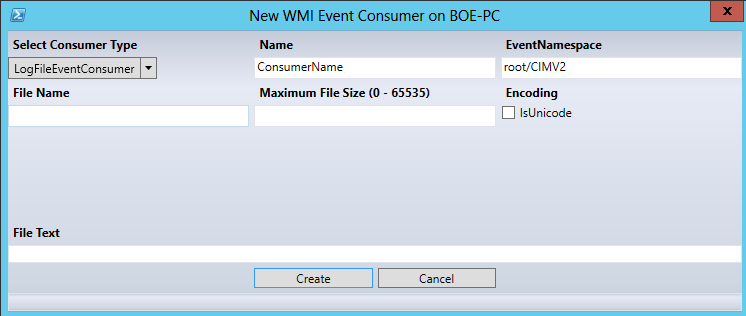
Next up is the Consumer creation. There are 5 possible consumers to choose from and you can have multiple consumers setup with a filter via the Binding, so use whatever you wish to accomplish your requirement.

Lets look at all of the possible Consumer choices. You can pick whichever consumer you prefer from the drop down menu in the upper left hand corner labeled Select Consumer Type.

image

ActiveScriptEventConsumer

image

CommandLineEventConsumer

image

LogFileEventConsumer

image

NTEventLogEventConsumer

image

SMTPEventConsumer

image

In this case I am going with an SMTP consumer.

image

Note that with the From field blank, it will default to WMI@<computername>.com for the address.

Once you have the picked out your consumer and entered the necessary information, click Create and you will be taken back to the main window with the new consumer listed.

image

You can event filter the Consumers based on the type using the drop-down menu.

image

Last on the list is to bind these together using the Binding.

image

Not really a lot to it. You pick the Filter and Consumer and click Create. This will create the binding and enable the WMI event subscription.

image

That is really all there is to it! The trick is really knowing the WQL query for the Filter and then determining what kind of consumer fits this best.

Almost forgot… You can even connect to remote systems to add and remove event subscriptions! Just click on the File menu and select Connect to Another Computer.

image

Enter a computername and click OK and away you go.

image

image

Please keep this mind that it is in Beta, so there will most likely be bugs crawling around. Just stop by the Issues page and let me know what they are and I will work to get rid of them. I do have plans for a Template feature which will have pre-determined Filters as well as the option to save custom filters as templates for use later. This may also move over to the Consumers as well at a later date.

Hope everyone enjoys this!

Posted in GUI, powershell, WPF | Tagged , , , , | 4 Comments