While working on a script for work, I ran into a situation where I needed to some filtering on a bunch of data and the thought struck me as to what was the quickest approach to performing a filter of data. We know that Where-Object is the official filtering cmdlet with PowerShell and that it gets the job done without much issue. With PowerShell V4, we also got the .Where() method which is built for Desired State Configuration, but has uses outside of that in terms of performance vs. using Where-Object, but at the expense of having all of the data stored in memory prior to performing the filter whereas Where-Object takes input from the pipeline and processes each item to see what matches the filter.
Edit: I should know better than to write late at night, but thanks to Dave for catching that I didn’t have my TestFunction configured to match our Filter. As mentioned, while the pipeline is an amazing piece of PowerShell, it can be expensive with performance.
Where Do We Begin?
I wanted to just do a simple filter just to see how the performance would be. So with that I will use $%2 which will evaluate each number ($) to $True on odd numbers and $False on even numbers. This will allow me to look to only filter only for odd numbers.
1..4|ForEach {
    If ($_%2){
        "{0}: Odd" -f $_
    }Else{
        "{0}: Even" -f $_
    }
}
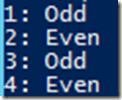
As I said, its very simple with no complexity at all, but it is all I need for testing.
Now that we have that taken care of, the next step is to look at as many possible ways to filter data that I can think of. Now this is an exhaustive list of filtering possibilities, but it has enough ways to show where performance is great down to where it is lacking as we deal with more data.
Next up is looking at those possible filtering techniques which will range from using a cmdlet to a method to some other techniques that you may not have seen before.
The eleven filtering methods that I will be testing are as follows:
- ForEach() {}
- | ForEach {}
- | Where-Object {}
- .Where({})
- PowerShell Filter (see below for source code)
- PowerShell Filter with Parameter (see below for source code)
- .{Process {}}
- Using [Predicate[Object]] (see below for source code)
- .ForEach({})
- PowerShell Function using parameter (see below for source code)
- PowerShell Function with Pipeline (see below for source code)
Source Code for Custom Methods
PowerShell Filter
Dating back to V1, this was the original way to send data via the pipeline to a custom command. It is still very much useful with V5 to provide a quick way to filter out data.
Filter TestFilter {
    If ($_%2){$_}
}
PowerShell Filter with Parameter
Because I wanted to include a parameter that lets you set a predicate vs. hard coding one.
Filter TestFilter_Predicate {
    Param ($Predicate)
    If (&$Predicate){$_}
}
Predicate Object
I use this with some of my UIs to quickly filter data; figured it would make for a good filter method here as well.
$t = [System.Windows.Data.CollectionViewSource]::GetDefaultView($List)
$t.Filter = [Predicate[Object]]{
    Try {
        $args[0] % 2
    } Catch {$True}
}
PowerShell Function
The PowerShell functions we know and love that supports the pipeline. I’ll test both the pipeline approach as well as using the –InputObject parameter.
Function TestFunction {
    [cmdletbinding()]
    Param(
        [parameter(ValueFromPipeline)]
        $InputObject
    )
    Process {
        If ($_%2){$_}
    }
}
Function TestFunction_param {
    [cmdletbinding()]
    Param(
        $InputObject
    )
    ForEach ($item in $InputObject){
        If ($item%2){$item}
    }
}
Of course, the data returned varies based on how many resources are being consumed on your computer.
Let’s see the data!
I am going to be posting the source code that I will be using to provide the results below so you can take it and use it for your own testing.
I am going to look at running the tests against the following collection of count of numbers: 10,100,1000,10000,100000 and pull only the odd numbers from that list. What we have below are the results of the tests with each count grouped together and sorted from fastest to slowest. The fastest has green font while the slowest one has red font.


Here we can see that the winners are split between using ForEach(){} and the TestFunction using a parameter while using Where-Object and a Function taking pipeline input (the updated function still wasn’t the fastest approach, but it is no longer in the top two slowest after taking out the unneeded pipeline within the function) turn out to be the slowest approaches (although applying a parameter to our Filter definitely slows it down as we start adding more data). The Filter performed admirably as well as using .{Process{}} to do the filtering. Some of these approaches, such as top two winners, require that you have enough memory to support keeping all of the data prior to performing the filter. If you want just a little bit slower performance (and I do mean a little), you can rely on the pipeline and save memory by using a Filter or looking at .{Process{}} instead.
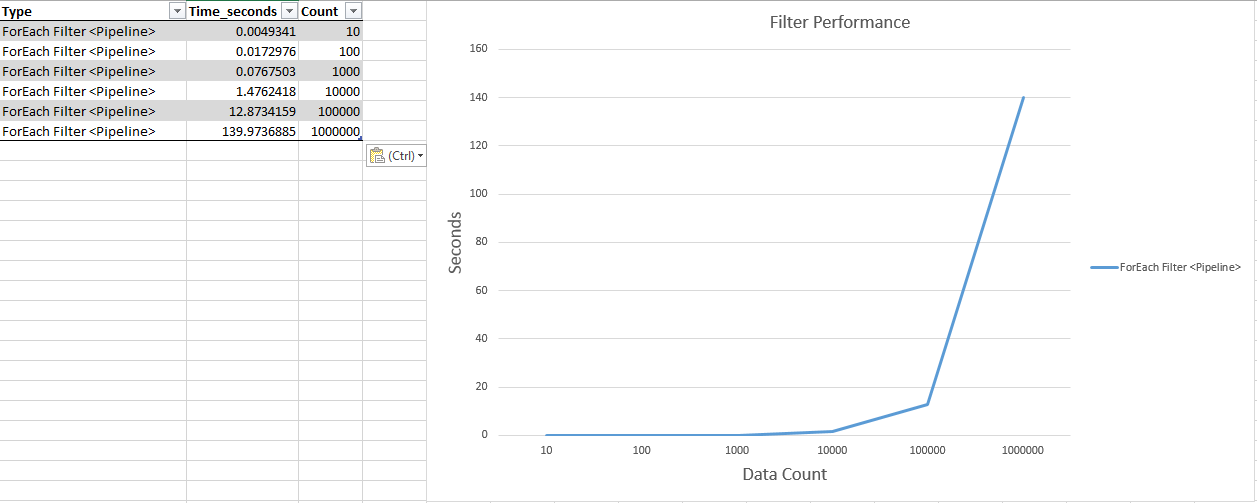
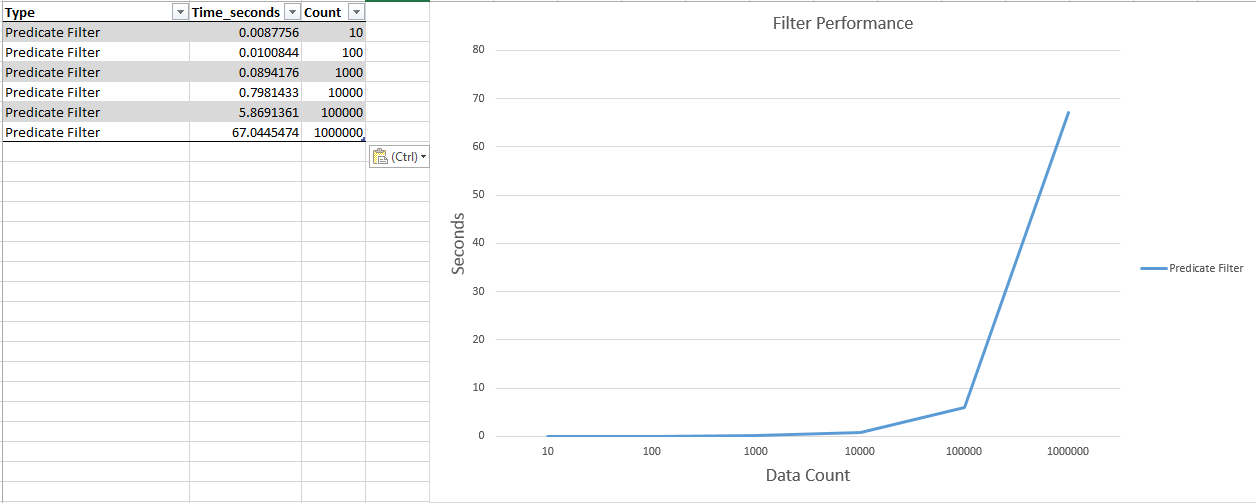
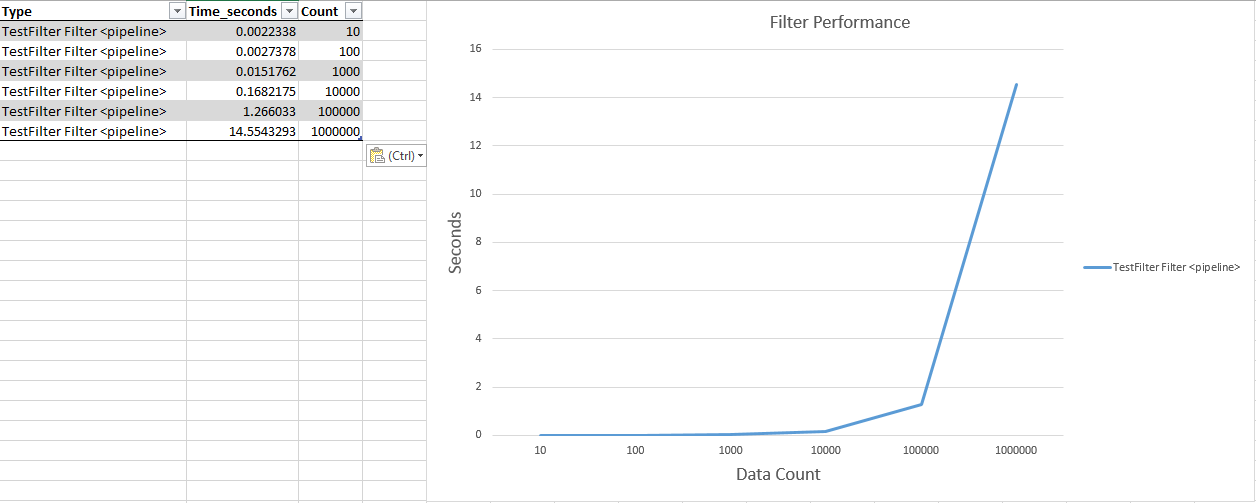
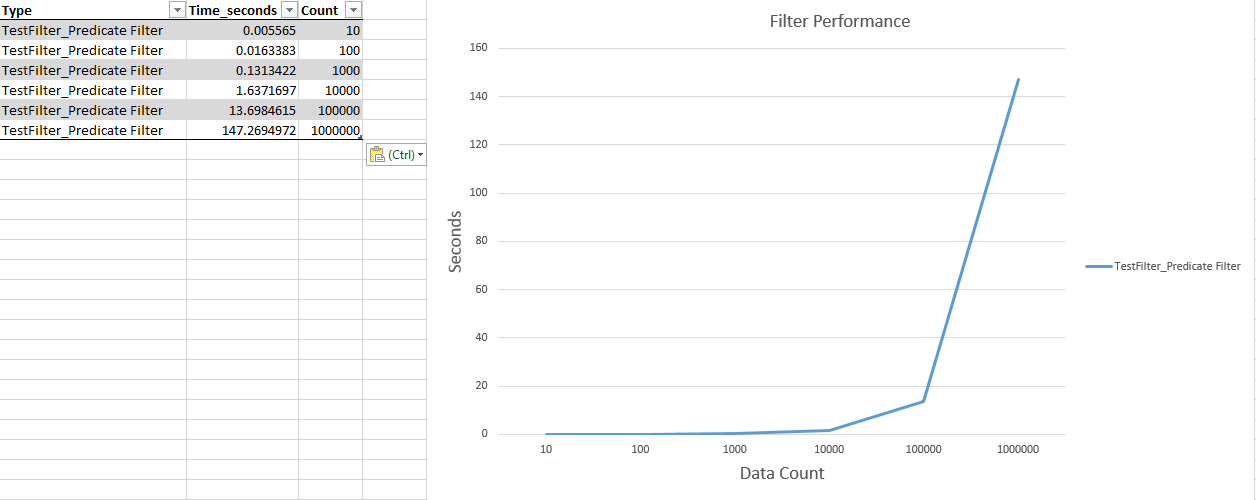
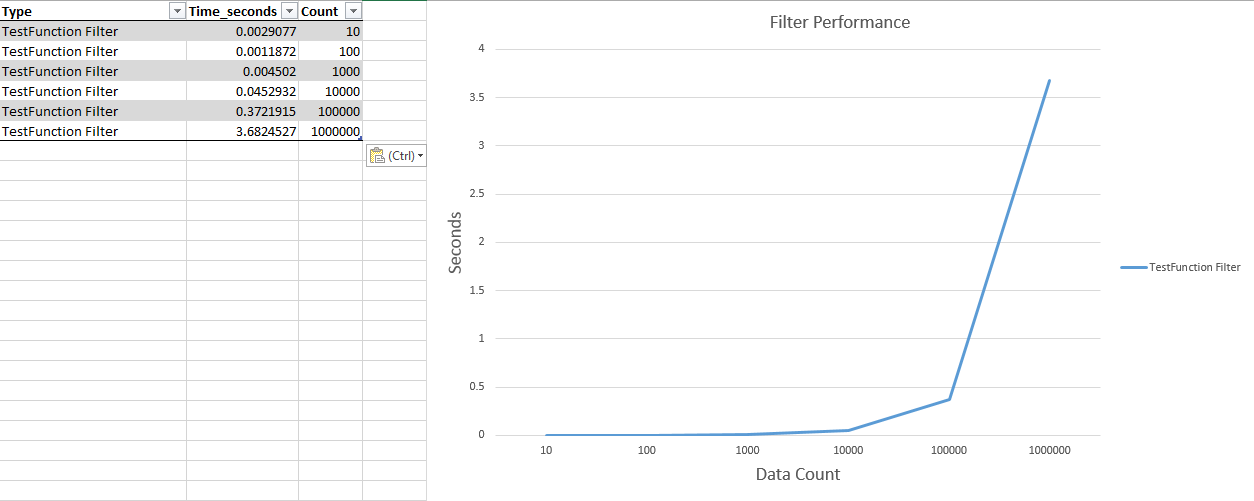
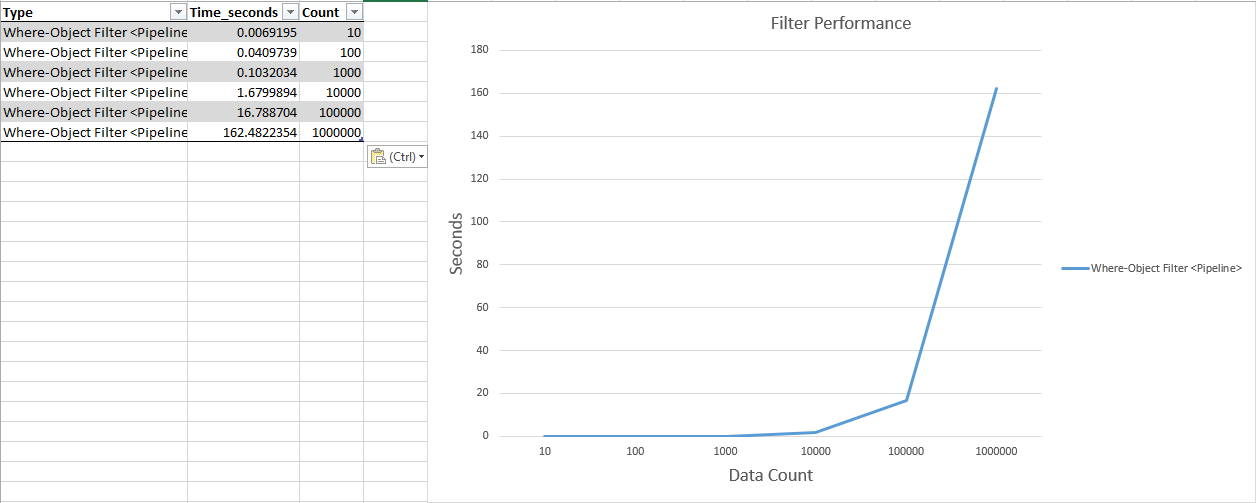
Of course, a graph can show just how these approaches scale out over the course of adding more data to each set.
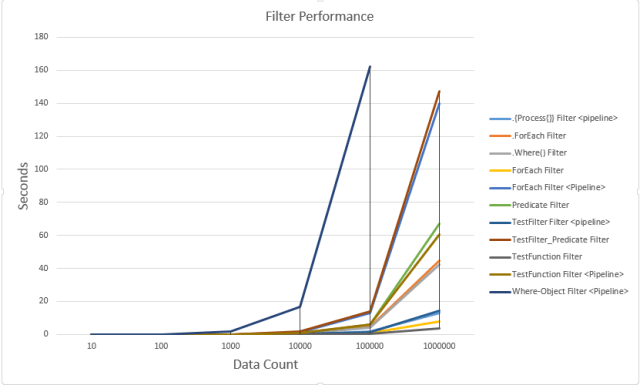
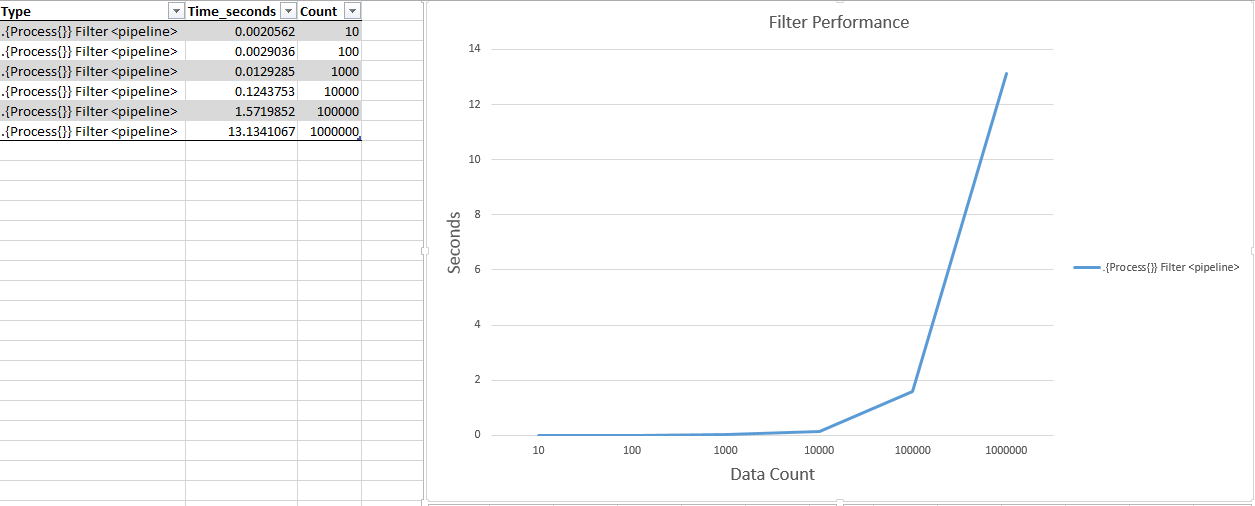
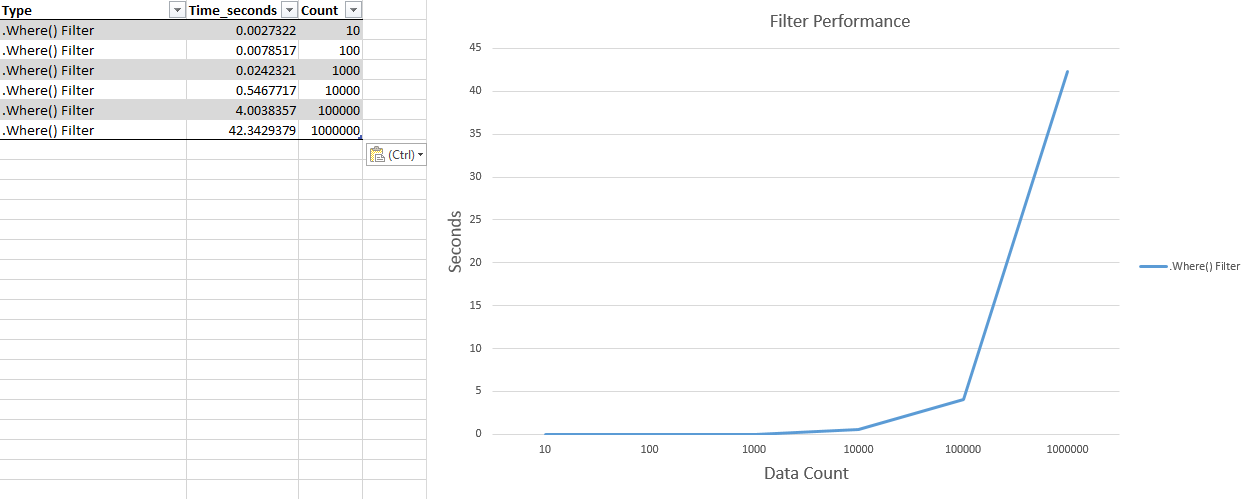
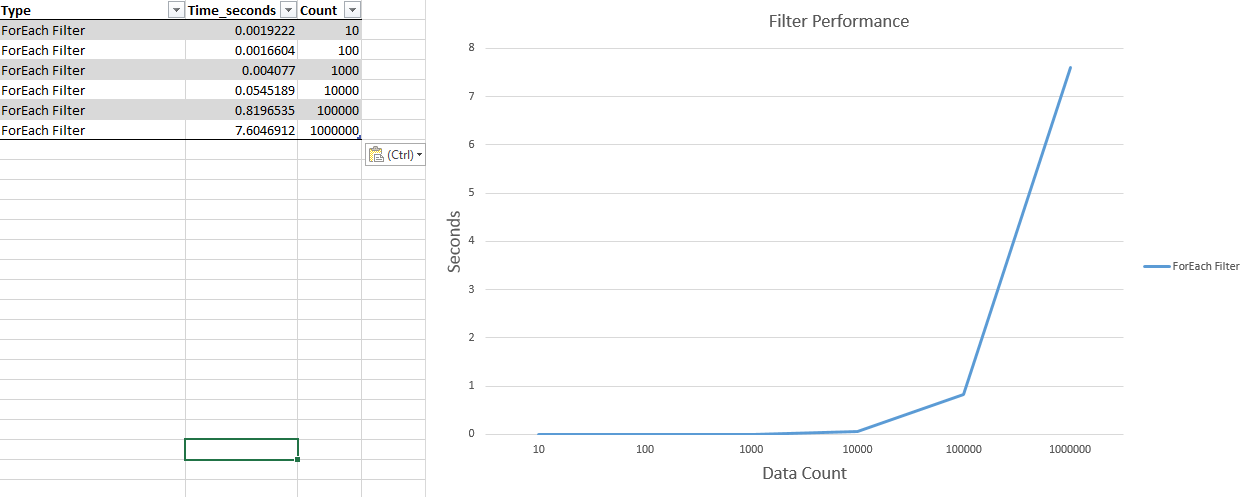
Now let’s break this out to see how each of these handles more data so you can get a better idea as to what is going on.


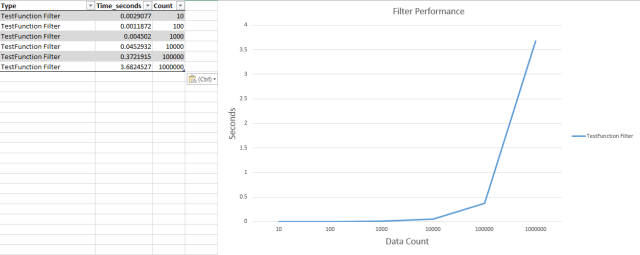
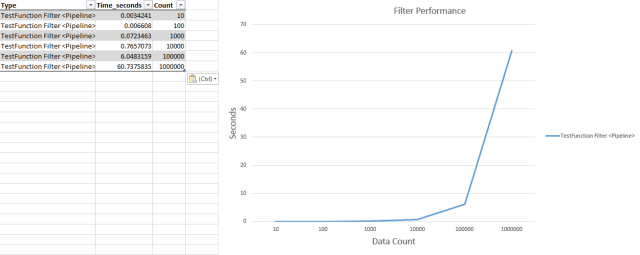
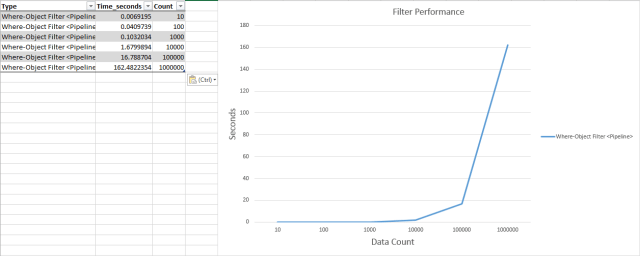
Only a few graphs, right?
In the end, what we have seen is that while Where-Object is the most well known filtering approach in PowerShell, if you are really looking to squeeze each and every possible millisecond from your commands, you might want to look at some alternative approaches to filtering your data, such as a Filter if you don’t want to exhaust memory. Some approaches like building out a predicate is probably just silly, but I wanted to use everything that I could think of in my tests, which also doesn’t really do anything all that complex at all.
Unless there is a pressing need to work with a ton of data, I will still rely mostly on Where-Object to accomplish what I need to do. Because it is simple and gets the job done without much thought involved (unless your filtering queries are complex, of course).
The source code for my testing is available below. Give it a shot and let me know how the results look for you. Speaking of which, if you think I missed something or have other recommendations, feel free to let me know or post up your results here!
Source Code
Filter TestFilter {
    If ($_%2){$_}
}
Function TestFunction {
    [cmdletbinding()]
    Param(
        [parameter(ValueFromPipeline)]
        $InputObject
    )
    Process {
        If ($_%2){$_}
    }
}
Function TestFunction_param {
    [cmdletbinding()]
    Param(
        $InputObject
    )
    ForEach ($item in $InputObject){
        If ($item%2){$item}
    }
}
Filter TestFilter_Predicate {
    Param ($Predicate)
    If (&$Predicate){$_}
}

[decimal[]]$Count = 1E1,1E2,1E3,1E4,1E5,1E6
$Data = ForEach ($Item in $Count) {
    $List = 1..$Item
    Write-Verbose "Testing for Count: $($Item)" -Verbose
    $Seconds = (Measure-Command {$List|Where{$_%2}}).TotalSeconds
    [pscustomobject]@{
        Type = 'Where-Object Filter <Pipeline>'
        IsPipeline = $True
        Time_seconds =$Seconds
        Count = $Item
    }
    $Seconds = (Measure-Command {$List.Where({$_%2})}).TotalSeconds
    [pscustomobject]@{
        Type = '.Where() Filter'
        IsPipeline = $False
        Time_seconds =$Seconds
        Count = $Item
    }

    $Seconds = (Measure-Command {$List|ForEach{If($_%2){$_}}}).TotalSeconds
    [pscustomobject]@{
        Type = 'ForEach Filter <Pipeline>'
        IsPipeline = $True
        Time_seconds =$Seconds
        Count = $Item
    }
    $Seconds = (Measure-Command {$List.ForEach({If($_%2){$_}})}).TotalSeconds
    [pscustomobject]@{
        Type = '.ForEach Filter'
        IsPipeline = $False
        Time_seconds =$Seconds
        Count = $Item
    }
    $Seconds = (Measure-Command {ForEach ($Item in $List){If($Item%2){$Item}}}).TotalSeconds
    [pscustomobject]@{
        Type = 'ForEach Filter'
        IsPipeline = $False
        Time_seconds =$Seconds
        Count = $Item
    }

    $Seconds = (Measure-Command {$list | .{process{If($_%2){$_}}}}).TotalSeconds
    [pscustomobject]@{
        Type = '.{Process{}} Filter <pipeline>'
        IsPipeline = $True
        Time_seconds =$Seconds
        Count = $Item
    }

    $Seconds = (Measure-Command {$List|TestFunction}).TotalSeconds
    [pscustomobject]@{
        Type = 'TestFunction Filter <Pipeline>'
        IsPipeline = $True
        Time_seconds =$Seconds
        Count = $Item
    }

    $Seconds = (Measure-Command {TestFunction_param $List}).TotalSeconds
    [pscustomobject]@{
        Type = 'TestFunction Filter'
        IsPipeline = $False
        Time_seconds =$Seconds
        Count = $Item
    }

    $Seconds = (Measure-Command {$List|TestFilter}).TotalSeconds
    [pscustomobject]@{
        Type = 'TestFilter Filter <pipeline>'
        IsPipeline = $True
        Time_seconds =$Seconds
        Count = $Item
    }
    $Seconds = (Measure-Command {$List|TestFilter_Predicate -Predicate {$_%2}}).TotalSeconds
    [pscustomobject]@{
        Type = 'TestFilter_Predicate Filter'
        IsPipeline = $False
        Time_seconds =$Seconds
        Count = $Item
    }
    $Seconds = (Measure-Command {
        $t = [System.Windows.Data.CollectionViewSource]::GetDefaultView($List)
        $t.Filter = [Predicate[Object]]{
            Try {
                $args[0] % 2
            } Catch {$True}
        }
    }).TotalSeconds
    [pscustomobject]@{
        Type = 'Predicate Filter'
        IsPipeline = $False
        Time_seconds =$Seconds
        Count = $Item
    }
}
#Send data to CSVs
Remove-Variable List,Count
$data|group count | ForEach {

    $temp = ((($_.Group|sort Time_Seconds |ft -auto|out-string) -split '\n')|?{$_ -match '\w|-'})
    For ($i=0;$i -lt $temp.count;$i++) {
        If ($i -eq 2) {
            Write-Host $temp[$i] -fore Green
        } ElseIf ($i -eq ($Temp.Count-1)) {
            Write-Host $temp[$i] -fore Red
        } Else {
            Write-Host $temp[$i]
        }
    }
    Write-Host "`n--------------------------------------------------------`n"
}









 Learn Powershell | Achieve More